WO2014103366A1 - 電子機器、表示方法、及び表示プログラム - Google Patents
電子機器、表示方法、及び表示プログラム Download PDFInfo
- Publication number
- WO2014103366A1 WO2014103366A1 PCT/JP2013/058384 JP2013058384W WO2014103366A1 WO 2014103366 A1 WO2014103366 A1 WO 2014103366A1 JP 2013058384 W JP2013058384 W JP 2013058384W WO 2014103366 A1 WO2014103366 A1 WO 2014103366A1
- Authority
- WO
- WIPO (PCT)
- Prior art keywords
- note
- screen
- icon
- page
- display
- Prior art date
- Legal status (The legal status is an assumption and is not a legal conclusion. Google has not performed a legal analysis and makes no representation as to the accuracy of the status listed.)
- Ceased
Links
Images









Classifications
-
- G—PHYSICS
- G06—COMPUTING OR CALCULATING; COUNTING
- G06F—ELECTRIC DIGITAL DATA PROCESSING
- G06F3/00—Input arrangements for transferring data to be processed into a form capable of being handled by the computer; Output arrangements for transferring data from processing unit to output unit, e.g. interface arrangements
- G06F3/01—Input arrangements or combined input and output arrangements for interaction between user and computer
- G06F3/048—Interaction techniques based on graphical user interfaces [GUI]
- G06F3/0481—Interaction techniques based on graphical user interfaces [GUI] based on specific properties of the displayed interaction object or a metaphor-based environment, e.g. interaction with desktop elements like windows or icons, or assisted by a cursor's changing behaviour or appearance
- G06F3/0482—Interaction with lists of selectable items, e.g. menus
-
- G—PHYSICS
- G06—COMPUTING OR CALCULATING; COUNTING
- G06F—ELECTRIC DIGITAL DATA PROCESSING
- G06F3/00—Input arrangements for transferring data to be processed into a form capable of being handled by the computer; Output arrangements for transferring data from processing unit to output unit, e.g. interface arrangements
- G06F3/01—Input arrangements or combined input and output arrangements for interaction between user and computer
- G06F3/048—Interaction techniques based on graphical user interfaces [GUI]
- G06F3/0481—Interaction techniques based on graphical user interfaces [GUI] based on specific properties of the displayed interaction object or a metaphor-based environment, e.g. interaction with desktop elements like windows or icons, or assisted by a cursor's changing behaviour or appearance
- G06F3/04817—Interaction techniques based on graphical user interfaces [GUI] based on specific properties of the displayed interaction object or a metaphor-based environment, e.g. interaction with desktop elements like windows or icons, or assisted by a cursor's changing behaviour or appearance using icons
-
- G—PHYSICS
- G06—COMPUTING OR CALCULATING; COUNTING
- G06F—ELECTRIC DIGITAL DATA PROCESSING
- G06F3/00—Input arrangements for transferring data to be processed into a form capable of being handled by the computer; Output arrangements for transferring data from processing unit to output unit, e.g. interface arrangements
- G06F3/01—Input arrangements or combined input and output arrangements for interaction between user and computer
- G06F3/048—Interaction techniques based on graphical user interfaces [GUI]
- G06F3/0481—Interaction techniques based on graphical user interfaces [GUI] based on specific properties of the displayed interaction object or a metaphor-based environment, e.g. interaction with desktop elements like windows or icons, or assisted by a cursor's changing behaviour or appearance
- G06F3/0483—Interaction with page-structured environments, e.g. book metaphor
-
- G—PHYSICS
- G06—COMPUTING OR CALCULATING; COUNTING
- G06F—ELECTRIC DIGITAL DATA PROCESSING
- G06F3/00—Input arrangements for transferring data to be processed into a form capable of being handled by the computer; Output arrangements for transferring data from processing unit to output unit, e.g. interface arrangements
- G06F3/01—Input arrangements or combined input and output arrangements for interaction between user and computer
- G06F3/048—Interaction techniques based on graphical user interfaces [GUI]
- G06F3/0484—Interaction techniques based on graphical user interfaces [GUI] for the control of specific functions or operations, e.g. selecting or manipulating an object, an image or a displayed text element, setting a parameter value or selecting a range
- G06F3/04842—Selection of displayed objects or displayed text elements
-
- G—PHYSICS
- G06—COMPUTING OR CALCULATING; COUNTING
- G06F—ELECTRIC DIGITAL DATA PROCESSING
- G06F3/00—Input arrangements for transferring data to be processed into a form capable of being handled by the computer; Output arrangements for transferring data from processing unit to output unit, e.g. interface arrangements
- G06F3/01—Input arrangements or combined input and output arrangements for interaction between user and computer
- G06F3/048—Interaction techniques based on graphical user interfaces [GUI]
- G06F3/0487—Interaction techniques based on graphical user interfaces [GUI] using specific features provided by the input device, e.g. functions controlled by the rotation of a mouse with dual sensing arrangements, or of the nature of the input device, e.g. tap gestures based on pressure sensed by a digitiser
- G06F3/0488—Interaction techniques based on graphical user interfaces [GUI] using specific features provided by the input device, e.g. functions controlled by the rotation of a mouse with dual sensing arrangements, or of the nature of the input device, e.g. tap gestures based on pressure sensed by a digitiser using a touch-screen or digitiser, e.g. input of commands through traced gestures
-
- G—PHYSICS
- G06—COMPUTING OR CALCULATING; COUNTING
- G06F—ELECTRIC DIGITAL DATA PROCESSING
- G06F2203/00—Indexing scheme relating to G06F3/00 - G06F3/048
- G06F2203/048—Indexing scheme relating to G06F3/048
- G06F2203/04806—Zoom, i.e. interaction techniques or interactors for controlling the zooming operation
Definitions
- the embodiment of the present invention relates to display of a screen for a user interface.
- the user can instruct the portable electronic device to execute the function associated with the menu or object by touching the menu or object displayed on the touch screen display with a pen or a finger. Further, the user can input stroke data such as handwritten characters and figures by handwriting characters and figures using a pen on the touch screen display.
- Electronic devices that can be touch-operated using a pen, finger, etc. have a user interface that can intuitively use functions provided not only for data entry and editing but also for data management. It has been demanded.
- An object of one embodiment of the present invention is to provide an electronic device that displays an intuitively usable user interface, a display method, and a display program.
- the electronic device includes display control means and selection means.
- the display control means displays at least one note icon corresponding to a note file including a plurality of pages on the screen.
- the selection means selects a first note icon displayed on the screen.
- the display control means changes the display form of the note icon from a form in which at least one note icon can be selected to a form in which the page of the first note file corresponding to the first note icon can be operated.
- a transition image including an enlarged image of the first note icon and an enlarged image of an area other than the first note icon is displayed.
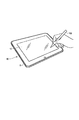
- FIG. 1 is a perspective view illustrating an appearance of an electronic apparatus according to an embodiment.
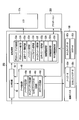
- FIG. 2 is a diagram illustrating a system configuration of the tablet computer according to the embodiment.
- FIG. 3 is a diagram illustrating a functional configuration realized by the handwriting input program of the embodiment.
- FIG. 4 is a diagram illustrating a display example of an initial state of the desktop / drawer screen according to the embodiment.
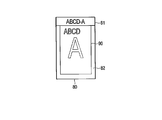
- FIG. 5 is a diagram for explaining a display form of the note icon displayed on the desktop / drawer screen of the embodiment.
- FIG. 6 is a diagram for explaining a display form of a note icon displayed on the desktop / drawer screen of the embodiment.
- FIG. 7 is a diagram illustrating an example of the desktop / drawer screen according to the embodiment.
- FIG. 1 is a perspective view illustrating an appearance of an electronic apparatus according to an embodiment.
- FIG. 2 is a diagram illustrating a system configuration of the tablet computer according to the embodiment.
- FIG. 3 is a diagram illustrating a functional configuration realized by
- FIG. 8 is a diagram illustrating an example of the desktop / drawer screen according to the embodiment.
- FIG. 9 is a diagram illustrating an example of the desktop / drawer screen according to the embodiment.
- FIG. 10 is a flowchart illustrating a display process corresponding to an input operation on the desktop / drawer screen according to the embodiment.
- FIG. 11 is a diagram illustrating a display example of the note icon list screen according to the embodiment.
- FIG. 12 is a diagram illustrating an example of a simple page list display screen according to the embodiment.
- FIG. 13 is a diagram illustrating an example of a screen on which the note icon of the embodiment is dragged.
- FIG. 14 is a diagram illustrating an example of a desktop / drawer screen displayed in response to dragging of the note icon according to the embodiment.
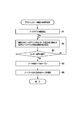
- FIG. 15 is a flowchart illustrating a transition display from the desktop / drawer screen to the desktop note screen according to the embodiment.
- FIG. 16 is a diagram illustrating an example of a transition image when shifting from the desktop / drawer screen to the desktop note screen according to the embodiment.
- FIG. 17 is a diagram illustrating an example of a transition image when shifting from the desktop / drawer screen to the desktop note screen according to the embodiment.
- FIG. 18 is a flowchart illustrating display processing according to an input operation on the desktop note screen of the embodiment.
- FIG. 19 is a diagram illustrating a display example of the desktop note screen of the embodiment.
- FIG. 20 is a diagram illustrating an example of a page list screen according to the embodiment.
- FIG. 21 is a diagram illustrating an example of a page information display screen according to the embodiment.
- FIG. 22 is a diagram illustrating an example of a page operation according to the embodiment.
- FIG. 23 is a diagram illustrating an example of a note view screen according to the embodiment.
- FIG. 24 is a diagram illustrating an example of a page view screen in the menu display mode according to the embodiment.
- FIG. 25 is a diagram illustrating an example of a timeline note screen according to the embodiment.
- FIG. 26 is a diagram illustrating an example of the scrap note screen of the embodiment.
- FIG. 27 is a diagram illustrating an example of a submenu display screen according to the embodiment.
- FIG. 1 is a perspective view illustrating an appearance of an electronic apparatus according to an embodiment.
- the electronic device is a portable electronic device capable of inputting handwritten characters with a pen or a finger, for example.
- the electronic device can be realized as a tablet computer, a notebook personal computer, a smartphone, a PDA, or the like.
- the electronic device is realized as the tablet computer 10.
- the tablet computer 10 is a portable electronic device also called a tablet or a slate computer, and includes a main body 11 and a touch screen display 17 as shown in FIG.
- the touch screen display 17 is attached to be superposed on the upper surface of the main body 11.
- the main body 11 has a thin box-shaped housing.
- the touch screen display 17 incorporates a flat panel display and a sensor (position detection device) configured to detect a specified position by a pen or a finger on the screen of the flat panel display.
- the flat panel display may be, for example, a liquid crystal display (LCD).
- the touch screen display 17 can detect not only a touch operation on the screen using a finger but also a touch operation on the screen using the pen 100.
- the pen 100 may be an electromagnetic induction pen, for example.
- the user can perform a handwriting input operation on the touch screen display 17 using an external object (the pen 100 or a finger).
- an external object the pen 100 or a finger.
- a handwriting input operation is performed on the touch screen display 17
- a movement trajectory of the external object (the pen 100 or the finger) on the screen that is, a stroke trajectory (handwriting) handwritten by the handwriting input operation is displayed in real time. .
- a handwritten document is usually composed of a set of many strokes corresponding to handwritten characters or figures, that is, a set of many trajectories (handwriting).
- the tablet computer 10 uses stroke data input by handwriting, not image data, but coordinate data series indicating the trajectory of each stroke and time-series information indicating the order relationship between the strokes (stroke information). ).
- the time series information means a set (stroke data series) of time series coordinate data (coordinate data series) corresponding to each of a plurality of strokes.
- the order relationship between strokes indicates the order in which strokes are handwritten, that is, the stroke order.
- the tablet computer 10 reads any existing time-series information from the storage medium, and displays a handwritten document corresponding to the time-series information, that is, a trajectory corresponding to each of a plurality of strokes indicated by the time-series information on the screen. Can do.
- time series information is managed in units of pages.
- the tablet computer 10 performs data management using a note file including page data for at least one page.
- the page data can include not only time series information (stroke data series) but also image data and text data.
- the tablet computer 10 can manage time-series information (stroke data series) in association with other data.
- the other data includes, for example, date / time data indicating date / time, images, text data, tag data, and the like.
- FIG. 2 is a diagram illustrating a system configuration of the tablet computer 10 according to the embodiment.
- the tablet computer 10 includes a CPU 101, a system controller 102, a main memory 103, a graphics controller 104, a BIOS-ROM 105, a recording device 106, a wireless communication device 107, an embedded controller (EC) 108, and the like.
- the CPU 101 is a processor that controls the operation of various modules in the tablet computer 10.
- the CPU 101 executes various programs loaded from the recording device 106 to the main memory 103.
- Programs executed by the CPU 101 include an operating system (OS) 201 and various application programs.
- the application programs include a handwriting input program 202 and other application programs 203.
- Other application programs 203 include, for example, a handwritten character recognition program, a browser program, an image editing program, a document creation program, and the like.
- the CPU 101 executes a handwriting input program 202 to generate notebook data (page data (time-series information)) according to a handwriting input operation using the pen 100, and a page for editing a page included in a notebook file
- notebook data page data (time-series information)
- various functions related to creation and editing of note files (or pages) are realized.
- the CPU 101 also executes a basic input / output system (BIOS) stored in the BIOS-ROM 105.
- BIOS is a program for hardware control.
- the system controller 102 is a device that connects between the local bus of the CPU 101 and various components.
- the system controller 102 also includes a memory controller that controls access to the main memory 103.
- the system controller 102 also has a function of executing communication with the graphics controller 104 via a serial bus or the like.
- the graphics controller 104 is a display controller that controls the LCD 17 ⁇ / b> A used as a display monitor of the tablet computer 10.
- a display signal generated by the graphics controller 104 is sent to the LCD 17A.
- the LCD 17A displays a screen image based on the display signal.
- On the LCD 17A a touch panel 17B and a digitizer 17C are arranged as position detection devices.
- the touch panel 17B is a capacitance-type pointing device for inputting on the screen of the LCD 17A.
- the touch position on the screen where the finger is touched and the movement of the touch position are detected by the touch panel 17B.
- the digitizer 17C is an electromagnetic induction type pointing device for inputting on the screen of the LCD 17A.
- the digitizer 17C detects the contact position on the screen where the pen 100 is touched, the movement of the contact position, and the like.
- the wireless communication device 107 is a device configured to perform wireless communication such as wireless LAN or 3G mobile communication.
- EC108 is a one-chip microcomputer including an embedded controller for power management.
- the EC 108 has a function of turning on or off the tablet computer 10 in accordance with the operation of the power button by the user.
- the CPU 101 implements the functions of the input determination unit 30, the data generation unit 40, the display processing unit 50, and the like by executing the handwriting input program 202.
- the input determination unit 30 inputs data indicating the contact position on the screen detected by the touch screen display 17 and the movement of the contact position in response to an input operation using the pen 100 or a finger. Based on the user interface screen displayed on the LCD 17 ⁇ / b> A by the display processing unit 50, the input determination unit 30 receives data for generating note data (page data) or the like by the data generation unit 40, or the display processing unit 50. It is determined whether data indicating an operation (such as a gesture operation) on the user interface screen displayed is input.
- an operation such as a gesture operation
- the data generation unit 40 generates various data based on the stroke data input through the user interface screen for various functions displayed on the LCD 17A by the display processing unit 50.
- the data generation unit 40 includes a note data generation unit 40a, a timeline data generation unit 40b, a scrap note data generation unit 40c, and a tag data generation unit 40d.
- the note data generation unit 40a generates page data in units of pages included in a note file based on stroke data input through a screen (note view screen) displayed by a note view display unit 50d (described later). .
- the note data generation unit 40a records a plurality of note files on the recording device 106 as note data 60a. Also, the note data generation unit 40a associates various information about pages, such as creation date / time, update date / time, access date / time, tag presence / absence (type), file lock, template type, paper setting, etc., with each page. And recorded as note data 60a.
- the timeline data generation unit 40b associates page data and date / time data based on stroke data input through a screen (timeline note screen) displayed by a timeline note display unit 50f (described later).
- Timeline data 60 b is generated and recorded in the recording device 106.
- the scrap note data generation unit 40c is displayed by a scrap note display unit 50g (described later) in cooperation with an application program 203 (for example, a browser program, an image editing program, a document creation program, etc.) different from the handwriting input program 202.
- an application program 203 for example, a browser program, an image editing program, a document creation program, etc.
- scrap note data 60c for recording an image of the entire screen specified by the user or a part of the screen is generated from the screen displayed by the application program 203 and recorded in the recording device 106.
- the scrap note data 60c is used to display a scrap note screen by the scrap note display unit 50g, and can be imported into page data through the scrap note screen.
- the tag data generation unit 40d generates tag data 60d based on the stroke data input through the tag processing screen display unit 50n (described later), and records it in the recording device 106.
- the display processing unit 50 displays a user interface screen corresponding to various functions on the LCD 17A.
- the display processing unit 50 performs a display process according to an operation on the user interface screen, for example, an operation for selecting an object (note icon, page, button icon, gadget icon, etc.) or a page editing operation.
- the display processing unit 50 includes a desktop / drawer display unit 50a, a desktop note display unit 50b, a simple page list display unit 50c, a note view display unit 50d, a note property display unit 50e, a timeline note display unit 50f, and a scrap note display unit 50g. , A search screen display unit 50h, a reference screen display unit 50m, and a tag processing screen display unit 50n.
- the desktop / drawer display unit 50 a displays a desktop / drawer screen that is a basic screen by the handwriting input program 202.
- the desktop / drawer display unit 50a displays on the screen at least one note icon corresponding to a note file including a plurality of pages on the desktop / drawer screen.
- the desktop / drawer display unit 50a displays, on the desktop / drawer screen, a storage area for displaying a note icon representing a created note file and a note icon representing a working note file moved from the storage area.
- Temporary areas are provided, and a note icon is displayed on each of them (details will be described later).
- a plurality of note icons can be displayed in the storage area and the temporary area, respectively.
- the desktop / drawer display unit 50a selects the note icon according to the input operation and corresponds to the note icon.
- the transition image for shifting the page of the note file to be operated to the operable form is displayed.
- the transition image includes an enlarged image of the note icon and an enlarged image of an area other than the note icon (around the note icon).
- the desktop / drawer display unit 50a can expand the display range of the storage area and switch to the grid display in which the note icons are arranged in a grid.
- the desktop note display unit 50b displays a desktop note screen for page editing for the note file corresponding to the note icon selected on the desktop / drawer screen.
- the page editing includes, for example, display switching (page advance, page return), page insertion (addition), page copy / paste, and the like to a page to be browsed.
- the desktop note display unit 50b displays a plurality of function icons and a plurality of button icons for shifting to other functions on the desktop note screen.
- the function icons include, for example, a pen icon for shifting to the note data generation function, a calendar icon for shifting to the timeline note function, a scrap note icon for shifting to the scrap note function, and a tag for shifting to the tag function Includes icons.
- the simple page list display unit 50c displays a page included in the note file corresponding to the designated note icon. Display the simple page list screen to display the list.
- the note view display unit 50d displays a note view screen for editing page data included in the note file when the note data generation function is executed.
- the note view display unit 50d displays the note view screen in response to, for example, page selection from the simple page list screen, page selection on the desktop note screen, or selection of a function icon (pen icon) or button icon.
- a function icon pen icon
- button icon selection of a function icon (pen icon) or button icon.
- image data and text data created by other application programs, and scrap notes created by the scrap note function are selected for each page. Input the data etc.
- the note view display unit 50d provides various tools for inputting stroke data on the note view screen.
- a setting tool is provided for setting the thickness and color of a stroke (trajectory) to be displayed in response to an input operation using the pen 100, the thickness of an eraser for deleting the displayed stroke (trajectory), and the like.
- the note property display unit 50e displays a note property screen that displays the properties of the note file that is the target of page editing, for example, when the property display of the note file is instructed by selecting a button icon on the desktop note screen. .
- the timeline note display unit 50f When the function icon (calendar icon) is selected on the desktop note screen, the timeline note display unit 50f generates timeline data for associating date and time data and page data with the timeline data function. Display the line data screen.
- the scrap note display unit 50g displays a screen that captures an image displayed by the application program 203 (capture mode), and adds it to the scrap note data 60c.
- a screen for selecting (clip) some images according to a user operation is displayed.
- a handwritten character or the like can be added to the image to be added to the scrap note data 60 c by a handwriting input operation using the pen 100.
- the scrap note display unit 50g displays the scrap note screen based on the scrap note data 60c when a function icon (scrap note icon) is selected on the desktop note screen.
- the scrap note display unit 50g can display a list of images included in the scrap note data 60c and paste an image selected from the list onto a page.
- the search screen display unit 50h displays a search screen for searching for note files or pages using the search function.
- a stroke sequence as a search key can be input by handwriting using the pen 100.
- the reference screen display unit 50m displays a page searched based on the search key (stroke sequence) by the search function.
- the reference screen display unit 50m can display, for example, a page group including a stroke sequence corresponding to the search key as a thumbnail list, and can display an enlarged page specified from the thumbnail list.
- the reference screen display unit 50m displays the stroke series portion corresponding to the search key in a different form from the other portions such as highlight display on the thumbnail or page display screen.
- the reference screen display unit 50m displays the attribute data (for example, creation date, update date, similarity to the search key, last viewed date, display count, etc.) specified by the user in the note icon or page list display.
- the notebook icons or pages can be sorted and displayed in a list (sort function).
- the reference screen display unit 50m can specify and display only the note icon or page corresponding to the condition specified by the user in the list display of the note icon or page (filter function).
- filter function for example, when the user specifies attribute data (for example, the type of tag added to a page), only the note icon or page corresponding to the attribute data is extracted from the note data 60a and displayed.
- the tag processing screen display unit 50n displays a screen for adding a tag to the page to be edited. For example, the tag processing screen display unit 50n adds an image representing a tag (for example, a rectangular image having a color different from that of the page display) to a predetermined position of the page displayed on the desktop note screen.
- the tag processing screen display unit 50n displays a tag menu for displaying a list of a plurality of different types of tags when a tag icon button in the menu is selected. In the tag menu, for example, a plurality of tags with different display colors are displayed.
- the tag processing screen display unit 50n displays a screen for returning the tag to the menu in accordance with an operation of adding the tag selected from the tag menu to the page and removing the tag added to the page. Further, the tag processing screen display unit 50n displays a stroke (handwriting) on the tag according to a stroke series representing a character or the like input by handwriting on the tag in the menu.
- FIG. 4 is a diagram illustrating a display example of an initial state where a note file is not created on the desktop / drawer screen of the embodiment.
- the desktop / drawer screen is provided with a storage area 71 for displaying a note icon representing a created note file and a temporary area 70 for displaying a note icon representing a working note file.
- the desktop / drawer display unit 50a also displays a plurality of button icons 72a, 72b, 72c, 72d, 72e (context buttons) corresponding to the desktop / drawer screen at the bottom of the desktop / drawer screen.
- button icons 72a, 72b, 72c, 72d, 72e context buttons
- a note icon of a note file including a page generated by the note data generation function is displayed.
- note icon areas 781, 782, 783, and 784 for displaying four note icons are provided in the storage area 71.
- the temporary area 70 can display four or more note icons by expanding the display range by a predetermined operation.
- the temporary area 70 is provided with a first area 751, a second area 752, a third area 753, a fourth area 754, and a fifth area 755 for displaying five note icons.
- a first area 751 arranged in the center represents a position that is determined in advance as a note file editing place.
- the first area 751 is a destination of the note icon to be edited selected from the storage area 71 or the temporary area 70.
- the note icon moved to the first area 751 is transferred to a form in which the page of the note file can be operated.
- the note icon designated from the storage area 71 can be moved to the other four second area 752 to fifth area 755.
- the note icons are displayed in a grid (here, in the horizontal direction) in alignment with the forward direction of the display screen, whereas in the temporary area 70, the four second areas 752 to the fifth area are displayed.
- the note icon is displayed in a state where 755 is tilted with respect to the positive direction of the display screen. That is, in the temporary area 70, the note icons are arranged to give a messy impression so that the user can intuitively recognize that the work is in progress.
- a plurality of function icons for example, a pen icon 771, a calendar icon 772, a scrap note icon 773, and a tag icon 774 are displayed around the first area 751 of the temporary area 70.
- the pen icon 771 is used to instruct a transition to the note data generation function, and is displayed in a pen shape so that it can be intuitively recognized that handwriting input is performed using the note data generation function.
- the calendar icon 772 is for instructing the shift to the timeline note function, and characters representing year, month, and day of the week are displayed in the icon.
- the scrap note icon 773 is used to instruct the transition to the scrap note function, and images and the like added to the scrap note data 60c by the scrap note function are displayed as thumbnails.
- the tag icon 774 is for instructing the execution of the tag function, and is displayed in a rectangle so as to represent the tag. In the example shown in FIG. 4, the tag icon 774 includes two different color tags.
- the function icons arranged around the first area 751 cannot be used on the desktop / drawer screen.
- the range including the first area 751 and the function icons arranged around the first area 751 in the desktop / drawer screen is enlarged and displayed as the desktop note screen.
- the function icon can be used in an enlarged state on the desktop note screen.
- FIG. 5 and 6 are diagrams for explaining the display form of the note icon displayed on the desktop / drawer screen.
- a notebook icon is used in which a state in which a document (page) is bound to a real notebook (clear file) is graphically represented.
- FIG. 5 shows a state where the notebook 80 is opened and the page 90 to be bound is exposed.
- FIG. 6 shows a state in which the front sheet 82 of the notebook 80 is closed.
- FIG. 6 shows that the description content of the bound first page (handwritten input handwriting, etc.) can be seen through because the front sheet 82 of the notebook 80 is transparent.
- Identification information (document name or the like) for identifying a document (page) bound to the notebook 80 is written on the upper surface 81 of the front sheet 82.
- the user can easily identify the contents of the note file corresponding to the note icon. Further, by allowing the user to input identification information by handwriting input for the note icon, the note icon is identified in the same manner as the identification information described on the top surface 81 of the front sheet 82 shown in FIG. Information can be displayed. Thereby, not only the contents of the page but also the contents of the note file corresponding to the note icon can be identified by the identification information. In the drawings shown below, the identification information in the note icon is omitted.
- FIG. 7 shows an example of a desktop / drawer screen in which a plurality of note icons are arranged in the temporary area 70 and the storage area 71.
- the desktop / drawer display unit 50a displays a note icon in the storage area 71 based on the note data 60a.
- the desktop / drawer display unit 50a displays four note icons 80A to 80D in the storage area 71.
- the desktop / drawer display unit 50 a displays a note icon 801 in the first area 751, a note icon 802 in the second area 752, and a note icon 805 in the fifth area 755 of the temporary area 70.
- the display position of the note icon can be moved by a touch operation with the pen 100 or a finger.
- the desktop / drawer display unit 50a makes the note icon ready for a drag operation.
- the note icon 80A displayed in the storage area 71 shown in FIG. 7 is long pressed and dragged to the fourth area 754 of the temporary area 70 and then dropped (touch end)
- the desktop / drawer display unit 50a Displays a note icon 80 ⁇ / b> A in the fourth area 754 of the temporary area 70.
- the desktop / drawer display unit 50a places the note icon 802 in the position of the third area 753. Move.
- the note icon 80D is dragged to the fifth area 755 where the note icon 80D is already displayed
- the desktop / drawer display unit 50a displays the note icon 80D in the fifth area 755 as shown in FIG.
- the note icon 805 displayed in the fifth area 755 is displayed in the note icon area 784. That is, the desktop / drawer display unit 50a swaps the display positions of the note icon 805 and the note icon 80D.
- an arbitrary note icon can be placed in the temporary area 70 from the storage area 71 by a drag operation, and a note icon can be placed in an arbitrary position in the temporary area 70.
- a frequently used note icon (note file) can be arranged at a position where the operation is easy, and the note icon can be arranged according to the user's preference.
- FIG. 9 shows an example in which note icons 801, 802, 803, 804, and 805 are arranged in five areas 751, 752, 753, 754, and 755 of the temporary area 70, respectively.
- the desktop / drawer display unit 50a displays, for example, four note icons 80A, 80B, 80C, and 80D in the storage area 71 in the order of date and time displayed in the temporary area 70, for example. It should be noted that the date and time targeted for page editing may be in the new order. Alternatively, the pages may be arranged in descending order of page editing.
- the user can instruct a transition to another function, a screen switch, or the like by performing a gesture operation using the pen 100 or a finger.
- a gesture operation include a tap operation, a pinch out / pinch in operation, a swipe operation, a flick operation, and a drag operation.
- the input determination unit 30 causes the display processing unit 50 to execute a display process corresponding to the input operation.
- the desktop / drawer display unit 50a displays a note icon list screen (drawer screen) that expands the display range of the storage area 71 and displays a list of note icons (step A7).
- FIG. 11 shows a display example of the note icon list screen (drawer screen).
- the temporary area 70a is reduced and the storage area 71a is extended.
- note icons are arranged and displayed in a grid.
- the desktop / drawer display unit 50a displays a plurality of button icons 72d, 72f, 72g, 72h (context buttons) corresponding to the note icon list screen (drawer screen).
- the desktop / drawer display unit 50a reduces the storage area 71a and expands the temporary area 70a.
- the display is returned to the original desktop / drawer screen shown in FIG.
- the desktop / drawer display unit 50a scrolls the drawer screen in the vertical direction to display other note icons that cannot be displayed in one screen.
- the desktop / drawer display unit 50a displays other note icons by scrolling the screen in the storage area 71 when, for example, a swipe operation or a flick operation is performed in the storage area 71 shown in FIG. Change to
- the desktop / drawer display unit 50a uses the simple page list display unit 50c to display the simple page list. Display processing is executed.
- the simple page list display unit 50c displays a screen (simple page list display screen) in which pages included in the note file corresponding to the note icon designated from the note icon list screen are expanded (step A9).
- FIG. 12 is a diagram showing an example of a simple page list display screen.
- the first page of the note file (the outer shape of the page is rectangular) is displayed in the center.
- the respective pages are displayed in a shifted arrangement so as not to partially overlap each other.
- the simple page list display screen can execute a simple page editing function.
- the simple page list display unit 50c displays a plurality of button icons related to page editing on the simple page list display screen.
- the simple page editing function for example, page display switching (page advance and page return) according to an operation on the displayed page (see FIG. 22), page deletion according to the operation of the button icon, and display of page information , Transition to the note view screen (note data generation function), page insertion (addition), page copy / paste, and the like can be executed.
- step A10 When the page displayed by the display switching is tapped (step A10, Yes), the simple page list display unit 50c shifts to a note view screen (note data generation function) that allows handwritten input to a note. . Details of the note view screen (note data generation function) will be described later (step A11).
- step A12 When tapped in a range other than the page of the simple page list display screen (step A12, Yes), the simple page list display unit 50c shifts to the note icon list screen (drawer screen) by the desktop / drawer display unit 50a. (Step A7).
- the note icon can be dragged and moved to the temporary area 70.
- the desktop / drawer display unit 50a changes the display position of the note icon according to the drag operation so that the note icon can be dragged. A13, A14).
- FIG. 13 shows an example of a screen on which the note icon 80J displayed in the storage area 71a is being dragged.
- the note icon 80J is dragged to the temporary area 70a (step A15, Yes)
- the desktop / drawer display unit 50a switches the display to the desktop / drawer screen while keeping the display position of the note icon 80J (step A16). .
- FIG. 14 is a diagram illustrating an example of the desktop / drawer screen displayed in response to the drag of the note icon 80J.
- the desktop / drawer display unit 50a displays the note icon 80J in the dragged area.
- Step A18 When dragged to any of the note icon areas 781 to 784 of the storage area 71, the desktop / drawer display unit 50a displays the note icon 80J in any of the dragged icon areas.
- the desktop / drawer display unit 50a displays button icons 72a, 72b, 72c, 72d, 72e on the desktop / drawer screen as shown in FIGS. 4 and 9, and a notebook icon list as shown in FIG. Button icons 72d, 72f, 72g, and 72h are displayed on the screen (drawer screen).
- the desktop / drawer display unit 50a is selected when there is an operation for selecting the button icons 72a, 72b, 72c, 72d, 72e, 72f, 72g, 72h, for example, an operation for tapping the button icon (step A19, Yes).
- the process is executed in accordance with the button icon (step A20).
- the button icon 72a is transferred to the desktop note screen
- the button icon 72b is transferred to the note icon list screen (drawer screen)
- the button icon 72c is added to the storage area 71
- the button icon Reference numeral 72d denotes a note file (page) search function
- a button icon 72e is a button icon used to instruct a transition to a setting screen for setting various functions of the handwriting input program 202.
- the button icon 72f is a transition to the desktop / drawer screen
- the button icon 72g is a sort function for sorting the note icons displayed in the storage areas 71a and 71
- the button icon 72h is in the storage areas 71a and 71. This is used to instruct the execution of a filter function that specifies only the note icons corresponding to the conditions for the displayed note icons.
- the desktop / drawer display unit 50a may display button icons corresponding to functions other than those described above. If not all button icons can be displayed in one screen, the button icon display may be scrolled to change the type of button icon.
- step A2 the desktop / drawer display unit 50a performs page editing on the note file corresponding to the selected note icon. To the desktop note screen to do.
- step A3 When a note icon other than the note icon 801 in the first area 751 arranged in the center of the temporary area 70 is selected by tapping (Yes in step A3), the desktop / drawer display unit 50a displays the selected note icon.
- FIG. 15 is a flowchart showing a transition display from the desktop / drawer screen to the desktop note screen according to the embodiment.
- 16 and 17 show examples of transition images when transitioning from the desktop / drawer screen to the desktop note screen.
- the transition image may be any image as long as it is displayed during the transition from the desktop / drawer screen to the desktop note screen or during the transition from the desktop note screen to the desktop / drawer screen.
- the note icon is displayed in a form in which at least one note icon can be selected.
- the display form of the note icon is a form in which the page of the corresponding note file can be operated.
- the desktop / drawer display unit 50a changes the display form of the note icon selected by the tap operation or the like (step B1). For example, when the note icon 80A shown in FIG. 16A is selected, the desktop / drawer display unit 50a slightly enlarges the note icon 80A at the same position. Thereafter, the desktop / drawer display unit 50a moves the note icon 80A in the direction of the first area 751, as shown in FIGS. 16B and 16C. Further, the desktop / drawer display unit 50a enlarges and displays the desktop / drawer screen around the note icon 80A including the note icon 80A as the note icon 80A moves (step B2).
- the desktop / drawer display unit 50a displays a transition image (including an animation) that enlarges and displays the periphery of the first region 751 while moving the note icon 80A to the first region 751 (center direction).
- Objects such as a pen icon 771, a calendar icon 772, a scrap note icon 773, and a tag icon 774 are arranged around the first area 751.
- the transition image that enlarges and displays the periphery of the first region 751 includes the image of the object described above.
- step B3 when the note icon 80A is moved to the first region 751 (center position) (step B3, Yes), the desktop / drawer display unit 50a displays the note 80 described in FIG.
- a transition image for changing the display mode of the note icon is displayed (step B4). That is, in order to make the note file editable, a transition image that allows the user to recognize that the note file (note) is open is displayed.
- the desktop / drawer display unit 50a causes the desktop note display unit 50b to display a transition screen for expanding the pages included in the note file (step B5).
- the desktop note display unit 50b displays the first page of the note file (the outer shape of the page is rectangular) in the center.
- the respective pages are displayed in a shifted arrangement so as not to partially overlap each other.
- 17C shows a state where a plurality of pages (at least a part of images corresponding to a plurality of pages) included in the note file corresponding to the note icon 80A are expanded in the first region 751. .
- a plurality of pages at least a part of images corresponding to a plurality of pages included in the note file corresponding to the note icon 80A are expanded in the first region 751. .
- the desktop / drawer display unit 50a moves the note icon in the direction of the first area 751. Since there is no need to move, the transition image for the note icon arranged in the center (first area 751) is displayed (step A5). That is, the desktop / drawer display unit 50a displays a transition image for enlarging and displaying the note icon 801 arranged in the first area 751 in the desktop / drawer screen and the periphery of the note icon 801. FIG. ), The image is changed as shown in FIGS. 17B and 17C, and the desktop note screen is displayed.
- FIG. 19 shows a display example of the desktop note screen.
- the user can instruct a transition to another function, a screen switch, and the like by performing a gesture operation using the pen 100 or a finger on the desktop note screen.
- a gesture operation include a tap operation, a pinch out / pinch in operation, a swipe operation, a flick operation, and a drag operation.
- the desktop note display unit 50b may always display the last page displayed on the previous desktop note screen as well as the first page when the desktop note screen is shifted.
- the desktop note display unit 50 b displays, for example, a page 901 included in a note file, and displays a plurality of pages 902, 903, 904, and 905 that are shifted from the page 901.
- the page 90B that has been paged is displayed on the right side of the page 901.
- the desktop note display unit 50b displays, for example, a pen icon 771, a calendar icon 772, a scrap note icon 773, and a tag icon 774 around the note file (first area 751).
- the desktop note display unit 50b displays a plurality of button icons 74a, 74b, and 74c as shown in FIG. , 74d, 74e, 74f, 74g are displayed (step C4).
- the desktop note display unit 50b is selected when there is an operation for selecting the button icons 74a, 74b, 74c, 74d, 74e, 74f, 74g, for example, an operation for tapping any button icon (Yes in step C13).
- the process is executed in accordance with the button icon (step C14).
- the button icon 74a is a transition to a desktop / drawer screen
- the button icon 74b is a transition to a page list screen (grid display screen)
- the button icon 74c is a deletion of a page displayed on the desktop note screen
- a button The icon 74d indicates the display of page information
- the page icon 74e indicates the transition to the note view screen (note data generation function)
- the button icon 74f indicates the addition of the page
- the button icon 74g indicates the execution of the page copy. Used for.
- button icon type may be scrolled to change the type of button icon. For example, in addition to the button icon shown in FIG. 19, there is a button icon for shifting to the tag function.
- FIG. 20 is a diagram illustrating an example of a page list screen (grid display screen) displayed in response to the tap of the button icon 74b.
- the desktop note display unit 50b arranges and displays all pages included in the note file in a grid. When not all pages can be displayed in one screen, the desktop note display unit 50b scrolls the page list screen in the vertical direction when, for example, a vertical swipe operation is performed on the page list screen. Display other pages that cannot be displayed.
- the desktop note display unit 50b displays a plurality of button icons 74h, 74k, 74m, and 74n (context buttons) corresponding to the page list screen.
- the button icon 74h is shifted to the desktop note screen (grid display cancellation), the button icon 74k is for executing a sorting function for sorting pages displayed on the page list screen, and the button icon 74m is displayed on the page list screen.
- the button function 74n is used to instruct the execution of the search function for the page.
- FIG. 21 is a diagram showing an example of a page information display screen (property screen) displayed in response to the tap of the button icon 74d in FIG.
- the note property display unit 50e retrieves the page information of the page displayed at the top of the desktop note screen from the note data 60a and displays it together with the page thumbnail.
- the page information includes, for example, creation date / time, update date / time, access date / time, presence / absence (type) of tag, file lock, template type, and paper setting.
- the desktop note display unit 50b changes the page display according to the page operation (step C2).
- the desktop note display unit 50b displays the movement of the page as a transition image (including animation).
- FIG. 22 is a diagram illustrating an example of a page operation.
- a swipe operation or flick operation
- 92a from the left to the right with respect to the page 901 displayed in the center
- swipe operation or flick operation
- 92b from the page 901 to the page 90B.
- the desktop note display unit 50b moves the page 901 to the position of the page 90B, displays the page 902 in the center, and moves the other pages 903 to 905 in the center direction. Change to position.
- the page can be sent first (turning the page) for each page.
- the desktop note display unit 50b moves the page that has been forwarded to the position of the page 90B to the center position and changes the other pages to positions that have been moved backward. By this page operation, the page can be returned for each page.
- the desktop note display unit 50b displays the last page included in the note file in the center. All other pages are sent forward one page at a time. Thereby, even if the note file includes a large number of pages, the last page can be easily displayed.
- the desktop note display unit 50b displays the first page included in the note file in the center. Until then, all the previously sent pages are returned page by page. Thereby, even if many pages are sent first, the first page can be easily displayed.
- the direction of the swipe operations 94 and 95 is the vertical direction, but may be an oblique direction. Further, the page advance / return to the last page or the top page is performed by the swipe operations 94 and 95, but the number of pages to be paged / returned is changed according to the distance on the screen where the swipe operation is performed. May be. When a flick operation is performed, the number of pages to be paged / returned may be changed according to the strength of the operation.
- the desktop note display unit 50b shifts from the desktop note screen to the desktop / drawer screen. That is, the desktop note display unit 50b transitions the transition images described using (A), (B), and (C) in FIG. 16 and (A), (B), and (C) in FIG. As a result, the user can intuitively recognize that the operation of the page for the note file has been completed.
- the desktop note display unit 50b shifts to a page list screen (grid display screen) shown in FIG. 20, and all pages included in the note file are grid-shaped. Are displayed in line. Accordingly, the desktop note screen shown in FIG. 19 and the page list screen (grid display screen) shown in FIG. 20 can be easily switched by a pinch-in operation and a pinch-out operation.
- the desktop note display unit 50b displays the note view screen (note data generation function) by the desktop note display unit 50b. Is displayed (step C6). Even when the tap operation is performed on the page icon 74e in FIG. 19, the desktop note display unit 50b shifts to the note view screen (step C6).
- FIG. 23 is a diagram illustrating an example of a note view screen.
- the note view screen is a screen for creating or editing a handwritten document (page) by a handwriting input operation using the pen 100.
- the note view display unit 50d uses the stroke data that has already been input on the initial note view screen. Display the page.
- FIG. 23 shows an example of a note view screen for creating a new page.
- the note view display unit 50d provides various tools for inputting stroke data on the note view screen (pen input mode). For example, in the note view screen shown in FIG. 23, a black pen button 501, a red pen button 502, a marker button 503, a selection button 504, and an eraser button are displayed at the top of the screen.
- the note view display unit 50d displays a black stroke (trajectory) on the note view screen in accordance with the movement of the pen 100. To do.
- the note data generation unit 40a generates page data based on the stroke data input through the note view screen.
- the note view display unit 50d selects a range in the note view screen in accordance with a drag operation using the pen 100 or a finger. For example, when a drag is performed from the upper left vertex indicating the rectangular frame to the position of the lower right vertex, the range is selected by the rectangular frame having the size specified by the drag operation. Strokes included in the range selected area can be enlarged or reduced by a pinch operation, moved by a drag operation, or deleted by dragging to a delete button.
- the note view display unit 50d displays a page view screen in the menu display mode.
- FIG. 24 shows an example of a page view screen in the menu display mode.
- the note view display unit 50d changes a plurality of buttons displayed at the top of the note view screen to a pen menu including a plurality of pen-shaped icons 511, 512, 513, 514, and 515 as shown in FIG.
- a plurality of button icons 516 related to the page state are displayed at the bottom of the note view screen.
- the button icon 516 can be switched to another button icon in response to a horizontal flick operation.
- the note view display unit 50d When a tap operation is performed using a finger other than a button on the page view screen in the menu display mode, the note view display unit 50d returns to the page view screen in the pen input mode.
- the note data generation unit 40a creates page data in units of pages based on stroke data input through the note view screen using various tools.
- the note view display unit 50d switches the editing target to the previous and next pages included in the note file. If there is an operation for instructing the end (return) of the note view screen display, the display processing unit 50 causes the desktop note display unit 50b to shift to the desktop note screen.
- step C7 when the calendar icon 772 on the desktop note screen is tapped (step C7, Yes), the desktop note display unit 50b is shifted to the timeline note screen by the timeline note display unit 50f (step C8).
- FIG. 25 is a diagram illustrating an example of a timeline note screen.
- the timeline note screen is a screen for generating timeline data 60b in which page data and date / time data are associated with each other.
- an icon 520 indicating the same date as the calendar icon 772 is displayed.
- stroke data 521 can be input by handwriting input operation using the pen 100 in the same manner as a normal page included in a note file.
- the timeline data generation unit 40b generates timeline data 60b in which page data and date / time data are associated with each other based on stroke data input through the timeline note screen, and records the timeline data 60b in the recording device 106.
- step C9 when the scrap note icon 773 on the desktop note screen is tapped (step C9, Yes), the desktop note display unit 50b shifts to the scrap note screen by the scrap note display unit 50g (step C10).
- FIG. 26 are diagrams illustrating an example of a scrap note screen.
- the scrap note display unit 50g displays a scrap note screen based on the scrap note data 60c recorded in the recording device 106.
- the scrap note data generation unit 40c generates the scrap note data 60c in response to a user operation, separately from the execution of the note data generation function.
- the scrap note data generation unit 40c cooperates with an application program 203 different from the handwriting input program 202, and based on an image clipped from the entire screen or a part of the screen displayed by the application program 203 through the scrap note display unit 50g.
- the scrap note data 60c is generated. Examples of the other application program 203 include a browser program, an image editing program, and a document creation program.
- the scrap note data generation unit 40c thumbnails the image corresponding to the clipped screen, and, as shown in FIG. 26A, the scrap note data 60c (scraps) arranged in time series in the clip order according to the shape of the page. Note screen).
- the scrap note data generation unit 40c can accept handwritten input with respect to the clipped image, and can add stroke data input by handwriting with the pen 100 to the image.
- the scrap note display unit 50g enlarges (displays in full size) the thumbnail when any thumbnail on the scrap note screen is tapped. For example, when the thumbnail 530 shown in FIG. 26A is tapped 531, the scrap note display unit 50g displays the original image 532 corresponding to the thumbnail 530 in full size as shown in FIG. To do. The user can confirm the contents of the clipped image and the stroke (handwriting) input by handwriting on the image in the image 532 displayed in the original size.
- FIG. 26B shows that, for example, a rectangular frame is input by handwriting at a portion to be noticed with respect to the image, and a character “POINT2” that calls attention is input by handwriting.
- the scrap note display unit 50g displays the scrap note screen shown in FIG. Return to display.
- a scrap note screen similar to (A) in FIG. 26 can be displayed in response to a user operation (selection of a button icon or the like).
- the note data generation unit 40a imports an image corresponding to the selected thumbnail into the page being edited. Thereby, a plurality of images accumulated in the scrap note can be easily used for creating the note data.
- the tag processing screen display unit 50n displays an image for pasting the tag on the page 901 displayed in the center (step C12).
- the tag icon 774 is composed of two different color tags.
- the tag icon 774 displays the selected tag as pasted on a predetermined position on the page 901, for example, on the left side of the upper end.
- the note data generation unit 40a records the attribute data of the corresponding page. Note that the tag attached to the notebook is removed from the page (the tag image is erased) when, for example, swiping (or flicking) upward from the position where the tag is displayed.
- FIG. 27 shows an example of a submenu display screen when the button icon 540 for instructing the transfer of the tag function is tapped.
- the tag processing screen display unit 50n displays a submenu 542 shown in FIG.
- the submenu 542 displays a list of tags of a plurality of different colors.
- the tag processing screen display unit 50n pastes the tapped tag 541 on the page as shown in FIG.
- the tag processing screen display unit 50n can also display a state where the tag in the submenu 542 moves to the page pasting position by a transition image (including animation).
- the tag processing screen display unit 50n displays a state where the tag 541 returns to the submenu 542 by a transition image (including animation) when an operation (swipe or flick) is performed to remove the tag 541 attached to the page.
- FIG. 27B shows an example of the sub menu 542 displayed when the sub menu 542 shown in FIG. 27A is swiped in the left direction.
- the submenu 542 includes a tag input button 544 for instructing a transition of an input screen for inputting characters and the like to the tags in addition to a plurality of tags. It is.
- the tag processing screen display unit 50n displays the input area 545 together with the tag list display as shown in FIG.
- the tag processing screen display unit 50n changes the display color of the input area 545 to the color of the selected tag 546.
- the tag data generation unit 40d generates and records tag data 60d based on the stroke data input through the tag processing screen (input area 545).
- FIG. 27C shows an example in which a character string “stroke” (stroke data) is input to the input area 545 using the pen 100.
- the tag processing screen display unit 50n displays the character string input in the input area 545 on the tag 546.
- the tag processing screen display unit 50n displays the character string input to the tag 546 as it is even after the tag 546 is pasted on the page. Therefore, the user can identify the tag not only by the color of the tag pasted on the page but also by the character string displayed on the tag.
- the tag is pasted at a predetermined position on the page.
- the tag may be pasted at a position designated by the user.
- the tag processing screen display unit 50n allows the tag to be dragged from the submenu 542 to an arbitrary position on the page 901, and displays the tag at the drop destination position. Thereby, the tag can be displayed at the position of interest in the page.
- the tag processing screen display unit 50n ends the display of the sub menu 542 when, for example, an area other than the sub menu 542 is tapped. This returns to the desktop note screen.
- the processing described in the above-described embodiment is a program that can be executed by a computer, for example, a recording medium such as a magnetic disk (flexible disk, hard disk, etc.), an optical disk (CD-ROM, DVD, etc.), and a semiconductor memory. And can be provided to various devices. It is also possible to transmit to a variety of devices by transmitting via a communication medium.
- the computer reads the program recorded on the recording medium or receives the program via the communication medium, and the operation is controlled by this program, thereby executing the above-described processing.
Landscapes
- Engineering & Computer Science (AREA)
- General Engineering & Computer Science (AREA)
- Theoretical Computer Science (AREA)
- Human Computer Interaction (AREA)
- Physics & Mathematics (AREA)
- General Physics & Mathematics (AREA)
- User Interface Of Digital Computer (AREA)
- Position Input By Displaying (AREA)
Abstract
実施形態によれば、電子機器は、表示制御手段と、選択手段とを有する。表示制御手段は、複数のページを含むノートファイルに対応する少なくとも1以上のノートアイコンを画面上に表示する。選択手段は、前記画面上に表示される第1ノートアイコンを選択する。前記表示制御手段は、ノートアイコンの表示形態を、少なくとも1以上のノートアイコンを選択可能な形態から、前記第1ノートアイコンに対応する第1ノートファイルのページを操作可能な形態へ遷移する場合に、前記第1ノートアイコンの拡大画像と前記第1ノートアイコン以外の領域の拡大画像とを含む遷移画像を表示する。
Description
本発明の実施形態は、ユーザインタフェース用の画面の表示に関する。
近年、タブレット型コンピュータ、PDA(personal digital assistant)、スマートフォンといった種々の電子機器が開発されている。この種の電子機器の多くは、ユーザによる入力操作を容易にするために、タッチスクリーンディスプレイを備えている。
ユーザは、タッチスクリーンディスプレイ上に表示されるメニューまたはオブジェクトをペンや指などでタッチすることにより、これらメニューまたはオブジェクトに関連づけられた機能の実行を携帯型電子機器に指示することができる。また、ユーザは、タッチスクリーンディスプレイ上で、ペンを用いて文字や図形等を手書きすることで、手書きした文字や図形等のストロークデータを入力することができる。
ペンや指などを用いたタッチ操作が可能な電子機器では、データ入力や編集だけでなく、データ管理などのために設けられた機能を、タッチ操作により直感的に利用することができるユーザインタフェースが求められている。
本発明の一形態の目的は、直感的に利用することができるユーザインタフェースを表示する電子機器、表示方法、及び表示プログラムを提供することである。
実施形態によれば、電子機器は、表示制御手段と、選択手段とを有する。表示制御手段は、複数のページを含むノートファイルに対応する少なくとも1以上のノートアイコンを画面上に表示する。選択手段は、前記画面上に表示される第1ノートアイコンを選択する。前記表示制御手段は、ノートアイコンの表示形態を、少なくとも1以上のノートアイコンを選択可能な形態から、前記第1ノートアイコンに対応する第1ノートファイルのページを操作可能な形態へ遷移する場合に、前記第1ノートアイコンの拡大画像と前記第1ノートアイコン以外の領域の拡大画像とを含む遷移画像を表示する。
以下、図面を参照して、実施形態について説明する。
図1は、実施形態に係る電子機器の外観を示す斜視図である。電子機器は、例えば、ペンまたは指によって手書き文字を入力可能な携帯型電子機器である。電子機器は、タブレットコンピュータ、ノートブック型パーソナルコンピュータ、スマートフォン、PDA等として実現され得る。以下では、電子機器がタブレットコンピュータ10として実現されている場合を想定する。タブレットコンピュータ10は、タブレットまたはスレートコンピュータとも称される携帯型電子機器であり、図1に示すように、本体11とタッチスクリーンディスプレイ17とを備える。タッチスクリーンディスプレイ17は、本体11の上面に重ね合わせるように取り付けられている。
図1は、実施形態に係る電子機器の外観を示す斜視図である。電子機器は、例えば、ペンまたは指によって手書き文字を入力可能な携帯型電子機器である。電子機器は、タブレットコンピュータ、ノートブック型パーソナルコンピュータ、スマートフォン、PDA等として実現され得る。以下では、電子機器がタブレットコンピュータ10として実現されている場合を想定する。タブレットコンピュータ10は、タブレットまたはスレートコンピュータとも称される携帯型電子機器であり、図1に示すように、本体11とタッチスクリーンディスプレイ17とを備える。タッチスクリーンディスプレイ17は、本体11の上面に重ね合わせるように取り付けられている。
本体11は、薄い箱形の筐体を有している。タッチスクリーンディスプレイ17には、フラットパネルディスプレイと、フラットパネルディスプレイの画面上に対するペンまたは指による指定位置を検出するように構成されたセンサ(位置検出デバイス)とが組み込まれている。フラットパネルディスプレイは、例えば、液晶表示装置(LCD)であってもよい。センサ(位置検出デバイス)としては、例えば、静電容量方式のタッチパネル、電磁誘導方式のデジタイザなどを使用することができ、ペンまたは指が接触あるいは近接した位置を検出する。以下では、デジタイザとタッチパネルの2種類のセンサの双方がタッチスクリーンディスプレイ17に組み込まれている場合を想定する。
デジタイザ及びタッチパネルの各々は、フラットパネルディスプレイの画面を覆うように設けられる。タッチスクリーンディスプレイ17は、指を使用した画面に対するタッチ操作のみならず、ペン100を使用した画面に対するタッチ操作も検出することができる。ペン100は例えば電磁誘導ペンであってもよい。ユーザは、外部オブジェクト(ペン100又は指)を使用してタッチスクリーンディスプレイ17上で手書き入力操作が可能である。タッチスクリーンディスプレイ17上で手書き入力操作がされると、画面上の外部オブジェクト(ペン100又は指)の動きの軌跡、つまり手書き入力操作によって手書きされるストロークの軌跡(筆跡)がリアルタイムで表示される。1ストロークの軌跡は、外部オブジェクトが画面に接触している間の、外部オブジェクトが接触している位置(座標)の変化に相当する。手書き文書は、通常、手書きされた文字または図形などに対応する多数のストロークの集合、つまり多数の軌跡(筆跡)の集合により構成される。
本実施形態のタブレットコンピュータ10(電子機器)は、手書き入力されたストロークのデータを、イメージデータではなく、各ストロークの軌跡を示す座標データ系列とストローク間の順序関係を示す時系列情報(ストローク情報)として記録する。時系列情報は、複数のストロークのそれぞれ対応する時系列の座標データ(座標データ系列)の集合(ストロークデータ系列)を意味する。ストローク間の順序関係は、ストロークが手書きされた順序、つまり筆順を示す。
タブレットコンピュータ10は、記憶媒体から既存の任意の時系列情報を読み出し、この時系列情報に対応する手書き文書、つまり時系列情報によって示される複数のストロークそれぞれに対応する軌跡を画面上に表示することができる。
本実施形態では、例えば時系列情報(ストロークデータ系列)をページ単位で管理する。タブレットコンピュータ10は、少なくとも1ページ分のページデータを含むノートファイルによりデータ管理する。なお、ページデータには、時系列情報(ストロークデータ系列)だけでなく、画像データやテキストデータを含めることができる。また、タブレットコンピュータ10は、時系列情報(ストロークデータ系列)を他のデータと関連づけて管理することができる。他のデータには、例えば日時を示す日時データ、画像やテキストデータ、タグデータなどがある。
図2は、実施形態におけるタブレットコンピュータ10のシステム構成を示す図である。
タブレットコンピュータ10は、図2に示されるように、CPU101、システムコントローラ102、メインメモリ103、グラフィクスコントローラ104、BIOS-ROM105、記録デバイス106、無線通信デバイス107、エンベデッドコントローラ(EC)108等を備える。
CPU101は、タブレットコンピュータ10内の各種モジュールの動作を制御するプロセッサである。CPU101は、記録デバイス106からメインメモリ103にロードされる各種プログラムを実行する。CPU101により実行されるプログラムには、オペレーティングシステム(OS)201、及び各種アプリケーションプログラムが含まれている。アプリケーションプログラムには、手書き入力プログラム202、及び他のアプリケーションプログラム203が含まれている。他のアプリケーションプログラム203には、例えば手書き文字認識プログラム、ブラウザプログラム、画像編集プログラム、文書作成プログラムなどが含まれる。
CPU101は、手書き入力プログラム202を実行することにより、ペン100を用いた手書き入力操作に応じてノートデータ(ページデータ(時系列情報))を生成する機能、ノートファイルに含まれるページを編集するページ編集機能の他、ノートファイル(あるいはページ)の作成と編集に関係する各種機能を実現する。
また、CPU101は、BIOS-ROM105に格納された基本入出力システム(BIOS)も実行する。BIOSは、ハードウェア制御のためのプログラムである。
システムコントローラ102は、CPU101のローカルバスと各種コンポーネントとの間を接続するデバイスである。システムコントローラ102には、メインメモリ103をアクセス制御するメモリコントローラも内蔵されている。また、システムコントローラ102は、シリアルバスなどを介してグラフィクスコントローラ104との通信を実行する機能も有している。
グラフィクスコントローラ104は、タブレットコンピュータ10のディスプレイモニタとして使用されるLCD17Aを制御する表示コントローラである。グラフィクスコントローラ104によって生成される表示信号はLCD17Aに送られる。LCD17Aは、表示信号に基づいて画面イメージを表示する。LCD17A上には、位置検出デバイスとして、タッチパネル17B及びデジタイザ17Cが配置されている。タッチパネル17Bは、LCD17Aの画面上で入力を行うための静電容量式のポインティングデバイスである。指が接触される画面上の接触位置及び接触位置の動き等はタッチパネル17Bによって検出される。デジタイザ17CはLCD17Aの画面上で入力を行うための電磁誘導式のポインティングデバイスである。ペン100が接触される画面上の接触位置及び接触位置の動き等はデジタイザ17Cによって検出される。
無線通信デバイス107は、無線LANまたは3G移動通信などの無線通信を実行するように構成されたデバイスである。
EC108は、電力管理のためのエンベデッドコントローラを含むワンチップマイクロコンピュータである。EC108は、ユーザによるパワーボタンの操作に応じてタブレットコンピュータ10を電源オンまたは電源オフする機能を有している。
次に、本実施形態における手書き入力プログラム202により実現される機能構成について、図3を参照しながら説明する。CPU101は、手書き入力プログラム202を実行することにより、入力判別部30、データ生成部40、表示処理部50等の機能を実現する。
入力判別部30は、ペン100や指などを用いた入力操作に応じて、タッチスクリーンディスプレイ17により検出される画面上の接触位置及び接触位置の動きを示すデータを入力する。入力判別部30は、表示処理部50がLCD17Aに表示するユーザインタフェース画面に基づいて、データ生成部40によるノートデータ(ページデータ)などを生成するためのデータが入力されたか、あるいは表示処理部50により表示されるユーザインタフェース画面に対する操作(ジェスチャ操作等)を示すデータが入力されたかを判別する。
入力判別部30は、ペン100や指などを用いた入力操作に応じて、タッチスクリーンディスプレイ17により検出される画面上の接触位置及び接触位置の動きを示すデータを入力する。入力判別部30は、表示処理部50がLCD17Aに表示するユーザインタフェース画面に基づいて、データ生成部40によるノートデータ(ページデータ)などを生成するためのデータが入力されたか、あるいは表示処理部50により表示されるユーザインタフェース画面に対する操作(ジェスチャ操作等)を示すデータが入力されたかを判別する。
データ生成部40は、表示処理部50がLCD17Aに表示する各種機能用のユーザインタフェース画面を通じて入力されるストロークデータをもとに、各種データを生成する。データ生成部40は、ノートデータ生成部40a、タイムラインデータ生成部40b、スクラップノートデータ生成部40c、タグデータ生成部40dを含む。
ノートデータ生成部40aは、ノートビュー表示部50d(後述する)により表示される画面(ノートビュー画面)を通じて入力されるストロークデータをもとに、ノートファイルに含まれるページ単位でページデータを作成する。ノートデータ生成部40aは、複数のノートファイルをノートデータ60aとして記録デバイス106に記録する。また、ノートデータ生成部40aは、ページに関する各種情報、例えば作成日時、更新日時、アクセス日時、タグの有無(種類)、ファイルロック、テンプレート種類、用紙設定などの情報を、それぞれのページと対応づけてノートデータ60aとして記録する。
タイムラインデータ生成部40bは、タイムラインノート表示部50f(後述する)により表示される画面(タイムラインノート画面)を通じて入力されるストロークデータをもとに、ページデータと日時データとを対応づけたタイムラインデータ60bを生成して、記録デバイス106に記録する。
スクラップノートデータ生成部40cは、手書き入力プログラム202とは別のアプリケーションプログラム203(例えばブラウザプログラム、画像編集プログラム、文書作成プログラムなど)と連携し、スクラップノート表示部50g(後述する)により表示される画面を通じて、アプリケーションプログラム203により表示される画面からユーザが指定する画面全体あるいは画面一部の画像を記録するスクラップノートデータ60cを生成して、記録デバイス106に記録する。スクラップノートデータ60cは、スクラップノート表示部50gによるスクラップノート画面の表示に用いられ、スクラップノート画面を通じてページデータにインポートすることができる。
タグデータ生成部40dは、タグ処理画面表示部50n(後述する)を通じて入力されるストロークデータをもとに、タグデータ60dを生成して、記録デバイス106に記録する。
表示処理部50は、各種機能に応じたユーザインタフェース画面をLCD17Aに表示する。表示処理部50は、ユーザインタフェース画面に対する操作、例えばオブジェクト(ノートアイコン、ページ、ボタンアイコン、ガジェットアイコン等)の選択操作やページの編集操作などに応じた表示処理をする。表示処理部50は、デスクトップ/ドロア表示部50a、デスクトップノート表示部50b、簡易ページ一覧表示部50c、ノートビュー表示部50d、ノートプロパティ表示部50e、タイムラインノート表示部50f、スクラップノート表示部50g、検索画面表示部50h、参照画面表示部50m、タグ処理画面表示部50nを含む。
デスクトップ/ドロア表示部50aは、手書き入力プログラム202による基本画面であるデスクトップ/ドロア画面を表示する。デスクトップ/ドロア表示部50aは、デスクトップ/ドロア画面において、複数のページを含むノートファイルに対応する少なくとも1以上のノートアイコンを画面上に表示する。デスクトップ/ドロア表示部50aは、デスクトップ/ドロア画面に、作成済みのノートファイルを表すノートアイコンを表示するためのストレージ領域と、ストレージ領域から移動された作業中のノートファイルを表すノートアイコンを表示するためのテンポラリ領域とを設け、それぞれにノートアイコンを表示する(詳細については後述する)。ストレージ領域とテンポラリ領域には、それぞれ複数のノートアイコンを表示することができる。デスクトップ/ドロア表示部50aは、画面上のテンポラリ領域あるいはストレージ領域に表示されたノートアイコンを指定する入力操作があった場合に、この入力操作に応じてノートアイコンを選択し、このノートアイコンに対応するノートファイルのページを操作可能な形態(デスクトップノート画面)へ移行させる遷移画像を表示する。遷移画像には、ノートアイコンの拡大画像とノートアイコン以外の領域(ノートアイコンの周囲)の拡大画像とを含む。また、デスクトップ/ドロア表示部50aは、ストレージ領域の表示範囲を拡大して、ノートアイコンをグリッド状に配置したグリッド表示に切り替えることができる。
デスクトップノート表示部50bは、デスクトップ/ドロア画面において選択したノートアイコンに対応するノートファイルについて、ページ編集をするためのデスクトップノート画面を表示する。ページ編集には、例えば閲覧対象とするページへの表示切り替え(ページ送り、ページ戻し)、ページ挿入(追加)、ページコピー/ペーストなどがある。また、デスクトップノート表示部50bは、デスクトップノート画面に、他の機能に移行するための複数の機能アイコンや複数のボタンアイコンを表示する。機能アイコンには、例えばノートデータ生成機能に移行するためのペンアイコン、タイムラインノート機能に移行するためのカレンダーアイコン、スクラップノート機能に移行するためのスクラップノートアイコン、タグ機能に移行するためのタグアイコンなどを含む。
簡易ページ一覧表示部50cは、デスクトップ/ドロア画面のストレージ領域(グリッド表示)に表示するノートアイコンが入力操作によって指定された場合に、この指定されたノートアイコンに対応するノートファイルに含まれるページを一覧表示する簡易ページ一覧画面を表示する。
ノートビュー表示部50dは、ノートデータ生成機能の実行時に、ノートファイルに含まれるページのデータを編集するためのノートビュー画面を表示する。ノートビュー表示部50dは、例えば簡易ページ一覧画面中からのページ選択、デスクトップノート画面におけるページ選択や機能アイコン(ペンアイコン)やボタンアイコンの選択に応じて、ノートビュー画面を表示する。ノートビュー画面では、ページ単位に、ペン100を用いた手書き入力操作に応じたストロークデータの他、他のアプリケーションプログラムにより作成された画像データやテキストデータ、スクラップノート機能により作成されたスクラップノートから選択したデータ等を入力する。ノートビュー表示部50dは、ノートビュー画面において、ストロークデータを入力するための各種ツールを提供する。例えば、ペン100を用いた入力操作に応じて表示するストローク(軌跡)の太さや色、表示されたストローク(軌跡)を消去する消しゴムの太さなどを設定する設定ツールを提供する。
ノートプロパティ表示部50eは、デスクトップノート画面において、例えばボタンアイコンの選択によりノートファイルのプロパティ表示が指示された場合に、ページ編集の対象としているノートファイルについてのプロパティを表示するノートプロパティ画面を表示する。
タイムラインノート表示部50fは、デスクトップノート画面において、機能アイコン(カレンダーアイコン)が選択された場合に、タイムラインデータ機能により日時データとページデータとを対応づけたタイムラインデータを生成するためのタイムラインデータ画面を表示する。
スクラップノート表示部50gは、連携するアプリケーションプログラム203が起動された場合に、アプリケーションプログラム203が表示する画像をキャプチャした画面を表示し(キャプチャモード)、スクラップノートデータ60cに追加する、画面全体あるいは画面一部の画像をユーザ操作に応じて選択(クリップ)するための画面を表示する。スクラップノートデータ60cに追加する画像には、ペン100を用いた手書き入力操作によって、手書き文字等(ストロークデータ系列)を追加することができる。また、スクラップノート表示部50gは、デスクトップノート画面において、機能アイコン(スクラップノートアイコン)が選択された場合に、スクラップノートデータ60cをもとにスクラップノート画面を表示する。スクラップノート表示部50gは、スクラップノートデータ60cに含まれる画像を一覧表示し、この一覧中から選択された画像をページに貼り付けることができる。
検索画面表示部50hは、デスクトップ/ドロア画面、デスクトップノート画面、ノートビュー画面等において表示される検索アイコンが選択された場合に、検索機能によりノートファイルあるいはページを検索するための検索画面を表示する。検索画面では、例えば、ペン100を用いた手書きによって、検索キーとするストローク系列を入力することができる。
参照画面表示部50mは、検索機能によって検索キー(ストローク系列)をもとに検索されたページを表示する。参照画面表示部50mは、例えば検索キーに該当するストローク系列を含むページ群をサムネイル一覧により表示し、またサムネイル一覧から指定されたページを拡大表示することができる。また、参照画面表示部50mは、サムネイルあるいはページの表示画面において、検索キーに該当するストローク系列部分を、ハイライト表示するなどの他の部分とは異なる形態により表示する。また、参照画面表示部50mは、ノートアイコンあるいはページの一覧表示において、ユーザにより指定された属性データ(例えば、作成日、更新日、検索キーとの類似度、最終閲覧日、表示回数など)に応じて、ノートアイコンあるいはページをソートして一覧表示することができる(ソート機能)。また、参照画面表示部50mは、ノートアイコンあるいはページの一覧表示において、ユーザが指定する条件に該当するノートアイコンあるいはページのみを特定して表示することができる(フィルタ機能)。フィルタ機能では、例えばユーザが属性データ(例えば、ページに付加されたタグの種類など)を指定すると、属性データに該当するノートアイコンあるいはページのみをノートデータ60aから抽出して表示する。
タグ処理画面表示部50nは、デスクトップノート画面において、機能アイコン(タグアイコン)が選択された場合に、ページ編集の対象としているページにタグを付加する画面表示をする。例えば、タグ処理画面表示部50nは、デスクトップノート画面に表示されたページの予め決められた位置にタグを表す画像(例えばページ表示とは異なる色の長方形の画像)を付加する。また、タグ処理画面表示部50nは、メニュー中のタグアイコンボタンが選択された場合に、複数の種類の異なるタグを一覧表示するタグメニューを表示する。タグメニューには、例えば表示色の異なる複数のタグを表示する。タグ処理画面表示部50nは、タグメニュー中から選択されたタグをページに付加し、ページに付加されたタグを剥がす操作に応じて、タグをメニューに戻す画面を表示する。また、タグ処理画面表示部50nは、メニュー中のタグに対して手書き入力された文字等を表すストローク系列に応じて、タグにストローク(筆跡)を表示する。
次に、本実施形態におけるタブレットコンピュータ10の動作について説明する。まず、デスクトップ/ドロア表示部50aによるデスクトップ/ドロア画面の表示処理について説明する。
表示処理部50は、手書き入力プログラム202が起動されると、デスクトップ/ドロア表示部50aによりデスクトップ/ドロア画面をLCD17Aに表示する。
図4は、実施形態のデスクトップ/ドロア画面の、ノートファイルが作成されていない初期状態の表示例を示す図である。
デスクトップ/ドロア画面には、作成済みのノートファイルを表すノートアイコンを表示するためのストレージ領域71と、作業中のノートファイルを表すノートアイコンを表示するためのテンポラリ領域70が設けられている。また、デスクトップ/ドロア表示部50aは、デスクトップ/ドロア画面に対応する複数のボタンアイコン72a,72b,72c,72d,72e(コンテキストボタン)をデスクトップ/ドロア画面の下部に表示する。なお、各ボタンアイコン72a~72dに対応する機能については後述する。
表示処理部50は、手書き入力プログラム202が起動されると、デスクトップ/ドロア表示部50aによりデスクトップ/ドロア画面をLCD17Aに表示する。
図4は、実施形態のデスクトップ/ドロア画面の、ノートファイルが作成されていない初期状態の表示例を示す図である。
デスクトップ/ドロア画面には、作成済みのノートファイルを表すノートアイコンを表示するためのストレージ領域71と、作業中のノートファイルを表すノートアイコンを表示するためのテンポラリ領域70が設けられている。また、デスクトップ/ドロア表示部50aは、デスクトップ/ドロア画面に対応する複数のボタンアイコン72a,72b,72c,72d,72e(コンテキストボタン)をデスクトップ/ドロア画面の下部に表示する。なお、各ボタンアイコン72a~72dに対応する機能については後述する。
ストレージ領域71には、ノートデータ生成機能によって生成されたページを含むノートファイルのノートアイコンが表示される。図4に示す例では、4つのノートアイコンを表示するノートアイコン領域781,782,783,784がストレージ領域71に設けられている。テンポラリ領域70は、所定の操作により表示範囲を拡張して、4つ以上のノートアイコンを表示することができる。
テンポラリ領域70には、5つのノートアイコンを表示する第1領域751、第2領域752、第3領域753、第4領域754、及び第5領域755が設けられている。中央に配置された第1領域751は、予めノートファイルの編集場所として決められた位置を表している。第1領域751は、ストレージ領域71あるいはテンポラリ領域70から選択された編集対象とするノートアイコンの移動先となる。第1領域751に移動されたノートアイコンは、ノートファイルのページを操作可能な形態へ移行される。
他の4つの第2領域752~第5領域755には、ストレージ領域71から指定されたノートアイコンを移動させることができる。ストレージ領域71では、表示画面の正方向に合わせて、ノートアイコンをグリッド状(ここでは横方向)に整列して表示するのに対し、テンポラリ領域70では、4つの第2領域752~第5領域755を表示画面の正方向に対して傾いた状態でノートアイコンを表示する。すなわち、テンポラリ領域70では、ノートアイコンは、作業中であることをユーザが直感的に認識できるように、乱雑な印象を与える配置にしている。
また、テンポラリ領域70の第1領域751の周辺には、複数の機能アイコン、例えばペンアイコン771、カレンダーアイコン772、スクラップノートアイコン773、タグアイコン774が表示されている。
ペンアイコン771は、ノートデータ生成機能への移行を指示するためのもので、ノートデータ生成機能を利用して手書き入力することを直感的に認識できるようにペン形状により表示される。
カレンダーアイコン772は、タイムラインノート機能への移行を指示するためのもので、アイコン中に年月日曜日を表す文字が表示される。
スクラップノートアイコン773は、スクラップノート機能への移行を指示するためのもので、スクラップノート機能によりスクラップノートデータ60cに追加された画像等がサムネイルにより表示される。
タグアイコン774は、タグ機能の実行を指示するためのもので、タグを表すように長方形により表示される。図4に示す例では、タグアイコン774には、2枚のそれぞれ異なる色のタグが含まれる。
なお、デスクトップ/ドロア画面では、第1領域751の周囲に配置された機能アイコンを利用できないものとする。デスクトップ/ドロア画面からデスクトップノート画面に移行する場合、デスクトップ/ドロア画面中の第1領域751と第1領域751の周囲に配置された機能アイコンとを含む範囲が拡大されてデスクトップノート画面として表示される。機能アイコンは、デスクトップノート画面において、拡大表示された状態において利用できる。
図5及び図6は、デスクトップ/ドロア画面において表示されるノートアイコンの表示形態を説明するための図である。
実施形態では、実物のノート(クリアファイル)に書類(ページ)を綴じた状態を図形化したノートアイコンを用いる。図5は、ノート80を開いて、バインドするページ90を露出させた状態を示している。図6は、ノート80の表シート82を閉じた状態を示している。図6は、ノート80の表シート82が透明であるため、バインドした先頭ページの記載内容(手書き入力された筆跡など)が透けて見えていることを表している。表シート82の表面上端部81には、ノート80にバインドした書類(ページ)を識別するための識別情報(書類名など)が記載されている。
実施形態では、実物のノート(クリアファイル)に書類(ページ)を綴じた状態を図形化したノートアイコンを用いる。図5は、ノート80を開いて、バインドするページ90を露出させた状態を示している。図6は、ノート80の表シート82を閉じた状態を示している。図6は、ノート80の表シート82が透明であるため、バインドした先頭ページの記載内容(手書き入力された筆跡など)が透けて見えていることを表している。表シート82の表面上端部81には、ノート80にバインドした書類(ページ)を識別するための識別情報(書類名など)が記載されている。
図6に示すノートを図形化したノートアイコンには、バインドしたページの内容が表示されるため、ユーザは、ノートアイコンに対応するノートファイルの内容を容易に識別することができる。また、ノートアイコンに対して、ユーザが手書き入力によって識別情報を入力できるようにすることで、図6に示す表シート82の表面上端部81に記載した識別情報と同様にして、ノートアイコンに識別情報を表示することができる。これにより、ページの内容だけでなく、識別情報によってノートアイコンに対応するノートファイルの内容を識別することができる。なお、以下に示す図面には、ノートアイコンにおける識別情報を省略して示す。
次に、実施形態のデスクトップ/ドロア画面におけるノートアイコンの配置操作の一例について説明する。
図7は、複数のノートアイコンがテンポラリ領域70とストレージ領域71に配置されたデスクトップ/ドロア画面の一例を示している。デスクトップ/ドロア表示部50aは、ノートデータ生成機能によりノートデータ60aが記録された場合、ノートデータ60aをもとにノートアイコンをストレージ領域71に表示する。
図7は、複数のノートアイコンがテンポラリ領域70とストレージ領域71に配置されたデスクトップ/ドロア画面の一例を示している。デスクトップ/ドロア表示部50aは、ノートデータ生成機能によりノートデータ60aが記録された場合、ノートデータ60aをもとにノートアイコンをストレージ領域71に表示する。
図7では、デスクトップ/ドロア表示部50aは、ストレージ領域71に4つのノートアイコン80A~80Dを表示している。また、デスクトップ/ドロア表示部50aは、テンポラリ領域70の第1領域751にノートアイコン801、第2領域752にノートアイコン802、第5領域755にノートアイコン805を表示している。
デスクトップ/ドロア画面では、ペン100あるいは指によるタッチ操作によりノートアイコンの表示位置を移動させることができる。例えば、ノートアイコンが長押し(タッチした状態のまま所定の時間以上が経過)されると、デスクトップ/ドロア表示部50aは、ノートアイコンをドラッグ操作が可能な状態にする。例えば、図7に示すストレージ領域71に表示されたノートアイコン80Aが長押しされ、テンポラリ領域70の第4領域754までドラッグされた後、ドロップされると(タッチ終了)、デスクトップ/ドロア表示部50aは、テンポラリ領域70の第4領域754にノートアイコン80Aを表示する。
また、テンポラリ領域70の第2領域752に配置されているノートアイコン802が同様に第3領域753にドラッグされると、デスクトップ/ドロア表示部50aは、ノートアイコン802を第3領域753の位置に移動させる。また、既にノートアイコン80Dが表示されている第5領域755にノートアイコン80Dがドラッグされると、デスクトップ/ドロア表示部50aは、図8に示すように、ノートアイコン80Dを第5領域755に表示すると共に、第5領域755に表示していたノートアイコン805をノートアイコン領域784に表示する。すなわち、デスクトップ/ドロア表示部50aは、ノートアイコン805とノートアイコン80Dの表示位置を入れ替える。
このようにして、テンポラリ領域70には、ストレージ領域71から任意のノートアイコンをドラッグ操作により配置することができ、またテンポラリ領域70内においても任意の位置にノートアイコンを配置することができる。これにより、例えば頻繁に使用するノートアイコン(ノートファイル)を操作が容易な位置に配置するなど、ノートアイコンをユーザの好みに合わせて配置できる。
図9は、テンポラリ領域70の5つの領域751,752,753,754,755に、ノートアイコン801,802,803,804,805をそれぞれ配置した例を示している。
なお、デスクトップ/ドロア表示部50aは、例えばテンポラリ領域70に表示した日時が新しい順番に4つのノートアイコン80A,80B,80C,80Dをストレージ領域71に表示する。なお、ページ編集の対象とした日時が新しい順番としても良い。また、ページ編集の対象とした回数が多い順に配置するようにしても良い。
なお、デスクトップ/ドロア表示部50aは、例えばテンポラリ領域70に表示した日時が新しい順番に4つのノートアイコン80A,80B,80C,80Dをストレージ領域71に表示する。なお、ページ編集の対象とした日時が新しい順番としても良い。また、ページ編集の対象とした回数が多い順に配置するようにしても良い。
次に、図10に示すフローチャートを参照して、デスクトップ/ドロア画面に対する入力操作に応じた表示処理について説明する。
デスクトップ/ドロア画面に対して、ユーザは、ペン100あるいは指等を用いたジェスチャ操作をすることで、他の機能への移行や画面切り替え等を指示することができる。ジェスチャ操作には、例えばタップ操作、ピンチアウト/ピンチイン操作、スワイプ操作、フリック操作、ドラッグ操作などがある。
デスクトップ/ドロア画面に対して、ユーザは、ペン100あるいは指等を用いたジェスチャ操作をすることで、他の機能への移行や画面切り替え等を指示することができる。ジェスチャ操作には、例えばタップ操作、ピンチアウト/ピンチイン操作、スワイプ操作、フリック操作、ドラッグ操作などがある。
入力判別部30は、デスクトップ/ドロア画面が表示されたタッチスクリーンディスプレイ17に対して入力操作があると(ステップA1、Yes)、この入力操作に応じた表示処理を表示処理部50に実行させる。
例えば、ストレージ領域71とテンポラリ領域70との境界線近傍において、例えば縦方向のピンチアウト操作あるいは境界線を上方向に移動させるドラッグ操作により、ストレージ領域71の拡張を指示する入力操作があると(ステップA6、Yes)、デスクトップ/ドロア表示部50aは、ストレージ領域71の表示範囲を拡張してノートアイコンを一覧表示するノートアイコン一覧画面(ドロア画面)を表示する(ステップA7)。
図11は、ノートアイコン一覧画面(ドロア画面)の表示例を示している。図11に示すように、ノートアイコン一覧画面では、テンポラリ領域70aを縮小し、ストレージ領域71aを拡張している。ストレージ領域71aでは、グリッド状にノートアイコンを整列させて表示する。なお、デスクトップ/ドロア表示部50aは、ノートアイコン一覧画面(ドロア画面)に応じた複数のボタンアイコン72d、72f,72g,72h(コンテキストボタン)を表示する。
ドロア画面においてテンポラリ領域70aがスワイプされた場合、あるいはストレージ領域71aにおいてピンチイン操作がされた場合には、デスクトップ/ドロア表示部50aは、ストレージ領域71aを縮小し、テンポラリ領域70aを拡張することで、図9に示す元のデスクトップ/ドロア画面に表示を戻す。
デスクトップ/ドロア表示部50aは、ストレージ領域71aにおいて、例えば縦方向のスワイプ操作がされると、上下方向にドロア画面をスクロールさせて、1画面中に表示できない他のノートアイコンを表示させる。なお、デスクトップ/ドロア表示部50aは、図9に示すストレージ領域71において、例えば左右方向にスワイプ操作あるいはフリック操作がされると、ストレージ領域71内の画面をスクロールさせて、他のノートアイコンの表示に変更する。
図11に示すノートアイコン一覧画面(ドロア画面)において、ノートアイコンがタップ操作などにより指定されると(ステップA8、Yes)、デスクトップ/ドロア表示部50aは、簡易ページ一覧表示部50cにより簡易ページ一覧表示処理を実行させる。簡易ページ一覧表示部50cは、ノートアイコン一覧画面から指定されたノートアイコンに対応するノートファイルに含まれるページを展開した画面(簡易ページ一覧表示画面)を表示する(ステップA9)。
図12は、簡易ページ一覧表示画面の一例を示す図である。図12に示すように、簡易ページ一覧表示画面では、例えばノートファイルの先頭ページ(ページの外形を矩形とする)を中央に表示する。さらにノートファイルに複数のページが含まれている場合には、それぞれのページを一部が重複しないように配置をずらして表示する。複数のページを展開して表示することにより、ノートファイルのページ構成の概略を容易に把握することができる。なお、全てのページを展開するのではなく、予め決めた上限のページ数(例えば5ページ)を越えたページについては展開しないものとする。
簡易ページ一覧表示画面では、簡易なページ編集機能を実行可能とする。例えば、簡易ページ一覧表示部50cは、簡易ページ一覧表示画面にページ編集に関係する複数のボタンアイコンを表示する。簡易なページ編集機能では、例えば表示されたページに対する操作(図22参照)に応じたページの表示切り替え(ページ送り、ページ戻し)の他、ボタンアイコンの操作に応じたページ削除、ページ情報の表示、ノートビュー画面(ノートデータ生成機能)への移行、ページ挿入(追加)、ページコピー/ペーストなどを実行することができる。
また、表示切り替えにより表示されたページがタップされると(ステップA10、Yes)、簡易ページ一覧表示部50cは、ノートに対して手書き入力が可能なノートビュー画面(ノートデータ生成機能)へ移行させる。ノートビュー画面(ノートデータ生成機能)の詳細については後述する(ステップA11)。
また、簡易ページ一覧表示画面のページ以外の範囲でタップされると(ステップA12、Yes)、簡易ページ一覧表示部50cは、デスクトップ/ドロア表示部50aによるノートアイコン一覧画面(ドロア画面)に移行させる(ステップA7)。
また、ノートアイコン一覧画面(ドロア画面)では、ノートアイコンをドラッグして、テンポラリ領域70に移動させることができる。ストレージ領域71aに表示されたノートアイコンが長押しされると、デスクトップ/ドロア表示部50aは、ノートアイコンをドラッグ操作が可能な状態にし、ドラッグ操作に応じてノートアイコンの表示位置を変更する(ステップA13,A14)。
図13は、ストレージ領域71aに表示されたノートアイコン80Jがドラッグされている画面の一例を示す。
ノートアイコン80Jがテンポラリ領域70aまでドラッグされると(ステップA15、Yes)、デスクトップ/ドロア表示部50aは、ノートアイコン80Jの表示位置をそのままにして、デスクトップ/ドロア画面に表示を切り替える(ステップA16)。
ノートアイコン80Jがテンポラリ領域70aまでドラッグされると(ステップA15、Yes)、デスクトップ/ドロア表示部50aは、ノートアイコン80Jの表示位置をそのままにして、デスクトップ/ドロア画面に表示を切り替える(ステップA16)。
図14は、ノートアイコン80Jのドラッグに応じて表示されたデスクトップ/ドロア画面の一例を示す図である。
ノートアイコン80Jがテンポラリ領域70の何れかの領域751~755までドラッグされた後、ドロップされると(ステップA17、Yes)、デスクトップ/ドロア表示部50aは、ドラッグ先の領域にノートアイコン80Jを表示する(ステップA18)。なお、ストレージ領域71のノートアイコン領域781~784の何れかにドラッグされた場合、デスクトップ/ドロア表示部50aは、ドラッグ先の何れかのノートアイコン領域にノートアイコン80Jを表示する。
ノートアイコン80Jがテンポラリ領域70の何れかの領域751~755までドラッグされた後、ドロップされると(ステップA17、Yes)、デスクトップ/ドロア表示部50aは、ドラッグ先の領域にノートアイコン80Jを表示する(ステップA18)。なお、ストレージ領域71のノートアイコン領域781~784の何れかにドラッグされた場合、デスクトップ/ドロア表示部50aは、ドラッグ先の何れかのノートアイコン領域にノートアイコン80Jを表示する。
なお、デスクトップ/ドロア表示部50aは、図4及び図9に示すように、デスクトップ/ドロア画面にボタンアイコン72a,72b,72c,72d,72eを表示し、図11に示すように、ノートアイコン一覧画面(ドロア画面)にボタンアイコン72d、72f,72g,72hを表示する。デスクトップ/ドロア表示部50aは、ボタンアイコン72a,72b,72c,72d,72e,72f,72g,72hを選択する操作、例えばボタンアイコンをタップする操作があった場合(ステップA19、Yes)、選択されたボタンアイコンに応じて処理を実行する(ステップA20)。
例えば、ボタンアイコン72aは、デスクトップノート画面への移行、ボタンアイコン72bは、ノートアイコン一覧画面(ドロア画面)への移行、ボタンアイコン72cは、ストレージ領域71への新規のノートアイコンの追加、ボタンアイコン72dは、ノートファイル(ページ)の検索機能の実行、ボタンアイコン72eは、手書き入力プログラム202の各種機能について設定をするための設定画面への移行を、それぞれ指示するために用いられるボタンアイコンである。また、ボタンアイコン72fは、デスクトップ/ドロア画面への移行、ボタンアイコン72gは、ストレージ領域71a,71に表示されるノートアイコンをソートするソート機能の実行、ボタンアイコン72hは、ストレージ領域71a,71に表示されるノートアイコンを、条件に該当するノートアイコンのみに特定するフィルタ機能の実行を、それぞれ指示するために用いられる。
なお、デスクトップ/ドロア表示部50aは、前述した機能以外に対応するボタンアイコンを表示するようにしても良い。また、1画面中に全てのボタンアイコンを表示できない場合には、ボタンアイコンの表示をスクロールして、ボタンアイコンの種類を変更するようにしても良い。
次に、デスクトップ/ドロア画面からデスクトップノート画面への移行について説明する。
図9に示すデスクトップ/ドロア画面において、ノートアイコンがタップ操作により選択された場合(ステップA2、Yes)、デスクトップ/ドロア表示部50aは、選択されたノートアイコンに対応するノートファイルについて、ページ編集をするためのデスクトップノート画面へ移行させる。
図9に示すデスクトップ/ドロア画面において、ノートアイコンがタップ操作により選択された場合(ステップA2、Yes)、デスクトップ/ドロア表示部50aは、選択されたノートアイコンに対応するノートファイルについて、ページ編集をするためのデスクトップノート画面へ移行させる。
デスクトップ/ドロア表示部50aは、テンポラリ領域70の中央に配置された第1領域751のノートアイコン801以外のノートアイコンがタップにより選択されると(ステップA3、Yes)、この選択されたノートアイコンをノートファイルのページを操作可能な形態(デスクトップノート画面)へ移行させる遷移画像(アニメーションを含む)を表示する(ステップA4)。
図15は、実施形態のデスクトップ/ドロア画面からデスクトップノート画面への移行表示を示すフローチャートである。図16及び図17は、デスクトップ/ドロア画面からデスクトップノート画面へ移行する際の遷移画像の一例を示している。遷移画像は、デスクトップ/ドロア画面からデスクトップノート画面へ遷移する間、またはデスクトップノート画面からデスクトップ/ドロア画面へ遷移する間に表示される画像であればどのようなものであっても良い。デスクトップ/ドロア画面では、ノートアイコンの表示形態は少なくとも1以上のノートアイコンを選択可能な形態である。デスクトップノート画面では、ノートアイコンの表示形態は対応するノートファイルのページを操作可能な形態である。
まず、デスクトップ/ドロア表示部50aは、タップ操作等により選択されたノートアイコンの表示形態を変更する(ステップB1)。例えば、図16の(A)に示すノートアイコン80Aが選択されると、デスクトップ/ドロア表示部50aは、ノートアイコン80Aを同じ位置で僅かに拡大する。その後、デスクトップ/ドロア表示部50aは、図16の(B)、図16の(C)に示すように、ノートアイコン80Aを第1領域751の方向に移動させる。また、デスクトップ/ドロア表示部50aは、ノートアイコン80Aの移動に伴って、ノートアイコン80Aを含む、ノートアイコン80Aの周辺のデスクトップ/ドロア画面を拡大表示する(ステップB2)。すなわち、デスクトップ/ドロア表示部50aは、ノートアイコン80Aを第1領域751(センター方向)に移動させながら、第1領域751の周辺を拡大表示する遷移画像(アニメーションを含む)を表示する。第1領域751の周辺には、ペンアイコン771、カレンダーアイコン772、スクラップノートアイコン773、タグアイコン774等のオブジェクトが配置されている。第1領域751の周辺を拡大表示する遷移画像には、前述したオブジェクトの画像を含む。
図17の(A)に示すように、ノートアイコン80Aが第1領域751(センター位置)まで移動されると(ステップB3、Yes)、デスクトップ/ドロア表示部50aは、図6で説明したノート80の表シート82を開く様子を表すように、図17の(B)に示すように、ノートアイコンの表示形態を変化させる遷移画像を表示する(ステップB4)。すなわち、ノートファイルを編集可能な状態にするために、ノートファイル(ノート)を開いていることをユーザが認識できる遷移画像を表示する。
デスクトップ/ドロア表示部50aは、ノートファイルをオープンする表示が完了すると、デスクトップノート表示部50bによりノートファイルに含まれるページを展開する遷移画面を表示させる(ステップB5)。例えば、デスクトップノート表示部50bは、ノートファイルの先頭ページ(ページの外形を矩形とする)を中央に表示する。さらに、ノートファイルに複数のページが含まれている場合には、それぞれのページを一部が重複しないように配置をずらして表示する。複数のページを展開して表示することにより、ノートファイルのページ構成の概略を容易に把握することができる。なお、全てのページを展開するのではなく、予め決めた上限のページ数(例えば5ページ)を越えたページについては展開しないものとする。図17の(C)は、第1領域751において、ノートアイコン80Aに対応するノートファイルに含まれる複数のページ(複数のページに対応する画像の少なくとも一部)が展開された状態を示している。こうして、デスクトップ/ドロア画面からデスクトップノート画面への移行が完了する。
このようして、デスクトップ/ドロア画面においてノートアイコンがタッチ操作(タップ)により選択されると、ノートアイコンをノートファイルに含まれるページを展開した画面に遷移させる遷移画像(アニメーションを含む)を表示する。従って、ユーザは、直感的に、ノートファイル内のページを操作可能な状態に移行したことを認識することができる。
なお、図9に示す第1領域751に配置されたノートアイコン801が選択(タップ)された場合(ステップA3、Yes)、デスクトップ/ドロア表示部50aは、ノートアイコンを第1領域751の方向に移動させる必要が無いため、センター(第1領域751)に配置されたノートアイコン用の遷移画像を表示する(ステップA5)。すなわち、デスクトップ/ドロア表示部50aは、デスクトップ/ドロア画面中の第1領域751に配置されたノートアイコン801と、ノートアイコン801の周囲とを拡大表示する遷移画像を表示し、図17の(A)に示す表示画面に遷移させた後、図17の(B)、図17の(C)のように画像を遷移させて、デスクトップノート画面に移行させる。
次に、図18に示すフローチャートを参照しながら、デスクトップノート画面に対する入力操作に応じた表示処理について説明する。図19は、デスクトップノート画面の表示例を示している。
デスクトップノート画面に対して、ユーザは、ペン100あるいは指等を用いたジェスチャ操作をすることで、他の機能への移行や画面切り替え等を指示することができる。ジェスチャ操作には、例えばタップ操作、ピンチアウト/ピンチイン操作、スワイプ操作、フリック操作、ドラッグ操作などがある。
デスクトップノート表示部50bは、デスクトップノート画面の移行時に、常に先頭ページを表示するだけでなく、前回のデスクトップノート画面において最後に表示したページを表示するようにしても良い。図19に示すデスクトップノート画面では、デスクトップノート表示部50bは、例えばノートファイルに含まれるページ901を表示すると共に、ページ901から配置をずらして複数のページ902,903,904,905を表示する。また、ページ901の右側には、ページ送りしたページ90Bを表示する。また、デスクトップノート表示部50bは、ノートファイル(第1領域751)の周辺には、例えばペンアイコン771、カレンダーアイコン772、スクラップノートアイコン773、タグアイコン774を表示する。
デスクトップノート画面中の何も表示されていない領域(デスクトップ)がタップされた場合(ステップC3、Yes)、デスクトップノート表示部50bは、図19に示すような、複数のボタンアイコン74a,74b,74c,74d,74e,74f,74gを表示する(ステップC4)。
デスクトップノート表示部50bは、ボタンアイコン74a,74b,74c,74d,74e,74f,74gを選択する操作、例えば何れかのボタンアイコンをタップする操作があった場合(ステップC13、Yes)、選択されたボタンアイコンに応じて処理を実行する(ステップC14)。
例えば、ボタンアイコン74aは、デスクトップ/ドロア画面への移行、ボタンアイコン74bは、ページ一覧画面(グリッド表示画面)への移行、ボタンアイコン74cは、デスクトップノート画面に表示されているページの削除、ボタンアイコン74dは、ページ情報の表示、ページアイコン74eは、ノートビュー画面(ノートデータ生成機能)への移行、ボタンアイコン74fは、ページの追加、ボタンアイコン74gは、ページコピーの実行を、それぞれ指示するために用いられる。
また、1画面中に全てのボタンアイコンを表示できない場合には、ボタンアイコンの表示をスクロールして、ボタンアイコンの種類を変更するようにしても良い。例えば、図19に示すボタンアイコンの他には、タグ機能に移行するためのボタンアイコンがある。
図20は、ボタンアイコン74bのタップに応じて表示するページ一覧画面(グリッド表示画面)の一例を示す図である。デスクトップノート表示部50bは、ノートファイルに含まれる全てのページをグリッド状に整列して表示する。デスクトップノート表示部50bは、1画面中に全てのページを表示できない場合、ページ一覧画面において、例えば縦方向のスワイプ操作がされると、上下方向にページ一覧画面をスクロールさせて、1画面中に表示できない他のページを表示させる。
なお、デスクトップノート表示部50bは、ページ一覧画面に応じた複数のボタンアイコン74h,74k,74m,74n(コンテキストボタン)を表示する。
また、ボタンアイコン74hは、デスクトップノート画面への移行(グリッド表示解除)、ボタンアイコン74kは、ページ一覧画面に表示されるページをソートするソート機能の実行、ボタンアイコン74mは、ページ一覧画面に表示されるページを、条件に該当するノートアイコンのみに特定するフィルタ機能の実行、ボタンアイコン74nは、ページに対する検索機能の実行を、それぞれ指示するために用いられる。なお、ページ一覧画面においてピンチイン操作がされた場合には、デスクトップノート表示部50bは、ボタンアイコン74hがタップされた場合と同様にして、グリッド表示を解除して、デスクトップノート画面へ戻る。
図21は、図19のボタンアイコン74dのタップに応じて表示するページ情報の表示画面(プロパティ画面)の一例を示す図である。ノートプロパティ表示部50eは、デスクトップノート画面のトップに表示しているページのページ情報をノートデータ60aから検索して、ページサムネイルと共に表示する。ページ情報には、図21に示すように、例えば作成日時、更新日時、アクセス日時、タグの有無(種類)、ファイルロック、テンプレート種類、用紙設定などがある。
また、デスクトップノート表示部50bは、デスクトップノート画面において、ページに対する入力操作(ページ操作)があった場合(ステップC1、Yes)、ページ操作に応じてページ表示を変更する(ステップC2)。デスクトップノート表示部50bは、ページ表示を変更する場合、ページの動きを遷移画像(アニメーションを含む)によって表示するものとする。
図22は、ページ操作の一例を示す図である。
例えば、中央に表示されるページ901に対して左から右方向へのスワイプ操作(あるいはフリック操作)92aがあった場合、あるいはページ901からページ90Bへのスワイプ操作(あるいはフリック操作)92bがあった場合、デスクトップノート表示部50bは、ページ901をページ送りして、ページ90Bの位置に移動させると共に、ページ902を新たに中央に表示し、その他のページ903~905をそれぞれ中央方向に移動させた位置に変更する。このページ操作により、1ページ毎にページを先に送る(ページをめくる)ことができる。
例えば、中央に表示されるページ901に対して左から右方向へのスワイプ操作(あるいはフリック操作)92aがあった場合、あるいはページ901からページ90Bへのスワイプ操作(あるいはフリック操作)92bがあった場合、デスクトップノート表示部50bは、ページ901をページ送りして、ページ90Bの位置に移動させると共に、ページ902を新たに中央に表示し、その他のページ903~905をそれぞれ中央方向に移動させた位置に変更する。このページ操作により、1ページ毎にページを先に送る(ページをめくる)ことができる。
中央に表示されるページ901に対して右から左方向へのスワイプ操作(あるいはフリック操作)93aがあった場合、あるいはページ90Bからページ901へのスワイプ操作(あるいはフリック操作)93bがあった場合、デスクトップノート表示部50bは、ページ90Bの位置に先送りしたページを、中央位置に移動させると共に、その他の各ページを後方に移動させた位置に変更する。このページ操作により、1ページ毎にページを戻すことができる。
中央のページ901より左側の領域において、上から下方向へのスワイプ操作(あるいはフリック操作)94があった場合、デスクトップノート表示部50bは、ノートファイルに含まれる最後のページが中央に表示されるまで、その他の全てのページを1ページ毎に先に送る。これにより、ノートファイルに多数のページが含まれていても、簡単に最後のページを表示させることができる。
中央のページ901より左側の領域において、下から上方向へのスワイプ操作(あるいはフリック操作)95があった場合、デスクトップノート表示部50bは、ノートファイルに含まれる先頭のページが中央に表示されるまで、先に送った全てのページを1ページ毎に戻す。これにより、多数のページを先に送っていても、簡単に最初のページを表示させることができる。
なお、図22では、スワイプ操作94,95の方向を縦方向としているが、斜め方向であっても良い。また、スワイプ操作94,95によって最後のページあるいは先頭のページまでページ送り/戻しをしているが、スワイプ操作がされた画面上の距離に応じて、ページ送り/戻しするページの枚数を変化させても良い。また、フリック操作がされた場合には、操作の強さに応じてページ送り/戻しするページの枚数を変化させても良い。
中央のページ901の左側の上部領域81aにおいて、タップ操作96があった場合、デスクトップノート表示部50bは、デスクトップノート画面からデスクトップ/ドロア画面に移行させる。すなわち、デスクトップノート表示部50bは、図16の(A)(B)(C)及び図17の(A)(B)(C)を用いて説明した遷移画像を、逆の方向で遷移させる。これにより、ユーザは、直感的に、ノートファイルに対するページの操作が終了されたことを認識できる。
中央のページ901に対してピンチアウト操作98がされた場合、デスクトップノート表示部50bは、図20に示すページ一覧画面(グリッド表示画面)に移行し、ノートファイルに含まれる全てのページをグリッド状に整列して表示する。従って、ピンチイン操作とピンチアウト操作により、図19に示すデスクトップノート画面と図20に示すページ一覧画面(グリッド表示画面)とを簡単に切り替えることができる。
図22に示すように、中央のページ901に対してタップ操作97がされた場合(ステップC5、Yes)、デスクトップノート表示部50bは、デスクトップノート表示部50bによりノートビュー画面(ノートデータ生成機能)を表示させる(ステップC6)。なお、図19のページアイコン74eへのタップ操作がされた場合も、デスクトップノート表示部50bは、ノートビュー画面への移行させる(ステップC6)。
図23は、ノートビュー画面の一例を示す図である。ノートビュー画面は、ペン100を用いた手書き入力操作によって、手書き文書(ページ)を作成あるいは編集するための画面である。
デスクトップノート画面の中央に表示されたページ901に、既に手書きによって入力されたストロークデータが含まれている場合、ノートビュー表示部50dは、初期のノートビュー画面において、入力済みのストロークデータをもとにページを表示する。なお、図23は、新規のページを作成するノートビュー画面の一例を示している。
デスクトップノート画面の中央に表示されたページ901に、既に手書きによって入力されたストロークデータが含まれている場合、ノートビュー表示部50dは、初期のノートビュー画面において、入力済みのストロークデータをもとにページを表示する。なお、図23は、新規のページを作成するノートビュー画面の一例を示している。
ノートビュー表示部50dは、ノートビュー画面(ペン入力モード)において、ストロークデータを入力するための各種ツールを提供する。例えば、図23に示すノートビュー画面では、画面上部に黒ペンボタン501、赤ペンボタン502、マーカーボタン503、選択ボタン504、消しゴムボタンが表示されている。
例えば、黒ペンボタン501が選択(タップ)され、ペン100を用いて手書き入力されると、ノートビュー表示部50dは、ペン100の動きに合わせて黒色のストローク(軌跡)をノートビュー画面に表示する。また、ノートデータ生成部40aは、ノートビュー画面を通じて入力されるストロークデータをもとに、ページデータを生成する。
また、選択ボタン504が選択された場合、ノートビュー表示部50dは、ペン100または指を用いたドラッグ操作に応じてノートビュー画面中で範囲選択する。例えば、矩形枠を示す左上頂点から右下頂点の位置までドラッグされると、ドラッグ操作により指定されたサイズの矩形枠により範囲選択する。範囲選択した領域に含まれるストロークは、ピンチ操作による拡大縮小、ドラッグ操作による移動、削除ボタンへのドラッグによる削除などが可能である。
図23に示すノートビュー画面において、ボタン以外で指を用いてタップ操作がされると、ノートビュー表示部50dは、メニュー表示モードのページビュー画面を表示する。
図24は、メニュー表示モードのページビュー画面の一例を示している。ノートビュー表示部50dは、ノートビュー画面の上部に表示する複数ボタンを、図24に示すような、ペン型の複数のアイコン511,512,513,514,515から構成されるペンメニューに遷移させると共に、ノートビュー画面の下部にページ状態に関連した複数のボタンアイコン516を表示する。ボタンアイコン516は、横方向のフリック操作に応じて、他のボタンアイコンに切り替えることができる。
なお、メニュー表示モードのページビュー画面においてボタン以外で指を用いてタップ操作がされると、ノートビュー表示部50dは、ペン入力モードのページビュー画面に戻す。
ノートデータ生成部40aは、各種のツールを用いてノートビュー画面を通じて入力されるストロークデータをもとに、ページ単位でページデータを作成する。
なお、ページビュー画面において、例えば左右方向のフリック操作がされた場合、ノートビュー表示部50dは、ノートファイルに含まれる前後のページに編集対象を切り替える。また、ノートビュー画面表示の終了(戻る)を指示する操作があった場合、表示処理部50は、デスクトップノート表示部50bによりデスクトップノート画面へ移行させる。
次に、デスクトップノート画面のカレンダーアイコン772がタップされた場合(ステップC7、Yes)、デスクトップノート表示部50bは、タイムラインノート表示部50fによりタイムラインノート画面に移行させる(ステップC8)。
図25は、タイムラインノート画面の一例を示す図である。
タイムラインノート画面は、ページデータと日時データとを対応づけたタイムラインデータ60bを生成するための画面である。図25に示すタイムラインノート画面では、カレンダーアイコン772と同じ年月日を示すアイコン520を表示する。タイムラインノート画面では、ノートファイルに含まれる通常のページと同様にして、ペン100を用いた手書き入力操作によって、ストロークデータ521を入力することができる。タイムラインデータ生成部40bは、タイムラインノート画面を通じて入力されるストロークデータをもとに、ページデータと日時データとを対応づけたタイムラインデータ60bを生成して、記録デバイス106に記録する。
タイムラインノート画面は、ページデータと日時データとを対応づけたタイムラインデータ60bを生成するための画面である。図25に示すタイムラインノート画面では、カレンダーアイコン772と同じ年月日を示すアイコン520を表示する。タイムラインノート画面では、ノートファイルに含まれる通常のページと同様にして、ペン100を用いた手書き入力操作によって、ストロークデータ521を入力することができる。タイムラインデータ生成部40bは、タイムラインノート画面を通じて入力されるストロークデータをもとに、ページデータと日時データとを対応づけたタイムラインデータ60bを生成して、記録デバイス106に記録する。
次に、デスクトップノート画面のスクラップノートアイコン773がタップされた場合(ステップC9、Yes)、デスクトップノート表示部50bは、スクラップノート表示部50gによりスクラップノート画面に移行させる(ステップC10)。
図26の(A)(B)は、スクラップノート画面の一例を示す図である。スクラップノート表示部50gは、記録デバイス106に記録されたスクラップノートデータ60cをもとに、スクラップノート画面を表示する。
なお、スクラップノートデータ生成部40cは、ノートデータ生成機能の実行とは別に、ユーザ操作に応じてスクラップノートデータ60cを生成する。スクラップノートデータ生成部40cは、手書き入力プログラム202とは別のアプリケーションプログラム203と連携し、スクラップノート表示部50gを通じて、アプリケーションプログラム203により表示される画面全体あるいは画面一部からクリップした画像をもとにスクラップノートデータ60cを生成する。別のアプリケーションプログラム203としては、例えばブラウザプログラム、画像編集プログラム、文書作成プログラムなどがある。スクラップノートデータ生成部40cは、クリップした画面に相当する画像をサムネイル化し、図26の(A)に示すように、ページの形状に合わせて、クリップ順に時系列に配置したスクラップノートデータ60c(スクラップノート画面)を生成する。
また、スクラップノートデータ生成部40cは、クリップした画像に対する手書き入力を受け付け、ペン100を用いて手書き入力されたストロークデータを画像に付加することができる。
スクラップノート表示部50gは、スクラップノート画面中の何れかのサムネイルがタップされた場合、サムネイルを拡大表示(原寸表示)する。例えば、図26の(A)に示すサムネイル530がタップ操作531されると、スクラップノート表示部50gは、図26の(B)に示すように、サムネイル530に対応する元の画像532を原寸表示する。ユーザは、原寸表示された画像532において、クリップした画像の内容と、画像に対して手書き入力されたストローク(筆跡)を確認することができる。図26の(B)では、例えば画像に対して注目すべき部分に矩形枠が手書き入力されると共に、注意を促す文字「POINT2」が手書き入力されていることを表している。
図26の(B)に示す画面内で画像532以外の領域、あるいはボタンアイコン(戻るボタン)のタップ操作があると、スクラップノート表示部50gは、図26の(A)に示すスクラップノート画面の表示に戻す。
なお、ノートビュー画面において、ユーザ操作(ボタンアイコンの選択など)に応じて、図26の(A)と同様のスクラップノート画面を表示することができる。ノートデータ生成部40aは、スクラップノート画面から何れかのサムネイルが選択された場合、選択されたサムネイルに対応する画像を、編集中のページにインポートする。これにより、スクラップノートに蓄積した複数の画像を、ノートデータの作成のために簡単に利用することができる。
次に、デスクトップノート画面のタグアイコン774がタップされた場合(ステップC11、Yes)、タグ処理画面表示部50nは、中央に表示するページ901にタグを貼り付ける画像を表示する(ステップC12)。例えば、タグアイコン774は、2枚の異なる色のタグから構成されている。タグアイコン774は、選択されたタグを、ページ901の予め決められた位置、例えば上端部の左側に貼り付けたように表示する。ノートデータ生成部40aは、ページにタグが貼り付けられた場合、該当ページの属性データとして記録する。なお、ノートに貼り付けられたタグは、例えばタグが表示された位置から上方向にスワイプ(あるいはフリック)された場合、ページから剥がされる(タグの画像が消去)されるものとする。
また、ノートビュー画面に表示されたボタンアイコンの選択によりタグ機能に移行することができる。図27は、タグ機能の移行を指示するためのボタンアイコン540がタップされた場合のサブメニュー表示画面の一例を示している。
ボタンアイコン540がタップされた場合、タグ処理画面表示部50nは、図27の(A)に示すサブメニュー542を表示する。サブメニュー542には、複数種類の色の異なるタグが一覧表示されている。サブメニュー542からタグがタップされると、タグ処理画面表示部50nは、図27の(A)に示すように、タップされたタグ541をページに貼り付ける。この際、タグ処理画面表示部50nは、サブメニュー542中のタグがページの貼り付け位置に移動する様子を遷移画像(アニメーションを含む)により表示することもできる。
また、タグ処理画面表示部50nは、ページに貼り付けられたタグ541を剥がす操作(スワイプまたはフリック)がされた場合、タグ541がサブメニュー542に戻る様子を遷移画像(アニメーションを含む)により表示することもできる。
サブメニュー542が横方向にスワイプ(またはフリック)されると、タグ処理画面表示部50nは、サブメニュー542に表示するタグをスクロールして、1画面中に表示されない他のタグの表示に変更する。図27の(B)は、図27の(A)に示すサブメニュー542においても左方向にスワイプされた場合に表示するサブメニュー542の例を示している。
また、サブメニュー542には、図27の(B)に示すように、複数のタグの他に、タグに文字等を入力するための入力画面の移行を指示するためのタグ入力ボタン544が含まれている。
タグ入力ボタン544がタップされると、タグ処理画面表示部50nは、図27の(C)に示すように、タグの一覧表示と共に、入力エリア545を表示する。タグ処理画面表示部50nは、タグ一覧表示から何れかのタグ546がタップにより選択されると、入力エリア545の表示色を選択されたタグ546の色に変更する。
入力エリア545には、ペン100を用いた手書き入力、あるいはテキストモードによる文字入力(例えばソフトウェアキーボードを用いた入力)が可能である。タグデータ生成部40dは、タグ処理画面(入力エリア545)を通じて入力されるストロークデータをもとにタグデータ60dを生成して記録する。
図27の(C)は、入力エリア545に対して、ペン100を用いて「done」の文字列(ストロークデータ)が入力された例を示している。タグ処理画面表示部50nは、入力エリア545に入力された文字列をタグ546に表示する。タグ処理画面表示部50nは、タグ546がページに貼り付けられた後も、タグ546に対して入力された文字列等をそのまま表示する。従って、ユーザは、ページに貼り付けられたタグの色だけでなく、タグに表示される文字列等によってタグを識別することができる。
なお、前述した説明では、タグをページの予め決められた位置に貼り付けるとしているが、ユーザが指定した位置に貼り付けるようにしても良い。例えば、タグ処理画面表示部50nは、サブメニュー542からタグをページ901上の任意の位置にドラッグできるようにし、ドロップ先の位置にタグを表示する。これにより、ページ中の注目する位置にタグを表示することができる。
タグ処理画面表示部50nは、例えばサブメニュー542以外の領域がタップされた場合、サブメニュー542の表示を終了する。これにより、デスクトップノート画面に戻る。
本発明のいくつかの実施形態を説明したが、これらの実施形態は、例として提示したものであり、発明の範囲を限定することは意図していない。これら新規な実施形態は、その他の様々な形態で実施されることが可能であり、発明の要旨を逸脱しない範囲で、種々の省略、置き換え、変更を行うことができる。これら実施形態やその変形は、発明の範囲や要旨に含まれるとともに、特許請求の範囲に記載された発明とその均等の範囲に含まれる。
また、前述した実施の形態において記載した処理は、コンピュータに実行させることのできるプログラムとして、例えば磁気ディスク(フレキシブルディスク、ハードディスク等)、光ディスク(CD-ROM、DVD等)、半導体メモリなどの記録媒体に書き込んで各種装置に提供することができる。また、通信媒体により伝送して各種装置に提供することも可能である。コンピュータは、記録媒体に記録されたプログラムを読み込み、または通信媒体を介してプログラムを受信し、このプログラムによって動作が制御されることにより、上述した処理を実行する。
Claims (8)
- 複数のページを含むノートファイルに対応する少なくとも1以上のノートアイコンを画面上に表示する表示制御手段と、
前記画面上に表示される第1ノートアイコンを選択する選択手段とを備え、
前記表示制御手段は、ノートアイコンの表示形態を、少なくとも1以上のノートアイコンを選択可能な形態から、前記第1ノートアイコンに対応する第1ノートファイルのページを操作可能な形態へ遷移する場合に、前記第1ノートアイコンの拡大画像と前記第1ノートアイコン以外の領域の拡大画像とを含む遷移画像を表示する電子機器。 - 前記表示制御手段は、少なくとも1以上のノートアイコンに加えて、オブジェクトに対応する画像を前記画面上に表示可能であって、
前記遷移画像は、さらに、前記オブジェクトに対応する画像の拡大画像を含む請求項1記載の電子機器。 - 前記画像表示手段は、少なくとも1以上のノートアイコンを選択可能な形態から、前記第1ノートアイコンに対応する第1ノートファイルのページを操作可能な形態へ遷移する場合に、前記第1ノートアイコンに対応する画像を、選択したときの位置から、予め決められた第1位置への方向へ移動させる請求項1記載の電子機器。
- 前記画像表示手段は、前記第1位置において、前記第1ノートアイコンに対応する前記第1ノートファイルに含まれる複数のページに対応する画像の少なくとも一部を表示する請求項3記載の電子機器。
- 前記画像表示手段は、前記第1ノートアイコンに対応する第1ノートファイルのページを操作可能な形態から、少なくとも1以上のノートアイコンを選択可能な形態へ遷移する場合に、前記第1ノートファイルのページに対応する画像の縮小画像を少なくとも含む遷移画像を表示する請求項1記載の電子機器。
- 前記表示制御手段は、第1の領域に、複数のノートアイコンを第1の配置で表示し、前記第1の領域とは異なる第2の領域に、前記第1の配置とは異なる第2の配置で複数のノートアイコンを表示する請求項1記載の電子機器。
- 複数のページを含むノートファイルに対応する少なくとも1以上のノートアイコンを画面上に表示し、
前記画面上に表示される第1ノートアイコンを選択し、
ノートアイコンの表示形態を、少なくとも1以上のノートアイコンを選択可能な形態から、前記第1ノートアイコンに対応する第1ノートファイルのページを操作可能な形態へ遷移する場合に、前記第1ノートアイコンの拡大画像と前記第1ノートアイコン以外の領域の拡大画像とを含む遷移画像を表示する表示方法。 - コンピュータに、
複数のページを含むノートファイルに対応する少なくとも1以上のノートアイコンを画面上に表示する手順と、
前記画面上に表示される第1ノートアイコンを選択する手順と、
ノートアイコンの表示形態を、少なくとも1以上のノートアイコンを選択可能な形態から、前記第1ノートアイコンに対応する第1ノートファイルのページを操作可能な形態へ遷移する場合に、前記第1ノートアイコンの拡大画像と前記第1ノートアイコン以外の領域の拡大画像とを含む遷移画像を表示する手順とを実行させるための表示プログラム。
Priority Applications (3)
| Application Number | Priority Date | Filing Date | Title |
|---|---|---|---|
| CN201380000707.6A CN104011636A (zh) | 2012-12-27 | 2013-03-22 | 电子装置、显示方法以及显示程序 |
| EP13742144.2A EP2940564A4 (en) | 2012-12-27 | 2013-03-22 | DISPLAY DEVICE, DISPLAY PROCEDURE AND DISPLAY PROGRAM |
| US13/965,592 US9626096B2 (en) | 2012-12-27 | 2013-08-13 | Electronic device and display method |
Applications Claiming Priority (2)
| Application Number | Priority Date | Filing Date | Title |
|---|---|---|---|
| JP2012-285663 | 2012-12-27 | ||
| JP2012285663A JP5749245B2 (ja) | 2012-12-27 | 2012-12-27 | 電子機器、表示方法、及び表示プログラム |
Related Child Applications (1)
| Application Number | Title | Priority Date | Filing Date |
|---|---|---|---|
| US13/965,592 Continuation US9626096B2 (en) | 2012-12-27 | 2013-08-13 | Electronic device and display method |
Publications (1)
| Publication Number | Publication Date |
|---|---|
| WO2014103366A1 true WO2014103366A1 (ja) | 2014-07-03 |
Family
ID=51020476
Family Applications (1)
| Application Number | Title | Priority Date | Filing Date |
|---|---|---|---|
| PCT/JP2013/058384 Ceased WO2014103366A1 (ja) | 2012-12-27 | 2013-03-22 | 電子機器、表示方法、及び表示プログラム |
Country Status (5)
| Country | Link |
|---|---|
| US (1) | US9626096B2 (ja) |
| EP (1) | EP2940564A4 (ja) |
| JP (1) | JP5749245B2 (ja) |
| CN (1) | CN104011636A (ja) |
| WO (1) | WO2014103366A1 (ja) |
Cited By (1)
| Publication number | Priority date | Publication date | Assignee | Title |
|---|---|---|---|---|
| US9626096B2 (en) | 2012-12-27 | 2017-04-18 | Kabushiki Kaisha Toshiba | Electronic device and display method |
Families Citing this family (10)
| Publication number | Priority date | Publication date | Assignee | Title |
|---|---|---|---|---|
| USD741367S1 (en) * | 2012-11-28 | 2015-10-20 | Samsung Electronics Co., Ltd. | Display screen or portion thereof with icon |
| USD739875S1 (en) * | 2012-11-28 | 2015-09-29 | Samsung Electronics Co., Ltd. | Display screen or portion thereof with icon |
| USD740304S1 (en) * | 2013-10-21 | 2015-10-06 | Apple Inc. | Display screen or portion thereof with graphical user interface |
| USD759665S1 (en) * | 2014-05-13 | 2016-06-21 | Google Inc. | Display panel or portion thereof with animated computer icon |
| CN105335045A (zh) * | 2014-08-12 | 2016-02-17 | 富泰华工业(深圳)有限公司 | 变更桌面图标的方法及系统 |
| JP5905546B2 (ja) | 2014-08-28 | 2016-04-20 | 京セラ株式会社 | 電子機器 |
| US9578193B2 (en) * | 2015-03-31 | 2017-02-21 | Kyocera Document Solutions Inc. | Quick operation user interface for a multifunction printing device |
| CN106484213B (zh) * | 2015-08-31 | 2019-11-01 | 深圳富泰宏精密工业有限公司 | 应用程序图标操作系统与方法 |
| JP6147825B2 (ja) * | 2015-09-29 | 2017-06-14 | 株式会社東芝 | 電子機器および方法 |
| WO2021212179A1 (en) * | 2020-04-23 | 2021-10-28 | Canva Pty Ltd | System and method for document analysis |
Citations (2)
| Publication number | Priority date | Publication date | Assignee | Title |
|---|---|---|---|---|
| JP2000075977A (ja) | 1998-08-31 | 2000-03-14 | Sharp Corp | 視覚化データの表示機能を備えた情報処理装置、視覚化データの表示方法およびその表示方法のプログラムを記録した記録媒体 |
| JP2009169537A (ja) * | 2008-01-11 | 2009-07-30 | Ricoh Co Ltd | 情報処理装置、シンボル表示方法、シンボル表示プログラム |
Family Cites Families (18)
| Publication number | Priority date | Publication date | Assignee | Title |
|---|---|---|---|---|
| JPH05265834A (ja) * | 1992-03-18 | 1993-10-15 | Hitachi Ltd | メモ情報の管理方式 |
| US6545687B2 (en) | 1997-01-09 | 2003-04-08 | Canon Kabushiki Kaisha | Thumbnail manipulation using fast and aspect ratio zooming, compressing and scaling |
| JPH1139132A (ja) * | 1997-07-15 | 1999-02-12 | Sharp Corp | インターフェースシステム |
| JPH11259458A (ja) | 1998-03-06 | 1999-09-24 | Fuji Xerox Co Ltd | 文書処理装置 |
| JPH11345242A (ja) * | 1998-06-03 | 1999-12-14 | Matsushita Electric Ind Co Ltd | 画像表示方法 |
| US6496206B1 (en) * | 1998-06-29 | 2002-12-17 | Scansoft, Inc. | Displaying thumbnail images of document pages in an electronic folder |
| JP2000105772A (ja) * | 1998-07-28 | 2000-04-11 | Sharp Corp | 情報管理装置 |
| JP2004021522A (ja) | 2002-06-14 | 2004-01-22 | Sony Corp | 情報処理装置および方法、並びにプログラム |
| JP4207496B2 (ja) | 2002-08-22 | 2009-01-14 | ソニー株式会社 | 携帯情報処理装置、情報処理方法、およびプログラム |
| US7284200B2 (en) * | 2002-11-10 | 2007-10-16 | Microsoft Corporation | Organization of handwritten notes using handwritten titles |
| US7877460B1 (en) * | 2005-09-16 | 2011-01-25 | Sequoia International Limited | Methods and systems for facilitating the distribution, sharing, and commentary of electronically published materials |
| US8564543B2 (en) | 2006-09-11 | 2013-10-22 | Apple Inc. | Media player with imaged based browsing |
| US8736557B2 (en) | 2006-09-11 | 2014-05-27 | Apple Inc. | Electronic device with image based browsers |
| JP2010049475A (ja) * | 2008-08-21 | 2010-03-04 | Dainippon Screen Mfg Co Ltd | 情報処理装置およびプログラム |
| US9134947B2 (en) * | 2009-03-31 | 2015-09-15 | Ricoh Company, Ltd. | Annotating digital files of a host computer using a peripheral device |
| AU2012101185B4 (en) | 2011-08-19 | 2013-05-02 | Apple Inc. | Creating and viewing digital note cards |
| JP5234206B2 (ja) | 2012-05-30 | 2013-07-10 | ソニー株式会社 | 画像表示制御方法、画像表示装置及びプログラム |
| JP5749245B2 (ja) | 2012-12-27 | 2015-07-15 | 株式会社東芝 | 電子機器、表示方法、及び表示プログラム |
-
2012
- 2012-12-27 JP JP2012285663A patent/JP5749245B2/ja active Active
-
2013
- 2013-03-22 WO PCT/JP2013/058384 patent/WO2014103366A1/ja not_active Ceased
- 2013-03-22 CN CN201380000707.6A patent/CN104011636A/zh active Pending
- 2013-03-22 EP EP13742144.2A patent/EP2940564A4/en not_active Withdrawn
- 2013-08-13 US US13/965,592 patent/US9626096B2/en active Active
Patent Citations (2)
| Publication number | Priority date | Publication date | Assignee | Title |
|---|---|---|---|---|
| JP2000075977A (ja) | 1998-08-31 | 2000-03-14 | Sharp Corp | 視覚化データの表示機能を備えた情報処理装置、視覚化データの表示方法およびその表示方法のプログラムを記録した記録媒体 |
| JP2009169537A (ja) * | 2008-01-11 | 2009-07-30 | Ricoh Co Ltd | 情報処理装置、シンボル表示方法、シンボル表示プログラム |
Non-Patent Citations (2)
| Title |
|---|
| JUN'ICHI REKIMOTO: "The Information Cube: Using Semitransparency in 3D Information Visualization", COMPUTER SOFTWARE, vol. 11, 15 November 1994 (1994-11-15), pages 63 - 74, XP008171710 * |
| See also references of EP2940564A4 |
Cited By (1)
| Publication number | Priority date | Publication date | Assignee | Title |
|---|---|---|---|---|
| US9626096B2 (en) | 2012-12-27 | 2017-04-18 | Kabushiki Kaisha Toshiba | Electronic device and display method |
Also Published As
| Publication number | Publication date |
|---|---|
| JP2014127160A (ja) | 2014-07-07 |
| EP2940564A1 (en) | 2015-11-04 |
| US20140189594A1 (en) | 2014-07-03 |
| JP5749245B2 (ja) | 2015-07-15 |
| EP2940564A4 (en) | 2016-07-27 |
| US9626096B2 (en) | 2017-04-18 |
| CN104011636A (zh) | 2014-08-27 |
Similar Documents
| Publication | Publication Date | Title |
|---|---|---|
| JP6271125B2 (ja) | 電子機器、表示方法、およびプログラム | |
| JP5749245B2 (ja) | 電子機器、表示方法、及び表示プログラム | |
| WO2014103357A1 (ja) | 電子機器および入力方法 | |
| JP6100013B2 (ja) | 電子機器および手書き文書処理方法 | |
| JP6092418B2 (ja) | 電子機器、方法及びプログラム | |
| JP5989903B2 (ja) | 電子機器、方法及びプログラム | |
| JP5942762B2 (ja) | 情報処理装置及びプログラム | |
| CN103069375A (zh) | 信息处理装置、信息处理装置的控制方法、程序及记录介质 | |
| JP6092462B2 (ja) | 電子機器、方法及びプログラム | |
| JPWO2014192126A1 (ja) | 電子機器および手書き入力方法 | |
| WO2014162604A1 (ja) | 電子機器および手書きデータ処理方法 | |
| JP2016085512A (ja) | 電子機器、方法及びプログラム | |
| JP5634617B1 (ja) | 電子機器および処理方法 | |
| US20130127745A1 (en) | Method for Multiple Touch Control Virtual Objects and System thereof | |
| CN106293376A (zh) | 数据处理方法 | |
| JP6057006B2 (ja) | 情報処理装置及びプログラム | |
| JP2015109116A (ja) | 電子機器、表示方法、及び表示プログラム | |
| JP6251408B2 (ja) | 電子機器、方法及びプログラム | |
| JP6591027B2 (ja) | 表示装置、表示方法及びプログラム | |
| JP2011242938A (ja) | 情報端末装置、入力処理方法及び入力処理プログラム |
Legal Events
| Date | Code | Title | Description |
|---|---|---|---|
| REEP | Request for entry into the european phase |
Ref document number: 2013742144 Country of ref document: EP |
|
| WWE | Wipo information: entry into national phase |
Ref document number: 2013742144 Country of ref document: EP |
|
| 121 | Ep: the epo has been informed by wipo that ep was designated in this application |
Ref document number: 13742144 Country of ref document: EP Kind code of ref document: A1 |
|
| NENP | Non-entry into the national phase |
Ref country code: DE |