EP2785036A2 - Dispositif d'affichage d'images de page - Google Patents
Dispositif d'affichage d'images de page Download PDFInfo
- Publication number
- EP2785036A2 EP2785036A2 EP20140160888 EP14160888A EP2785036A2 EP 2785036 A2 EP2785036 A2 EP 2785036A2 EP 20140160888 EP20140160888 EP 20140160888 EP 14160888 A EP14160888 A EP 14160888A EP 2785036 A2 EP2785036 A2 EP 2785036A2
- Authority
- EP
- European Patent Office
- Prior art keywords
- page
- region
- image
- touch
- display
- Prior art date
- Legal status (The legal status is an assumption and is not a legal conclusion. Google has not performed a legal analysis and makes no representation as to the accuracy of the status listed.)
- Withdrawn
Links
Images







Classifications
-
- H—ELECTRICITY
- H04—ELECTRIC COMMUNICATION TECHNIQUE
- H04N—PICTORIAL COMMUNICATION, e.g. TELEVISION
- H04N1/00—Scanning, transmission or reproduction of documents or the like, e.g. facsimile transmission; Details thereof
- H04N1/0035—User-machine interface; Control console
- H04N1/00352—Input means
- H04N1/00381—Input by recognition or interpretation of visible user gestures
-
- H—ELECTRICITY
- H04—ELECTRIC COMMUNICATION TECHNIQUE
- H04N—PICTORIAL COMMUNICATION, e.g. TELEVISION
- H04N1/00—Scanning, transmission or reproduction of documents or the like, e.g. facsimile transmission; Details thereof
- H04N1/0035—User-machine interface; Control console
- H04N1/00352—Input means
- H04N1/00392—Other manual input means, e.g. digitisers or writing tablets
-
- H—ELECTRICITY
- H04—ELECTRIC COMMUNICATION TECHNIQUE
- H04N—PICTORIAL COMMUNICATION, e.g. TELEVISION
- H04N1/00—Scanning, transmission or reproduction of documents or the like, e.g. facsimile transmission; Details thereof
- H04N1/0035—User-machine interface; Control console
- H04N1/00405—Output means
- H04N1/00408—Display of information to the user, e.g. menus
- H04N1/00411—Display of information to the user, e.g. menus the display also being used for user input, e.g. touch screen
-
- H—ELECTRICITY
- H04—ELECTRIC COMMUNICATION TECHNIQUE
- H04N—PICTORIAL COMMUNICATION, e.g. TELEVISION
- H04N1/00—Scanning, transmission or reproduction of documents or the like, e.g. facsimile transmission; Details thereof
- H04N1/0035—User-machine interface; Control console
- H04N1/00405—Output means
- H04N1/00408—Display of information to the user, e.g. menus
- H04N1/0044—Display of information to the user, e.g. menus for image preview or review, e.g. to help the user position a sheet
- H04N1/00458—Sequential viewing of a plurality of images, e.g. browsing or scrolling
-
- H—ELECTRICITY
- H04—ELECTRIC COMMUNICATION TECHNIQUE
- H04N—PICTORIAL COMMUNICATION, e.g. TELEVISION
- H04N1/00—Scanning, transmission or reproduction of documents or the like, e.g. facsimile transmission; Details thereof
- H04N1/0035—User-machine interface; Control console
- H04N1/00405—Output means
- H04N1/00408—Display of information to the user, e.g. menus
- H04N1/00469—Display of information to the user, e.g. menus with enlargement of a selected area of the displayed information
-
- H—ELECTRICITY
- H04—ELECTRIC COMMUNICATION TECHNIQUE
- H04N—PICTORIAL COMMUNICATION, e.g. TELEVISION
- H04N1/00—Scanning, transmission or reproduction of documents or the like, e.g. facsimile transmission; Details thereof
- H04N1/0035—User-machine interface; Control console
- H04N1/00405—Output means
- H04N1/00482—Output means outputting a plurality of job set-up options, e.g. number of copies, paper size or resolution
Definitions
- the present invention relates to a page image displaying device for displaying a page image of a document, and an image forming apparatus.
- Multi-functional Peripherals known as information equipment for business use are provided with a display on which an operating screen (image for operation) is displayed.
- the MFP displays an image of a page to be printed in a preview mode on a display combined with an operating panel.
- the preview mode usually displays a page image showing the appearance of an output state of each of pages of the document.
- the MFP displays page images, in order, of all the pages of the document.
- the MFPs and other type of multifunctional information equipment are provided with a touch-sensitive panel functioning as operation entry means.
- the touch-sensitive panel herein is a touchpad pointing device used in overlapping relation with a display such as a liquid crystal panel.
- the surface of the touch-sensitive panel functions both as a screen on which an operating screen is displayed and as a touch screen on which a user performs operation.
- a project-type capacitive touch-sensitive panel has capabilities to detect multi-touch actions that are two simultaneous finger touches on the touch screen.
- This type of touch-sensitive panel is used in mobile information equipment, e.g., a smartphone and tablet personal computer that have been widely used in these days.
- the touch-sensitive panel is capable of detecting not only single-touch actions such as tap and flick but also multi-touch actions such as pinch and rotate. This enables users to give the information equipment a command via a simple action, even if the command involves complicated actions according to the single-touch actions. For example, a set value of a print magnification can be changed through pinch-in and pinch-out gestures made while the information equipment is put in a preview mode (Japanese unexamined patent application publication No. 2012-123066 ).
- a related technology has been proposed for accepting a predetermined multi-touch action as operation for switching between pages to be displayed.
- An electronic blackboard switches between images on the screen by one page in accordance with the movement direction of the multi-touch position (Japanese unexamined patent application publication No. 2012-168620 ).
- a user possibly focuses attention on only a part of each page to perform the page switch operation.
- the user sometimes writes, by hand, page numbers onto document sheets before making a copy or facsimile transmission of the document sheets.
- the user places the document sheets on a document tray and enters a job start command.
- the MFP reads images from the document sheets.
- the user probably checks whether or not the page numbers are written correctly onto all the pages by previewing the images on the screen.
- the user probably checks whether or not a portrait for curriculum vitae or a seal affixed on a paper document is clearly printed.
- the user may check whether or not description in header/footer is correct.
- a page image displaying device includes a display unit; a touch-sensitive panel configured to detect a touch action made on a screen of the display unit; a region setting portion configured to set, in a state where the display unit displays a page image of a first page that is any one of pages constituting a document, when the touch-sensitive panel detects a first touch action of designating a part of a page display region in which the page image on the screen is displayed, the designated part as a designated region; and a display control portion configured to keep displaying, when the designated region is set, and when the touch-sensitive panel detects a second touch action of giving a command to changes pages to be displayed from one to another, the page image of the first page in a region other than the designated region of the page display region, and, to change partly what is displayed in the page display region in a manner to display a part of a page image of a second page of the document in the designated region, said part corresponding to a part in position in the designated region of the page
- An MFP having an operating panel on which images can be displayed has a preview mode of displaying the appearance of the finished document that has been subjected to processing or the print state.
- the preview mode is an example of display of a document page image. In the preview mode, what is displayed on the operating panel can be changed in accordance with a touch action.
- an MFP 1 is multi-functional information equipment available as a copier, a printer, a network scanner, a facsimile machine, and a document server.
- the MFP 1 is a kind of image forming apparatus because it has a print function such as copying or network printing.
- the MFP 1 is connected to a Local Area Network (LAN) 4 constructed in, for example, an office of business, and is capable of performing communication with external devices such as personal computers 5 and 6 and another MFP 1b.
- the MFP 1 is also capable of performing facsimile communication through a telephone network 9.
- the MFP 1 acts in response to operation on an operating panel 21 and access from an external device.
- the MFP 1 includes the operating panel 21 having a display 22 and a touch-sensitive panel 23, a storage 30 having a storage region a part of which is used as a screen data memory 31, and a main controller 33 for controlling the operation of the MFP 1 collectively.
- the display 22 is a liquid crystal panel display having a screen size of approximately 8 inches.
- the touch-sensitive panel 23 is a project-type capacitive pointing device configured to detect multi-touch actions.
- the touch-sensitive panel 23 outputs a signal corresponding to a touch position on a touch screen provided on the screen of the display 22.
- the screen data memory 31 serves to store screen components constituting operating screens displayed on the operating panel 21.
- the main controller 33 has a Central Processing Unit (CPU) 34 functioning as a computer for executing a control program and a variety of applications, a Read Only Memory (ROM) 35 for storing the control program therein, a Random Access Memory (RAM) 36 used as a work area for program execution, and so on.
- CPU Central Processing Unit
- ROM Read Only Memory
- RAM Random Access Memory
- the MFP 1 has, as printing-related components, an Auto Document Feeder (ADF) 24, an image scanner 25, a printer engine 26, and a paper cassette 27.
- the MFP 1 has, as communication-related components, a communication interface 28 and a modem 29.
- the ADF 24 feeds a document sheet to a scan position of the image scanner 25.
- the image scanner 25 serves to optically read out image information recorded on the document sheet.
- the printer engine 26 is operable to print, through electrophotography, a monochrome or color image onto a single side or both sides of paper supplied from the multi-stage paper cassette 27.
- the communication interface 28 connects the MFP 1 to the LAN 4.
- the modem 29 has a Network Control Unit (NCU) for facsimile communication with the use of telephone line.
- NCU Network Control Unit
- the MFP 1 In printing a document, transferring a document to an external device, or converting a document into facsimile data for transmission, the MFP 1 allows, in response to user's command, the user to work in a preview mode. In the preview mode, the user is allowed to check the processing result or the processing target (document). Stated differently, the MFP 1 has a page image displaying device 2 to provide a preview image.
- the page image displaying device 2 has hardware components of the display 22, the touch-sensitive panel 23, the screen data memory 31, the CPU 34, the ROM 35, and the RAM 36.
- a "document" related to preview is image information based on which an image for each page is visible.
- Data for the document is, for example, text data prepared by using application on a computer, non-raster data representing a chart, image, etc., and raster data (scanned image) obtained by the image scanner 25.
- the operating panel 21 of the MFP 1 includes a touch-sensitive panel display portion 21A in which the display 22 and the touch-sensitive panel 23 are provided, and a keypad portion 21B having fixed-keys.
- the touch-sensitive panel display portion 21A for displaying different operating screens has a screen 210 also functioning as a touch screen on which a touch action is detected through the touch-sensitive panel.
- the fixed-keys of the keypad portion 21B are, for example, a key array (numeric keypad) 40 for numerals entry, a start key 41 for starting job execution, and a confirmed key 43 for selecting a copy check mode for previewing an image.
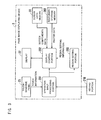
- Fig. 3 shows the functional configuration of the page image displaying device 2.
- the page image displaying device 2 is provided with an operation input processing portion 201, a display control portion 202, a region setting portion 203, and so on. These portions are functional elements implemented at a time when the CPU 34 executes a predetermined program for controlling computer.
- the operation input processing portion 201 determines what kind of touch action is made by a user based on touch information indicating a touch position outputted from the touch-sensitive panel 23. To be specific, the operation input processing portion 201 checks whether a gesture of the touch action by the user is tap, double tap, hold (long press), flick, drag/swipe, pinch-in, or pinch-out based on the number of touch points, a period of time during which one point on the surface is touched by the user, and a movement speed of touch point. The check result is given to the display control portion 202 and the region setting portion 203.
- the operation input processing portion 201 When receiving a signal indicating key operation related to a preview mode from the keypad portion 21B, the operation input processing portion 201 informs the display control portion 202 of a user command. For example, when the confirmed key 43 is pressed in the standby state, the display control portion 202 is informed that the copy check mode is selected. When the start key 41 is pressed in the copy check mode, the display control portion 202 is informed that a command to finish the preview mode is entered.
- the display control portion 202 switches between operating screens, and makes a partial change to indication made on the operating screen, e.g., scroll, pop-up, and highlight in accordance with operation by the user.
- the display control portion 202 combines screen components data appropriately read out from the screen data memory 31, and thereby creates an operating screen to be displayed.
- the operating screen being created has a preview region
- raster data read out from the temporary storage memory 361 is put, as a page image, in the preview region.
- the raster data read out from the temporary storage memory 361 is data obtained by converting, for the preview mode, the resolution of scanned image data or raster data prepared based on description by a page description language or Hypertext Markup Language (HTML).
- HTML Hypertext Markup Language
- the region setting portion 203 gives the display control portion 202 region setting information for specifying the designated region.
- the designated region herein is a part, selected by the user, of a page display region in which a page image for one page is displayed in the preview mode.
- the display control portion 202 changes the entire page image displayed to a page image of another page in accordance with page switch operation.
- the display control portion 202 performs "partial page switch" in which not the entirety of a page image but a part of the page image corresponding to the designated region is changed.
- the region setting portion 203 sets a designated region in response to a predetermined touch action performed when an operating screen having a preview region is displayed. For example, in response to a touch action for moving a touch point vertically or horizontally to cross over a page display region of the preview region, the region setting portion 203 sets, as the designated region, one of two parts obtained by sectioning the page display region vertically or horizontally in accordance with the touch action.
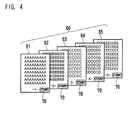
- Fig. 4 shows an example of document page images displayed by the page image displaying device 2.
- a document 60 in Fig. 4 has five pages. The number of pages of the document is, however, not limited to five.
- Fig. 4 schematically shows page images 61, 62, 63, 64, and 65 of the five pages.
- stamp images 70 are added to the document 60 by using a stamp function of the MFP 1.
- the stamp function is to add a stamp image such as "urgent”, “circular”, or “confidential" to a page, specified by a user, of a document which is to be printed, transmitted, or saved.
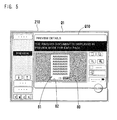
- an operating screen Q1 including a preview window Q10 is displayed on the screen 210 of the operating panel.
- the user makes desired settings, as necessary, for magnification, color, and so on, presses the confirmed key 43, and then, presses the start key 41.
- document images are read out from document sheets placed on the ADF 24 before the start key 41 is pressed.
- the preview window Q10 is then displayed as a part of the operating screen Q1.
- the preview window Q10 has a preview region 80 where a preview image is laid out. Above the preview region 80, a field is provided in which a message for preview appears. On the right of the preview region 80, a button for selecting the preview mode, a button for giving a command to close the preview window Q10, and so on are provided.
- a page image of the top page is displayed first. Referring to Fig. 5 , among the page images 61, 62, 63, 64, and 65 to be displayed as preview images shown in Fig. 4 , the page image 61 for the top page is displayed.
- a rectangle region in which a page image for one page is displayed is referred to as a "page display region 82".
- a region other than the page display region 82 of the preview region 80 there are displayed (not shown in Fig. 5 ) the number of pages of a preview target document and the page number of document sheet currently displayed, paper size, paper orientation (portrait/landscape), print magnification, and so on in the form of letters or graphics.
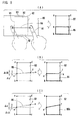
- Figs. 6 and 7 show an example of the partial page switch.
- Fig. 6 shows an example of advancing page in which the page image currently displayed is changed to a page image having a larger page number.
- Fig. 7 shows an example of turning back page in which the page image currently displayed is changed to a page image having a smaller page number.
- the following description takes an example in which a user touches the touch screen with his/her finger. Instead of finger, the user may touch the touch screen with a stylus or another tool.
- the page display region 82 is shown within which a page image 61 of a first page is displayed.
- a designated region 85 which is enclosed by a thick line in the drawing, is set in accordance with operation for defining a region described later.
- the illustrated designated region 85 corresponds to a lower part of the page display region 82.
- the designated region 85 is set as described above, so that the page image 61 is divided into an image-to-be-switched 61B corresponding to the designated region 85 of the page display region 82 and an image-not-to-be-switched 61A corresponding to the other part of the page display region 82.
- the user touches the designated region 85 with a finger 91 as shown in (B) of Fig. 6 .
- the user then performs a gesture of moving the fingertip over the surface without losing contact (the operation being called slide) as shown in (C) of Fig. 6 .
- the slide gesture includes flick of quickly brushing the surface with the finger 91, and drag of moving the finger 91 over the surface without losing contact (drag being sometimes called swipe).
- the image-to-be-switched 61B of the page image 61 moves to the left together with the movement of the fingertip.
- an image-to-be-switched 62B appears which corresponds to a designated region 85 in a page image 62 of the next page.
- a part of the image-to-be-switched 61B is not displayed which is beyond the designated region 85 due to the movement of the image-to-be-switched 61B.
- the amount of data subjected to display processing is smaller than that in the case where the entirety of what is displayed in the page display region 82 is changed to another. This increases the speed of display switch. Further, a part of the page image displayed in the designated region 85 after the display switch is a part of the next page image corresponding to the part of the page image displayed immediately before the display switch. This enables the user to quickly check what is displayed on the corresponding parts of both the page images. In conventional technologies, in order to display the top of a page at the time of page switch, the user has to scroll through the page to display the bottom of the page, for example.
- the MFP 1 sets the bottom of a page as the designated region 85, which saves the user from having to scroll the screen every time when pages are switched from one to another.
- what is displayed in the image-not-to-be-switched 61A remains unchanged, which allows the user to pay attention to what is displayed in the designated region 85.
- the display state in (E) of Fig. 6 is the same as that in (D) of Fig. 6 .
- the user can check what is displayed in the image-to-be-switched 62B with the designated region 85 not hidden by finger. For example, the user can confirm that the stamp image 70 is laid out appropriately also in the second page.
- the user makes a slide gesture of moving the finger 91 to the left as with the case shown in (C) of Fig. 6 .
- the slide gesture moves the image-to-be-switched 62B of the second page to the left.
- a part of an image-to-be-switched 63B of a third page appears which corresponds to the designated region 85.
- (G) of Fig, 6 what is displayed in the designated region 85 is completely switched from the image-to-be-switched 62B of the second page to the image-to-be-switched 63B of the third page.
- the display state in (A) of Fig. 7 is the same as that in (G) of Fig. 6 .
- the user performs the same gesture as that for advancing page except for the direction in which he/she makes a slide gesture with the finger.
- the user thereby causes the page image displaying device 2 to turn back page.
- (B) of Fig. 7 when the user makes a slide gesture of moving the finger 91 to the right without losing contact from the designated region 85, the image-to-be-switched 63B of the third page moves to the right. In connection with this, the image-to-be-switched 62B of the previous page appears in the designated region 85.
- a part of the image-to-be-switched 63B is not displayed which is beyond the designated region 85 due to the movement of the image-to-be-switched 63B.
- the area in which the image-to-be-switched 62B is displayed increases gradually in the designated region 85.
- (C) of Fig. 7 what is displayed in the designated region 85 is completely switched from the image-to-be-switched 63B of the third page to the image-to-be-switched 62B of the second page.
- what is displayed in the designated region 85 is changed from one to another while the image-not-to-be-switched 61A of the page image 61 remains unchanged.
- Figs. 8-12 show examples of a touch action for designating a part of a page display region and a designated region set by the touch action.
- the page display region 82 is shown in the preview region 80.
- the page display region 82 is sectioned into two parts by a touch action of sliding the finger 91 to cross over the page display region 82 from one position to another position of the outer edge thereof.
- the positions where the finger 91 crosses over the page display region 82 may be any positions on an edge constituted by a left side V1, a right side V2, an upper side H1, and a lower side H2.
- Fig. 8 shows an example in which the finger 91 crosses over the edge from one side to a side opposite thereto.
- a track 94 of the finger 91 via the slide gesture is shown by the arrow of a broken line.
- the finger 91 moves from the outside of the page display region 82, passes through the left side V1, crosses over the page display region 82, moves straight, and passes through the right side V2 to the outside of the page display region 82.
- the four vertices of the page display region 82 are denoted by a, b, c, and d, that the position on the left side V1 through which the finger 91 passes is denoted by e, and that the position on the right side V2 through which the finger 91 passes is denoted by f.
- the page display region 82 (quadrilateral abcd) is sectioned into a quadrilateral aefd and a quadrilateral ebcf by a line connecting the point e and the point f on the track 94.
- one quadrilateral having a smaller area is set as the designated region 85 in this embodiment.
- the quadrilateral ebcf is set as the designated region 85.
- a rectangle area is set as the designated region 85.
- a quadrilateral ebcg is set as the designated region 85.
- the quadrilateral ebcg has a point g as one of the vertices.
- the point g is positioned on the right side V2 to vertically correspond to the position of the point e on the left side V1 from which the finger 91 starts sliding.
- a quadrilateral ebcf is set as the designated region 85.
- the quadrilateral ebcf has, as one of the vertices, a point f at which the finger 91 stops sliding.
- the designated region 85 for this case is a trapezoid.
- the designated region 85 is also set for a case where the user makes a touch action of moving the finger vertically from the upper side toward the lower side to section the page display region 82 vertically.
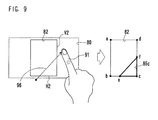
- Fig. 9 shows an example in which the user makes a touch action of moving the finger 91 from one side to another side which are not opposite to each other of the page display region 82.
- the finger 91 slides to cross over the page display region 82 from a lower side H2 to a right side V2.
- e the position on the lower side H2 from which the finger 91 starts sliding
- f the position on the right side V2 at which the finger 91 stops sliding
- the page display region 82 is sectioned into a pentagon abefd and a triangle ecf by a line connecting the point e and the point f on the track 96.
- the triangle ecf having an area smaller than that of the pentagon abefd is set as a designated region 85c.
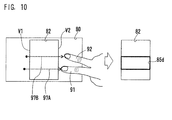
- a designated region 85d does not contain the four vertices a, b, c, and d of the page display region 82.
- the user makes a slide gesture of moving two fingers 91 and 92 to make two tracks 97A and 97B which cross over the page display region 82.
- the tracks 97A and 97B are shown which pass through the left side V1 and the right side V2.
- a quadrilateral enclosed by the two tracks 97A and 97B, the left side V1, and the right side V2 is set as the designated region 85d.
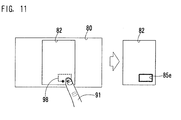
- the quadrilateral region corresponding to the track 98 is set as a designated region 85e.
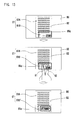
- Fig. 12 shows an example in which, when the designated region 85e having a quadrilateral shape is already set, the user makes a slide gesture of moving the finger 91 to lasso and cross in a region other than the designated region 85e of the page display region 82, i.e., to make a circular motion. In such a case, a region corresponding to a track 99 and having an indefinite shape is set as another designated region 85f.
- the designated regions set as discussed above are also used, as shown in Figs. 13 and 14 , as target regions for partial display switch that is not partial page switch.
- Fig. 13 is a diagram showing an example of enlarged display of a partial page image.
- a designated region 85g is set in the page display region 82 of the preview region 80.
- the page image 61 is displayed in the display region 82.
- the page image 61 is divided into an image-to-be-switched 61B corresponding to the designated region 85g and an image-not-to-be-switched 61A corresponding to a region other than the designated region 85g of the page display region 82
- an image-to-be-switched 61B' which is an enlarged version of the image-to-be-switched 61B is displayed in the designated region 85g as shown in the bottom drawing of Fig. 13 .
- a switched image obtained by reducing the image-to-be-switched 61B is displayed.
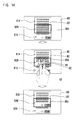
- Fig. 14 is a diagram showing an example of moved display of a partial page image. As shown in the top drawing of Fig. 14 , a designated region 85h is set in the page display region 82. In the page display region 82, an image-to-be-switched 62B of the second page is displayed in the designated region 85h, and an image-not-to-be-switched 61A of the first page is displayed in a region other than the designated region 85h.
- the second page is scrolled trough in synchronization with the slide, so that the image-to-be-switched 62B is changed.
- the designated region 85h is updated appropriately in accordance with the slide as if what is displayed in the designated region 85h moves.
- the designated region 85h functions as a window in which the second page is partly displayed.
- an image-to-be-switched 62B' which corresponds to an image in the scrolled state at the end of sliding is displayed in the designated region 85h as shown in the bottom drawing of Fig. 14 .
- Fig. 15 is a flowchart depicting an example of the outline of the operation by the page image displaying device 2.
- Step S01 If an operating screen displayed in the page image displaying device 2 has a preview region 80 (Yes in Step S01), and if an action of touching the preview region 80 is made (Yes in Step S02), then the page image displaying device 2 performs region setting processing (Step S03). Then, if a designated region is preset (Yes in Step S04), then the page image displaying device 2 performs display change processing.
- Step S01 if the operating screen displayed in the page image displaying device 2 has no preview region 80 (No in Step S01), then the process goes to Step S07 in which the page image displaying device 2 performs processing depending on other operating screens. If an operating screen with a preview region 80 is displayed and if a gesture of touching a region other than the preview region 80 is made (Yes in Step S01, and No in Step S02), then the page image displaying device 2 performs processing depending on other operation (Step S06).
- Fig. 16 depicts a region setting processing routine.
- the operation input processing portion 201 determines whether or not a touch action detected on the touch-sensitive panel 23 corresponds to predetermined region designating operation related to a designated region.
- the region setting portion 203 sets a designated region in accordance with a track of the touch position with finger.
- the operation input processing portion 201 checks whether points on the touch screen onto which the user touched (touch points) is one or two (Step S10). If the touch points are three or more (No in Step S10), then the operation is disabled. In such a case, the processing according to the routine is finished.
- Step S11 the operation input processing portion 201 checks whether or not the touch point is positioned outside the page display region 82 of the preview region 80 (Step S12). If the check result is YES, then the operation input processing portion 201 further checks whether or not a slide gesture of moving the finger on the surface without losing contact is performed, and also checks whether or not a touch point at the end of sliding is positioned outside the page display region 82 of the preview region 80 (Step S13). By making the foregoing checks, it is determined whether or not a slide gesture of crossing over the page display region 82 from one position to another of the outer edge thereof was performed.
- Step S13 If the check result in Step S13 is YES, then he region setting portion 203 sections the page display region 82 with a line virtually drawn on the touch screen via the slide gesture, i.e., with the track of the finger via the slide gesture regarded as a boundary (Step S14). The region setting portion 203 then calculates areas (number of pixels) of the two parts obtained by sectioning the page display region 82. The region setting portion 203 then sets, of the two parts, a part having a smaller area as the designated region 85, 85b, or, 85c (see Figs. 8 and 9 ) (Step S15).
- Step S13 The case where the check result in Step S13 is NO means that the slide gesture is so made to pass through only one point on the outer edge of the page display region 82. Such a touch action is determined to be disabled. Therefore, the processing is finished in such a case without setting a designated region.
- Step S12 The case where the check result in Step S12 is NO means that the position of a touch point is within the page display region 82. In such a case, the processing goes to Step S16.
- Step S16 the operation input processing portion 201 checks whether or not a slide gesture of moving the finger on the page display region 82 while maintaining smooth continuous contact is made, and also checks whether or not the track of the finger via the slide gesture connects to the track itself.
- Step S16 If the check result in Step S16 is YES, then the region setting portion 203 sets a part within the page display region 82 enclosed by the track of the finger via the slide gesture as the designated region 85e or 85f (see Figs. 11 and 12 ) (Step S17). If the check result in Step S16 is NO, then the region setting portion 203 sets no designated regions, and finishes the processing.
- Step S18 the operation input processing portion 201 checks whether or not two touch points are positioned outside the page display region 82 of the preview region 80. If the check result is YES, then the operation input processing portion 201 further checks whether or not a touch position at the end of the slide gesture made with fingers is outside the page display region 82 of the preview region 80 (Step S19). Through the foregoing checks, it is determined whether or not a slide gesture of crossing over the page display region 82 from one position to another of the outer edge thereof was performed.
- Step S19 If the check result in Step S19 is YES, then the region setting portion 203 sets, as the designated region 85d (see Fig. 10 ), a part enclosed by two lines that show the track of the fingers via the slide gesture and are virtually drawn on the touch screen, and the edges of the page display region 82 (Step S20).
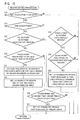
- Fig. 17 is a flowchart depicting an example of the display change processing routine in Step S05 of Fig. 15 .
- the display change processing routine is performed when at least one designated region is set and a touch action of touching a position in the page display region 82 is detected.
- the operation input processing portion 201 determines whether or not a slide gesture starting from a position in the set designated region has been performed (Step S21). If the slide gesture starts with a touch point starting from the designated region and the touch point moves accordingly (Yes in Step S21), the operation input processing portion 201 then checks how many points were touched concurrently (Step S22). The display control portion 202 changes what is displayed in the page display region 82 depending on the check result.
- Step S24 the display control portion 202 advances/turns back page (Step S24). In the page advancing/turning back processing, the partial page switch shown in Figs. 6 and 7 is performed.
- Step S26 the display control portion 202 performs enlargement/reduction processing.
- the enlarged display of a partial page image shown in Fig 13 and the reduced display of a partial page image of reducing an image-to-be-switched corresponding to the designated region are performed in accordance with the pinching gesture.
- Step S28 the display control portion 202 performs intra-page movement processing. According to the intra-page movement processing, the moved display of a partial page image shown in Fig. 14 is performed.
- Step S21 if the check result in Step S21 is NO, in other words, if a position other than the designated region of the page display region 82 is touched, then the operation input processing portion 201 checks whether or not a flick gesture has been made (Step S29). If it is found that the flick gesture is made (Yes in Step S29), then the region setting portion 203 cancels the setting of designated region (Step S30). This removes the boundary between a designated region and the other region in the page display region 82. The whole page image of a page corresponding to an image-not-to-be-switched is displayed in the page display region 82. In short, what is displayed in the page display region 82 returns to what was displayed therein before a designated region is set.
- the touch action is not limited to a touch action with user's finger on the touch screen.
- the touch action may be one with a stylus. It is always not necessary that the touch action is physically touching onto the touch screen.
- a touch-sensitive panel may be used which detects, as the touch action, approach to the panel with finger or stylus.
- a gesture of moving finger or stylus on the touch screen without losing contact therefrom is detected as flick, drag, or swipe.
- a track of finger/stylus via a slide gesture has a linear shape such as a curve or a meander
- a page image display to which partial page switch is to be performed is not limited to an image displayed in the preview mode.
- a personal computer user may display in a monitor a page image of a document saved in the personal computer in order to check or edit the content of the document. In this way, when a page image is displayed in order for a user to look at the current page image, partial page switch may be performed.
- the partial page switch may be implemented in mobile information equipment such as a tablet computer or smartphone provided with a touch-sensitive panel, and a personal computer on which an operating system runs in response to touch actions on the screen.
- mobile information equipment such as a tablet computer or smartphone provided with a touch-sensitive panel, and a personal computer on which an operating system runs in response to touch actions on the screen.
Landscapes
- Engineering & Computer Science (AREA)
- Multimedia (AREA)
- Signal Processing (AREA)
- Human Computer Interaction (AREA)
- User Interface Of Digital Computer (AREA)
- Accessory Devices And Overall Control Thereof (AREA)
- Position Input By Displaying (AREA)
Applications Claiming Priority (1)
| Application Number | Priority Date | Filing Date | Title |
|---|---|---|---|
| JP2013061335A JP2014186577A (ja) | 2013-03-25 | 2013-03-25 | ビューワ装置および画像形成装置 |
Publications (2)
| Publication Number | Publication Date |
|---|---|
| EP2785036A2 true EP2785036A2 (fr) | 2014-10-01 |
| EP2785036A3 EP2785036A3 (fr) | 2014-12-24 |
Family
ID=50513668
Family Applications (1)
| Application Number | Title | Priority Date | Filing Date |
|---|---|---|---|
| EP20140160888 Withdrawn EP2785036A3 (fr) | 2013-03-25 | 2014-03-20 | Dispositif d'affichage d'images de page |
Country Status (4)
| Country | Link |
|---|---|
| US (1) | US9124739B2 (fr) |
| EP (1) | EP2785036A3 (fr) |
| JP (1) | JP2014186577A (fr) |
| CN (1) | CN104077096A (fr) |
Families Citing this family (10)
| Publication number | Priority date | Publication date | Assignee | Title |
|---|---|---|---|---|
| JP5982345B2 (ja) * | 2013-10-29 | 2016-08-31 | 京セラドキュメントソリューションズ株式会社 | 表示装置、電子機器、及びコンピュータープログラム |
| JP6177669B2 (ja) * | 2013-11-20 | 2017-08-09 | 株式会社Nttドコモ | 画像表示装置およびプログラム |
| KR101636744B1 (ko) | 2016-01-20 | 2016-07-06 | 장정희 | 전자책 디바이스, 전자책 컨텐츠의 표시 영역을 조정하는 방법 및 이를 수행하기 위한 애플리케이션 |
| JP6638690B2 (ja) * | 2017-04-18 | 2020-01-29 | 京セラドキュメントソリューションズ株式会社 | 画像形成装置、表示制御方法 |
| CN108008894B (zh) * | 2017-12-01 | 2022-02-01 | 阿里巴巴(中国)有限公司 | 一种内容显示方法、装置和终端设备 |
| JP7135421B2 (ja) * | 2018-05-11 | 2022-09-13 | 富士フイルムビジネスイノベーション株式会社 | 情報処理装置、情報処理システム及びプログラム |
| JP7183597B2 (ja) * | 2018-07-12 | 2022-12-06 | 京セラドキュメントソリューションズ株式会社 | プレビュー画像表示装置及びプレビュー画像表示プログラム |
| JP7674196B2 (ja) | 2021-08-20 | 2025-05-09 | 東芝テック株式会社 | 画像形成装置、制御方法 |
| CN113934952B (zh) * | 2021-09-15 | 2024-05-14 | 南方电网数字平台科技(广东)有限公司 | 以积木式方式搭建页面的方法及装置 |
| JP2023180655A (ja) * | 2022-06-10 | 2023-12-21 | セイコーエプソン株式会社 | 印刷装置 |
Citations (2)
| Publication number | Priority date | Publication date | Assignee | Title |
|---|---|---|---|---|
| JP2012123066A (ja) | 2010-12-06 | 2012-06-28 | Sharp Corp | 画像形成装置、及び表示制御方法 |
| JP2012168620A (ja) | 2011-02-10 | 2012-09-06 | Sharp Corp | タッチ入力可能な画像表示装置、表示装置の制御装置、及びコンピュータプログラム |
Family Cites Families (16)
| Publication number | Priority date | Publication date | Assignee | Title |
|---|---|---|---|---|
| JPH03174587A (ja) * | 1989-12-04 | 1991-07-29 | Fujitsu Ltd | ウィンドウ表示制御方式 |
| US5666208A (en) * | 1996-01-11 | 1997-09-09 | Xerox Corporation | Printing system with electronic light table functionality |
| JPH10198700A (ja) * | 1997-01-08 | 1998-07-31 | Canon Inc | 表示装置および方法 |
| US7637424B2 (en) * | 2005-09-19 | 2009-12-29 | Silverbrook Research Pty Ltd | Printing audio information using a mobile device |
| JP4891102B2 (ja) * | 2007-01-24 | 2012-03-07 | 京セラミタ株式会社 | 画像形成装置,印刷プレビュー用プログラム |
| JP5142836B2 (ja) | 2007-07-02 | 2013-02-13 | オセ−テクノロジーズ ビーブイ | 走査画像要素位置合わせ方法 |
| JP4952733B2 (ja) * | 2009-03-03 | 2012-06-13 | コニカミノルタビジネステクノロジーズ株式会社 | コンテンツ表示端末及びコンテンツ表示制御プログラム |
| US20110310405A1 (en) * | 2010-06-18 | 2011-12-22 | Petar Kraguljac | Printing email messages |
| JP5627985B2 (ja) * | 2010-10-15 | 2014-11-19 | シャープ株式会社 | 情報処理装置、情報処理装置の制御方法、制御プログラム、および記録媒体 |
| US20120179967A1 (en) | 2011-01-06 | 2012-07-12 | Tivo Inc. | Method and Apparatus for Gesture-Based Controls |
| US9430128B2 (en) | 2011-01-06 | 2016-08-30 | Tivo, Inc. | Method and apparatus for controls based on concurrent gestures |
| JP6115728B2 (ja) * | 2011-01-06 | 2017-04-19 | ティヴォ ソリューションズ インコーポレイテッド | ジェスチャに基づく制御方法および装置 |
| US20120218203A1 (en) | 2011-02-10 | 2012-08-30 | Kanki Noriyoshi | Touch drawing display apparatus and operation method thereof, image display apparatus allowing touch-input, and controller for the display apparatus |
| JP5373836B2 (ja) * | 2011-03-01 | 2013-12-18 | シャープ株式会社 | 操作指示装置及びそれを備えた画像形成装置 |
| JP5774899B2 (ja) * | 2011-04-26 | 2015-09-09 | 京セラ株式会社 | 携帯端末装置、プログラムおよび表示制御方法 |
| US9754085B2 (en) * | 2011-08-17 | 2017-09-05 | Integrated Chemistry Design, Inc. | Systems and methods of editing a chemical structure on a touch-screen |
-
2013
- 2013-03-25 JP JP2013061335A patent/JP2014186577A/ja active Pending
-
2014
- 2014-03-20 CN CN201410105760.9A patent/CN104077096A/zh active Pending
- 2014-03-20 EP EP20140160888 patent/EP2785036A3/fr not_active Withdrawn
- 2014-03-21 US US14/221,947 patent/US9124739B2/en not_active Expired - Fee Related
Patent Citations (2)
| Publication number | Priority date | Publication date | Assignee | Title |
|---|---|---|---|---|
| JP2012123066A (ja) | 2010-12-06 | 2012-06-28 | Sharp Corp | 画像形成装置、及び表示制御方法 |
| JP2012168620A (ja) | 2011-02-10 | 2012-09-06 | Sharp Corp | タッチ入力可能な画像表示装置、表示装置の制御装置、及びコンピュータプログラム |
Also Published As
| Publication number | Publication date |
|---|---|
| CN104077096A (zh) | 2014-10-01 |
| US9124739B2 (en) | 2015-09-01 |
| US20140285850A1 (en) | 2014-09-25 |
| EP2785036A3 (fr) | 2014-12-24 |
| JP2014186577A (ja) | 2014-10-02 |
Similar Documents
| Publication | Publication Date | Title |
|---|---|---|
| US9124739B2 (en) | Image forming apparatus, page image displaying device, and display processing method | |
| JP4787779B2 (ja) | 画像処理装置、プログラムおよびプレビュー画像表示方法 | |
| US11057532B2 (en) | Image processing apparatus, control method for image processing apparatus, and storage medium | |
| JP6840571B2 (ja) | 画像処理装置、画像処理装置の制御方法、及びプログラム | |
| JP5882779B2 (ja) | 画像処理装置、画像処理装置の制御方法及びプログラム | |
| WO2014030301A1 (fr) | Appareil de traitement d'informations, procédé de traitement d'informations et programme associé | |
| CN114063867B (zh) | 图像处理装置、图像处理装置的控制方法和记录介质 | |
| US9049323B2 (en) | Data processing apparatus, content displaying method, and non-transitory computer-readable recording medium encoded with content displaying program | |
| JP7612930B2 (ja) | 画像処理装置、画像処理装置の制御方法、及びプログラム | |
| US20130208313A1 (en) | Image processing apparatus, method for controlling image processing apparatus, and program | |
| US9323350B2 (en) | Display control device, display control method, and recording medium | |
| JP7114678B2 (ja) | 画像処理装置、画像処理装置の制御方法、及びプログラム | |
| JP2017097814A (ja) | 情報処理装置、情報処理装置の制御方法、及びプログラム | |
| CN104935774A (zh) | 信息处理设备及其控制方法 | |
| JP2020107958A (ja) | 画像処理装置 | |
| JP2014232415A (ja) | 表示装置、画像処理装置及びプログラム | |
| KR20140016822A (ko) | 터치 스크린을 갖는 정보단말, 그 제어방법, 및 기억매체 | |
| JP2018101843A (ja) | 画像形成装置、ジョブ設定値の切り替え確認方法及び切り替え確認プログラム | |
| JP2014108533A (ja) | 画像処理装置、画像処理装置の制御方法、及びプログラム | |
| JP2023014240A (ja) | 画像処理装置、画像処理装置の制御方法、及びプログラム | |
| JP2019145183A (ja) | 画像処理装置、画像処理装置の制御方法、及びプログラム | |
| JP2015530655A (ja) | 極端なアスペクト比/デジタル画像を表示するためのユーザインタフェースを有する印刷システム |
Legal Events
| Date | Code | Title | Description |
|---|---|---|---|
| 17P | Request for examination filed |
Effective date: 20140320 |
|
| AK | Designated contracting states |
Kind code of ref document: A2 Designated state(s): AL AT BE BG CH CY CZ DE DK EE ES FI FR GB GR HR HU IE IS IT LI LT LU LV MC MK MT NL NO PL PT RO RS SE SI SK SM TR |
|
| AX | Request for extension of the european patent |
Extension state: BA ME |
|
| PUAI | Public reference made under article 153(3) epc to a published international application that has entered the european phase |
Free format text: ORIGINAL CODE: 0009012 |
|
| PUAL | Search report despatched |
Free format text: ORIGINAL CODE: 0009013 |
|
| AK | Designated contracting states |
Kind code of ref document: A3 Designated state(s): AL AT BE BG CH CY CZ DE DK EE ES FI FR GB GR HR HU IE IS IT LI LT LU LV MC MK MT NL NO PL PT RO RS SE SI SK SM TR |
|
| AX | Request for extension of the european patent |
Extension state: BA ME |
|
| RIC1 | Information provided on ipc code assigned before grant |
Ipc: G06F 17/30 20060101ALI20141117BHEP Ipc: H04N 1/00 20060101AFI20141117BHEP |
|
| STAA | Information on the status of an ep patent application or granted ep patent |
Free format text: STATUS: THE APPLICATION IS DEEMED TO BE WITHDRAWN |
|
| 18D | Application deemed to be withdrawn |
Effective date: 20150625 |