WO2021227770A1 - 应用窗口显示方法和电子设备 - Google Patents
应用窗口显示方法和电子设备 Download PDFInfo
- Publication number
- WO2021227770A1 WO2021227770A1 PCT/CN2021/087675 CN2021087675W WO2021227770A1 WO 2021227770 A1 WO2021227770 A1 WO 2021227770A1 CN 2021087675 W CN2021087675 W CN 2021087675W WO 2021227770 A1 WO2021227770 A1 WO 2021227770A1
- Authority
- WO
- WIPO (PCT)
- Prior art keywords
- window
- application
- screen
- electronic device
- control
- Prior art date
- Legal status (The legal status is an assumption and is not a legal conclusion. Google has not performed a legal analysis and makes no representation as to the accuracy of the status listed.)
- Ceased
Links
Images




Classifications
-
- G—PHYSICS
- G06—COMPUTING OR CALCULATING; COUNTING
- G06F—ELECTRIC DIGITAL DATA PROCESSING
- G06F3/00—Input arrangements for transferring data to be processed into a form capable of being handled by the computer; Output arrangements for transferring data from processing unit to output unit, e.g. interface arrangements
- G06F3/01—Input arrangements or combined input and output arrangements for interaction between user and computer
- G06F3/048—Interaction techniques based on graphical user interfaces [GUI]
- G06F3/0481—Interaction techniques based on graphical user interfaces [GUI] based on specific properties of the displayed interaction object or a metaphor-based environment, e.g. interaction with desktop elements like windows or icons, or assisted by a cursor's changing behaviour or appearance
-
- G—PHYSICS
- G06—COMPUTING OR CALCULATING; COUNTING
- G06F—ELECTRIC DIGITAL DATA PROCESSING
- G06F3/00—Input arrangements for transferring data to be processed into a form capable of being handled by the computer; Output arrangements for transferring data from processing unit to output unit, e.g. interface arrangements
- G06F3/01—Input arrangements or combined input and output arrangements for interaction between user and computer
- G06F3/048—Interaction techniques based on graphical user interfaces [GUI]
- G06F3/0481—Interaction techniques based on graphical user interfaces [GUI] based on specific properties of the displayed interaction object or a metaphor-based environment, e.g. interaction with desktop elements like windows or icons, or assisted by a cursor's changing behaviour or appearance
- G06F3/04817—Interaction techniques based on graphical user interfaces [GUI] based on specific properties of the displayed interaction object or a metaphor-based environment, e.g. interaction with desktop elements like windows or icons, or assisted by a cursor's changing behaviour or appearance using icons
-
- G—PHYSICS
- G06—COMPUTING OR CALCULATING; COUNTING
- G06F—ELECTRIC DIGITAL DATA PROCESSING
- G06F3/00—Input arrangements for transferring data to be processed into a form capable of being handled by the computer; Output arrangements for transferring data from processing unit to output unit, e.g. interface arrangements
- G06F3/01—Input arrangements or combined input and output arrangements for interaction between user and computer
- G06F3/048—Interaction techniques based on graphical user interfaces [GUI]
- G06F3/0484—Interaction techniques based on graphical user interfaces [GUI] for the control of specific functions or operations, e.g. selecting or manipulating an object, an image or a displayed text element, setting a parameter value or selecting a range
-
- G—PHYSICS
- G06—COMPUTING OR CALCULATING; COUNTING
- G06F—ELECTRIC DIGITAL DATA PROCESSING
- G06F3/00—Input arrangements for transferring data to be processed into a form capable of being handled by the computer; Output arrangements for transferring data from processing unit to output unit, e.g. interface arrangements
- G06F3/01—Input arrangements or combined input and output arrangements for interaction between user and computer
- G06F3/048—Interaction techniques based on graphical user interfaces [GUI]
- G06F3/0487—Interaction techniques based on graphical user interfaces [GUI] using specific features provided by the input device, e.g. functions controlled by the rotation of a mouse with dual sensing arrangements, or of the nature of the input device, e.g. tap gestures based on pressure sensed by a digitiser
- G06F3/0488—Interaction techniques based on graphical user interfaces [GUI] using specific features provided by the input device, e.g. functions controlled by the rotation of a mouse with dual sensing arrangements, or of the nature of the input device, e.g. tap gestures based on pressure sensed by a digitiser using a touch-screen or digitiser, e.g. input of commands through traced gestures
- G06F3/04883—Interaction techniques based on graphical user interfaces [GUI] using specific features provided by the input device, e.g. functions controlled by the rotation of a mouse with dual sensing arrangements, or of the nature of the input device, e.g. tap gestures based on pressure sensed by a digitiser using a touch-screen or digitiser, e.g. input of commands through traced gestures for inputting data by handwriting, e.g. gesture or text
-
- G—PHYSICS
- G06—COMPUTING OR CALCULATING; COUNTING
- G06F—ELECTRIC DIGITAL DATA PROCESSING
- G06F2203/00—Indexing scheme relating to G06F3/00 - G06F3/048
- G06F2203/048—Indexing scheme relating to G06F3/048
- G06F2203/04803—Split screen, i.e. subdividing the display area or the window area into separate subareas
Definitions
- This application relates to the field of electronic equipment, and more specifically, to an application window display method and electronic equipment.
- multi-window mode also called multi-screen mode or split-screen function
- users may no longer need to use multiple applications for a long time, and need to exit the split-screen applications that are not used temporarily.
- users can exit the split screen in the following two ways: one is to drag the divider between the split screen application windows to the edge of the screen, and the application window that wants to exit the split screen state is pushed out of the screen; the other is to drag The drag bar on the split-screen application window turns the application window from the split-screen state to the floating window state.
- the application pushed out of the screen becomes the full screen state. If the user wants to open the application again, he needs to reopen the split screen or display the application in full screen, which will interrupt the current application task.
- the second method is used to exit the split screen, the position of the drag bar and the signal bar are shared, and there is a problem of conflict with the hot zone of the signal bar. No matter which way to exit the split screen, the user experience is not good.
- This application provides an application window display method and electronic device, which can facilitate the user to exit the split-screen state, and when the user needs to re-use multiple applications at the same time later, it can be quickly turned on without switching applications or interrupting the current application task. Improve user experience.
- an application window display method applied to an electronic device, including: displaying a split-screen interface, the split-screen interface including a first window, a second window, and a window for separating the first window and the second window.
- the first control of the window, the first window runs a first application
- the second window runs a second application
- the first operation of the user on the first control is detected, and the first operation is to the first Sliding operation of the position of the second window
- the first preset condition includes any one of the following: the first control and the edge of the screen of the electronic device
- the user can perform a sliding operation on the first control so that the position of the first control meets the first preset condition, so that the electronic device removes the first window from The split screen state is switched to the full screen state, and the second window is switched from the split screen state to the floating state.
- the second window in the floating state does not affect the application that the user runs in the first window, and when the user wants to use the first application and the second application at the same time, the user can quickly operate the second window in the floating state at any time, which saves the user time. Improve user experience.
- the electronic device may switch the second window from the split screen state to the floating window state, and the application running in the second window displays the application interface to the user and interacts with the user in the form of a floating window.
- the second window in the floating window state does not affect the application run by the user using the first window, and the user can also use the second application through the floating window.
- the user wants to use the first application and the second application at the same time in a split-screen manner, the user can operate the floating window at any time.
- the electronic device may switch the second window from the split screen state to the floating icon state, and the application interface running on the second window is hidden.
- the second window of the floating icon state does not affect the application that the user runs in the first window, and when the user wants to use the first application and the second application at the same time, the user can operate the floating icon at any time without having to split the screen again Operation to improve user experience.
- the first application and the second application can be the same or different.
- one of the applications can be a clone application of the other application, so that the application running in the first window and the application running in the second window can use different user accounts to log in.
- the first window and the second window can run different tasks of the same application, so that the first window and the second window are two task windows of the same application.
- the first control may be the partition bar 303 shown in FIGS. 6 to 11
- the first window may be the first window 301 in FIGS. 6 to 11
- the second window may be the partition bar 303 in FIGS. 6 to 11.
- the electronic device activates the first control.
- the electronic device detects a user's long-press operation on the first control, and activates the first control.
- the first control can be moved under the touch operation of the user.
- the process of activating the first control by the electronic device and the process of responding to the first operation are continuous.
- the user performs a sliding operation to the position of the second window after long pressing the first control for a certain period of time.
- the electronic device activates the first control after detecting the user's long press operation on the first control, and detects that the user is Move the first control after the first operation of the first control. During this process, the user's touch operation is not interrupted.
- the first control is in an activated state.
- the first preset condition includes: the distance between the first control and the edge of the screen of the electronic device is less than or equal to a first threshold.
- the first threshold is greater than or equal to 0, and the first threshold is less than or equal to 1/4 of the screen width.
- the first threshold is greater than or equal to 0, and the first threshold is less than or equal to 1/8 screen width.
- the first threshold is greater than or equal to 0, and the first threshold is less than or equal to 1/16 screen width.
- the first preset condition includes: the width of the second window is less than or equal to a third threshold.
- the third threshold and the first threshold may be the same or different.
- the value range of the third threshold and the value range of the first threshold may be the same or different.
- the first preset condition includes: the first control is located between the first preset position and the edge of the screen of the electronic device.
- the electronic device may determine whether the first control is located between the first preset position and the edge of the screen of the electronic device through the pixel information.
- the first aspect further includes: detecting a second operation of the user; in response to the second operation, displaying the split screen interface; detecting that the user’s control of the first control
- the third operation is a sliding operation to the position of the second window; in response to the third operation, the first control is moved to the side of the second window, wherein the The width of the second window decreases, and the width of the first window increases; it is detected that the user ends the third operation; in response to ending the third operation, if the position of the first control meets the second preset Condition, displaying the first window in full screen and closing the second window;
- the second preset condition includes that the distance between the first control and the edge of the screen of the electronic device is less than or equal to a second threshold
- the first preset condition includes that the distance between the first control and the edge of the screen of the electronic device is less than or equal to the first threshold and greater than the second threshold; or, the second preset condition includes The width of the second window is less than
- the user can perform an operation on the first control so that the position of the first control meets the second preset condition, so that the electronic device can set the second The window is closed, even if the application running in the second window keeps running in the background or terminates the application process.
- the position of the first control to satisfy different preset conditions, it is convenient to switch the second window to a suspended state or close the second window, which is convenient for users to quickly operate and improve user experience.
- the second operation is an operation on the floating window.
- the second operation is a click operation on the split screen display control 323 shown in (a) of FIG. 10.
- the second operation is a click operation on the close control 321 shown in (a) of FIG. 10.
- the second operation is an operation on the floating icon.
- the second operation is a click operation or a sliding operation on the floating icon.
- the electronic device activates the first control.
- the electronic device detects a user's long-press operation on the first control, and activates the first control.
- the first control can be moved under the touch operation of the user.
- the process of activating the first control by the electronic device and the process of responding to the third operation are continuous.
- the second preset condition includes that the distance between the first control and the edge of the screen of the electronic device is less than or equal to a second threshold
- the first preset condition includes the first control and the The distance between the edge of the screen of the electronic device is less than or equal to the first threshold and greater than the second threshold
- the first threshold is greater than 0, and the first threshold is less than or equal to 1/4 of the screen width.
- the first threshold is greater than 0, and the first threshold is less than or equal to 1/8 screen width.
- the second threshold is greater than or equal to 0, and the second threshold is less than or equal to 1/8 screen width.
- the second threshold is greater than or equal to 0, and the second threshold is less than or equal to 1/16 screen width.
- the second preset condition includes that the width of the second window is less than or equal to a fourth threshold
- the first preset condition includes that the width of the second window is less than or equal to the third threshold and Greater than the fourth threshold.
- the fourth threshold and the second threshold may be the same or different.
- the value range of the fourth threshold and the value range of the second threshold may be the same or different.
- the second preset condition includes that the first control is located between the second preset position and the edge of the screen of the electronic device, and the first preset condition includes that the first control is located Between the first preset position and the second preset position, wherein the second preset position is located between the first preset position and the edge of the screen.
- the electronic device may determine whether the first control is located between the second preset position and the edge of the screen of the electronic device through the pixel information.
- the second window when the second window is in the floating window state, the second window includes: an application interface display area and a toolbar, wherein the application interface display area is used for The user interface of the second application is displayed, and the toolbar includes at least one of the following controls: a window close control, a window minimize control, a split-screen display control, and a full-screen display control.
- the electronic device when the electronic device detects that the user clicks on the window close control, in response to the operation, the electronic device may close the second window.
- the electronic device when the electronic device detects that the user clicks on the split screen display control, in response to this operation, the electronic device may switch the second window from the floating window state back to the split screen state.
- the electronic device when the electronic device detects that the user clicks on the full-screen display control, in response to this operation, the electronic device may switch the second window from the floating window state to the full-screen state.
- the electronic device when the electronic device detects that the user clicks on the window minimize control, in response to the operation, the electronic device may hide the application interface display area of the second window.
- the electronic device when the electronic device detects that the user clicks on the window minimize control, in response to this operation, the electronic device may switch the second window in the floating window state to the floating icon state.
- the method further includes: detecting a user's operation on the window minimization control, and in response to the operation, hiding the application interface display area.
- the second window only uses the toolbar to identify the position of the application window, which can occupy a smaller display space.
- the method when the second window is in the floating icon state, the method further includes: detecting a user's operation on the floating icon, and in response to the operation, turning the second window The second window is switched from the floating icon state to the floating window state.
- the user can operate the floating icon to switch the second window to the floating window state, which is convenient for the user to interact through the floating window without affecting the use of the first application in the first window.
- the method when the second window is in the floating icon state, the method further includes: detecting a user's operation on the floating icon, and in response to the operation, turning the second window The second window is switched from the floating icon state to the split screen state.
- the user can operate the floating icon to switch the second window to the split screen state, and the user can use the applications in the two windows at the same time, which is convenient for the user to operate.
- the method further includes: detecting the position of the first control; when the position of the first control satisfies the first preset condition, in the split screen interface The thumbnail of the second window in the floating state is displayed on the top.
- the electronic device may prompt the user by means of thumbnails if the touch operation is stopped at this time, the electronic device will switch the second window to the floating state.
- the first aspect further includes: detecting a fourth operation of the user; in response to the fourth operation, displaying the split screen interface; detecting that the user’s control of the first control Fifth operation, the fifth operation is a sliding operation to the position of the second window; in response to the fifth operation, move the first control to the side of the second window, wherein the The width of the second window decreases, and the width of the first window increases; it is detected that the user ends the fifth operation; in response to ending the fifth operation, if the position of the first control meets the third preset Condition, staying the first control at the position when the user ends the fifth operation; wherein the third preset condition includes any one of the following: the distance between the first control and the edge of the screen of the electronic device Greater than a fifth threshold, the fifth threshold is greater than the first threshold; or, the width of the second window is greater than a sixth threshold, and the sixth threshold is greater than the third threshold; or, the first control Located between the initial position of the first control and a third threshold
- the user when the first control satisfies the third preset condition, the user can adjust the split screen ratio of the first window and the second window by adjusting the position of the first control.
- the fourth operation may be the same as the above-mentioned second operation.
- the fifth operation may be the same as the third operation described above.
- the third preset condition includes: the distance between the first control and the edge of the screen of the electronic device is greater than a fifth threshold.
- the fifth threshold is greater than 1/4 of the screen width and less than 1/2 of the screen width.
- the fifth threshold is greater than or equal to the foregoing first threshold.
- the third preset condition includes: the width of the second window is greater than a sixth threshold.
- the sixth threshold and the fifth threshold may be the same or different.
- the value range of the sixth threshold and the value range of the fifth threshold may be the same or different.
- the sixth threshold is greater than or equal to the foregoing third threshold.
- the third preset condition includes: the first control is located between the third preset position and the initial position of the first control, and the third preset position is located at the position of the first control. Between the initial position and the first preset position.
- an application window display method applied to an electronic device, including: displaying a split-screen interface, the split-screen interface including a first window, a second window, and a method for separating the first window and the The first control of the second window, the first window runs the first application, and the second window runs the second application; the first operation of the user on the first control is detected, and the first operation is The sliding operation of the position of the second window; in response to the first operation, the first control is moved to the side of the second window, wherein the width of the second window is reduced, and the first The width of the window increases; it is detected that the user ends the first operation; in response to the end of the first operation, if the position of the first control satisfies the first preset condition, the second window is set to a preset width Locked to the edge of the screen of the electronic device, wherein the second window is in an inactive state, and the second application corresponding to the second window is running in the background; wherein, the first preset condition
- the second window is locked at the edge of the screen with a preset width, which can be understood as the second window is docked, fixed or adsorbed at the edge of the screen with a preset width, and the second window is in an inactive state.
- the second application corresponding to the second window runs in the background, the user interface of the second application is not displayed on the split screen interface, and the user cannot interact with the electronic device through the user interface of the second application.
- the second window in the locked state is similar to a functional control, which hides the user interface of the second application, and the user cannot interact with the second window in the locked state.
- the user can perform operations such as long pressing, clicking, or dragging on the second window in the locked state.
- the electronic device can switch the second window from the inactive state to the active state, for example, make the second window active.
- the second window displays the user interface of the second application, etc.
- the user can conveniently and quickly lock the application window to the edge of the screen with a preset width by adjusting the position of the first control, without affecting the user's use of other applications, and when the user needs to use the first application and the first application at the same time again
- the first control may be the dividing bar 303 in FIG. 12, the first window may be the first window 301 in FIG. 12, and the second window may be the second window 302 in FIG.
- the first window is displayed approximately in full screen.
- the contents of the first application, the second application, the first operation, the first control, the first threshold, the third threshold, and the first preset position in the second aspect are similar to those in the first aspect.
- the second aspect further includes: detecting a second operation of the user; in response to the second operation, displaying the split screen interface; detecting that the user’s control of the first control
- the third operation is a sliding operation to the position of the second window; in response to the third operation, the first control is moved to the side of the second window, wherein the The width of the second window decreases, and the width of the first window increases; it is detected that the user ends the third operation; in response to ending the third operation, if the position of the first control meets the second preset Condition, displaying the first window in full screen and closing the second window;
- the second preset condition includes that the distance between the first control and the edge of the screen of the electronic device is less than or equal to a second threshold
- the first preset condition includes that the distance between the first control and the edge of the screen of the electronic device is less than or equal to the first threshold and greater than the second threshold; or, the second preset condition includes The width of the second window is less than
- the second operation, the third operation, the second threshold, the fourth threshold, and the second preset position in the second aspect are similar to those in the first aspect. For details, refer to the first aspect.
- the method further includes: detecting a user's operation on the second window, and responding to the Operation, switching the second window from the preset width to an initial width, where the initial width is the width of the second window before the electronic device detects the first operation.
- the second window by performing an operation on the second window in the locked state, the second window can be switched from the preset width to the initial width, that is, from the inactive state to the active state, or from the locked state to the split-screen state .
- the second window can display the user interface of the second application, which is convenient for the user to operate.
- the second aspect in a possible implementation manner, it further includes: detecting a fourth operation of the user; in response to the fourth operation, displaying the split screen interface; detecting that the user’s control of the first control Fifth operation, the fifth operation is a sliding operation to the position of the second window; in response to the fifth operation, move the first control to the side of the second window, wherein the The width of the second window decreases, and the width of the first window increases; it is detected that the user ends the fifth operation; in response to ending the fifth operation, if the position of the first control meets the third preset Condition, staying the first control at the position when the user ends the fifth operation; wherein the third preset condition includes any one of the following: the distance between the first control and the edge of the screen of the electronic device Greater than a fifth threshold, the fifth threshold is greater than the first threshold; or, the width of the second window is greater than a sixth threshold, and the sixth threshold is greater than the third threshold; or, the first control Located between the initial position of the first control and a third threshold
- the user when the first control satisfies the third preset condition, the user can adjust the split screen ratio of the first window and the second window by adjusting the position of the first control.
- the contents of the fourth operation, the fifth operation, the fifth threshold, the sixth threshold, and the third preset position in the second aspect are similar to those in the first aspect.
- an electronic device including: one or more processors; a memory, the memory includes instructions; when the instructions are executed by the one or more processors, the electronic device The device performs the following steps: displays a split screen interface, the split screen interface includes a first window, a second window, and a first control for separating the first window and the second window, and the first window runs the first window.
- the second window runs a second application; a user's first operation on the first control is detected, and the first operation is a sliding operation to the position of the second window; in response to the first operation In one operation, move the first control to one side of the second window, wherein the width of the second window is reduced, and the width of the first window is increased; it is detected that the user ends the first operation In response to ending the first operation, if the position of the first control satisfies the first preset condition, the first window is displayed in full screen, and the second window is displayed in a floating window or floating icon state.
- the first preset condition includes any one of the following: the distance between the first control and the edge of the screen of the electronic device is less than or equal to a first threshold; or, the first The width of the two windows is less than or equal to the third threshold; or, the first control is located between the first preset position and the edge of the screen of the electronic device.
- the electronic device when the instruction is executed by the one or more processors, the electronic device is caused to perform the following steps: detecting the second operation of the user; The second operation is to display the split screen interface; the third operation of the user on the first control is detected, and the third operation is a sliding operation to the position of the second window; in response to the third Operation, move the first control to one side of the second window, wherein the width of the second window decreases and the width of the first window increases; it is detected that the user ends the third operation; In response to ending the third operation, if the position of the first control satisfies a second preset condition, display the first window in full screen and close the second window; wherein, the second preset condition It includes that the distance between the first control and the edge of the screen of the electronic device is less than or equal to a second threshold, and the first preset condition includes that the distance between the first control and the edge of the screen of the electronic device is less than or equal to all.
- the first threshold is greater than the second threshold; or, the second preset condition includes that the width of the second window is less than or equal to a fourth threshold, and the first preset condition includes the The width is less than or equal to the third threshold and greater than the fourth threshold; or, the second preset condition includes that the first control is located between the second preset position and the edge of the screen of the electronic device ,
- the first preset condition includes that the first control is located between the first preset position and the second preset position, wherein the second preset position is located between the first preset position and the Between the edges of the screen.
- the second window when the second window is in the floating window state, the second window includes: an application interface display area and a toolbar, wherein the application interface display area is used for The user interface of the second application is displayed, and the toolbar includes at least one of the following controls: a window close control, a window minimize control, a split-screen display control, and a full-screen display control.
- the electronic device when the instruction is executed by the one or more processors, the electronic device is caused to perform the following steps: detecting that the user has made the window minimize control Operation, in response to the operation, hide the application interface display area.
- the second window is in a floating icon state
- the electronic device when the instruction is executed by the one or more processors, the electronic device is caused to perform the following steps: detecting When the user operates the floating icon, in response to the operation, the second window is switched from the floating icon state to the floating window state, or the second window is switched from the floating icon state to the split screen state.
- the electronic device when the instruction is executed by the one or more processors, the electronic device is caused to perform the following steps: detecting the position of the first control; When the position of the first control satisfies the first preset condition, a thumbnail of the second window in a floating state is displayed on the split screen interface.
- the electronic device when the instruction is executed by the one or more processors, the electronic device is caused to perform the following steps: detecting the fourth operation of the user; The fourth operation is to display the split screen interface; the fifth operation of the user on the first control is detected, and the fifth operation is a sliding operation to the position of the second window; in response to the fifth Operation, move the first control to one side of the second window, wherein the width of the second window decreases and the width of the first window increases; it is detected that the user ends the fifth operation; In response to ending the fifth operation, if the position of the first control satisfies a third preset condition, the first control stays at the position when the user ends the fifth operation; wherein the third preset The condition includes any one of the following: the distance between the first control and the edge of the screen of the electronic device is greater than a fifth threshold, and the fifth threshold is greater than the first threshold; or, the width of the second window is greater than the first Six thresholds, the sixth threshold is greater than the
- an electronic device including: one or more processors; a memory, the memory including instructions; when the instructions are executed by the one or more processors, the electronic device is caused to execute The following steps: display a split screen interface, the split screen interface includes a first window, a second window, and a first control for separating the first window and the second window, and the first window runs a first application , The second window runs a second application; a user's first operation on the first control is detected, and the first operation is a sliding operation to the position of the second window; in response to the first operation , Moving the first control to one side of the second window, wherein the width of the second window is reduced, and the width of the first window is increased; detecting that the user ends the first operation; responding At the end of the first operation, if the position of the first control satisfies a first preset condition, the second window is locked to the edge of the screen of the electronic device with a preset width, wherein the second window In an inactive state,
- the electronic device when the instruction is executed by the one or more processors, the electronic device is caused to perform the following steps: detecting the second operation of the user; The second operation is to display the split screen interface; the third operation of the user on the first control is detected, and the third operation is a sliding operation to the position of the second window; in response to the third Operation, move the first control to one side of the second window, wherein the width of the second window decreases and the width of the first window increases; it is detected that the user ends the third operation; In response to ending the third operation, if the position of the first control satisfies a second preset condition, display the first window in full screen and close the second window; wherein, the second preset condition It includes that the distance between the first control and the edge of the screen of the electronic device is less than or equal to a second threshold, and the first preset condition includes that the distance between the first control and the edge of the screen of the electronic device is less than or equal to all.
- the first threshold is greater than the second threshold; or, the second preset condition includes that the width of the second window is less than or equal to a fourth threshold, and the first preset condition includes the The width is less than or equal to the third threshold and greater than the fourth threshold; or, the second preset condition includes that the first control is located between the second preset position and the edge of the screen of the electronic device ,
- the first preset condition includes that the first control is located between the first preset position and the second preset position, wherein the second preset position is located between the first preset position and the Between the edges of the screen.
- the The electronic device executes the following steps: detecting a user's operation on the second window, and in response to the operation, switching the second window from the preset width to an initial width, where the initial width is the first The width of the second window before the electronic device detects the first operation.
- the electronic device when the instruction is executed by the one or more processors, the electronic device is caused to perform the following steps: detecting the fourth operation of the user; The fourth operation is to display the split screen interface; the fifth operation of the user on the first control is detected, and the fifth operation is a sliding operation to the position of the second window; in response to the fifth Operation, move the first control to one side of the second window, wherein the width of the second window decreases and the width of the first window increases; it is detected that the user ends the fifth operation; In response to ending the fifth operation, if the position of the first control satisfies a third preset condition, the first control stays at the position when the user ends the fifth operation; wherein the third preset The condition includes any one of the following: the distance between the first control and the edge of the screen of the electronic device is greater than a fifth threshold, and the fifth threshold is greater than the first threshold; or, the width of the second window is greater than the first Six thresholds, the sixth threshold is greater than the
- a device which is included in an electronic device, and the device has the behavior of the electronic device in any possible implementation manner of the foregoing first aspect and second aspect and the foregoing first aspect and second aspect Function.
- the function can be realized by hardware, or the corresponding software can be executed by hardware.
- the hardware or software includes one or more modules or units corresponding to the above-mentioned functions.
- an electronic device including one or more processors and one or more memories.
- the one or more memories are coupled with one or more processors, and the one or more memories are used to store computer program codes.
- the computer program codes include computer instructions.
- the electronic device executes The application window display method in any one of the foregoing first aspect and second aspect and any one of the foregoing first aspect and second aspect.
- a computer storage medium including computer instructions, which when the computer instructions run on an electronic device, cause the electronic device to execute any one of the first and second aspects as well as the first and second aspects described above.
- An application window display method in a possible implementation manner.
- a computer program product is provided.
- the computer program product runs on an electronic device, the electronic device executes the first and second aspects as well as any one of the first and second aspects mentioned above.
- the display method of the application window in the mode is provided.
- a chip system in a ninth aspect, includes at least one processor.
- the first and second aspects as well as the first and second aspects are The function of the application window display method in any possible implementation manner on the electronic device is realized.
- FIG. 1 is a schematic diagram of the hardware structure of an electronic device provided by an embodiment of the present application.
- FIG. 2 is a schematic diagram of the software structure of an electronic device provided by an embodiment of the present application.
- Figure 3 is a schematic block diagram of a window management mechanism
- FIG. 4 is a schematic diagram of a set of graphical user interfaces provided by an embodiment of the present application.
- FIG. 5 is a schematic diagram of a user interface of an existing application window exiting split screen
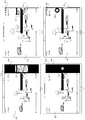
- FIG. 6 is a schematic diagram of a graphical user interface of an example of an application window display method provided by an embodiment of the present application
- FIG. 7 is a schematic diagram of a graphical user interface of an example of an application window display method provided by an embodiment of the present application.
- FIG. 8 is a schematic diagram of a graphical user interface of an example of an application window display method provided by an embodiment of the present application.
- FIG. 9 is a schematic diagram of a graphical user interface of another example of an application window display method provided by an embodiment of the present application.
- FIG. 10 is a schematic diagram of a graphical user interface when an application window is switched to a floating window state in the application window display method provided by an embodiment of the present application;
- FIG. 11 is a schematic diagram of a graphical user interface when the application window is switched to a floating state in the application window display method provided by an embodiment of the present application;
- FIG. 12 is a schematic diagram of a graphical user interface of another example of an application window display method provided by an embodiment of the present application.
- FIG. 13 is a schematic diagram of functional partitions of the divider bar when the application window is switched to a suspended state according to an embodiment of the present application
- FIG. 14 is a schematic diagram of functional partitions of the divider bar when the application window is in a locked state according to an embodiment of the present application;
- 15 is a schematic diagram of a graphical user interface of another example of an application window display method provided by an embodiment of the present application.
- 16 is a schematic diagram of a graphical user interface of another example of an application window display method provided by an embodiment of the present application.
- FIG. 17 is a schematic flowchart of an application window display method provided by an embodiment of the present application.
- FIG. 19 is a schematic block diagram of an electronic device provided by an embodiment of the present application.
- first and second are only used for descriptive purposes, and cannot be understood as indicating or implying relative importance or implicitly indicating the number of indicated technical features. Therefore, the features defined with “first” and “second” may explicitly or implicitly include one or more of these features. In the description of the present embodiment, unless otherwise specified, “plurality” means two or more.
- references described in this specification to "one embodiment” or “some embodiments”, etc. mean that one or more embodiments of the present application include a specific feature, structure, or characteristic described in combination with the embodiment. Therefore, the sentences “in one embodiment”, “in some embodiments”, “in some other embodiments”, “in some other embodiments”, etc. appearing in different places in this specification are not necessarily All refer to the same embodiment, but mean “one or more but not all embodiments” unless it is specifically emphasized otherwise.
- the terms “including”, “including”, “having” and their variations all mean “including but not limited to”, unless otherwise specifically emphasized.
- the embodiment of the present application provides an application window display method, which may be applied to an electronic device or a separate application program, and the application program may implement the application window display method in the present application.
- the application window display method provided by the present application can switch the application window displayed in a split-screen state to display in a floating window or a floating icon state, or lock the application window to the edge of the screen. In this way, when the user needs to use the application again, the user can quickly operate the floating window or the floating icon or the locked application window without interrupting the current application task, thereby improving the user experience.
- the application window display method provided in the embodiments of this application can be applied to mobile phones (such as ordinary screen mobile phones, curved screen mobile phones, folding screen mobile phones, full-screen mobile phones, etc.), tablet computers, in-vehicle devices, and wearable devices (such as smart watches, smart hands, etc.). Ring, smart glasses, smart jewelry, etc.), augmented reality (AR)/virtual reality (VR) devices, laptops, ultra-mobile personal computers (UMPC), netbooks, personal digital For personal digital assistants (PDAs), televisions, monitors, and other electronic devices with display functions, the embodiments of the present application do not impose any restrictions on the specific types of electronic devices. Exemplary embodiments of electronic devices include, but are not limited to, carrying Or other operating system electronic devices.
- FIG. 1 shows a schematic structural diagram of an electronic device 100.
- the electronic device 100 may include a processor 110, an external memory interface 120, an internal memory 121, a universal serial bus (USB) interface 130, a charging management module 140, a power management module 141, a battery 142, an antenna 1, and an antenna 2.
- Mobile communication module 150 wireless communication module 160, audio module 170, speaker 170A, receiver 170B, microphone 170C, earphone jack 170D, sensor module 180, buttons 190, motor 191, indicator 192, camera 193, display screen 194, and Subscriber identification module (subscriber identification module, SIM) card interface 195, etc.
- SIM Subscriber identification module
- the sensor module 180 may include a pressure sensor 180A, a gyroscope sensor 180B, an air pressure sensor 180C, a magnetic sensor 180D, an acceleration sensor 180E, a distance sensor 180F, a proximity sensor 180G, a fingerprint sensor 180H, a temperature sensor 180J, a touch sensor 180K, and ambient light Sensor 180L, bone conduction sensor 180M, etc.
- the structure illustrated in the embodiment of the present application does not constitute a specific limitation on the electronic device 100.
- the electronic device 100 may include more or fewer components than those shown in the figure, or combine certain components, or split certain components, or arrange different components.
- the illustrated components can be implemented in hardware, software, or a combination of software and hardware.
- the processor 110 may include one or more processing units.
- the processor 110 may include an application processor (AP), a modem processor, a graphics processing unit (GPU), and an image signal processor. (image signal processor, ISP), controller, memory, video codec, digital signal processor (digital signal processor, DSP), baseband processor, and/or neural-network processing unit (NPU) Wait.
- AP application processor
- modem processor modem processor
- GPU graphics processing unit
- image signal processor image signal processor
- ISP image signal processor
- controller memory
- video codec digital signal processor
- DSP digital signal processor
- NPU neural-network processing unit
- the different processing units may be independent devices or integrated in one or more processors.
- part of the processing unit can realize that in the implementation of this application, when the position of the divider bar control satisfies the first preset condition, the squeezed application window is suspended and displayed on other application windows in the split screen state. .
- part of the processing unit may realize that in the implementation of this application, when the position of the divider bar control meets the second preset condition, the squeezed application window is closed.
- part of the processing unit can realize that in the implementation of this application, when the position of the divider bar control meets the third preset condition, the divider bar control control stays at the position left by the user's touch operation.
- part of the processing unit can realize that in the implementation of the present application, when the position of the divider bar control meets the first preset condition, a thumbnail of the squeezed application window in a suspended state is displayed on the split screen interface.
- the controller may be the nerve center and command center of the electronic device 100.
- the controller can generate operation control signals according to the instruction operation code and timing signals to complete the control of fetching instructions and executing instructions.
- a memory may also be provided in the processor 110 to store instructions and data.
- the memory in the processor 110 is a cache memory.
- the memory can store instructions or data that have just been used or recycled by the processor 110. If the processor 110 needs to use the instruction or data again, it can be directly called from the memory. Repeated accesses are avoided, the waiting time of the processor 110 is reduced, and the efficiency of the system is improved.
- the processor 110 may include one or more interfaces.
- the interface may include an integrated circuit (inter-integrated circuit, I2C) interface, an integrated circuit built-in audio (inter-integrated circuit sound, I2S) interface, a pulse code modulation (pulse code modulation, PCM) interface, and a universal asynchronous transmitter/receiver (universal asynchronous) interface.
- I2C integrated circuit
- I2S integrated circuit built-in audio
- PCM pulse code modulation
- PCM pulse code modulation
- UART universal asynchronous transmitter/receiver
- MIPI mobile industry processor interface
- GPIO general-purpose input/output
- SIM subscriber identity module
- USB Universal Serial Bus
- the I2C interface is a bidirectional synchronous serial bus, including a serial data line (SDA) and a serial clock line (SCL).
- the processor 110 may include multiple sets of I2C buses.
- the processor 110 may be coupled to the touch sensor 180K, charger, flash, camera 193, etc., respectively through different I2C bus interfaces.
- the processor 110 may couple the touch sensor 180K through an I2C interface, so that the processor 110 and the touch sensor 180K communicate through the I2C bus interface to implement the touch function of the electronic device 100.
- the I2S interface can be used for audio communication.
- the PCM interface can also be used for audio communication to sample, quantize and encode analog signals.
- the UART interface is a universal serial data bus used for asynchronous communication.
- the bus can be a two-way communication bus. It converts the data to be transmitted between serial communication and parallel communication.
- the MIPI interface can be used to connect the processor 110 with the display screen 194, the camera 193 and other peripheral devices.
- the MIPI interface includes a camera serial interface (camera serial interface, CSI), a display serial interface (display serial interface, DSI), and so on.
- the processor 110 and the camera 193 communicate through a CSI interface to implement the shooting function of the electronic device 100.
- the GPIO interface can be configured through software.
- the GPIO interface can be configured as a control signal or as a data signal.
- the GPIO interface can also be configured as an I2C interface, I2S interface, UART interface, MIPI interface, etc.
- the USB interface 130 is an interface that complies with the USB standard specification, and specifically may be a Mini USB interface, a Micro USB interface, a USB Type C interface, and so on.
- the USB interface 130 can be used to connect a charger to charge the electronic device 100, and can also be used to transfer data between the electronic device 100 and peripheral devices. It can also be used to connect earphones and play audio through earphones. This interface can also be used to connect other electronic devices, such as AR devices.
- the interface connection relationship between the modules illustrated in the embodiment of the present application is merely a schematic description, and does not constitute a structural limitation of the electronic device 100.
- the electronic device 100 may also adopt different interface connection modes in the foregoing embodiments, or a combination of multiple interface connection modes.
- the charging management module 140 is used to receive charging input from the charger.
- the power management module 141 is used to connect the battery 142. While the charging management module 140 charges the battery 142, it can also supply power to the electronic device through the power management module 141.
- the power management module 141 can also be used to monitor parameters such as battery capacity, battery cycle times, and battery health status.
- the wireless communication function of the electronic device 100 can be implemented by the antenna 1, the antenna 2, the mobile communication module 150, the wireless communication module 160, the modem processor, and the baseband processor.
- the antenna 1 and the antenna 2 are used to transmit and receive electromagnetic wave signals.
- the mobile communication module 150 can provide a wireless communication solution including 2G/3G/4G/5G and the like applied to the electronic device 100.
- the mobile communication module 150 can receive electromagnetic waves by the antenna 1, and perform processing such as filtering, amplifying and transmitting the received electromagnetic waves to the modem processor for demodulation.
- the mobile communication module 150 can also amplify the signal modulated by the modem processor, and convert it into electromagnetic waves for radiation via the antenna 1.
- the wireless communication module 160 can provide applications on the electronic device 100 including wireless local area networks (WLAN) (such as wireless fidelity (Wi-Fi) networks), bluetooth (BT), and global navigation satellites. System (global navigation satellite system, GNSS), frequency modulation (FM), near field communication (NFC), infrared technology (infrared, IR) and other wireless communication solutions.
- the wireless communication module 160 may be one or more devices integrating at least one communication processing module.
- the wireless communication module 160 receives electromagnetic waves via the antenna 2, frequency modulates and filters the electromagnetic wave signals, and sends the processed signals to the processor 110.
- the wireless communication module 160 may also receive a signal to be sent from the processor 110, perform frequency modulation, amplify, and convert it into electromagnetic waves to radiate through the antenna 2.
- the antenna 1 of the electronic device 100 is coupled with the mobile communication module 150, and the antenna 2 is coupled with the wireless communication module 160, so that the electronic device 100 can communicate with the network and other devices through wireless communication technology.
- the electronic device 100 implements a display function through a GPU, a display screen 194, and an application processor.
- the GPU is an image processing microprocessor, which is connected to the display screen 194 and the application processor.
- the GPU is used to perform mathematical and geometric calculations and is used for graphics rendering.
- the processor 110 may include one or more GPUs that execute program instructions to generate or change display information.
- the display screen 194 is used to display images, videos, and the like.
- the display screen 194 includes a display panel.
- the display panel can adopt liquid crystal display (LCD), organic light-emitting diode (OLED), active matrix organic light-emitting diode or active-matrix organic light-emitting diode (active-matrix organic light-emitting diode).
- LCD liquid crystal display
- OLED organic light-emitting diode
- active-matrix organic light-emitting diode active-matrix organic light-emitting diode
- emitting diode AMOLED, flexible light-emitting diode (FLED), Miniled, MicroLed, Micro-oLed, quantum dot light-emitting diode (QLED), etc.
- the electronic device 100 may include one or N display screens 194, and N is a positive integer greater than one.
- the display screen 194 can be used to display a split screen interface, and can also be used to display the floating thumbnail of the squeezed application window when the position of the divider bar control meets the first preset condition, and can also be used as When the position of the divider control satisfies the first preset condition, the floating state of the squeezed application window, such as a floating window or a floating icon, is displayed.
- the electronic device 100 can implement a shooting function through an ISP, a camera 193, a video codec, a GPU, a display screen 194, and an application processor.
- the ISP is used to process the data fed back by the camera 193.
- the camera 193 is used to capture still images or videos.
- the object generates an optical image through the lens and is projected to the photosensitive element.
- the photosensitive element can be a charge coupled device (CCD) or a complementary metal-oxide-semiconductor (CMOS) phototransistor.
- the electronic device 100 may include one or N cameras 193, and N is a positive integer greater than one.
- the external memory interface 120 may be used to connect an external memory card, such as a Micro SD card, to expand the storage capacity of the electronic device 100.
- the external memory card communicates with the processor 110 through the external memory interface 120 to realize the data storage function. For example, save music, video and other files in an external memory card.
- the internal memory 121 may be used to store computer executable program code, where the executable program code includes instructions.
- the processor 110 executes various functional applications and data processing of the electronic device 100 by running instructions stored in the internal memory 121.
- the internal memory 121 may include a storage program area and a storage data area. Among them, the storage program area can store an operating system, an application program (such as a sound playback function, an image playback function, etc.) required by at least one function, and the like.
- the data storage area can store data (such as audio data, phone book, etc.) created during the use of the electronic device 100.
- the electronic device 100 can implement audio functions through the audio module 170, the speaker 170A, the receiver 170B, the microphone 170C, the earphone interface 170D, and the application processor. For example, music playback, recording, etc.
- the mobile phone 100 also includes a plurality of sensors.
- the pressure sensor 180A is used to sense a pressure signal, and the pressure signal can be converted into an electrical signal.
- the pressure sensor 180A may be provided on the display screen 194.
- the capacitive pressure sensor may include at least two parallel plates with conductive materials. When a force is applied to the pressure sensor 180A, the capacitance between the electrodes changes. The electronic device 100 determines the intensity of the pressure according to the change in capacitance.
- touch operations that act on the same touch position but have different touch operation strengths may correspond to different operation instructions. For example: when a touch operation whose intensity is less than the first pressure threshold is applied to the short message application icon, an instruction to view the short message is executed. When a touch operation with a touch operation intensity greater than or equal to the first pressure threshold acts on the short message application icon, an instruction to create a new short message is executed.
- the pressure sensor 180A can be used to detect the user's operation on the partition bar on the split screen interface, can be used to detect the user's operation on the application window of the floating window state, and can be used to detect the user's operation on the application window of the floating icon state Operation and so on.
- the gyro sensor 180B may be used to determine the movement posture of the electronic device 100.
- the air pressure sensor 180C is used to measure air pressure.
- the magnetic sensor 180D includes a Hall sensor, and the electronic device 100 can use the magnetic sensor 180D to detect the opening and closing of the flip cover or the flip cover.
- the acceleration sensor 180E can detect the magnitude of the acceleration of the electronic device 100 in various directions (generally three axes). When the electronic device 100 is stationary, the magnitude and direction of gravity can be detected. It can also be used to identify the posture of electronic devices, and apply to applications such as horizontal and vertical screen switching, pedometers, and so on.
- Distance sensor 180F used to measure distance. The electronic device 100 can measure the distance by infrared or laser.
- the proximity light sensor 180G may include, for example, a light emitting diode (LED) and a light detector, such as a photodiode, and the proximity light sensor 180G may detect whether there is an object near the electronic device.
- the ambient light sensor 180L is used to perceive the brightness of the ambient light, and the electronic device 100 can adaptively adjust the brightness of the display 194 according to the perceived brightness of the ambient light, and automatically adjust the white balance when taking pictures.
- the fingerprint sensor 180H is used to collect fingerprints.
- the temperature sensor 180J is used to detect temperature.
- the bone conduction sensor 180M can acquire vibration signals.
- Touch sensor 180K also called "touch panel”.
- the touch sensor 180K may be disposed on the display screen 194, and the touch screen is composed of the touch sensor 180K and the display screen 194, which is also called a “touch screen”.
- the touch sensor 180K is used to detect touch operations acting on or near it.
- the touch sensor can pass the detected touch operation to the application processor to determine the type of touch event.
- the visual output related to the touch operation can be provided through the display screen 194.
- the touch sensor 180K may also be disposed on the surface of the electronic device 100, which is different from the position of the display screen 194.
- the touch sensor 180K may be used to detect the touch operation of the user divider control and the like.
- the buttons 190 on the electronic device include a power-on button, a volume button, and so on.
- the button 190 may be a mechanical button. It can also be a touch button.
- the electronic device 100 may receive key input, and generate key signal input related to user settings and function control of the electronic device 100.
- the motor 191 can generate vibration prompts.
- the motor 191 can be used for incoming call vibration notification, and can also be used for touch vibration feedback. For example, touch operations applied to different applications (such as photographing, audio playback, etc.) can correspond to different vibration feedback effects. Acting on touch operations in different areas of the display screen 194, the motor 191 can also correspond to different vibration feedback effects.
- the touch vibration feedback effect can also support customization.
- the indicator 192 may be an indicator light, which may be used to indicate the charging status, power change, or to indicate messages, missed calls, notifications, and so on.
- the SIM card interface 195 is used to connect to the SIM card.
- the motor 191 can generate a vibration prompt when the position of the divider bar control meets the first preset condition.
- the schematic diagram of the possible hardware structure of the electronic device 100 is described above.
- the software system of the electronic device 100 may adopt a layered architecture, an event-driven architecture, a microkernel architecture, a microservice architecture, or a cloud architecture.
- the embodiments of this application are based on a layered architecture
- the system is taken as an example to illustrate the software structure of the electronic device 100 by way of example.
- FIG. 2 is a block diagram of the software structure of the electronic device 100 according to an embodiment of the present application.
- the layered architecture divides the software of the electronic device into several layers, and each layer has a clear role and division of labor. Communication between layers through software interface.
- the Android system is divided into four layers, from top to bottom, respectively, the application (application, APP) layer, the application framework (framework) layer, and the system runtime layer (including the system library and the Android runtime ( Android runtime)), and the kernel layer.
- the application layer can include a series of application packages. As shown in Figure 2, the application package can include applications such as camera, gallery, calendar, call, map, navigation, WLAN, Bluetooth, music, video, short message, etc.
- the application program is mainly in the user interface (UI) aspect, and is usually written by using the JAVA language to call the interface of the application framework layer.
- the application framework layer provides an application programming interface (application programming interface, API) and a programming framework for applications in the application layer.
- the application framework layer includes some predefined functions. As shown in Figure 2, the application framework layer can include a window manager, a content provider, a view system, a phone manager, a resource manager, and a notification manager.
- the window manager is used to manage window programs.
- the window manager can obtain the size of the display screen, determine whether there is a status bar, lock the screen, take a screenshot, etc.
- the window manager may obtain the size of the window to be displayed on the electronic device 100, determine the content of the window to be displayed, and so on.
- the to-be-displayed window of the electronic device 100 may include a window being displayed on the interface of the electronic device 100, and may also include a window of one or more application programs running in the background of the electronic device 100.
- FIG. 3 shows a schematic block diagram of a window management mechanism.
- the window manager is a service, which is a global, unique and independent C++ service in the system, independent of the Android application.
- the window manager is owned by Common for Android applications.
- Android's window management system is based on the client/service (C/S) model, and the entire window system is divided into two parts: service and client.
- the client is the application, which is responsible for requesting the creation of windows and the use of windows;
- the server is the window manager service (or WindowManagerService, WMS), which is responsible for completing window maintenance and window display.
- WMS WindowManagerService
- the client does not directly interact with the window management service, but directly interacts with the local object window manager (WindowManager or WindowManager), and then the window manager (WindowManager) completes the interaction with the window management service (WindowManagerService). This interaction is transparent to the application, and the application cannot perceive the existence of the window management service.
- an activity activity or activity
- a main window has a main window and multiple sub-windows, such as a pop-up dialog box, a menu (menu), or a sub-window.
- the main window and the child window are associated with each other through the Activity.
- the child window cannot exist alone and needs to be attached to a specific parent window.
- the windows of the public interface are also called system windows, including the recently run dialog box, shutdown dialog box, status bar drop-down bar, lock screen interface, etc.
- the system window does not belong to any application, and has nothing to do with Activity.
- a window is a rectangular area on the screen, which can display a user interface (UI) and interact with a user.
- the window may also hide the user interface (ie, the operating interface of the software), and quickly show the user application navigation and functional operations when the user needs to operate, or expand the operating interface of the application again according to the triggered instruction.
- the window is actually a canvas (surface).
- One screen can have multiple windows, and the layout and order of these multiple windows and window animation are managed by the window management service WMS, and the mixing and display of multiple canvas contents is implemented by the SurfaceFlinger service.
- the windows are layered, and the larger one will cover the smaller one.
- the size of the Z axis shown in (b) in Figure 3 indicates the order in which different windows are displayed, and each window has a corresponding z-order.
- the SurfaceFlinger service mixes and displays the contents of multiple canvases according to the z-order.
- the application window display method provided by the implementation of this application can be applied to other operating systems such as It can also be applied to other electronic devices such as personal computers (PCs), such as tablet computers, desktop computers, notebook computers, ultra-mobile PCs, netbooks, and so on.
- PCs personal computers
- the window management mechanism may be different, and it is necessary to use corresponding technologies to create and manage windows based on actual conditions.
- This application is only illustrative and should not be construed as a limitation to this application.
- the content provider is used to store and retrieve data, and make these data accessible to applications.
- the data may include videos, images, audios, phone calls made and received, browsing history and bookmarks, phone book, etc.
- the view system includes visual controls, such as controls that display text, controls that display pictures, and so on.
- the view system can be used to build applications.
- the display interface can be composed of one or more views.
- a display interface that includes a short message notification icon may include a view that displays text and a view that displays pictures.
- the phone manager is used to provide the communication function of the electronic device 100. For example, the management of the call status (including connecting, hanging up, etc.).
- the resource manager provides various resources for the application, such as localized strings, icons, pictures, layout files, video files, and so on.
- the notification manager enables the application to display notification information in the status bar, which can be used to convey notification-type messages, and it can automatically disappear after a short stay without user interaction.
- the notification manager is used to notify download completion, message reminders, and so on.
- the notification manager can also be a notification that appears in the status bar at the top of the system in the form of a chart or scroll bar text, such as a notification of an application running in the background, or a notification that appears on the screen in the form of a dialog window. For example, text messages are prompted in the status bar, prompt sounds, electronic devices vibrate, and indicator lights flash.
- the system runtime library layer (libraries) can be divided into two parts, namely the system library and the Android runtime.
- Android runtime is the Android runtime environment, including core libraries and virtual machines. Android runtime is responsible for the scheduling and management of the Android system.
- the core library consists of two parts: one part is the function functions that the java language needs to call, and the other part is the core library of Android.
- the application layer and application framework layer run in a virtual machine.
- the virtual machine executes the java files of the application layer and the application framework layer as binary files.
- the virtual machine is used to perform functions such as object life cycle management, stack management, thread management, security and exception management, and garbage collection.
- the system library is the support of the application framework and an important link between the application framework layer and the kernel layer. It can include multiple functional modules, such as surface manager, media libraries, and 3D graphics processing library (for example: open graphics library for embedded systems (open graphics library for embedded systems, OpenGL ES), 2D graphics engine (for example: Skia graphics library, SGL), etc.
- the surface manager is used to manage the display subsystem and provides a combination of 2D and 3D layers for multiple applications.
- the media library supports playback and recording of a variety of commonly used audio and video formats, as well as still image files.
- the media library can support multiple audio and video encoding formats, such as: MPEG4, H.264, MP3, AAC, AMR, JPG, PNG, etc.
- the 3D graphics processing library is used to implement 3D graphics drawing, image rendering, synthesis, and layer processing.
- the 2D graphics engine is a drawing engine for 2D drawing.
- the kernel layer is the layer between hardware and software, used to provide the essential functions of the operating system such as file management, memory management, process management, network protocol stacks, etc.
- the kernel layer contains at least display driver, camera driver, audio driver, sensor driver, Bluetooth driver, etc.
- multi-window mode also called multi-screen mode or split-screen function
- the user can split the screen of the electronic device, for example, divide the vertical screen into two upper and lower windows, or divide the horizontal screen into two left and right windows, each of which is independent Run one application, the two applications do not affect each other.
- the display mode of the application window includes full-screen display, split-screen display, and floating display.
- Full-screen display also known as full-screen mode, means that only one application window is displayed on the screen and the application interface fills the entire screen.
- the state of the window is defined as a full screen state, and accordingly, the application displayed in the window is defined as a full screen display application.
- Split-screen display also known as split-screen mode, refers to two or more application windows occupying a part of the screen. There is no overlap between any two application windows. Each application window can be changed in size and position. Either it cannot be moved, or it can only move to a fixed position, such as swapping the positions of two application windows.
- the state of the window is defined as a split screen state, and accordingly, the application displayed in the window is defined as a split screen display application.
- the floating display also known as the floating mode, refers to the floating display of at least one application window on other user interfaces and partially covering other user interfaces.
- the application window remains in a fixed position and does not change with other user interface changes.
- the at least one application window is displayed in a layered manner on the screen, and the application windows can be partially or completely covered, and each application window can be changed in size or moved.
- the state of the window is defined as the floating state, and the window is defined accordingly.
- the displayed application is a floating display application.
- FIG. 4 is a schematic diagram of a set of graphical user interfaces (GUI) provided by an embodiment of the present application.
- GUI graphical user interfaces
- the figure shows a current possible interface content 201 displayed by the screen display system of the mobile phone in the unlocking mode of the mobile phone, and the interface content 201 may be the main interface of the mobile phone.
- the interface content 201 displays a variety of applications (application, App), such as clock, music, weather, calendar, photo album, chat, camera, video, etc. It should be understood that the interface content 201 may also include other more application programs, which are not limited in this application.
- the interface content displayed by the mobile phone may be the interface content displayed by the mobile phone in response to the input user operation.
- the user operation may include the user's click operation on the application icon, or the user Click operations on controls in the content of the application interface. For example, when the user clicks on the application icons such as clock, music, weather, calendar, album, chat, camera, and video displayed on the main interface of the mobile phone, they can enter the corresponding main interface of each application.
- the user performs the click operation on the video application shown in Fig. 4(a).
- the mobile phone enters the main interface 202 of the video application, and the main interface 202 of the video application may be displayed as shown in Fig. 4
- the main interface 202 of the video application may include multiple program options such as TV series, movies, and variety shows. It should be understood that the main interface 202 of the video application may also include other more or less or similar display content, which is not limited in this application.
- the user performs the click operation on a certain program option (such as "Animation F") shown in Figure 4 (b).
- a certain program option such as "Animation F”
- the mobile phone enters the video playback interface 203, and the video playback interface 203 can display the following Figure 4 (c) shows the content.
- the video play interface 203 may include a video play window, a video play list, and the like. It should be understood that the video playback interface 203 may also include other more or less or similar display content, which is not limited in this application.
- the user can perform a split-screen operation.
- the mobile phone can enter the split-screen interface.
- the screen is divided into two windows. The two windows run two applications independently, and the user can separately view the application interface displayed in the two windows. Perform independent operations.
- the mobile phone enters the split screen interface 204 after responding to the user's split screen operation.
- the split screen interface 204 includes a first window 205 and a second window 206, and the first window 205 and the second window 206 respectively display a user interface of an application program.
- the first window 205 displays a video playback interface
- the second window 206 displays a chat interface.
- the user can watch a movie or TV show in the first window 205 while chatting in the second window 206.
- the video will not be interrupted during the chat. Play.
- the interface content displayed by the first window 205 and the second window 206 in the embodiment of the present application is only exemplary. In actual applications, the corresponding interface content may be displayed according to the actual split-screen application. limited.
- the user can achieve split screen by pressing keys.
- the user can long press the box button in the virtual navigation bar.
- the mobile phone can divide the screen into two windows. One window displays the interface of the application that the user is currently using, and the other window displays the user The interface of another application selected.
- the user can first call up the background, and then click the split screen button in the background to achieve fast split screen.
- the user can realize the split screen by sliding.
- the user can use two or three fingers to swipe up from the bottom of the virtual navigation bar or the bottom of the screen, and in response to user operations, the mobile phone performs split screen.
- the user can realize the split screen through gestures. For example, the user can tap and swipe the screen with his knuckles, and in response to the user's operation, the mobile phone can split the screen from the scribing part.
- the mobile phone can be split up and down, or left and right.
- the first window 205 and the second window 206 may be displayed side by side up and down.
- the first window 205 and the second window 206 can be displayed side by side.
- the window display mode on the split screen interface 204 can be automatically followed. Variety. It should be understood that the application interface displayed in the first window 205 and the second window 206 can adapt the display form of the interface content according to the size of the window, which is not limited in this application.
- the split screen interface 204 also includes a partition bar 207 arranged between the first window 205 and the second window 206, and the partition bar 207 is used to separate the first window 205 and the second window 205.
- the partition bar 207 is used to separate the first window 205 and the second window 205.
- the scale of the split screen can be adjusted or the split screen can be exited.
- the user can drag the divider bar 207 to move up and down (or left and right).
- the divider bar 207 can stay at the position where the user's finger left, so that the first window In 205 and the second window 206, one of the windows is reduced in size, and the other is increased in size. Specifically, the width of one window in the direction perpendicular to the dividing bar 207 decreases, and the width of one window in the direction perpendicular to the dividing bar 207 increases. It should be understood that during the process of dragging the divider bar 207, the application interface displayed in the first window 205 and the second window 206 will be adaptively adjusted as the size of the window changes. For example, as the window scale increases, the display in the window The application interface will increase accordingly.
- the following embodiments will take the electronic device as a large-screen device such as a tablet device or a folding screen device as an example for description, but it should be understood that the technical solutions of the embodiments of this application can be applied to various electronic devices with display functions. On the device.
- the user can click the button in the middle of the dividing bar 207.
- the electronic device can display two operation buttons 208 and 209, wherein the switch button 208 is used to exchange the first window 205 and the application interface displayed in the second window 206, the close button 209 is used to close the first window 205 (ie, close the application displayed in the first window 205). If the user wants to close the application displayed in the second window 206, the user may first exchange the application interfaces displayed in the two windows, and then close the exchanged application displayed in the first window 205.
- Another way is to drag the divider between the split-screen application windows and slide to the edge of the screen to push the application window that you want to exit the split-screen state out of the screen, thereby exiting the split-screen state.
- the user can long press the button in the middle of the partition bar 207, and after a certain period of time, drag the partition bar 207 to move to the edge of the screen.
- the user wants to exit the split-screen state, he moves the divider 207 to which application window until the application window is pushed out of the screen, so that the application window can exit the split-screen state.
- both the first window 205 and the second window 206 include a split screen drag bar 210, and the user can drag the split screen drag bar 210 on a certain window to exchange two The application displayed in the window, or the application window being dragged into a floating window form.
- a user and a friend are chatting while watching a video, the friend temporarily leaves for a while, the user exits the split-screen state, and the video application is displayed in full screen. Later, when the user receives a message from the other party, he clicks on the chat application.
- the chat application can only be displayed in full screen. The user will interrupt the current video viewing process, and the user experience is poor.
- the split screen drag bar 210 is located above the split screen window and occupies display space. If the position of the split screen drag bar 210 is shared with the position of the signal bar, based on the development framework of the Android system, there will be conflicts with the hot zone of the signal bar.
- the embodiment of the present application will provide an application window display method, which can facilitate the user to exit the split-screen state, and when the user needs to re-use multiple applications at the same time later, it can quickly without switching applications or interrupting the current application task. Turn it on to improve the user experience.
- FIG. 6 shows a schematic diagram of a graphical user interface of an example of an application window display method provided by an embodiment of the present application.
- the embodiment of the present application takes the electronic device screen divided into two application windows as an example for description.
- the split screen interface 300 includes a first window 301, a second window 302, and a partition bar 303 for separating the first window 301 and the second window 302.
- the first window 301 and the second window 302 are both in a split-screen state.
- the two windows run independently and display their respective applications.
- the application running in the first window 301 is the first application
- the application running in the second window 302 is the second application.
- the user can perform a drag operation on the divider bar 303 as shown in (b) in FIG. 6.
- the electronic device When the electronic device detects that the user's finger (or stylus) touches the divider bar 303, in response to this operation, the electronic device moves the divider bar 303 to the side of the application window that needs to exit the split-screen state, and the squeezed application The width of the window decreases, and the width of the stretched application window increases.
- the electronic device detects that the user's finger leaves the partition bar 303, if the position of the partition bar 303 meets the first preset condition at this time, the electronic device can display the squeezed application window floating above other application windows.
- the user drags the partition bar 303 to move to the side of the second window 302.
- the electronic device detects that the position of the partition bar 303 meets the first preset condition, if the user stops touching In operation, the electronic device switches the first window 301 from the split-screen state to the full-screen state, and switches the second window 302 from the split-screen state to the floating state.
- the first preset condition satisfied by the position of the partition bar 303 may have various forms.
- the first preset condition includes: the distance between the position of the partition bar 303 and the edge of the screen is less than or equal to the first threshold. That is, when the electronic device detects that the distance between the divider bar 303 and the edge of the screen is less than or equal to the first threshold, after the user stops the touch operation, the electronic device will be squeezed in the application window (ie the divider bar 303 and the distance divider 303 The application window between the nearest edges of the screen, or the application window with a relatively small size, is switched to the floating state. It should be understood that the above-mentioned screen edge refers to an edge parallel to the partition bar on the screen.
- the user can close any application window in the split screen state, as long as it is detected that the distance between the partition bar and the edge of the screen is less than or equal to the first threshold, when the user stops the touch operation, the partition bar and the edge of the screen can be closed.
- the application window between is switched to the floating state.
- the first threshold is greater than or equal to 0, and the first threshold is less than or equal to 1/4 of the screen width.
- the first threshold may be a fixed value in the above range.
- the first threshold may take any one of the following values: 1/5 screen width, 1/6 screen width, 1/8 screen width, 1/10 Screen width, 1/12 screen width, 1/15 screen width, 1/16 screen width, 0, etc.
- the range of the first threshold may be further reduced, for example, the first threshold is greater than or equal to 0, and the first threshold is less than or equal to 1/8 of the screen width.
- the first threshold is greater than or equal to 0, and the first threshold is less than or equal to 1/16 screen width.
- the first threshold is greater than or equal to 1/8 screen width, and the first threshold is less than or equal to 1/4 screen width.
- screen width refers to the width of the screen in the direction of the vertical partition bar.
- the first preset condition includes: the width of the application window in a direction perpendicular to the partition bar 303 is less than or equal to a third threshold. That is, when the electronic device detects that the width of the application window (for example, the second window 302 shown in (b) of FIG. 6) in the direction perpendicular to the partition bar 303 is less than or equal to the third threshold, the user stops After the touch operation, the electronic device switches the application window to a floating state.
- the electronic device can close any application window in the split screen state, as long as it detects that the width of an application window is less than the third threshold, when the user stops the touch operation, the application window is switched to the floating state.
- the value of the third threshold may refer to the value of the first threshold in the above example, which will not be repeated here.
- the first preset condition includes: the partition bar 303 is located between the first preset position and the edge of the screen of the electronic device.
- the position of the partition bar 303, the first preset position, and the position of the screen edge may be represented by two-dimensional plane coordinates. According to the coordinates of the partition bar 303, it is determined whether the position of the partition bar 303 satisfies the first preset condition.
- the coordinate origin of the screen can be set at the four corners, sides, center or other positions of the screen.
- the position coordinate value of the partition bar 303 and the coordinate value of the first preset position are determined according to the position of the coordinate origin.
- the horizontal coordinate or the vertical coordinate of the position where the partition bar 303 is used can be determined according to the split screen mode, for example, top and bottom split screen or left and right split screen.
- the electronic device detects that the X coordinate value of the position of the partition bar 303 is less than or equal to the first preset coordinate value (that is, the X coordinate of the first preset position) B, after the user stops the touch operation, the electronic device will The application window (for example, the first window 301) whose X coordinate value is less than or equal to the first preset coordinate value B is switched to the floating state. This is equivalent to the user operating the left application window on the split screen interface.
- the electronic device compares the Y coordinate value of the position of the divider 303 with the Y coordinate of the first preset position. The specific process is similar to the case where the split screen interface is left and right split screens. Go into details again.
- the electronic device may switch the squeezed application window from the split screen state to the floating window state.
- the second window 302 is in the floating window state, that is, the application displayed in the second window 302 becomes the floating display application.
- the second window 302 changed into the floating window state occupies a part of the display space of the screen and can be moved on the first window 301.
- the first window 301 and the second window 302 still run their respective applications independently, and do not affect each other.
- one of the application windows in the split-screen state becomes the full-screen state
- the other application window in the split-screen state becomes the floating window state.
- the floating window state only occupies part of the display space of the screen. Applications that affect users' viewing of full-screen displays. And users can operate on the floating window at any time, which greatly improves the user experience.
- the second window 302 becomes the floating window state
- the second application displayed in the second window 302 runs in the foreground, and the user can use the first application displayed in the first window 301 and the first application displayed in the second window 302 at the same time. Two applications.
- the electronic device may switch the squeezed application window from the split screen state to the floating ball state, and the user interface of the application window in the floating ball state is hidden.
- the second window 302 when the electronic device switches the second window 302 from the split screen state to the floating state, the second window 302 is in the floating ball state, and specifically may be a floating icon, that is, in the second window 302
- the displayed second application becomes a floating display application.
- the second window 302 that becomes the floating ball state hides the user interface of the second application and only uses a floating icon to identify the position of the window, so it only occupies a small part of the display space of the screen, and can be on the first window 301 move.
- one of the application windows in the split-screen state becomes full-screen, and the other application window in the split-screen state becomes the floating ball state.
- the floating ball state window only occupies a small display space on the screen.
- the application for example, the first application
- the user can operate the floating ball at any time to call up the user interface of the application (for example, the second application) displayed in the window, which greatly improves the user experience.
- the floating ball or floating icon can be regarded as an application window that hides the user interface.
- the electronic device when the second window 302 is switched to the floating ball state, if the application running in the second window 302 receives a new message, the electronic device prompts the user through the floating ball, such as displaying a number on the floating ball or displaying a number on the floating ball. Red dots etc. are displayed on the display.
- the floating ball in the embodiment of the present application itself has some functions required by the user when interacting with the application, and can achieve the purpose of responding at any time and light-weight prompting.
- the electronic device when the electronic device detects that the position of the partition bar 303 satisfies the first preset condition, the electronic device may prompt the user that the application window will be switched to at least one of vibration feedback, text prompt, and interface change. Suspended state.
- the electronic device when the electronic device detects that the position of the partition bar 303 satisfies the first preset condition, the electronic device may prompt the user through vibration that the application window will be switched to the floating state.
- the electronic device when the electronic device detects that the position of the dividing bar 303 meets the first preset condition, the electronic device can prompt by text prompts such as "switching video to floating window", “switching video to floating icon”, etc.
- text prompts such as "switching video to floating window”, “switching video to floating icon”, etc.
- the user application window will be switched to a floating state.
- the electronic device when the electronic device detects that the position of the partition bar 303 satisfies the first preset condition, the electronic device may perform blurring, grayscale processing, or adding a layer mask to the squeezed application window, refer to The second window 302 shown in (b) in Figure 6 can prompt the user that the position of the divider 303 has met the first preset condition. If the user stops touching at this time, the electronic device will switch the processed application window to floating state.
- the electronic device when the electronic device detects that the position of the partition bar 303 satisfies the first preset condition, the electronic device may hide the squeezed application window and display it at the position corresponding to the squeezed application window. Thumbnail when switched to floating state.
- the electronic device displays the second window 302 in the prompt area 304 on the screen when the second window 302 is switched to the floating window Thumbnail.
- the prompt area 304 is the area occupied on the screen before the second window 302 is hidden.
- the electronic device when the second window 302 is switched to the floating ball state, the electronic device can display in the prompt area 304 on the screen when the second window 302 is switched to the floating ball Thumbnails of (e.g. floating icons).
- the width of the prompt area 304 is not enough to display the suspended thumbnail of the squeezed application window, or the width of the prompt area 304 is less than the preset width,
- the first preset condition satisfied by the divider bar 303 is that when the divider bar 303 is located at the edge of the screen, the floating thumbnail of the squeezed application window may be displayed on another application window.
- the electronic device may not perform any processing on the split screen interface. Until it is detected that the partition bar 303 is located at the edge of the screen, the electronic device displays the thumbnail of the second window 302 in the floating state on the first window 301.
- the user can determine the application window or application that will be switched to the floating state in the following ways.
- the user when the user is dragging the divider bar, the user can determine the application running in each application window through the user interface displayed in the application window. According to the change of the split screen ratio or the position of the divider bar, the user can determine which application window (or which application) is being switched to the floating state and which application window (or which application) is being switched to the full-screen state. In this case, during the user's operation, the application running in the application window may not be interrupted or suspended, and the user can exit the split screen state while using the application. Exemplarily, referring to FIG. 6 and FIG. 7, when the user exits the split screen state while watching a movie or listening to music, the application that is displayed in full screen (such as the first application) is not suspended, so it does not affect the user's viewing of the movie And music listening, etc.
- the electronic device when the user is dragging the divider bar, can identify the application running in the application window at a position corresponding to the application window, so that the user can determine which application window (or which application) is being switched to floating State, which application window (or which application) is being switched to full screen state.
- the electronic device may display a split screen interface as shown in Figure 8 (b).
- the first window 301 is running a video application
- the second window 302 is running a chat application.
- the electronic device displays the video application identifier in the window position corresponding to the first window 301, and displays the chat application in the window position corresponding to the second window 302 Logo.
- the user can determine the running application of each application window and the upcoming state switching of the window.
- the split-screen application used by the user has a similar user interface, or the split-screen application used by the user is two clone applications (that is, the application is the same, but can run independently)
- the user can easily determine the current execution through the application identifier Whether the operation can achieve the effect you want.
- the corresponding position of the application window may always display the application identifier, for example, as shown in (c) of FIG. 8.
- the electronic device when the electronic device detects that the position of the partition bar 303 satisfies the first preset condition, similar to (a) and (c) in FIG. 7, the electronic device can hide the squeezed application window and be The thumbnail of the squeezed application window when it is switched to the floating state is displayed at the position corresponding to the squeezed application window.
- the electronic device displays the second window 302 in the prompt area 304 on the screen and switches to the floating window (or The thumbnail of the floating ball).
- the prompt area 304 is the area occupied on the screen before the second window 302 is hidden.
- the first application running in the first window 301 may be interrupted or suspended, or may not be interrupted or suspended, which is not limited in this application.
- the electronic device when the electronic device detects that the position of the partition bar 303 satisfies the third preset condition, if the user stops the touch operation, in response to the operation, the electronic device may stop the partition bar 303 at the position where the user stopped the touch operation. Location. In other words, the user drags the dividing bar 303 to adjust the scale of the split screen.
- the third preset condition satisfied by the position of the partition bar 303 may have various forms.
- the third preset condition includes: the distance between the position of the partition bar 303 and the edge of the screen is greater than the fifth threshold.
- the fifth threshold is greater than or equal to 1/8 screen width, and the fifth threshold is less than or equal to 3/8 screen width.
- the fifth threshold may be a fixed value in the above range.
- the fifth threshold may take any one of the following values: 1/8 screen width, 1/4 screen width, 3/8 screen width, 5 /16 screen width etc.
- the range of the fifth threshold may be further reduced.
- the fifth threshold is greater than or equal to 1/8 screen width, and the fifth threshold is less than or equal to 1/4 screen width.
- the fifth threshold is greater than or equal to 1/4 screen width, and the fifth threshold is less than or equal to 3/8 screen width.
- the aforementioned screen width refers to the width of the screen in the direction of the vertical partition bar. It should be understood that the fifth threshold is not limited to the numerical values or ranges listed above, and those skilled in the art can design the third threshold according to the size of the screen of the electronic device.
- the third preset condition includes: the width of the application window in a direction perpendicular to the partition bar 303 is greater than a sixth threshold.
- the value of the sixth threshold may refer to the value of the fifth threshold in the above example, and will not be repeated here.
- the third preset condition includes: the partition bar 303 is located between the third preset position and the initial position of the partition bar.
- the position of the dividing bar 303, the third preset position, and the initial position of the dividing bar can be represented by two-dimensional plane coordinates (the corresponding coordinate values can be determined according to the position of the coordinate origin), and the dividing bar 303 is judged according to the coordinates of the dividing bar 303 Whether the position of the user satisfies the third preset condition.
- the horizontal coordinate or the vertical coordinate of the position where the partition bar 303 is used can be determined according to the split screen mode, for example, top and bottom split screen or left and right split screen.
- the fifth threshold in the third preset condition is greater than or equal to the first threshold in the first preset condition.
- the fifth threshold is equal to the first threshold
- the partition bar stays at the position where the user stops the touch operation
- the squeezed application window is displayed floating above other application windows.
- the first application running in the first window and the second application running in the second window may be the same or different.
- the first window and the second window may be independent running applications and its clone applications, or the first window and the second window may independently run two tasks of one application.
- the relationship between the sixth threshold in the third preset condition and the third threshold in the first preset condition is similar, and will not be repeated here.
- FIG. 9 shows a schematic diagram of a graphical user interface of another example of an application window display method provided by an embodiment of the present application. Different from the application window display method shown in FIG. 6, in the application window display method shown in FIG. 9, when the user drags the divider bar, stopping the touch operation in different areas can obtain different exit split screen effects.
- FIG. 9 shows a schematic diagram of a graphical user interface of another example of an application window display method provided by an embodiment of the present application. Different from the application window display method shown in FIG. 6, in the application window display method shown in FIG. 9, when the user drags the divider bar, stopping the touch operation in different areas can obtain different exit split screen effects.
- the split screen interface 300 includes a first window 301, a second window 302, and a window before the first window 301 and the second window 302. Separator 303.
- the first window 301 and the second window 302 are both in a split-screen state, and the two windows run independently and display their respective applications.
- the first window 301 runs and displays the first application
- the second window 302 runs and displays the second application.
- the user when the user wants to temporarily exit the split screen state (that is, there may be a need to use the first application and the second application at the same time), the user can perform the pairing shown in (b) in Figure 9 Drag operation of divider 303.
- the electronic device detects that the user touches the divider bar 303, in response to this operation, the electronic device moves the divider bar 303 to the side of the application window that needs to exit the split-screen state, where the width of the squeezed application window is reduced and pulled The width of the extended application window is increased.
- the electronic device When the electronic device detects that the user stops touching the divider bar 303, if the electronic device detects that the position of the divider bar 303 meets the first preset condition, the electronic device can switch the squeezed application window from the split screen state to the suspended state (for example, Floating window state or floating ball state), switch the stretched application window from split screen state to full screen state.
- the squeezed application window is displayed floating above other application windows.
- the user drags the partition bar 303 to move to the side of the second window 302.
- the electronic device detects that the position of the partition bar 303 meets the first preset condition, if the user Release your finger and refer to Figure 9(c).
- the electronic device switches the first window 301 from the split screen state to the full screen state, and switches the second window 302 from the split screen state to the floating state (for example, the floating window state) .
- the user when the user wants to completely exit the split screen state (that is, there will be no need to use the first application and the second application at the same time for a long time in the future), the user can perform (d) in Figure 9 ) Shows the drag operation of the divider bar 303.
- the electronic device detects that the user touches the divider bar 303, in response to this operation, the electronic device moves the divider bar 303 to the side of the application window that needs to exit the split-screen state, where the width of the squeezed application window is reduced and pulled The width of the extended application window is increased.
- the electronic device can squeeze the application
- the window such as the second window 302 is closed (equivalent to switching it from the split screen state to the full screen state), and the stretched application window such as the first window 301 is switched from the split screen state to the full screen state.
- the application running in the squeezed application window can run in the background or the application process can be terminated.
- the first preset condition and the second preset condition that are satisfied by the position of the partition bar 303 may have various forms.
- the first preset condition includes: the distance between the position of the partition bar 303 and the edge of the screen is less than or equal to a first threshold and greater than a second threshold, and the second threshold is less than the first threshold.
- the second preset condition includes: the distance between the position of the partition bar 303 and the edge of the screen is less than or equal to the second threshold.
- the electronic device when the electronic device detects that the distance between the partition bar 303 and the edge of the screen falls within the range between the second threshold and the first threshold, after the user stops touching, the electronic device switches the squeezed application window to a floating state .
- the electronic device detects that the distance between the partition bar 303 and the edge of the screen is less than or equal to the second threshold, after the user stops touching, the electronic device closes the squeezed application window.
- the first threshold is greater than 0, and the first threshold is less than or equal to 1/4 of the screen width.
- the first threshold is greater than 0, and the first threshold is less than or equal to 1/8 screen width.
- the second threshold is greater than or equal to 0, and the second threshold is less than or equal to 1/8 screen width.
- the second threshold is greater than or equal to 0, and the second threshold is less than or equal to 1/16 screen width.
- the above-mentioned screen edge refers to an edge parallel to the partition bar on the screen.
- the above-mentioned screen width refers to the width of the screen in the direction of the vertical divider bar. It should be understood that the foregoing numerical range is only exemplary, and those skilled in the art can determine the size of the first threshold and the second threshold according to actual needs, such as the size of the screen and the size of the split screen window.
- the first preset condition includes: the width of the application window in a direction perpendicular to the partition bar 303 is less than or equal to a third threshold and greater than a fourth threshold, and the fourth threshold is less than the third threshold.
- the second preset condition includes: the width of the application window in a direction perpendicular to the partition bar 303 is less than or equal to a fourth threshold.
- the value of the third threshold may refer to the value of the first threshold in the foregoing example
- the value of the fourth threshold may refer to the value of the second threshold in the foregoing example, which will not be repeated here.
- the electronic device when the electronic device detects that the width of the application window falls within the range between the fourth threshold and the third threshold, after the user stops touching, the electronic device switches the application window to a floating state.
- the electronic device detects that the width of the application window is less than or equal to the fourth threshold, after the user stops touching, the electronic device closes the squeezed application window.
- the first preset condition includes: the partition bar 303 is located between the first preset position and the second preset position.
- the second preset condition includes: the partition bar 303 is located between the second preset position and the edge of the screen of the electronic device.
- the second preset position is located between the first preset position and the edge of the screen.
- the position of the divider bar 303, the first preset position, the second preset position, and the edge position of the screen can be represented by two-dimensional plane coordinates. According to the coordinates of the divider bar 303, it is determined whether the position of the divider bar 303 satisfies the first preset condition. Or whether the second preset condition is met.
- first preset positions there may be multiple first preset positions, and different first preset positions have different first preset coordinate values.
- second preset positions there may be multiple second preset positions, and different second preset positions have different second preset coordinate values corresponding to them.
- the coordinate origin of the screen can be set at the four corners, sides, center or other positions of the screen.
- the position coordinate value of the divider 303, the coordinate value of the first preset position, and the coordinate value of the second preset position are based on the coordinate origin. The location is determined accordingly.
- the horizontal coordinate or the vertical coordinate of the position where the partition bar 303 is used can be determined according to the split screen mode, for example, top and bottom split screen or left and right split screen.
- the horizontal coordinate of the screen of the electronic device is set as the X coordinate
- the vertical coordinate of the screen of the electronic device is set as the Y coordinate.
- the split screen interface 300 as the left and right split screen as an example, when the electronic device detects that the X coordinate value of the location of the partition bar 303 is greater than or equal to the first preset coordinate value (that is, the X coordinate of the first preset position) A, and is less than
- the second preset coordinate value (that is, the X coordinate of the second preset position) C after the user releases the finger, the electronic device switches the application window with the X coordinate value greater than or equal to the first preset coordinate value A to the floating state .
- the electronic device When the electronic device detects that the X coordinate value of the location of the partition bar 303 is greater than or equal to the second preset coordinate value C, after the user releases the finger, the electronic device sets the X coordinate value to be greater than or equal to the second preset coordinate value C.
- the application window closes. This is equivalent to the user operating the right application window on the split screen interface.
- the electronic device When the electronic device detects that the X coordinate value of the location of the partition bar 303 is less than or equal to the first preset coordinate value B and greater than the second preset coordinate value D, after the user releases the finger, the electronic device sets the X coordinate value to be less than The application window that is equal to or equal to the first preset coordinate value B is switched to the floating state.
- the electronic device detects that the X coordinate value of the position of the partition bar 303 is less than or equal to the second preset coordinate value D, after the user releases the finger, the electronic device sets the X coordinate value to be less than or equal to the second preset coordinate value D
- the application window closes. This is equivalent to the user operating the right application window on the split screen interface.
- the second preset coordinate value D the first preset coordinate value B ⁇ the first preset coordinate value A ⁇ the second preset coordinate value C.
- the judgment process of the electronic device is similar. For details, please refer to the relevant description above, which will not be repeated here.
- the suspension mode when the squeezed application window becomes a suspended state can be switched to a suspended window or a suspended ball, etc.
- the electronic device detects that the position of the partition bar 303 meets the first preset condition it passes
- the interface change prompts the user that the application window will be switched to the floating state, and the display method of the application window when the user drags the divider is similar to the display method of the application window in Figure 6.
- the display method of the application window when the user drags the divider is similar to the display method of the application window in Figure 6.
- the electronic device when the electronic device detects that the position of the partition bar 303 satisfies the first preset condition, the electronic device prompts the user through an interface change that the application window will be switched to Suspended state. If the user does not stop touching and continues to drag the divider bar 303, when the electronic device detects that the position of the divider bar 303 satisfies the second preset condition, the electronic device can also change the interface through interface changes such as blurring the thumbnail or squeezing. The corresponding position of the application window displays a black screen, or the corresponding position of the application window to be squeezed is highlighted, etc., vibration feedback, and text box and other methods to prompt the user to stop touching here, the squeezed application window will be is closed.
- the electronic device when the electronic device detects that the position of the partition bar 303 satisfies the third preset condition, if the user stops touching, in response to the operation, the electronic device may stop the partition bar 303 at the position where the user stops touching.
- the form of the third preset condition is similar to the display method of the application window in FIG.
- FIG. 10 shows a schematic diagram of a graphical user interface in which an electronic device switches a squeezed application window from a split screen state to a floating window state.
- the first window 301 is in a full-screen state, in which the running application is the first application; the second window 302 is in the floating window state, and the running application is in the second application.
- the second window 302 in the floating window state may include an application interface display area 310 and a toolbar 320.
- the application interface display area 310 is used to display the user interface of the second application, and the toolbar 320 is used for the user to operate the floating window.
- the toolbar 320 includes at least one function control among a window close control 321, a window minimize control 322, a split-screen display control 323, and a full-screen display control 324.
- the electronic device may close the second window 302, that is, keep the second application running in the second window 302 running in the background or terminate the second window 302 The process of the second application being run.
- the user wants to use the first application and the second application at the same time, the user can perform the split screen operation again on the basis of the first window 301.
- the electronic device may switch the second window 302 from the floating window state to the split screen state. Specifically, the electronic device may switch the second window 302 back to the split screen state where the second window was before the user performed the operation of exiting the split screen state. For example, when the user clicks the split-screen display control 323, in response to the operation, the electronic device may display the split-screen interface as shown in (a) in FIG. 6 or (a) in FIG. 9.
- the electronic device may switch the second window 302 from the floating window state to the full-screen state. That is, only the second window 302 is displayed on the screen.
- the electronic device may hide the application interface display area 310 of the second window 302, that is, hide the user interface of the second application.
- the electronic device may hide the application interface display area 310 of the second window 302, that is, hide the user interface of the second application.
- the toolbar 320 of the second window is displayed on the screen.
- the difference from (a) in FIG. 10 is that the window minimization control 322 is replaced with an expansion control 325 in the toolbar 320.
- the electronic device may expand the application interface display area 310 (see (a) in FIG. 10) of the second window 302.
- the electronic device displays the graphical user interface shown in (b) in FIG.
- the electronic device displays a graphical user interface as shown in (a) in FIG.
- the electronic device when the electronic device detects that the partition bar satisfies the first preset condition, after the user stops touching, the electronic device may switch the squeezed application window (for example, the second window 302) as shown in FIG. 10 The window in the floating state shown in (b).
- the electronic device directly hides the user interface of the application running in the floating window, and the user does not need to perform further operations on it, which saves the user time and improves the user experience.
- the electronic device may switch the second window 302 in the floating window state to the floating ball state.
- the electronic device will display an interface as shown in (d) in FIG. 6.
- the toolbar 320 in the floating window may include other more or fewer controls, which is not limited in the present application.
- the controls in the toolbar 320 can implement other functions, which are not limited in this application.
- FIG. 11 shows a schematic diagram of a graphical user interface in which an electronic device switches a squeezed application window from a split screen state to a floating ball state.
- the first window 301 is in a full-screen state, in which the running application is the first application;
- the second window 302 is in a floating ball, such as a floating icon, state, in which the running application is the second application.
- the second window 302 in the floating ball state can be located at a predetermined position on the first window 301, or the user can move the floating ball to any position.
- the second window 302 in the floating ball state can also be adsorbed at a predetermined position on the edge of the screen, or the user can move the floating ball to any position on the edge of the screen.
- the electronic device if the electronic device does not detect that the user performs an operation on the floating ball within a preset time, the electronic device can hide the floating ball as a floating bar attached to the edge of the screen. When the electronic device detects that the user performs a preset action, such as touching the edge of the screen, the electronic device can switch the floating bar to display the floating ball.
- the electronic device can switch the second window 302 of the floating ball state to the floating window state, for example, the electronic device can display The user interface as shown in (a) in FIG. 10, or the user interface as shown in (b) in FIG. 10 is displayed.
- the electronic device can switch the second window 302 from the floating ball state to the split screen state, for example, the electronic device can display Figure 9 (a) shows the user interface.
- the user when the application window is switched to the floating state, the user can conveniently operate the floating window or the floating ball, and can reuse the two applications at the same time without interrupting the current application task.
- FIG. 12 shows a schematic diagram of a graphical user interface of another example of an application window display method provided by an embodiment of the present application. Different from the application window display method shown in FIG. 6 and FIG. 9, in the application window display method shown in FIG. The window does not exit the split screen state but is locked at the edge of the screen, and the stretched application window is close to full screen.
- the electronic device can reduce the size of the second window 302 and increase the size of the first window 301.
- the electronic device may display an interface as shown in (b) in FIG. 12.
- the electronic device detects that the position of the partition bar 303 satisfies the first preset condition, if the user stops the touch operation at this time, the partition bar 303 can stop at the current position or automatically move to a preset position, where the preset position and the edge of the screen The distance between is smaller than the distance between the partition bar 303 and the edge of the screen. In this way, the electronic device locks the second window to the edge of the screen with a preset width.
- the second window is locked at the edge of the screen with a preset width, which can be understood as the second window is docked, fixed or adsorbed at the edge of the screen with a preset width, and the second window is in an inactive state.
- the second application corresponding to the second window runs in the background, the user interface of the second application is not displayed on the split screen interface, and the user cannot interact with the electronic device through the user interface of the second application.
- the second window in the locked state is similar to a functional control, which hides the user interface of the second application, and the user cannot interact with the second window in the locked state.
- the user can perform operations such as long pressing, clicking, or dragging on the second window in the locked state.
- the electronic device can switch the second window from the inactive state to the active state, for example, The second window displays the user interface of the second application, etc.
- the preset width is greater than 0 and less than or equal to 1/8 of the screen width. In some other embodiments, the preset width may be smaller, for example, less than 1/12 of the screen, or less than 1/24 of the screen, or the preset width may be several hundred pixels. Those skilled in the art can determine the preset width accordingly according to actual needs, which is not specifically limited here.
- the first preset condition satisfied by the position of the partition bar 303 may have various forms.
- the first preset condition includes: the distance between the position of the partition bar 303 and the edge of the screen is less than or equal to the first threshold.
- the first threshold can be determined according to actual needs.
- the first threshold is greater than 0, and the first threshold is less than or equal to 1/4 of the screen width.
- the first threshold is greater than 0, and the first threshold is less than or equal to 1/8 screen width.
- the first threshold is greater than 0, and the first threshold is less than or equal to 1/16 screen width.
- the first threshold is greater than 0, and the first threshold is less than or equal to 1/32 screen width.
- the first preset condition includes: the width of the application window in a direction perpendicular to the partition bar 303 is less than or equal to a third threshold.
- a third threshold refer to the value of the first threshold in the foregoing example, and details are not described herein again.
- the first preset condition includes: the partition bar 303 is located between the first preset position and the edge of the screen of the electronic device.
- the position of the dividing bar 303, the first preset position, and the position of the edge of the screen can be represented by two-dimensional plane coordinates.
- the first preset condition in this example is similar to the content included in the first preset condition in FIG. 6, and the specific content can refer to the related description of FIG. 6 above, which is concise and will not be repeated.
- the electronic device when the electronic device detects that the partition bar 303 satisfies the first preset condition, the electronic device fixes the partition bar 303 at a preset position, and the second window 302 is located close to the screen with a preset width The edge part.
- the second window 302 is locked, or the second window 302 is in an inactive state, and the user cannot interact with the application interface displayed by the second window 302.
- the width of the second window 302 is much smaller than the width of the first window 301.
- the second window 302 occupies a very small space on the screen (for example, the screen width of the second window 302 accounts for less than 10%), and the first window 301 is approximately full screen (for example, the screen width of the first window 301 accounts for more than 90%). , Does not affect the application run by the user using the first window 301.
- the user performs a click operation on the second window 302 as shown in (c) of FIG. 12, and in response to this operation, the electronic device can switch the second window 302 from the inactive state to the split-screen state.
- the electronic device may restore the second window 302 to the state before exiting the split screen operation, and may display the user interface as shown in (e) in FIG. 12 as an example.
- the user performs a drag operation on the divider bar 303 as shown in (d) of FIG. 12, and in response to this operation, the electronic device can switch the second window 302 from the inactive state to the split screen state.
- the electronic device may restore the second window 302 to the state before exiting the split screen operation, and may display the user interface as shown in (e) in FIG. 12 as an example.
- the electronic device when the electronic device detects that the position of the partition bar 303 satisfies the second preset condition, if the user ends the touch operation at this time, the electronic device The locked application window can be closed (equivalent to switching it from the split-screen state to the full-screen state), and the electronic device exits the split-screen state.
- the second preset condition satisfied by the position of the partition bar 303 is similar to the application window display method shown in FIG. 9. For details, reference may be made to the related description in FIG.
- the second preset condition may include: the position of the partition bar 303 is located on the screen edge. That is, when the electronic device detects that the partition bar 303 is located at the edge of the screen, the squeezed application window can be closed to make the displayed application run in the background or terminate the application process.
- the electronic device when the electronic device detects that the position of the partition bar 303 satisfies the third preset condition, if the user's hand ends the touch operation, the electronic device The partition bar 303 can be left at the position where the user ends the touch operation.
- the second preset condition satisfied by the position of the partition bar 303 is similar to the application window display method shown in FIG. 6. For details, reference may be made to the related description in FIG.
- the screen of the electronic device displays a split screen interface.
- the electronic device performs different operations accordingly, such as adjusting the split screen ratio and switching the application window to floating Status, close the application window, etc.
- the following describes the correspondence between the position of the partition bar and the operation performed by the electronic device in conjunction with FIG. 13 and FIG. 14, in order to better understand the present application.
- FIG. 13 shows a schematic diagram of the functional partition of the partition bar when the electronic device switches the application window from the split-screen state to the floating state.
- the functional partition of the partition bar shown in FIG. 13 may correspond to the application window display method shown in FIG. 6 or FIG. 9.
- the screen of the electronic device includes a first window 301 and a second window 302.
- the first window runs the first application and displays the first application interface
- the second window 302 runs the second application and displays the second application interface.
- the first window 301 and the second window 302 are displayed on separate screens.
- the partition bar is located in the middle of the screen, and the size of the first window 301 and the second window 302 are the same.
- the embodiment of the present application only uses the left and right split screen of the first window 301 and the second window 302 as an example for exemplification. For the case of top and bottom split screens, the method provided in the embodiment of the present application is also applicable.
- the partition bar when the partition bar is located between the initial position and the third preset position, the partition bar can stay at any position in the area. If the electronic device detects that the user drags the partition bar to the area and stops the touch operation, the partition bar stays at the position where the user ends the touch operation.
- the distance between the third preset position and the edge of the screen is the fifth threshold c. Therefore, correspondingly, when the distance between the partition bar and the edge of the screen is greater than the fifth threshold c, when the user drags the partition bar, the position where the user stops the touch operation is the position where the partition bar is located. Therefore, the area between the initial position and the third preset position in the embodiment of the present application may be referred to as a split screen size adjustment area.
- the electronic device When the divider bar is located in the split-screen size adjustment area, corresponding to the position of the above-mentioned divider bar satisfying the third preset condition, the electronic device performs an operation of adjusting the split-screen ratio.
- the split screen size adjustment area is an optional setting, and in some embodiments, the split screen size adjustment area may not be set, so that when the user drags the divider between the initial position and the first preset position, let go , The divider can automatically return to the initial position.
- the divider bar When the divider bar is located between the third preset position and the first preset position, if the user drags the divider bar to the area to stop the touch operation, the divider bar stays at the third preset position.
- the distance between the first preset position and the edge of the screen is the first threshold a. Therefore, correspondingly, when the distance between the partition bar and the edge of the screen is less than or equal to the fifth threshold c and greater than the first threshold a, when the user drags the partition bar, the partition bar will return to the third preset position after the user stops the touch operation Place. Therefore, the area between the third preset position and the first preset position in the embodiment of the present application may be referred to as a transition area.
- the electronic device When the partition bar is located in the transition area, the electronic device performs an operation to maintain the split screen ratio.
- the transition area is an optional setting. In some embodiments, the transition area may not be provided, so that the fifth threshold c and the first threshold a may adopt the same value.
- the divider bar When the divider bar is located between the first preset position and the second preset position, if the user drags the divider bar to the area to stop the touch operation, the divider bar is hidden, and the electronic device switches the squeezed application window to a suspended state .
- the distance between the second preset position and the edge of the screen is the second threshold b. Therefore, correspondingly, when the distance between the partition bar and the edge of the screen is less than or equal to the first threshold a and greater than the second threshold b, when the user drags the partition bar, the partition bar will be hidden after the user stops the touch operation.
- One application window is in a full-screen state, and the other application window is in a floating state.
- the area between the first preset position and the second preset position in the embodiment of the present application may be referred to as a floating display area.
- the electronic device performs an operation of switching the state of the application window.
- the divider bar When the divider bar is located between the second preset position and the edge of the screen, if the user drags the divider bar to the area to stop the touch operation, the divider bar is hidden and the squeezed application window is closed by the electronic device. Therefore, correspondingly, when the distance between the divider bar and the edge of the screen is less than or equal to the second threshold b, when the user drags the divider bar, the divider bar will be hidden after the user stops the touch operation, and an application window in the electronic device is in a full screen state , Another application window is closed. Therefore, the area between the second preset position and the edge of the screen in the embodiment of the present application may be referred to as the exit split-screen area.
- the electronic device When the partition bar is located in the exit split-screen area, corresponding to the position of the partition bar meeting the second preset condition, the electronic device performs an operation of closing the application window.
- the exit split-screen area is an optional setting, and in some embodiments, the exit split-screen area may not be set, such as the application window display method shown in FIG. 6.
- the fifth threshold c ⁇ the first threshold a ⁇ the second threshold b.
- the operation performed by the electronic device can also be set according to actual needs. Taking the distance between the partition bar and the edge of the screen equal to the second threshold b as an example, the operation performed by the electronic device may not perform the operation of closing the application window, but the operation of switching the state of the application window. Other situations are similar to this, so I won't list them all here.
- the electronic device determines the operation to be performed based on the width of the application window, the first threshold, the second threshold, and the fifth threshold in FIG. 13 can be replaced with the third threshold, the fourth threshold, and The sixth threshold.
- the electronic device performs different operations. For details, refer to the related description in FIG. 13 for brevity and will not be repeated here.
- FIG. 14 shows a schematic diagram of functional partitions of the divider bar when the electronic device locks the application window at the edge of the screen.
- the functional partitions of the partition bar shown in FIG. 13 may correspond to the application window display method shown in FIG. 12.
- the functional partition of the partition bar shown in FIG. 14 is similar to that of FIG. 13, and only the differences are described here. For other information, reference may be made to the related description in FIG. 13, which is concise and will not be repeated here.
- the difference from FIG. 13 is that when the divider bar is located between the first preset position and the second preset position, if the user drags the divider bar to the area to stop the touch operation, the divider bar will be located at the second preset position.
- the electronic device locks the squeezed application window in a small area near the edge of the screen.
- the distance between the second preset position and the edge of the screen is the second threshold b. Therefore, correspondingly, when the distance between the divider bar and the edge of the screen is less than or equal to the first threshold a and greater than the second threshold b, when the user drags the divider, the divider will be located at the second preset position after the user releases his hand.
- One application window in the device is displayed close to full screen, and one application window is locked, and the user cannot interact with the interface. Therefore, the area between the first preset position and the second preset position in the embodiment of the present application may be referred to as a locked area.
- the electronic device executes the operation of locking the application window.
- exiting the split screen area is an optional setting, so that when the divider bar is located between the first preset position and the second preset position, if the user drags the divider bar to the area to stop Touch operation, the divider bar is located at the preset position, and the squeezed application window has a preset width and locked at a position close to the edge of the screen.
- the difference from FIG. 13 is that because the application window is locked at the edge of the screen in the application window display method corresponding to FIG. 13, the occupied space is very small. Therefore, the second threshold b shown in FIG. The second threshold b shown is set to a smaller value.
- FIG. 15 shows a schematic diagram of a graphical user interface of an example of an application window display method provided by an embodiment of the present application.
- the split screen interface includes a first window 410, a second window 420, and a third window 430.
- a partition bar 401 is set between the first window 410 and the second window 420.
- the second window 420 and the third window 430 A divider 402 is provided between.
- the divider bar 401 and the divider bar 402 can be used to adjust the split screen ratio.
- the first window 410 and the second window 420 each occupy a quarter of the screen
- the third window 430 occupies a half of the screen.
- the dividing bar 402 is also a dividing bar between the first window 410 and the third window 430.
- the first window 410 runs and displays the first application (such as the video application in the figure)
- the second window 420 runs and displays the second application (such as the shopping application in the figure)
- the third window 430 runs and displays the third application (such as The chat application in the picture).
- Each application window runs its own application independently.
- the application window display method provided in this embodiment of the application can be The squeezed application window is switched from the split screen state to the floating state or locked on the edge of the screen.
- the user can operate on one of the application windows (for example, a quarter-screen application window or a half-screen application window).
- the user performs the drag operation of the divider 401 shown in the figure.
- the electronic device reduces the size of the second window 420 and increases the size of the first window 410 size. Since the position of the partition bar 402 does not change, the size of the third window 430 may not change.
- the electronic device detects that the position of the partition bar 401 meets the first preset condition, if the user stops the touch operation at this time, the electronic device can switch the squeezed application window (for example, the second window 420) from the split screen state to the floating state state.
- the setting of the first preset condition is similar to the related content in the application window display method described in FIG. 6, that is, the first preset condition includes any of the following: A threshold; or the width of the application window in a direction perpendicular to the partition bar 401 is less than or equal to the third threshold; or the partition bar 401 is located between the first preset position and the edge of the screen of the electronic device.
- the second window 420 in the embodiment of the present application is similar to the second window 302 in FIG. 6, and the first window 410 is similar to a window 301 in FIG. 6.
- the change process of the first window 410 and the second window 420 is similar to the change process of the first window 301 and the second window 302 in FIG. 6, for details, please refer to FIG. 6
- the embodiment of this application takes the squeezed application window being switched to the floating ball state as an example, but it should be understood that the application window display method provided in the embodiment of this application is also applicable to the squeezed application window being switched to the floating window state and The application window is locked on the edge of the screen.
- the electronic device displays the floating icon thumbnail of the second application on the corresponding position of the second window 420.
- the electronic device displays the floating icon thumbnail of the second application on the corresponding position of the second window 420.
- the electronic device may prompt the user that the squeezed application window will be squeezed by at least one of vibration feedback, text prompt, and interface change. Switch to floating state.
- the floating icon corresponding to the second window 420 is displayed on the first window 410 and the third window 430.
- the first window 410 and the third window 430 may each occupy half of the screen.
- the electronic device may close the second window 420.
- the second window 420 is similar to the second window 302 in FIG. 9, and the first window 410 is similar to a window 301 in FIG. 9.
- the change process of the first window 410 and the second window 420 is similar to the change process of the first window 301 and the second window 302 in FIG. 9, for details, please refer to FIG. 9
- the user can continue to operate the remaining application windows 410 and 430, by dragging the divider bar 402 to adjust the split screen ratio, and switch one of the application windows from the split screen state to Floating state, closing one of the application windows, etc.
- the application window display method shown in FIG. 6 or FIG. 9 may be applied to the operation of the application windows 410 and 430, and for details, refer to the above description.
- the user can also operate on two of the application windows (for example, two quarter-screen application windows).
- two of the application windows for example, two quarter-screen application windows.
- the user performs the drag operation on the divider bar 402 shown in the figure, and in response to this operation, the electronic device simultaneously reduces the sizes of the first window 410 and the second window 420, The size of the third window 430 is increased.
- the electronic device detects that the position of the partition bar 402 meets the first preset condition, if the user stops touching at this time, the electronic device can split the squeezed application windows (for example, the first window 410 and the second window 420) into a split screen. The state is switched to the floating state.
- the electronic device displays the floating icon thumbnails of the first application and the second application on corresponding positions of the first window 410 and the second window 420.
- the floating icons corresponding to the first window 410 and the second window 420 are displayed on the third window 430.
- the electronic device switches the third window 430 from the split screen state to the full screen state.
- the electronic device when the electronic device detects that the position of the partition bar 402 satisfies the second preset condition, if the user stops touching at this time, the electronic device may close the first window 410 and the second window 420.
- the electronic device may close the first window 410 and the second window 420.
- the electronic device when the electronic device detects that the position of the partition bar satisfies the third preset condition, if the user stops the touch operation, in response to the operation, the electronic device may stop the partition bar at the position where the user stops the touch operation.
- the user can also operate the application window that is switched to the floating state, for example, the application window is switched from the floating state to the split-screen state, or the application window is switched from the floating ball state to the floating window state, etc.
- the specific operation method is the same as the previous one.
- the text is similar, and specific reference is made to the related descriptions in FIGS. 6 to 12, which will not be repeated here.
- FIG. 16 shows a schematic diagram of a graphical user interface of an example of an application window display method provided by an embodiment of the present application.
- the split screen interface includes a first window 410, a second window 420, a third window 430, and a fourth window 440.
- a dividing bar 401 is arranged between the first window 410 and the second window 420
- a dividing bar 402 is arranged between the second window 420 and the third window 430
- a dividing bar 403 is arranged between the third window 430 and the fourth window 440.
- a partition 404 is provided between the window 440 and the first window 410.
- the divider bars 401 to 404 can be used to adjust the split screen ratio.
- the first window 410, the second window 420, the third window 430, and the fourth window 440 each occupy a quarter of the screen.
- the first window 410 runs and displays the first application (such as the video application in the figure)
- the second window 420 runs and displays the second application (such as the shopping application in the figure)
- the third window 430 runs and displays the third application (such as The chat application in the figure)
- the fourth window 440 runs and displays the fourth application (for example, the information application in the figure).
- Each application window runs its own application independently.
- the user can drag the divider near the application to move to the application window.
- the application window display method provided in this embodiment of the application can be used to squeeze the screen.
- the pressed application window is switched from the split screen state to the floating state or locked on the edge of the screen.
- the user can operate on one of the application windows.
- the user performs the drag operation on the divider bar 403 shown in the figure.
- the electronic device reduces the size of the fourth window 440 and increases the size of the third window 430. size. Since the positions of the partition bars 401, 402, and 404 have not changed, the sizes of the first window 410 and the second window 420 may not change.
- the electronic device detects that the position of the partition bar 403 meets the first preset condition, if the user stops the touch operation at this time, the electronic device can switch the squeezed application window (for example, the fourth window 440) from the split screen state to the floating state state.
- the squeezed application window for example, the fourth window 440
- the embodiment of this application takes the squeezed application window being switched to the floating ball state as an example, but it should be understood that the application window display method provided in the embodiment of this application is also applicable to the squeezed application window being switched to the floating window state and The application window is locked on the edge of the screen.
- the electronic device displays the floating icon thumbnail of the fourth application on the corresponding position of the fourth window 440.
- the electronic device may prompt the user that the squeezed application window will be squeezed by at least one of vibration feedback, text prompt, and interface change. Switch to floating state.
- the floating icon corresponding to the fourth window 440 is displayed on the first window 410, the second window 420 and the third window 430.
- the first window 410 and the second window 420 each occupy a quarter of the screen, and the third window 430 occupies a half of the screen.
- the electronic device when the electronic device detects that the position of the partition bar 403 satisfies the second preset condition, if the user stops the touch operation at this time, the electronic device may close the fourth window 440.
- the electronic device may close the fourth window 440.
- each partition bar is used to separate application windows on both sides.
- the user can drag the integrated divider to simultaneously reduce the size of the two application windows on one side and increase the size of the two application windows on the other side.
- the electronic device can squeeze the two application windows (for example, the fourth window 440 and the first window). The window 410) is switched from the split screen state to the floating state.
- the user can also operate the remaining application windows in the split screen state, which is equivalent to operating on the application window of the three-split screen or the application window of the two-split screen. Specifically, refer to FIG. 15 and FIG. The related descriptions from 6 to 12 will not be repeated here.
- the electronic device when the electronic device detects that the position of the partition bar satisfies the third preset condition, if the user stops the touch operation, in response to the operation, the electronic device may stop the partition bar at the position where the user stops the touch operation.
- the user can also operate the application window that is switched to the floating state, for example, the application window is switched from the floating state to the split-screen state, or the application window is switched from the floating ball state to the floating window state, etc.
- the specific operation method is the same as the previous one.
- the text is similar, and specific reference is made to the related descriptions in FIGS. 6 to 12, which will not be repeated here.
- FIG. 15 and FIG. 16 only exemplarily describe the application window display method provided by the embodiment of the present application, which can also be applied to three-split, four-split or more split-screen situations.
- the differences from the two-split screen are mainly described here.
- the remaining parts that are not described in detail please refer to the foregoing embodiment of the two-split screen.
- FIG. 17 is a schematic flowchart of an application window display method provided by an embodiment of the present application. As shown in FIG. 17, the method 500 may include the following steps 501 to 505.
- the split screen interface includes a first window, a second window, and a first control for separating the first window and the second window.
- the first window runs a first application
- the second window Run the second application.
- the first application and the second application can be the same or different.
- one of the applications can be a clone application of the other application, so that the application running in the first window and the application running in the second window can use different user accounts to log in.
- the first window and the second window can run different tasks of the same application, so that the first window and the second window are two task windows of the same application.
- the user can use a chat application in the first window to send messages to friends, and view the news in the chat application in the second window.
- the first control is the divider 303; in FIGS. 15 to 16, the first control is the divider 401, 402, 403, and 404.
- the first control is used to separate the first window and the second window, where the first window and the second window are adjacent, and the first control is located between the first window and the second window.
- the first control is a bar shape.
- the middle position of the first control includes a button.
- the first control is activated in response to the user's operation, and the electronic device may allow the user to drag the first control.
- a first operation of the user on the first control is detected, and the first operation is a sliding operation to a position where the second window is located.
- the first operation may be a drag operation on the first control.
- the electronic device may activate the first control.
- the user touches or long presses the first control, and in response to the operation, the electronic device activates the first control.
- the electronic device moves the partition bar 303 to the side of the second window 302.
- the second window 302 is squeezed, and its size is reduced. Specifically, the width of the second window 302 in the direction perpendicular to the partition bar is reduced.
- the first window 301 is stretched and its size increases, specifically the width of the first window 301 in the direction perpendicular to the partition bar increases.
- the user wants to exit which application window is in the split-screen state, and moves the first control to which application window side.
- 504 It is detected that the user ends the first operation. 505.
- the first operation if the position of the first control satisfies a first preset condition, display the first window in full screen, and display the second window in a floating window or floating icon state on the first window. Above the window.
- the first preset condition includes: the distance between the first control and the edge of the screen of the electronic device is less than or equal to a first threshold.
- the first threshold is greater than or equal to 0, and the first threshold is less than or equal to 1/4 of the screen width.
- the first threshold is greater than or equal to 0, and the first threshold is less than or equal to 1/8 screen width.
- the first threshold is greater than or equal to 0, and the first threshold is less than or equal to 1/16 screen width.
- the first preset condition includes: the width of the second window is less than or equal to a third threshold.
- the third threshold and the first threshold may be the same or different.
- the value range of the third threshold and the value range of the first threshold may be the same or different.
- the first preset condition includes: the first control is located between the first preset position and the edge of the screen of the electronic device.
- the electronic device can calculate the distance between the first control and the edge of the screen of the electronic device and the second window by obtaining the coordinate value of the first control, the coordinate value of the first preset position, and the coordinate value of the edge of the screen of the electronic device.
- the width of the, the position range of the first control, etc. refer to the related description in FIG. 6.
- the method 500 further includes: detecting a second operation of the user; in response to the second operation, displaying the split screen interface; detecting a third operation of the user on the first control, the third The operation is a sliding operation to the position of the second window; in response to the third operation, the first control is moved to the side of the second window, wherein the width of the second window is reduced, The width of the first window is increased; it is detected that the user ends the third operation; in response to the end of the third operation, if the position of the first control satisfies a second preset condition, the first window Display in full screen and close the second window.
- the user can perform an operation on the first control so that the position of the first control meets the second preset condition, so that the electronic device can set the second The window is closed, even if the application running in the second window keeps running in the background or terminates the application process.
- the position of the first control to satisfy different preset conditions, it is convenient to switch the second window to a suspended state or close the second window, which is convenient for users to quickly operate and improve user experience.
- the second operation is an operation on the floating window.
- the second operation is a click operation on the split screen display control 323 shown in (a) of FIG. 10.
- the second operation is a click operation on the close control 321 shown in (a) of FIG. 10.
- the second operation is an operation on the floating icon.
- the second operation is a click operation or a sliding operation on the floating icon.
- the third operation may be the same as the first operation.
- the electronic device activates the first control. For example, the electronic device detects a user's long-press operation on the first control, and activates the first control. When the first control is in the activated state, the first control can be moved under the touch operation of the user.
- the process of activating the first control by the electronic device and the process of responding to the third operation are continuous.
- the second preset condition includes that the distance between the first control and the edge of the screen of the electronic device is less than or equal to a second threshold
- the first preset condition includes the distance between the first control and the edge of the screen of the electronic device. The distance is less than or equal to the first threshold and greater than the second threshold.
- the first threshold is greater than 0, and the first threshold is less than or equal to 1/4 of the screen width.
- the first threshold is greater than 0, and the first threshold is less than or equal to 1/8 screen width.
- the second threshold is greater than or equal to 0, and the second threshold is less than or equal to 1/8 screen width.
- the second threshold is greater than or equal to 0, and the second threshold is less than or equal to 1/16 screen width.
- the second preset condition includes that the width of the second window is less than or equal to a fourth threshold
- the first preset condition includes that the width of the second window is less than or equal to the third threshold and greater than the fourth threshold.
- the fourth threshold and the second threshold may be the same or different.
- the value range of the fourth threshold and the value range of the second threshold may be the same or different.
- the second preset condition includes that the first control is located between the second preset position and the edge of the screen of the electronic device, and the first preset condition includes that the first control is located at the first preset position and Between the second preset position, wherein the second preset position is located between the first preset position and the edge of the screen.
- the electronic device can calculate the first control and the electronic device by obtaining the coordinate value of the first control, the coordinate value of the first preset position, the coordinate value of the second preset position, and the coordinate value of the edge of the screen of the electronic device.
- the distance of the edge of the screen, the width of the second window, the position range of the first control, etc. refer to the related description in FIG. 9.
- the method 500 further includes: detecting a fourth operation of the user; in response to the fourth operation, displaying the split screen interface; detecting a fifth operation of the user on the first control, the first The fifth operation is a sliding operation to the position of the second window; in response to the fifth operation, move the first control to one side of the second window, wherein the width of the second window is reduced , The width of the first window is increased; it is detected that the user ends the fifth operation; in response to the end of the fifth operation, if the position of the first control satisfies a third preset condition, the first control The control stays at the position when the user ends the fifth operation.
- the fourth operation is the same as the second operation, and both are used to switch the suspended application window to the split screen state.
- the fifth operation may be the same as the first operation and the third operation.
- the third preset condition includes: the distance between the first control and the edge of the screen of the electronic device is greater than a fifth threshold.
- the fifth threshold is greater than or equal to the above-mentioned first threshold.
- the fifth threshold is greater than 1/4 of the screen width and less than 1/2 of the screen width.
- the third preset condition includes: the width of the second window is greater than a sixth threshold.
- the sixth threshold is greater than or equal to the above-mentioned third threshold.
- the sixth threshold and the fifth threshold may be the same or different.
- the value range of the sixth threshold and the value range of the fifth threshold may be the same or different.
- the third preset condition includes: the first control is located between the third preset position and the initial position of the first control, and the third preset position is located between the initial position of the first control and the initial position of the first control. Between the first preset positions.
- the user can adjust the split screen ratio of the first window and the second window by adjusting the position of the first control.
- the electronic device displays the second window on the first window in a floating window state.
- the electronic device detects that the user stops touching the partition bar 303, and the position of the partition bar 303 satisfies the first preset condition, the electronic device
- the second window 302 is displayed floating above the first window 301 in the form of a floating window.
- the user can operate the first control so that the position of the first control meets the first preset condition, so that the electronic device divides the second window into the split screen state.
- the screen state is switched to the floating window state, and the application running in the second window displays the application interface and interacts with the user in the form of a floating window.
- the second window in the floating window state does not affect the application run by the user using the first window, and when the user wants to use the first application and the second application at the same time, the user can operate the floating window at any time to achieve interaction with the application. Users do not need to perform split-screen operations again, which improves user experience.
- the second window when the second window is in a floating window state, the second window includes an application interface display area and a toolbar, wherein the application interface display area is used to display the user interface of the second application, and the toolbar includes the following At least one of the controls: a window close control, a window minimized control, a split-screen display control, and a full-screen display control.
- the toolbar may include at least one of the following controls: a window close control 321, a window minimize control 322, a split-screen display control 323, and a full-screen display control 324.
- the electronic device may close the second window 302.
- the user when the user does not need to use the applications running in the first window 301 and the second window 302 at the same time, the user can keep the application running in the second window 302 running in the background or terminate the application process.
- the electronic device may switch the second window 302 from the floating window state to the split screen state.
- the electronic device may switch the second window 302 back to the split screen state where the second window was before the user performed the operation of exiting the split screen state.
- the electronic device may switch the second window 302 from the floating window state to the full-screen state.
- the user can operate the floating window, and can quickly switch to the full screen interface.
- the electronic device may hide the application interface display area 310 of the second window 302.
- the second window 302 only uses a toolbar to identify the position of the application window, which can occupy a smaller display space.
- the electronic device may switch the second window 302 in the floating window state to the floating icon state.
- the second window in the floating icon state hides the user interface of the application and can occupy a smaller display space.
- the method 500 further includes: detecting a user's operation on the window minimization control, and in response to the operation, hiding the application interface display area.
- the electronic device displays the second window on the first window in a floating icon state.
- the electronic device detects that the user stops touching the partition bar 303, and the position of the partition bar 303 meets the first preset condition, the electronic device displays the second window 302 is displayed floating on the first window 301 in the form of a floating icon.
- the user can operate the first control so that the position of the first control meets the first preset condition, so that the electronic device divides the second window into the split screen state.
- the screen state is switched to the floating icon state, and the application interface running in the second window is hidden.
- the second window in the floating icon state does not affect the application run by the user using the first window, and when the user wants to use the first application and the second application at the same time, the user can operate the floating icon at any time. Users do not need to perform split-screen operations again, which improves user experience.
- the method further includes: detecting a user's operation on the floating icon, and in response to the operation, switching the second window from the floating icon state to the floating window state.
- the user can operate the floating icon to switch the second window to the floating window state, which is convenient for the user to interact through the floating window without affecting the use of the first application in the first window.
- the method further includes: detecting a user's operation on the floating icon, and in response to the operation, switching the second window from the floating icon state to the split screen state.
- the user can operate the floating icon to switch the second window to the split screen state, and the user can use the applications in the two windows at the same time, which is convenient for the user to operate.
- the method further includes: detecting the position of the first control; when the position of the first control satisfies the first preset condition, displaying a thumbnail of the second window in a suspended state on the split screen interface.
- the electronic device when the electronic device detects that the position of the partition bar 303 meets the first preset condition, the electronic device displays the second window 302 on the screen and switches to the floating state For example, a thumbnail of a floating window or a floating icon, to prompt the user to switch the second window 302 to a floating state if the user releases his finger at this time.
- method 500 applied to two-split application windows is described above, but it should be understood that method 500 can also be applied to three-split, four-split, or more split-screen application windows.
- the difference lies in the stretched application windows.
- the application window is not displayed in full screen, but it occupies the original screen area of the window and the screen area occupied by the squeezed application window for display.
- the split screen interface may be a three-split screen split interface
- the first window may be a first window 410 that occupies a quarter of the three-split screen.
- the second window may be the second window 420 that occupies a quarter of the screen in the three-split screen; or, the first window may be the first window 410 that occupies a quarter of the screen in the three-split screen, and the second window may be It is the third window 430 that occupies one-half of the screen in the three-split screen.
- the split screen interface may be a four split screen split screen interface
- the first window may be a third window 430 occupying a quarter of the quarter screen.
- the second window may be the fourth window 440 that occupies a quarter of the screen in the quarter screen.
- application window display method provided by the embodiment of the present application can be applied to any number of split screen electronic devices, and can be applied to any two adjacent split screen application windows.
- FIG. 18 is a schematic flowchart of another application window display method provided by an embodiment of the present application. As shown in FIG. 18, the method 600 may include the following steps 601 to 605.
- a split screen interface including a first window, a second window, and a first control for separating the first window and the second window, the first window runs a first application, and the second window Run the second application.
- a first operation of the user on the first control is detected, and the first operation is a sliding operation to a position where the second window is located.
- the steps 601-604 in the method 600 are similar to the steps 501-504 in the method 500.
- step 605 when the electronic device detects that the position of the partition bar 303 satisfies the first preset condition, the electronic device may set the partition bar 303 at the preset position, and set the second
- the window 302 is locked (or fixed, adsorbed, or docked) at the edge of the screen with a preset width.
- the application window is locked at the edge of the screen, which can be understood as the application window is in an inactive state.
- the second application corresponding to the second window runs in the background, the user interface of the second application is not displayed on the split screen interface, and the user cannot interact with the electronic device through the user interface of the second application.
- the second window in the locked state is similar to a functional control, which hides the user interface of the second application, and the user cannot interact with the second window in the locked state.
- the user can perform operations such as long pressing, clicking, or dragging on the second window in the locked state.
- the electronic device can switch the second window from the inactive state to the active state, for example, make the second window active.
- the second window displays the user interface of the second application, etc.
- the first window when the second window is in a locked state, the first window is in a nearly full-screen state.
- the method 600 further includes: when the second window is locked on the edge of the screen of the electronic device, further including: detecting a user's operation on the second window, and in response to the operation, removing the second window from The preset width is switched to an initial width, where the initial width is the width of the second window before the electronic device receives the first operation.
- the user can perform a click operation on the locked window.
- the electronic device can activate the second window 302 and restore its window size to the size of the electronic device. The width before the first operation, or restore to the default size.
- the method 600 further includes: when the electronic device detects a user's drag operation on the first control, the drag operation is directed to one side of the first window; in response to the operation, the electronic device removes the second window from the The preset width is switched to an initial width, where the initial width is the width of the second window before the electronic device receives the first operation.
- the user can perform a reverse drag operation on the divider bar.
- the electronic device can activate the second window 302 and restore its window size to The electronic device receives the width before the first operation, or restores to the default size.
- the form of the first preset condition in the method 600 is similar to that in the method 500, and for details, please refer to the above description.
- the method 600 further includes: detecting a second operation of the user; in response to the second operation, displaying the split screen interface; detecting a third operation of the user on the first control, the first The third operation is a sliding operation to the position of the second window; in response to the third operation, the first control is moved to the side of the second window, wherein the width of the second window is reduced , The width of the first window is increased; it is detected that the user ends the third operation; in response to the end of the third operation, if the position of the first control satisfies a second preset condition, the first The window is displayed in full screen, and the second window is closed.
- the form of the second preset condition in the method 600 is similar to that in the method 500, and for details, please refer to the above description.
- the method 600 further includes: detecting a fourth operation of the user; in response to the fourth operation, displaying the split screen interface; detecting a fifth operation of the user on the first control, the first The fifth operation is a sliding operation to the position of the second window; in response to the fifth operation, move the first control to one side of the second window, wherein the width of the second window is reduced , The width of the first window is increased; it is detected that the user ends the fifth operation; in response to the end of the fifth operation, if the position of the first control satisfies a third preset condition, the first control The control stays at the position when the user ends the fifth operation.
- the form of the third preset condition in the method 600 is similar to that in the method 500, and for details, please refer to the above description.
- the method 600 can be applied to application windows with two-split screens, and can also be applied to application windows with three-split screens, four-split screens, or more split-screens.
- the operation process is similar to that of the method 500 and will not be repeated.
- the user can easily and quickly switch the application window to the floating state display or lock it to the edge of the screen with a preset width by adjusting the position of the first control that separates the first window and the second window, without affecting
- the user uses other applications, and when the user needs to use the first application and the second application at the same time again, he can quickly operate the suspended or locked application window, which saves the user's time and improves the user experience.
- an electronic device in order to implement the above-mentioned functions, includes hardware and/or software modules corresponding to each function.
- the present application can be implemented in the form of hardware or a combination of hardware and computer software. Whether a certain function is executed by hardware or computer software-driven hardware depends on the specific application and design constraint conditions of the technical solution. Those skilled in the art can use different methods for each specific application in combination with the embodiments to implement the described functions, but such implementation should not be considered as going beyond the scope of the present application.
- the electronic device can be divided into functional modules according to the foregoing method examples.
- each functional module can be divided corresponding to each function, or two or more functions can be integrated into one processing module.
- the above-mentioned integrated modules can be implemented in the form of hardware. It should be noted that the division of modules in this embodiment is illustrative, and is only a logical function division, and there may be other division methods in actual implementation.
- FIG. 19 shows a schematic diagram of a possible composition of the electronic device 700 involved in the foregoing embodiment.
- the electronic device 700 may include: a display unit 701, a detection unit 701 and a processing unit 703.
- the display unit 701 may be used to support the electronic device 700 to perform the above steps 501, 601, etc., and/or other processes used in the technology described herein.
- the detection unit 702 may be used to support the electronic device 700 to perform the foregoing steps 502, 504, 602, 604, etc., and/or other processes used in the technology described herein.
- the processing unit 703 may be used to support the electronic device 700 to perform the above steps 503, 505, 603, 605, etc., and/or other processes used in the technology described herein.
- the electronic device provided in this embodiment is used to execute the above application window display method, and therefore can achieve the same effect as the above implementation method.
- the electronic device may include a processing module, a storage module, and a communication module.
- the processing module can be used to control and manage the actions of the electronic device. For example, it can be used to support the electronic device to execute the above-mentioned display unit 701, detection unit 701, and processing unit 703.
- the storage module can be used to support the electronic device to execute the storage program code and data.
- the communication module can be used to support the communication between electronic devices and other devices.
- the processing module may be a processor or a controller. It can implement or execute various exemplary logical blocks, modules, and circuits described in conjunction with the disclosure of this application.
- the processor may also be a combination that implements computing functions, such as a combination of one or more microprocessors, a combination of digital signal processing (DSP) and a microprocessor, and so on.
- the storage module may be a memory.
- the communication module may specifically be a radio frequency circuit, a Bluetooth chip, a Wi-Fi chip, and other devices that interact with other electronic devices.
- the electronic device involved in this embodiment may be a device having the structure shown in FIG. 1.
- This embodiment also provides a computer storage medium in which computer instructions are stored.
- the computer instructions run on an electronic device, the electronic device executes the above-mentioned related method steps to implement the application window display method in the above-mentioned embodiment. .
- This embodiment also provides a computer program product, which when the computer program product runs on a computer, causes the computer to execute the above-mentioned related steps, so as to realize the application window display method in the above-mentioned embodiment.
- the embodiments of the present application also provide a device.
- the device may specifically be a chip, component or module.
- the device may include a processor and a memory connected to each other.
- the memory is used to store computer execution instructions.
- the processor can execute the computer-executable instructions stored in the memory, so that the chip executes the application window display method in the foregoing method embodiments.
- the electronic device, computer storage medium, computer program product, or chip provided in this embodiment are all used to execute the corresponding method provided above. Therefore, the beneficial effects that can be achieved can refer to the corresponding method provided above. The beneficial effects of the method will not be repeated here.
- Module completion means dividing the internal structure of the device into different functional modules to complete all or part of the functions described above.
- the disclosed device and method may be implemented in other ways.
- the device embodiments described above are merely illustrative.
- the division of modules or units is only a logical function division.
- there may be other division methods for example, multiple units or components may be combined or It can be integrated into another device, or some features can be ignored or not implemented.
- the displayed or discussed mutual coupling or direct coupling or communication connection may be indirect coupling or communication connection through some interfaces, devices or units, and may be in electrical, mechanical or other forms.
- the units described as separate parts may or may not be physically separate, and the parts displayed as units may be one physical unit or multiple physical units, that is, they may be located in one place, or they may be distributed to multiple different places. Some or all of the units may be selected according to actual needs to achieve the objectives of the solutions of the embodiments.
- the functional units in the various embodiments of the present application may be integrated into one processing unit, or each unit may exist alone physically, or two or more units may be integrated into one unit.
- the above-mentioned integrated unit can be realized in the form of hardware or software functional unit.
- the integrated unit is implemented in the form of a software functional unit and sold or used as an independent product, it can be stored in a readable storage medium.
- the technical solutions of the embodiments of the present application are essentially or the part that contributes to the prior art, or all or part of the technical solutions can be embodied in the form of a software product, and the software product is stored in a storage medium. It includes several instructions to make a device (which may be a single-chip microcomputer, a chip, etc.) or a processor (processor) execute all or part of the steps of the methods of the various embodiments of the present application.
- the foregoing storage media include: U disk, mobile hard disk, read only memory (read only memory, ROM), random access memory (random access memory, RAM), magnetic disk or optical disk and other media that can store program codes.
Landscapes
- Engineering & Computer Science (AREA)
- General Engineering & Computer Science (AREA)
- Theoretical Computer Science (AREA)
- Human Computer Interaction (AREA)
- Physics & Mathematics (AREA)
- General Physics & Mathematics (AREA)
- User Interface Of Digital Computer (AREA)
- Telephone Function (AREA)
Abstract
一种应用窗口显示方法及电子设备,该方法包括:显示分屏界面,分屏界面包括第一窗口、第二窗口和用于分隔第一窗口和第二窗口的第一控件,第一窗口运行第一应用,第二窗口运行第二应用;检测到用户对第一控件的第一操作,第一操作为向第二窗口所在位置的滑动操作;响应于第一操作,将第一控件向第二窗口一侧移动,其中,第二窗口的宽度减小,第一窗口的宽度增大;检测到用户结束第一操作;响应于结束第一操作,若第一控件的位置满足第一预设条件,将第一窗口全屏显示,将第二窗口悬浮显示于第一窗口之上。该方法能够方便用户退出分屏状态,并且能够在不切换应用或中断当前应用任务的情况下重新快速开启,提升用户体验。
Description
本申请要求于2020年05月14日提交中国专利局、申请号为202010404807.7、申请名称为“一种操作的方法和终端”的中国专利申请和于2020年07月22日提交中国专利局、申请号为202010711715.3、申请名称为“应用窗口显示方法和电子设备”的中国专利申请的优先权,其全部内容通过引用结合在本申请中。
本申请涉及电子设备领域,并且更具体地,涉及一种应用窗口显示方法和电子设备。
随着电子设备技术的不断发展,电子设备例如手机、平板电脑等的屏幕尺寸越来越大,电子设备上安装的应用(application,App)也越来越多。为了满足用户的个性化需求,越来越多的电子设备支持多窗口模式(也叫多屏模式或分屏功能),即在一个屏幕上能够同时运行并显示多个应用程序。
当分屏显示应用并行运行一段时间后,用户可能不需要再一直长时间使用多个应用,需要将暂时不使用的应用退出分屏。目前用户可以通过以下两种方式实现退出分屏:一是向屏幕边缘拖拽分屏应用窗口之间的分隔条,将想要退出分屏状态的应用窗口推挤出屏幕之外;二是拖曳分屏应用窗口上的拖曳条,将应用窗口由分屏状态转为悬浮窗状态。
采用第一种方式退出分屏时,被推挤出屏幕外的应用变成全屏状态,如果用户想再打开该应用,则需要重新开启分屏或者全屏显示该应用,均会中断当前应用任务。采用第二种方式退出分屏时,拖曳条与信号栏的位置共用,存在与信号栏热区冲突问题。不论哪一种退出分屏的方式,用户的体验都不好。
发明内容
本申请提供一种应用窗口显示方法和电子设备,可以方便用户退出分屏状态,并且当用户后续需要重新同时使用多个应用时,能够在不切换应用或中断当前应用任务的情况下快速开启,提升用户体验。
第一方面,提供了应用窗口显示方法,应用于电子设备,包括:显示分屏界面,所述分屏界面包括第一窗口、第二窗口和用于分隔所述第一窗口和所述第二窗口的第一控件,所述第一窗口运行第一应用,所述第二窗口运行第二应用;检测到用户对所述第一控件的第一操作,所述第一操作为向所述第二窗口所在位置的滑动操作;响应于所述第一操作,将所述第一控件向所述第二窗口一侧移动,其中,所述第二窗口的宽度减小,所述第一窗口的宽度增大;检测到用户结束所述第一操作;响应于结束所述第一操作,若所述第一控件的位置满足第一预设条件,将所述第一窗口全屏显示,将所述第二窗口以悬浮窗或悬浮图标状态悬浮显示于所述第一窗口之上;其中,所述第一预设条件包括以下任一种:所述 第一控件与所述电子设备的屏幕边缘的距离小于或等于第一阈值;或,所述第二窗口的宽度小于或等于第三阈值;或,所述第一控件位于第一预设位置与所述电子设备的屏幕边缘之间。
本申请实施例中,如果用户想要将第二窗口退出分屏状态,用户可以对第一控件进行滑动操作以使第一控件的位置满足第一预设条件,这样电子设备将第一窗口由分屏状态切换为全屏状态,将第二窗口由分屏状态切换为悬浮状态。悬浮状态的第二窗口不影响用户使用第一窗口运行的应用,并且当用户想要同时使用第一应用和第二应用时,用户可以随时对悬浮状态的第二窗口快速操作,节省用户时间,提升用户体验。
具体地,电子设备可以将第二窗口由分屏状态切换为悬浮窗状态,第二窗口运行的应用以悬浮窗的形式向用户展示应用界面和与用户交互。悬浮窗状态的第二窗口不影响用户使用第一窗口运行的应用,同时用户还可以通过悬浮窗使用第二应用。当用户想要以分屏方式同时使用第一应用和第二应用时,用户可以随时对悬浮窗进行操作。
具体地,电子设备可以将第二窗口由分屏状态切换为悬浮图标状态,第二窗口运行的应用界面隐藏。悬浮图标状态的第二窗口不影响用户使用第一窗口运行的应用,并且当用户想要同时使用第一应用和第二应用时,用户可以随时对悬浮图标进行操作,而不需要重新进行分屏操作,提升用户体验。
第一应用和第二应用可以相同,也可以不同。
一个实施例中,当第一应用和第二应用相同时,其中一个应用可以为另一个应用的分身应用,这样第一窗口运行的应用与第二窗口运行的应用可以使用不同的用户账号登录。
一个实施例中,当第一应用和第二应用相同时,第一窗口和第二窗口可以运行同一个应用的不同任务,这样第一窗口和第二窗口为同一应用的两个任务窗口。
示例性的,第一控件可以是如图6至图11中的分隔条303,第一窗口可以是图6至图11中的第一窗口301,第二窗口可以是图6至图11中的第二窗口302。
可选地,在检测第一操作之前,该电子设备激活所述第一控件。例如电子设备检测到用户对所述第一控件的长按操作,激活所述第一控件。当第一控件处于激活状态时,第一控件可以在用户的触摸操作下移动。
可选地,电子设备激活第一控件的过程和响应第一操作的过程是连续的。例如用户长按第一控件一定时间后执行向第二窗口所在位置的滑动操作,相应地,电子设备检测到用户对第一控件的长按操作后激活所述第一控件,并检测到用户对第一控件的第一操作后移动第一控件。在该过程中,用户的触摸操作不中断。
可选地,在显示所述分屏界面时,所述第一控件即处于激活状态。
一个示例中,所述第一预设条件包括:所述第一控件与所述电子设备的屏幕边缘的距离小于或等于第一阈值。
可选地,该第一阈值大于或等于0,且,该第一阈值小于或等于1/4个屏幕宽度。
可选地,该第一阈值大于或等于0,且,该第一阈值小于或等于1/8个屏幕宽度。
可选地,该第一阈值大于或等于0,且,该第一阈值小于或等于1/16个屏幕宽度。
一个示例中,所述第一预设条件包括:所述第二窗口的宽度小于或等于第三阈值。
本申请实施例中,第三阈值与第一阈值可以相同,也可以不同。第三阈值的取值范围与第一阈值的取值范围可以相同,也可以不同。
一个示例中,所述第一预设条件包括:所述第一控件位于第一预设位置与所述电子设备的屏幕边缘之间。
可选地,电子设备可以通过像素信息确定第一控件是否位于第一预设位置与电子设备的屏幕边缘之间。
结合第一方面,在一种可能的实现方式中,还包括:检测到用户的第二操作;响应于所述第二操作,显示所述分屏界面;检测到用户对所述第一控件的第三操作,所述第三操作为向所述第二窗口所在位置的滑动操作;响应于所述第三操作,将所述第一控件向所述第二窗口一侧移动,其中,所述第二窗口的宽度减小,所述第一窗口的宽度增大;检测到用户结束所述第三操作;响应于结束所述第三操作,若所述第一控件的位置满足第二预设条件,将所述第一窗口全屏显示,将所述第二窗口关闭;其中,所述第二预设条件包括所述第一控件与所述电子设备的屏幕边缘的距离小于或等于第二阈值,所述第一预设条件包括所述第一控件与所述电子设备的屏幕边缘的距离小于或等于所述第一阈值且大于所述第二阈值;或者,所述第二预设条件包括所述第二窗口的宽度小于或等于第四阈值,所述第一预设条件包括所述第二窗口的宽度小于或等于所述第三阈值且大于所述第四阈值;或者,所述第二预设条件包括所述第一控件位于所述第二预设位置与所述电子设备的屏幕边缘之间,所述第一预设条件包括所述第一控件位于所述第一预设位置与所述第二预设位置之间,其中所述第二预设位置位于所述第一预设位置与所述屏幕边缘之间。
本申请实施例中,如果用户后续不需要同时使用第一应用和第二应用,则用户可以对第一控件执行操作使第一控件的位置满足第二预设条件,这样电子设备可以将第二窗口关闭,即使第二窗口所运行的应用保持后台运行或者终止应用进程。本申请实施例通过调整第一控件的位置,使之满足不同的预设条件,可以方便地对将第二窗口切换为悬浮状态或关闭该第二窗口,方便用户快速操作,提升用户体验。
可选地,若第二窗口以悬浮窗状态显示于所述第一窗口之上,第二操作为对悬浮窗的操作。示例性的,第二操作为对图10中的(a)所示的分屏显示控件323的点击操作。示例性的,第二操作为对图10中的(a)所示的关闭控件321的点击操作。
可选地,若第二窗口以悬浮图标状态显示于所述第一窗口之上,第二操作为对悬浮图标的操作。例如第二操作为对悬浮图标的点击操作或滑动操作。
可选地,在检测第三操作之前,该电子设备激活所述第一控件。例如电子设备检测到用户对所述第一控件的长按操作,激活所述第一控件。当第一控件处于激活状态时,第一控件可以在用户的触摸操作下移动。
可选地,电子设备激活第一控件的过程和响应第三操作的过程是连续的。
一个示例中,所述第二预设条件包括所述第一控件与所述电子设备的屏幕边缘的距离小于或等于第二阈值,所述第一预设条件包括所述第一控件与所述电子设备的屏幕边缘的距离小于或等于所述第一阈值且大于所述第二阈值。
可选地,该第一阈值大于0,且,该第一阈值小于或等于1/4个屏幕宽度。
可选地,第一阈值大于0,且,该第一阈值小于或等于1/8个屏幕宽度。
可选地,第二阈值大于或等于0,且,该第二阈值小于或等于1/8个屏幕宽度。
可选地,第二阈值大于或等于0,且,该第二阈值小于或等于1/16个屏幕宽度。
一个示例中,所述第二预设条件包括所述第二窗口的宽度小于或等于第四阈值,所述 第一预设条件包括所述第二窗口的宽度小于或等于所述第三阈值且大于所述第四阈值。
本申请实施例中,该第四阈值与第二阈值可以相同,也可以不同。第四阈值的取值范围与第二阈值的取值范围可以相同,也可以不同。
一个示例中,所述第二预设条件包括所述第一控件位于所述第二预设位置与所述电子设备的屏幕边缘之间,所述第一预设条件包括所述第一控件位于第一预设位置与第二预设位置之间,其中所述第二预设位置位于所述第一预设位置与所述屏幕边缘之间。
可选地,电子设备可以通过像素信息确定第一控件是否位于第二预设位置与所述电子设备的屏幕边缘之间。
结合第一方面,在一种可能的实现方式中,当所述第二窗口处于悬浮窗状态时,所述第二窗口包括:应用界面显示区和工具栏,其中所述应用界面显示区用于显示所述第二应用的用户界面,所述工具栏包括以下控件的至少一种:窗口关闭控件、窗口最小化控件、分屏显示控件、全屏显示控件。
示例性,当电子设备检测到用户点击窗口关闭控件时,响应于该操作,电子设备可以将第二窗口关闭。
示例性的,当电子设备检测到用户点击分屏显示控件时,响应于该操作,电子设备可以将第二窗口由悬浮窗状态切换回分屏状态。
示例性的,当电子设备检测到用户点击全屏显示控件时,响应于该操作,电子设备可以将第二窗口由悬浮窗状态切换到全屏状态。
示例性的,当电子设备检测到用户点击窗口最小化控件时,响应于该操作,电子设备可以将第二窗口的应用界面显示区隐藏。
示例性的,当电子设备检测到用户点击窗口最小化控件时,响应于该操作,电子设备可以将处于悬浮窗状态的第二窗口切换为悬浮图标状态。
结合第一方面,在一种可能的实现方式中,还包括:检测到用户对所述窗口最小化控件的操作,响应于所述操作,隐藏所述应用界面显示区。
第二窗口仅以工具栏标识应用窗口位置,可以占用更小的显示空间。
结合第一方面,在一种可能的实现方式中,当所述第二窗口处于悬浮图标状态时,还包括:检测到用户对所述悬浮图标的操作,响应于所述操作,将所述第二窗口由悬浮图标状态切换为悬浮窗状态。
本申请实施例中,用户可以对悬浮图标进行操作,使第二窗口切换为悬浮窗状态,方便用户通过悬浮窗进行交互,同时不影响在第一窗口中使用第一应用。
结合第一方面,在一种可能的实现方式中,当所述第二窗口处于悬浮图标状态时,还包括:检测到用户对所述悬浮图标的操作,响应于所述操作,将所述第二窗口由悬浮图标状态切换为分屏状态。
本申请实施例中,用户可以对悬浮图标进行操作,使第二窗口切换为分屏状态,用户可以同时使用两个窗口中的应用,方便用户操作。
结合第一方面,在一种可能的实现方式中,还包括:检测所述第一控件的位置;当所述第一控件的位置满足所述第一预设条件时,在所述分屏界面上显示所述第二窗口处于悬浮状态的缩略图。
电子设备可以通过缩略图方式提示用户若此时停止触摸操作,电子设备将第二窗口切 换为悬浮状态。
结合第一方面,在一种可能的实现方式中,还包括:检测到用户的第四操作;响应于所述第四操作,显示所述分屏界面;检测到用户对所述第一控件的第五操作,所述第五操作为向所述第二窗口所在位置的滑动操作;响应于所述第五操作,将所述第一控件向所述第二窗口一侧移动,其中,所述第二窗口的宽度减小,所述第一窗口的宽度增大;检测到用户结束所述第五操作;响应于结束所述第五操作,若所述第一控件的位置满足第三预设条件,将所述第一控件停留在用户结束所述第五操作时的位置;其中所述第三预设条件包括以下任一种:所述第一控件与所述电子设备的屏幕边缘的距离大于第五阈值,所述第五阈值大于所述第一阈值;或,所述第二窗口的宽度大于第六阈值,所述第六阈值大于所述第三阈值;或,所述第一控件位于所述第一控件的初始位置与第三预设位置之间,所述第三预设位置位于所述第一控件的初始位置与所述第一预设位置之间。
本申请实施例中,在第一控件满足第三预设条件时,用户可以通过调整第一控件的位置,来调节第一窗口和第二窗口的分屏比例。
本申请实施例中,第四操作可以与上述第二操作相同。第五操作可以与上述第三操作相同。
一个示例中,所述第三预设条件包括:所述第一控件与所述电子设备的屏幕边缘的距离大于第五阈值。
可选地,该第五阈值大于1/4个屏幕宽度,且,小于1/2个屏幕宽度。
本申请实施例中,第五阈值大于或等于上述第一阈值。
一个示例中,所述第三预设条件包括:所述第二窗口的宽度大于第六阈值。
本申请实施例中,该第六阈值与第五阈值可以相同,也可以不同。第六阈值的取值范围与第五阈值的取值范围可以相同,也可以不同。
本申请实施例中,第六阈值大于或等于上述第三阈值。
一个示例中,所述第三预设条件包括:所述第一控件位于第三预设位置与所述第一控件的初始位置之间,所述第三预设位置位于所述第一控件的初始位置与所述第一预设位置之间。
第二方面,提供了一种应用窗口显示方法,应用于电子设备,包括:显示分屏界面,所述分屏界面包括第一窗口、第二窗口和用于分隔所述第一窗口和所述第二窗口的第一控件,所述第一窗口运行第一应用,所述第二窗口运行第二应用;检测到用户对所述第一控件的第一操作,所述第一操作为向所述第二窗口所在位置的滑动操作;响应于所述第一操作,将所述第一控件向所述第二窗口一侧移动,其中,所述第二窗口的宽度减小,所述第一窗口的宽度增大;检测到用户结束所述第一操作;响应于结束所述第一操作,若所述第一控件的位置满足第一预设条件,将所述第二窗口以预设宽度锁定于所述电子设备的屏幕边缘,其中,所述第二窗口处于非激活态,所述第二窗口对应的所述第二应用在后台运行;其中,所述第一预设条件包括以下任一种:所述第一控件与所述电子设备的屏幕边缘的距离小于或等于第一阈值;或,所述第二窗口的宽度小于或等于第三阈值;或,所述第一控件位于第一预设位置与所述电子设备的屏幕边缘之间。
本申请实施例中,第二窗口以预设宽度锁定在屏幕边缘,可以理解为第二窗口以预设宽度停靠、固定或吸附在屏幕边缘,第二窗口处于非激活状态。第二窗口对应的第二应用 在后台运行,在分屏界面上不显示第二应用的用户界面,用户不能通过第二应用的用户界面与电子设备进行交互。处于锁定状态的第二窗口类似于一个功能控件,隐藏了第二应用的用户界面,用户不能与锁定状态的第二窗口交互。在一些实施例中,用户可以对锁定状态的第二窗口执行长按、点击或拖动等操作,响应于上述操作,电子设备可以将第二窗口由非激活态切换为激活态,例如使第二窗口显示第二应用的用户界面等。
本申请实施例中,用户通过调整第一控件的位置,可以方便快捷地将应用窗口以预设宽度锁定于屏幕边缘,不影响用户使用其他应用,并且在用户需要再次同时使用第一应用和第二应用时,可以对锁定状态的应用窗口快速操作,节省用户时间,提升用户体验。
示例性的,第一控件可以是如图12中的分隔条303,第一窗口可以是图12中的第一窗口301,第二窗口可以是图12中的第二窗口302。
本申请实施例中,第一窗口近似全屏显示。
第二方面中关于第一应用、第二应用、第一操作、第一控件、第一阈值、第三阈值以及第一预设位置等内容与第一方面类似,具体参考第一方面所述。
结合第二方面,在一种可能的实现方式中,还包括:检测到用户的第二操作;响应于所述第二操作,显示所述分屏界面;检测到用户对所述第一控件的第三操作,所述第三操作为向所述第二窗口所在位置的滑动操作;响应于所述第三操作,将所述第一控件向所述第二窗口一侧移动,其中,所述第二窗口的宽度减小,所述第一窗口的宽度增大;检测到用户结束所述第三操作;响应于结束所述第三操作,若所述第一控件的位置满足第二预设条件,将所述第一窗口全屏显示,将所述第二窗口关闭;其中,所述第二预设条件包括所述第一控件与所述电子设备的屏幕边缘的距离小于或等于第二阈值,所述第一预设条件包括所述第一控件与所述电子设备的屏幕边缘的距离小于或等于所述第一阈值且大于所述第二阈值;或者,所述第二预设条件包括所述第二窗口的宽度小于或等于第四阈值,所述第一预设条件包括所述第二窗口的宽度小于或等于所述第三阈值且大于所述第四阈值;或者,所述第二预设条件包括所述第一控件位于所述第二预设位置与所述电子设备的屏幕边缘之间,所述第一预设条件包括所述第一控件位于所述第一预设位置与所述第二预设位置之间,其中所述第二预设位置位于所述第一预设位置与所述屏幕边缘之间。
本申请实施例通过调整第一控件的位置,使之满足不同的预设条件,可以方便地对将第二窗口切换为锁定状态或关闭该第二窗口,方便用户快速操作,提升用户体验。
第二方面中关于第二操作、第三操作、第二阈值、第四阈值以及第二预设位置等内容与第一方面类似,具体参考第一方面所述。
结合第二方面,在一种可能的实现方式中,当所述第二窗口锁定于所述电子设备的屏幕边缘时,还包括:检测到用户对所述第二窗口的操作,响应于所述操作,将所述第二窗口由所述预设宽度切换为初始宽度,其中所述初始宽度为所述第二窗口在所述电子设备检测所述第一操作前的宽度。
本申请实施例中通过对锁定状态的第二窗口执行操作,可以将第二窗口由预设宽度切换为初始宽度,即由非激活态切换为激活态,或者说由锁定状态切换为分屏状态。这样第二窗口可以显示第二应用的用户界面,方便用户操作。
结合第二方面,在一种可能的实现方式中,还包括:检测到用户的第四操作;响应于所述第四操作,显示所述分屏界面;检测到用户对所述第一控件的第五操作,所述第五操 作为向所述第二窗口所在位置的滑动操作;响应于所述第五操作,将所述第一控件向所述第二窗口一侧移动,其中,所述第二窗口的宽度减小,所述第一窗口的宽度增大;检测到用户结束所述第五操作;响应于结束所述第五操作,若所述第一控件的位置满足第三预设条件,将所述第一控件停留在用户结束所述第五操作时的位置;其中所述第三预设条件包括以下任一种:所述第一控件与所述电子设备的屏幕边缘的距离大于第五阈值,所述第五阈值大于所述第一阈值;或,所述第二窗口的宽度大于第六阈值,所述第六阈值大于所述第三阈值;或,所述第一控件位于所述第一控件的初始位置与第三预设位置之间,所述第三预设位置位于所述第一控件的初始位置与所述第一预设位置之间。
本申请实施例中,在第一控件满足第三预设条件时,用户可以通过调整第一控件的位置,来调节第一窗口和第二窗口的分屏比例。
第二方面中关于第四操作、第五操作、第五阈值、第六阈值以及第三预设位置等内容与第一方面类似,具体参考第一方面所述。
第三方面,提供一种电子设备,包括:包括:一个或多个处理器;存储器,所述存储器中包括指令;当所述指令被所述一个或多个处理器执行时,使得所述电子设备执行以下步骤:显示分屏界面,所述分屏界面包括第一窗口、第二窗口和用于分隔所述第一窗口和所述第二窗口的第一控件,所述第一窗口运行第一应用,所述第二窗口运行第二应用;检测到用户对所述第一控件的第一操作,所述第一操作为向所述第二窗口所在位置的滑动操作;响应于所述第一操作,将所述第一控件向所述第二窗口一侧移动,其中,所述第二窗口的宽度减小,所述第一窗口的宽度增大;检测到用户结束所述第一操作;响应于结束所述第一操作,若所述第一控件的位置满足第一预设条件,将所述第一窗口全屏显示,将所述第二窗口以悬浮窗或悬浮图标状态悬浮显示于所述第一窗口之上;其中,所述第一预设条件包括以下任一种:所述第一控件与所述电子设备的屏幕边缘的距离小于或等于第一阈值;或,所述第二窗口的宽度小于或等于第三阈值;或,所述第一控件位于第一预设位置与所述电子设备的屏幕边缘之间。
结合第三方面,在一种可能的实现方式中,当所述指令被所述一个或多个处理器执行时,使得所述电子设备执行以下步骤:检测到用户的第二操作;响应于所述第二操作,显示所述分屏界面;检测到用户对所述第一控件的第三操作,所述第三操作为向所述第二窗口所在位置的滑动操作;响应于所述第三操作,将所述第一控件向所述第二窗口一侧移动,其中,所述第二窗口的宽度减小,所述第一窗口的宽度增大;检测到用户结束所述第三操作;响应于结束所述第三操作,若所述第一控件的位置满足第二预设条件,将所述第一窗口全屏显示,将所述第二窗口关闭;其中,所述第二预设条件包括所述第一控件与所述电子设备的屏幕边缘的距离小于或等于第二阈值,所述第一预设条件包括所述第一控件与所述电子设备的屏幕边缘的距离小于或等于所述第一阈值且大于所述第二阈值;或者,所述第二预设条件包括所述第二窗口的宽度小于或等于第四阈值,所述第一预设条件包括所述第二窗口的宽度小于或等于所述第三阈值且大于所述第四阈值;或者,所述第二预设条件包括所述第一控件位于所述第二预设位置与所述电子设备的屏幕边缘之间,所述第一预设条件包括所述第一控件位于所述第一预设位置与所述第二预设位置之间,其中所述第二预设位置位于所述第一预设位置与所述屏幕边缘之间。
结合第三方面,在一种可能的实现方式中,当所述第二窗口处于悬浮窗状态时,所述 第二窗口包括:应用界面显示区和工具栏,其中所述应用界面显示区用于显示所述第二应用的用户界面,所述工具栏包括以下控件的至少一种:窗口关闭控件、窗口最小化控件、分屏显示控件、全屏显示控件。
结合第三方面,在一种可能的实现方式中,当所述指令被所述一个或多个处理器执行时,使得所述电子设备执行以下步骤:检测到用户对所述窗口最小化控件的操作,响应于所述操作,隐藏所述应用界面显示区。
结合第三方面,在一种可能的实现方式中,所述第二窗口处于悬浮图标状态,当所述指令被所述一个或多个处理器执行时,使得所述电子设备执行以下步骤:检测到用户对所述悬浮图标的操作,响应于所述操作,将所述第二窗口由悬浮图标状态切换为悬浮窗状态,或者,将所述第二窗口由悬浮图标状态切换为分屏状态。
结合第三方面,在一种可能的实现方式中,当所述指令被所述一个或多个处理器执行时,使得所述电子设备执行以下步骤:检测所述第一控件的位置;当所述第一控件的位置满足所述第一预设条件时,在所述分屏界面上显示所述第二窗口处于悬浮状态的缩略图。
结合第三方面,在一种可能的实现方式中,当所述指令被所述一个或多个处理器执行时,使得所述电子设备执行以下步骤:检测到用户的第四操作;响应于所述第四操作,显示所述分屏界面;检测到用户对所述第一控件的第五操作,所述第五操作为向所述第二窗口所在位置的滑动操作;响应于所述第五操作,将所述第一控件向所述第二窗口一侧移动,其中,所述第二窗口的宽度减小,所述第一窗口的宽度增大;检测到用户结束所述第五操作;响应于结束所述第五操作,若所述第一控件的位置满足第三预设条件,将所述第一控件停留在用户结束所述第五操作时的位置;其中所述第三预设条件包括以下任一种:所述第一控件与所述电子设备的屏幕边缘的距离大于第五阈值,所述第五阈值大于所述第一阈值;或,所述第二窗口的宽度大于第六阈值,所述第六阈值大于所述第三阈值;或,所述第一控件位于所述第一控件的初始位置与第三预设位置之间,所述第三预设位置位于所述第一控件的初始位置与所述第一预设位置之间。
第四方面,提供一种电子设备,包括:一个或多个处理器;存储器,所述存储器中包括指令;当所述指令被所述一个或多个处理器执行时,使得所述电子设备执行以下步骤:显示分屏界面,所述分屏界面包括第一窗口、第二窗口和用于分隔所述第一窗口和所述第二窗口的第一控件,所述第一窗口运行第一应用,所述第二窗口运行第二应用;检测到用户对所述第一控件的第一操作,所述第一操作为向所述第二窗口所在位置的滑动操作;响应于所述第一操作,将所述第一控件向所述第二窗口一侧移动,其中,所述第二窗口的宽度减小,所述第一窗口的宽度增大;检测到用户结束所述第一操作;响应于结束所述第一操作,若所述第一控件的位置满足第一预设条件,将所述第二窗口以预设宽度锁定于所述电子设备的屏幕边缘,其中,所述第二窗口处于非激活态,所述第二窗口对应的所述第二应用在后台运行;其中,所述第一预设条件包括以下任一种:所述第一控件与所述电子设备的屏幕边缘的距离小于或等于第一阈值;或,所述第二窗口的宽度小于或等于第三阈值;或,所述第一控件位于第一预设位置与所述电子设备的屏幕边缘之间。
结合第四方面,在一种可能的实现方式中,当所述指令被所述一个或多个处理器执行时,使得所述电子设备执行以下步骤:检测到用户的第二操作;响应于所述第二操作,显示所述分屏界面;检测到用户对所述第一控件的第三操作,所述第三操作为向所述第二窗 口所在位置的滑动操作;响应于所述第三操作,将所述第一控件向所述第二窗口一侧移动,其中,所述第二窗口的宽度减小,所述第一窗口的宽度增大;检测到用户结束所述第三操作;响应于结束所述第三操作,若所述第一控件的位置满足第二预设条件,将所述第一窗口全屏显示,将所述第二窗口关闭;其中,所述第二预设条件包括所述第一控件与所述电子设备的屏幕边缘的距离小于或等于第二阈值,所述第一预设条件包括所述第一控件与所述电子设备的屏幕边缘的距离小于或等于所述第一阈值且大于所述第二阈值;或者,所述第二预设条件包括所述第二窗口的宽度小于或等于第四阈值,所述第一预设条件包括所述第二窗口的宽度小于或等于所述第三阈值且大于所述第四阈值;或者,所述第二预设条件包括所述第一控件位于所述第二预设位置与所述电子设备的屏幕边缘之间,所述第一预设条件包括所述第一控件位于所述第一预设位置与所述第二预设位置之间,其中所述第二预设位置位于所述第一预设位置与所述屏幕边缘之间。
结合第四方面,在一种可能的实现方式中,当所述第二窗口锁定于所述电子设备的屏幕边缘时,当所述指令被所述一个或多个处理器执行时,使得所述电子设备执行以下步骤:检测到用户对所述第二窗口的操作,响应于所述操作,将所述第二窗口由所述预设宽度切换为初始宽度,其中所述初始宽度为所述第二窗口在所述电子设备检测所述第一操作前的宽度。
结合第四方面,在一种可能的实现方式中,当所述指令被所述一个或多个处理器执行时,使得所述电子设备执行以下步骤:检测到用户的第四操作;响应于所述第四操作,显示所述分屏界面;检测到用户对所述第一控件的第五操作,所述第五操作为向所述第二窗口所在位置的滑动操作;响应于所述第五操作,将所述第一控件向所述第二窗口一侧移动,其中,所述第二窗口的宽度减小,所述第一窗口的宽度增大;检测到用户结束所述第五操作;响应于结束所述第五操作,若所述第一控件的位置满足第三预设条件,将所述第一控件停留在用户结束所述第五操作时的位置;其中所述第三预设条件包括以下任一种:所述第一控件与所述电子设备的屏幕边缘的距离大于第五阈值,所述第五阈值大于所述第一阈值;或,所述第二窗口的宽度大于第六阈值,所述第六阈值大于所述第三阈值;或,所述第一控件位于所述第一控件的初始位置与第三预设位置之间,所述第三预设位置位于所述第一控件的初始位置与所述第一预设位置之间。
第五方面,提供了一种装置,该装置包含在电子设备中,该装置具有实现上述第一方面和第二方面及上述第一方面和第二方面的任一种可能实现方式中电子设备行为的功能。功能可以通过硬件实现,也可以通过硬件执行相应的软件实现。硬件或软件包括一个或多个与上述功能相对应的模块或单元。
第六方面,提供了一种电子设备,包括一个或多个处理器和一个或多个存储器。该一个或多个存储器与一个或多个处理器耦合,一个或多个存储器用于存储计算机程序代码,计算机程序代码包括计算机指令,当一个或多个处理器执行计算机指令时,使得电子设备执行上述第一方面和第二方面及上述第一方面和第二方面的任一种可能实现方式中的应用窗口显示方法。
第七方面,提供了一种计算机存储介质,包括计算机指令,当计算机指令在电子设备上运行时,使得电子设备执行上述第一方面和第二方面及上述第一方面和第二方面的任一种可能实现方式中的应用窗口显示方法。
第八方面,提供了一种计算机程序产品,当计算机程序产品在电子设备上运行时,使得电子设备执行上述第一方面和第二方面及上述第一方面和第二方面的任一种可能实现方式中的应用窗口显示方法。
第九方面,提供了一种芯片系统,该芯片系统包括至少一个处理器,当程序指令在该至少一个处理器中执行时,使得上述第一方面和第二方面及上述第一方面和第二方面的任一种可能实现方式中的应用窗口显示方法在电子设备上的功能得以实现。
图1是本申请实施例提供的一种电子设备的硬件结构示意图;
图2是本申请实施例提供的一种电子设备的软件结构示意图;
图3是一种窗口管理机制的示意性框图;
图4是本申请实施例提供的一组图形用户界面示意图;
图5是现有的应用窗口退出分屏的用户界面示意图;
图6是本申请实施例提供的一例应用窗口显示方法的图形用户界面示意图;
图7是本申请实施例提供的一例应用窗口显示方法的图形用户界面示意图;
图8是本申请实施例提供的一例应用窗口显示方法的图形用户界面示意图;
图9是本申请实施例提供的另一例应用窗口显示方法的图形用户界面示意图;
图10是本申请实施例提供的应用窗口显示方法中应用窗口切换为悬浮窗状态时的图形用户界面示意图;
图11是本申请实施例提供的应用窗口显示方法中应用窗口切换为悬浮求状态时的图形用户界面示意图;
图12本申请实施例提供的又一例应用窗口显示方法的图形用户界面示意图;
图13是本申请实施例提供的应用窗口切换为悬浮状态时分隔条的功能分区示意图;
图14是本申请实施例提供的应用窗口处于锁定状态时分隔条的功能分区示意图;
图15是本申请实施例提供的又一例应用窗口显示方法的图形用户界面示意图;
图16是本申请实施例提供的又一例应用窗口显示方法的图形用户界面示意图;
图17是本申请实施例提供的一种应用窗口显示方法的示意性流程图;
图18是本申请实施例提供的另一种应用窗口显示方法的示意性流程图;
图19是本申请实施例提供的电子设备的示意性框图。
下面将结合附图,对本申请中的技术方案进行描述。
需要说明的是,在本申请实施例的描述中,除非另有说明,“/”表示或的意思,例如,A/B可以表示A或B;本文中的“和/或”仅仅是一种描述关联对象的关联关系,表示可以存在三种关系,例如,A和/或B,可以表示:单独存在A,同时存在A和B,单独存在B这三种情况。另外,在本申请实施例的描述中,“多个”是指两个或多于两个,“至少一个”、“一个或多个”是指一个、两个或两个以上。
以下,术语“第一”、“第二”仅用于描述目的,而不能理解为指示或暗示相对重要性或者隐含指明所指示的技术特征的数量。由此,限定有“第一”、“第二”的特征可以 明示或者隐含地包括一个或者更多个该特征。在本实施例的描述中,除非另有说明,“多个”的含义是两个或两个以上。
在本说明书中描述的参考“一个实施例”或“一些实施例”等意味着在本申请的一个或多个实施例中包括结合该实施例描述的特定特征、结构或特点。由此,在本说明书中的不同之处出现的语句“在一个实施例中”、“在一些实施例中”、“在其他一些实施例中”、“在另外一些实施例中”等不是必然都参考相同的实施例,而是意味着“一个或多个但不是所有的实施例”,除非是以其他方式另外特别强调。术语“包括”、“包含”、“具有”及它们的变形都意味着“包括但不限于”,除非是以其他方式另外特别强调。
本申请实施例提供了一种应用窗口显示方法,可以应用于电子设备,也可以是单独的应用程序,该应用程序可实现本申请中的应用窗口显示方法。具体地,本申请提供的应用窗口显示方法可以将以分屏状态显示的应用窗口切换为以悬浮窗或悬浮图标的状态显示,或者将应用窗口锁定于屏幕边缘。这样当用户需要再次使用该应用时,用户可以在不中断当前应用任务的情况下,快速地对悬浮窗或悬浮图标或被锁定的应用窗口进行操作,提升用户体验。
本申请实施例提供的应用窗口显示方法可以应用于手机(例如普通屏幕手机、曲面屏手机、折叠屏手机、全面屏手机等)、平板电脑、车载设备、可穿戴设备(如智能手表、智能手环、智能眼镜、智能首饰等)、增强现实(augmented reality,AR)/虚拟现实(virtual reality,VR)设备、笔记本电脑、超级移动个人计算机(ultra-mobile personal computer,UMPC)、上网本、个人数字助理(personal digital assistant,PDA)、电视、显示器以及其他具有显示功能的电子设备上,本申请实施例对电子设备的具体类型不作任何限制。电子设备的示例性实施例包括但不限于搭载
 或者其它操作系统的电子设备。
示例性的,图1示出了电子设备100的结构示意图。电子设备100可以包括处理器110,外部存储器接口120,内部存储器121,通用串行总线(universal serial bus,USB)接口130,充电管理模块140,电源管理模块141,电池142,天线1,天线2,移动通信模块150,无线通信模块160,音频模块170,扬声器170A,受话器170B,麦克风170C,耳机接口170D,传感器模块180,按键190,马达191,指示器192,摄像头193,显示屏194,以及用户标识模块(subscriber identification module,SIM)卡接口195等。其中传感器模块180可以包括压力传感器180A,陀螺仪传感器180B,气压传感器180C,磁传感器180D,加速度传感器180E,距离传感器180F,接近光传感器180G,指纹传感器180H,温度传感器180J,触摸传感器180K,环境光传感器180L,骨传导传感器180M等。
可以理解的是,本申请实施例示意的结构并不构成对电子设备100的具体限定。在本申请另一些实施例中,电子设备100可以包括比图示更多或更少的部件,或者组合某些部件,或者拆分某些部件,或者不同的部件布置。图示的部件可以以硬件,软件或软件和硬件的组合实现。
处理器110可以包括一个或多个处理单元,例如:处理器110可以包括应用处理器(application processor,AP),调制解调处理器,图形处理器(graphics processing unit,GPU),图像信号处理器(image signal processor,ISP),控制器,存储器,视频编解码器,数字信号处理器(digital signal processor,DSP),基带处理器,和/或神经网络处理 器(neural-network processing unit,NPU)等。其中,不同的处理单元可以是独立的器件,也可以集成在一个或多个处理器中。
例如,在本申请中,部分处理单元可以实现本申请实施中,当分隔条控件的位置满足第一预设条件时,将被挤压的应用窗口悬浮显示于其他分屏状态的应用窗口之上。
再如,部分处理单元可以实现本申请实施中,当分隔条控件的位置满足第二预设条件时,将被挤压的应用窗口关闭。
又如,部分处理单元可以实现本申请实施中,当分隔条控件的位置满足第三预设条件时,将分隔条控件控件停留在用户触摸操作离开的位置。
又如,部分处理单元可以实现本申请实施中,当分隔条控件的位置满足第一预设条件时,在分屏界面上显示被挤压的应用窗口处于悬浮状态的缩略图。
其中,控制器可以是电子设备100的神经中枢和指挥中心。控制器可以根据指令操作码和时序信号,产生操作控制信号,完成取指令和执行指令的控制。
处理器110中还可以设置存储器,用于存储指令和数据。在一些实施例中,处理器110中的存储器为高速缓冲存储器。该存储器可以保存处理器110刚用过或循环使用的指令或数据。如果处理器110需要再次使用该指令或数据,可从所述存储器中直接调用。避免了重复存取,减少了处理器110的等待时间,因而提高了系统的效率。
在一些实施例中,处理器110可以包括一个或多个接口。接口可以包括集成电路(inter-integrated circuit,I2C)接口,集成电路内置音频(inter-integrated circuit sound,I2S)接口,脉冲编码调制(pulse code modulation,PCM)接口,通用异步收发传输器(universal asynchronous receiver/transmitter,UART)接口,移动产业处理器接口(mobile industry processor interface,MIPI),通用输入输出(general-purpose input/output,GPIO)接口,用户标识模块(subscriber identity module,SIM)接口,和/或通用串行总线(universal serial bus,USB)接口等。
I2C接口是一种双向同步串行总线,包括一根串行数据线(serial data line,SDA)和一根串行时钟线(derail clock line,SCL)。在一些实施例中,处理器110可以包含多组I2C总线。处理器110可以通过不同的I2C总线接口分别耦合触摸传感器180K,充电器,闪光灯,摄像头193等。例如:处理器110可以通过I2C接口耦合触摸传感器180K,使处理器110与触摸传感器180K通过I2C总线接口通信,实现电子设备100的触摸功能。
I2S接口可以用于音频通信。PCM接口也可以用于音频通信,将模拟信号抽样,量化和编码。UART接口是一种通用串行数据总线,用于异步通信。该总线可以为双向通信总线。它将要传输的数据在串行通信与并行通信之间转换。MIPI接口可以被用于连接处理器110与显示屏194,摄像头193等外围器件。MIPI接口包括摄像头串行接口(camera serial interface,CSI),显示屏串行接口(display serial interface,DSI)等。在一些实施例中,处理器110和摄像头193通过CSI接口通信,实现电子设备100的拍摄功能。处理器110和显示屏194通过DSI接口通信,实现电子设备100的显示功能。GPIO接口可以通过软件配置。GPIO接口可以被配置为控制信号,也可被配置为数据信号。GPIO接口还可以被配置为I2C接口,I2S接口,UART接口,MIPI接口等。USB接口130是符合USB标准规范的接口,具体可以是Mini USB接口,Micro USB接口,USB Type C接口等。USB接口130可以用于连接充电器为电子设备100充电,也可以用于电子设备100与外围设备之 间传输数据。也可以用于连接耳机,通过耳机播放音频。该接口还可以用于连接其他电子设备,例如AR设备等。
可以理解的是,本申请实施例示意的各模块间的接口连接关系,只是示意性说明,并不构成对电子设备100的结构限定。在本申请另一些实施例中,电子设备100也可以采用上述实施例中不同的接口连接方式,或多种接口连接方式的组合。
充电管理模块140用于从充电器接收充电输入。电源管理模块141用于连接电池142。充电管理模块140为电池142充电的同时,还可以通过电源管理模块141为电子设备供电。电源管理模块141还可以用于监测电池容量,电池循环次数,电池健康状态等参数。
电子设备100的无线通信功能可以通过天线1,天线2,移动通信模块150,无线通信模块160,调制解调处理器以及基带处理器等实现。天线1和天线2用于发射和接收电磁波信号。移动通信模块150可以提供应用在电子设备100上的包括2G/3G/4G/5G等无线通信的解决方案。移动通信模块150可以由天线1接收电磁波,并对接收的电磁波进行滤波,放大等处理,传送至调制解调处理器进行解调。移动通信模块150还可以对经调制解调处理器调制后的信号放大,经天线1转为电磁波辐射出去。无线通信模块160可以提供应用在电子设备100上的包括无线局域网(wireless local area networks,WLAN)(如无线保真(wireless fidelity,Wi-Fi)网络),蓝牙(bluetooth,BT),全球导航卫星系统(global navigation satellite system,GNSS),调频(frequency modulation,FM),近距离无线通信技术(near field communication,NFC),红外技术(infrared,IR)等无线通信的解决方案。无线通信模块160可以是集成至少一个通信处理模块的一个或多个器件。无线通信模块160经由天线2接收电磁波,将电磁波信号调频以及滤波处理,将处理后的信号发送到处理器110。无线通信模块160还可以从处理器110接收待发送的信号,对其进行调频,放大,经天线2转为电磁波辐射出去。在一些实施例中,电子设备100的天线1和移动通信模块150耦合,天线2和无线通信模块160耦合,使得电子设备100可以通过无线通信技术与网络以及其他设备通信。
电子设备100通过GPU,显示屏194,及应用处理器等实现显示功能。GPU为图像处理的微处理器,连接显示屏194和应用处理器。GPU用于执行数学和几何计算,用于图形渲染。处理器110可包括一个或多个GPU,其执行程序指令以生成或改变显示信息。
显示屏194用于显示图像,视频等。显示屏194包括显示面板。显示面板可以采用液晶显示屏(liquid crystal display,LCD),有机发光二极管(organic light-emitting diode,OLED),有源矩阵有机发光二极体或主动矩阵有机发光二极体(active-matrix organic light emitting diode,AMOLED),柔性发光二极管(flex light-emitting diode,FLED),Miniled,MicroLed,Micro-oLed,量子点发光二极管(quantum dot light emitting diodes,QLED)等。在一些实施例中,电子设备100可以包括1个或N个显示屏194,N为大于1的正整数。
在本申请中,显示屏194可以用于显示分屏界面,还可以用于当分隔条控件的位置满足第一预设条件时,显示被挤压的应用窗口的悬浮状态缩略图,还可以当分隔条控件的位置满足第一预设条件时,显示被挤压的应用窗口的悬浮状态,例如悬浮窗或悬浮图标。
电子设备100可以通过ISP,摄像头193,视频编解码器,GPU,显示屏194以及应用处理器等实现拍摄功能。其中ISP用于处理摄像头193反馈的数据。摄像头193用于捕获静态图像或视频。物体通过镜头生成光学图像投射到感光元件。感光元件可以是电荷耦 合器件(charge coupled device,CCD)或互补金属氧化物半导体(complementary metal-oxide-semiconductor,CMOS)光电晶体管。在一些实施例中,电子设备100可以包括1个或N个摄像头193,N为大于1的正整数。
外部存储器接口120可以用于连接外部存储卡,例如Micro SD卡,实现扩展电子设备100的存储能力。外部存储卡通过外部存储器接口120与处理器110通信,实现数据存储功能。例如将音乐,视频等文件保存在外部存储卡中。内部存储器121可以用于存储计算机可执行程序代码,所述可执行程序代码包括指令。处理器110通过运行存储在内部存储器121的指令,从而执行电子设备100的各种功能应用以及数据处理。内部存储器121可以包括存储程序区和存储数据区。其中,存储程序区可存储操作系统,至少一个功能所需的应用程序(比如声音播放功能,图像播放功能等)等。存储数据区可存储电子设备100使用过程中所创建的数据(比如音频数据,电话本等)等。
电子设备100可以通过音频模块170,扬声器170A,受话器170B,麦克风170C,耳机接口170D,以及应用处理器等实现音频功能。例如音乐播放,录音等。
此外,手机100还包括多个传感器。例如,图1中示出的多个传感器,其中,压力传感器180A用于感受压力信号,可以将压力信号转换成电信号。在一些实施例中,压力传感器180A可以设置于显示屏194。压力传感器180A的种类很多,如电阻式压力传感器,电感式压力传感器,电容式压力传感器等。电容式压力传感器可以是包括至少两个具有导电材料的平行板。当有力作用于压力传感器180A,电极之间的电容改变。电子设备100根据电容的变化确定压力的强度。当有触摸操作作用于显示屏194,电子设备100根据压力传感器180A检测所述触摸操作强度。电子设备100也可以根据压力传感器180A的检测信号计算触摸的位置。在一些实施例中,作用于相同触摸位置,但不同触摸操作强度的触摸操作,可以对应不同的操作指令。例如:当有触摸操作强度小于第一压力阈值的触摸操作作用于短消息应用图标时,执行查看短消息的指令。当有触摸操作强度大于或等于第一压力阈值的触摸操作作用于短消息应用图标时,执行新建短消息的指令。
在本申请中,压力传感器180A可以用于检测用户对分屏界面上分隔条的操作,可以用于检测用户对悬浮窗状态的应用窗口的操作,可以用于检测用户对悬浮图标状态的应用窗口的操作等。
陀螺仪传感器180B可以用于确定电子设备100的运动姿态。气压传感器180C用于测量气压。磁传感器180D包括霍尔传感器,电子设备100可以利用磁传感器180D检测翻盖皮套或翻盖的开合。加速度传感器180E可检测电子设备100在各个方向上(一般为三轴)加速度的大小。当电子设备100静止时可检测出重力的大小及方向。还可以用于识别电子设备姿态,应用于横竖屏切换,计步器等应用。距离传感器180F,用于测量距离。电子设备100可以通过红外或激光测量距离。接近光传感器180G可以包括例如发光二极管(LED)和光检测器,例如光电二极管,接近光传感器180G可以检测电子设备附近是否有物体。环境光传感器180L用于感知环境光亮度,电子设备100可以根据感知的环境光亮度自适应调节显示屏194亮度、在拍照时自动调节白平衡等。指纹传感器180H用于采集指纹。温度传感器180J用于检测温度。骨传导传感器180M可以获取振动信号。触摸传感器180K,也称“触控面板”。触摸传感器180K可以设置于显示屏194,由触摸传感器180K与显示屏194组成触摸屏,也称“触控屏”。触摸传感器180K用于检测作用于其 上或附近的触摸操作。触摸传感器可以将检测到的触摸操作传递给应用处理器,以确定触摸事件类型。可以通过显示屏194提供与触摸操作相关的视觉输出。在另一些实施例中,触摸传感器180K也可以设置于电子设备100的表面,与显示屏194所处的位置不同。
在本申请中,触摸传感器180K可以用于检测用户分隔条控件的触摸操作等。
电子设备上的按键190包括开机键,音量键等。按键190可以是机械按键。也可以是触摸式按键。电子设备100可以接收按键输入,产生与电子设备100的用户设置以及功能控制有关的键信号输入。马达191可以产生振动提示。马达191可以用于来电振动提示,也可以用于触摸振动反馈。例如,作用于不同应用(例如拍照,音频播放等)的触摸操作,可以对应不同的振动反馈效果。作用于显示屏194不同区域的触摸操作,马达191也可对应不同的振动反馈效果。不同的应用场景(例如:时间提醒,接收信息,闹钟,游戏等)也可以对应不同的振动反馈效果。触摸振动反馈效果还可以支持自定义。指示器192可以是指示灯,可以用于指示充电状态,电量变化,也可以用于指示消息,未接来电,通知等。SIM卡接口195用于连接SIM卡。
在本申请中,马达191可以在分隔条控件的位置满足第一预设条件时,产生振动提示。
以上介绍了电子设备100可能的硬件结构示意图。电子设备100的软件系统可以采用分层架构,事件驱动架构,微核架构,微服务架构,或云架构。本申请实施例以分层架构的
 系统为例,示例性说明电子设备100的软件结构。
图2是本申请实施例的电子设备100的软件结构框图。分层架构将电子设备的软件分成若干个层,每一层都有清晰的角色和分工。层与层之间通过软件接口通信。在一些实施例中,将Android系统分为四层,从上至下分别为应用程序(application,APP)层,应用程序框架(framework)层,系统运行库层(包括系统库和安卓运行时(Android runtime)),以及内核层。
应用程序层可以包括一系列应用程序包。如图2所示,应用程序包可以包括相机,图库,日历,通话,地图,导航,WLAN,蓝牙,音乐,视频,短信息等应用程序。应用程序主要是用户界面(user interface,UI)方面的,通常使用JAVA语言调用应用程序框架层的接口编写。
应用程序框架层为应用程序层的应用程序提供应用编程接口(application programming interface,API)和编程框架。应用程序框架层包括一些预先定义的函数。如图2所示,应用程序框架层可以包括窗口管理器,内容提供器,视图系统,电话管理器,资源管理器,通知管理器等。
窗口管理器用于管理窗口程序。窗口管理器可以获取显示屏大小,判断是否有状态栏,锁定屏幕,截取屏幕等。示例性的,窗口管理器可以获取电子设备100上待显示窗口的大小,判断该待显示窗口的内容等。应理解,电子设备100的待显示窗口可以包括电子设备100的界面上正在显示的窗口,还可以包括电子设备100后台运行的一个或多个应用程序的窗口。
图3示出了窗口管理机制的示意性框图。如图3中的(a)所示,窗口管理器是一个服务(service),它是全局的、系统中唯一的、独立于安卓(Android)应用程序的单独的C++服务,窗口管理器被所有Android应用程序公用。Android的窗口管理系统是基于客户端/服务端(client/service,C/S)模式的,整个窗口系统分为服务端(service)和客户端(client) 两大部分。客户端即应用程序,负责请求创建窗口和使用窗口;服务端即窗口管理服务(window manager service或WindowManagerService,WMS),负责完成窗口的维护、窗口显示等。客户端并不是直接和窗口管理服务交互,而是直接和本地对象窗口管理(window manager或WindowManager)交互,然后由窗口管理(WindowManager)完成和窗口管理服务(WindowManagerService)的交互。对于应用来说这个交互是透明的,应用不能感知到窗口管理服务的存在。
在安卓的应用框架中,窗口主要分为两种,一种是应用窗口,一种是公共界面的窗口。在应用窗口中,一个活动(activity或Activity)有一个主窗口和多个子窗口,例如弹出的对话框、菜单(menu)即一个子窗口。在同一个Activity中,主窗口和子窗口之间通过在Activity关联起来。子窗口不能单独存在,需要依附在特定的父窗口中。公共界面的窗口也称系统窗口,包括最近运行对话框、关机对话框、状态栏下拉栏、锁屏界面等,系统窗口不从属于任何应用,和Activity没有关系。
参考图3中的(b)所示,窗口就是屏幕上的一块矩形区域,可以显示用户界面(user interface,UI)和与用户交互。在一些实施例中,窗口也可以将用户界面(即软件的操作界面)隐藏起来,在用户需要操作时再快速为用户展现应用导航和功能操作,或者根据触发的指令再度展开应用的操作界面。从系统的角度看,窗口其实是一个画布(surface)。一个屏幕可以有多个窗口,而这多个窗口的布局和顺序以及窗口动画是由窗口管理服务WMS管理的,多个画布内容混合和显示则是由SurfaceFlinger服务实现的。窗口是分层的,层级大的会覆盖在层级小的窗口上面。例如图3中的(b)所示的Z轴,其大小表示不同窗口显示的顺序,每个窗口都有对应的z-order。窗口的z-order值越大,显示的位置越在上面。SurfaceFlinger服务将多块画布的内容按照z-order进行混合并输出显示。应理解,本申请实施例仅以手机上的
 系统为例描述相应的窗口管理机制,本申请实施提供的应用窗口显示方法可以应用于其他操作系统例如
 等,也可以应用于其他电子设备例如个人计算机(personal computer,PC)上,如平板电脑、台式机、笔记本电脑、超级移动PC、上网本等。对于不同的电子设备、不同的操作系统,窗口管理机制可能不同,具体需要根据实际情况采用相应技术创建和管理窗口。本申请在此仅做示例性说明,不应理解为对本申请的限定。
返回参考图2,内容提供器用来存放和获取数据,并使这些数据可以被应用程序访问。所述数据可以包括视频,图像,音频,拨打和接听的电话,浏览历史和书签,电话簿等。
视图系统包括可视控件,例如显示文字的控件,显示图片的控件等。视图系统可用于构建应用程序。显示界面可以由一个或多个视图组成的。例如,包括短信通知图标的显示界面,可以包括显示文字的视图以及显示图片的视图。
电话管理器用于提供电子设备100的通信功能。例如通话状态的管理(包括接通,挂断等)。
资源管理器为应用程序提供各种资源,比如本地化字符串,图标,图片,布局文件,视频文件等等。
通知管理器使应用程序可以在状态栏中显示通知信息,可以用于传达告知类型的消息,可以短暂停留后自动消失,无需用户交互。比如通知管理器被用于告知下载完成,消息提醒等。通知管理器还可以是以图表或者滚动条文本形式出现在系统顶部状态栏的通 知,例如后台运行的应用程序的通知,还可以是以对话窗口形式出现在屏幕上的通知。例如在状态栏提示文本信息,发出提示音,电子设备振动,指示灯闪烁等。
系统运行库层(libraries)可以分成两部分,分别是系统库和Android运行时。
安卓运行时(Android runtime)即Android运行环境,包括核心库和虚拟机。Android runtime负责安卓系统的调度和管理。核心库包含两部分:一部分是java语言需要调用的功能函数,另一部分是安卓的核心库。应用程序层和应用程序框架层运行在虚拟机中。虚拟机将应用程序层和应用程序框架层的java文件执行为二进制文件。虚拟机用于执行对象生命周期的管理,堆栈管理,线程管理,安全和异常的管理,以及垃圾回收等功能。
系统库是应用程序框架的支撑,是连接应用程序框架层与内核层的重要纽带,可包括多个功能模块,如表面管理器(surface manager),媒体库(media libraries),三维图形处理库(例如:面向嵌入式系统的开放式图形库(open graphics library for embedded systems,OpenGL ES)),2D图形引擎(例如:Skia数据库(skia graphics library,SGL))等。
表面管理器用于对显示子系统进行管理,并且为多个应用程序提供了2D和3D图层的融合。媒体库支持多种常用的音频,视频格式回放和录制,以及静态图像文件等。媒体库可以支持多种音视频编码格式,例如:MPEG4,H.264,MP3,AAC,AMR,JPG,PNG等。三维图形处理库用于实现三维图形绘图,图像渲染,合成,和图层处理等。2D图形引擎是2D绘图的绘图引擎。
内核层是硬件和软件之间的层,用于提供操作系统的本质功能例如文件管理、内存管理、进程管理、网络协议栈等。内核层至少包含显示驱动,摄像头驱动,音频驱动,传感器驱动、蓝牙驱动等。
为方便理解,本申请以下实施例将以具有图1和图2所示结构的电子设备为例,结合附图和应用场景,对本申请实施例提供的应用窗口显示方法进行具体阐述。
随着电子设备技术的不断发展,电子设备例如手机、平板电脑等的屏幕尺寸越来越大,电子设备上安装的应用(application,App)也越来越多。为了满足用户的个性化需求,越来越多的电子设备支持多窗口模式(也叫多屏模式或分屏功能),即在一个屏幕上能够同时运行并显示多个应用程序。电子设备的多窗口模式打开以后,用户可以将电子设备的屏幕进行分屏,例如将竖长的屏幕分成上下两个窗口,或者将横长的屏幕分成左右两个窗口,其中每个窗口中独立运行一个应用程序,两个应用程序互不影响。
当电子设备处于多窗口模式时,应用窗口的显示方式包括全屏显示、分屏显示、悬浮显示。
全屏显示,也称全屏模式,指的是屏幕上只显示一个应用窗口,并且该应用的界面填满整个屏幕。本申请实施例中,当某个窗口全屏显示时,定义该窗口的状态为全屏状态,相应地,定义该窗口所显示的应用为全屏显示应用。
分屏显示,也称分屏模式,指的是两个或两个以上的应用窗口分别占据屏幕的一部分,任意两个应用窗口之间不重叠,每个应用窗口可以改变大小,应用窗口的位置或者不可移动,或者仅能实现固定位置的移动,例如交换两个应用窗口的位置。本申请实施例中,当某个窗口分屏显示时,定义该窗口的状态为分屏状态,相应地,定义该窗口所显示的应用为分屏显示应用。
悬浮显示,也称悬浮模式,指的是至少一个应用窗口悬浮显示于其他用户界面之上, 并部分覆盖其他用户界面,在用户未对悬浮显示的应用窗口进行操作的情况下,该悬浮显示的应用窗口保持在固定位置且不随其他用户界面的改变而改变。该至少一个应用窗口在屏幕上层叠显示,应用窗口之间可以部分或全部覆盖,每个应用窗口既可以改变大小,也可以移动。本申请实施例中,当某个窗口悬浮显示时,例如悬浮在全屏显示的窗口之上或悬浮在分屏显示的窗口之上,定义该窗口的状态为悬浮状态,相应地,定义该窗口所显示的应用为悬浮显示应用。
为了便于理解,本申请将以电子设备为手机作为示例,首先介绍一些开启电子设备的多窗口模式的人机交互实施例。图4是本申请实施例提供的一组图形用户界面(graphical user interface,GUI)示意图。
参见图4中的(a),图中示出了手机的解锁模式下,手机的屏幕显示系统显示的当前一种可能的界面内容201,该界面内容201可以为手机的主界面。该界面内容201显示了多款应用程序(application,App),例如时钟、音乐、天气、日历、相册、聊天、相机、视频等。应理解,界面内容201还可以包括其他更多的应用程序,本申请不作限定。
在一些实施例中,不限于手机的主界面,手机显示的界面内容可以是手机响应于输入的用户操作后所显示的界面内容,该用户操作可以包括用户对应用程序图标的点击操作,或者用户对应用程序界面内容中的控件的点击操作。例如,当用户点击手机的主界面显示的时钟、音乐、天气、日历、相册、聊天、相机、视频等应用图标后可以分别进入各应用程序相应的主界面。
示例性的,用户执行图4中的(a)图所示的对视频应用的点击操作,响应于该点击操作,手机进入视频应用的主界面202,视频应用的主界面202可以显示如图4中(b)图所示的内容。该视频应用的主界面202可以包括电视剧、电影、综艺等多个节目选项。应理解,视频应用的主界面202还可以包括其他更多或更少或类似的显示内容,本申请对此不作限定。
用户执行图4中的(b)图所示的对某个节目选项(例如“动漫F”)的点击操作,响应于该点击操作,手机进入视频播放界面203,该视频播放界面203可以显示如图4中(c)图所示的内容。在该视频播放界面203中,可以包括视频播放窗口、视频播放列表等。应理解,视频播放界面203还可以包括其他更多或更少或类似的显示内容,本申请对此不作限定。
此时如果用户想要在手机上同时运行并显示两个应用程序,例如用户想一边和朋友聊天,一边看视频,并且在聊天过程中不遮挡视频的观看,则用户可以执行分屏操作。响应于用户的分屏操作,手机可以进入分屏界面,分屏界面中屏幕被分成两个窗口,两个窗口分别独立运行两个应用程序,用户可以分别对两个窗口中显示的应用程序界面进行独立操作。示例性的,如图4中(d)所示,手机响应于用户的分屏操作后,进入分屏界面204。该分屏界面204包括第一窗口205和第二窗口206,第一窗口205和第二窗口206分别显示一个应用程序的用户界面。例如第一窗口205显示视频播放界面,第二窗口206显示聊天界面,用户可以一边在第一窗口205中观看电影或电视剧,一边在第二窗口206中聊天,在聊天的过程中不会中断视频的播放。应理解,本申请实施例中第一窗口205和第二窗口206显示的界面内容仅仅是示例性的,在实际应用中可以根据实际分屏的应用而显示相应的界面内容,本申请对此不作限定。
用户能够执行的分屏操作方式有多种,下面仅作示例性说明。
在一种可能的方式中,用户可以通过按键实现分屏。例如,用户可以长按虚拟导航栏里的方框按键,响应于用户操作,手机可以将屏幕划分为两个窗口,在其中一个窗口显示用户当前正在使用的应用的界面,在另一个窗口显示用户选择的另一个应用的界面。或者,用户可以先调出后台,然后在后台点击分屏按键来实现快速分屏。
在一种可能的方式中,用户可以通过滑动实现分屏。例如,用户可以使用两指或三指从虚拟导航栏底部或屏幕底部向上滑动,响应于用户操作,手机执行分屏。
在一种可能的方式中,用户可以通过手势实现分屏。例如用户可以用指关节轻敲并划过屏幕,响应于用户操作,手机可以从划线部位分割屏幕。
在一些实施例中,手机可以上下分屏,也可以左右分屏。示例性的,如图4中的(d)所示,当用户纵向使用竖长的手机进行分屏时,第一窗口205和第二窗口206可以呈上下并列显示。如图4中的(e)所示,当用户横向使用竖长的手机进行分屏时,第一窗口205和第二窗口206可以呈左右并排显示。在一些实施例中,如果手机开启了自动旋转功能,当手机的姿态发生变化(例如由纵向变为横向,或由横向变为纵向)时,分屏界面204上的窗口显示方式可以随之自动变化。应理解,在第一窗口205和第二窗口206中显示的应用界面可以根据窗口的大小适应性调整界面内容显示形式,本申请对此不作限定。
参考图4中的(d)和(e),分屏界面204还包括设置于第一窗口205和第二窗口206之间的分隔条207,分隔条207用于分隔第一窗口205和第二窗口206,通过调整分隔条207的位置可以调节分屏比例大小或者实现退出分屏等。示例性的,用户可以拖动分隔条207上下移动(或左右移动),在一定阈值范围内,当用户松开分隔条207后,分隔条207可以停留在用户手指离开的位置,这样第一窗口205和第二窗口206中,一个窗口尺寸减小,一个窗口尺寸增大。具体地,一个窗口在垂直于分隔条207的方向上的宽度减小,一个窗口在垂直于分隔条207的方向上的宽度增大。应理解,在拖动分隔条207的过程中,第一窗口205和第二窗口206中显示的应用界面会随着窗口的大小变化进行适应性调整,例如随着窗口比例增大,窗口内显示的应用界面会随之增大。
图4中仅以竖长的手机为例描述了应用分屏的方式,随着电子设备技术的不断发展,目前电子设备例如手机、平板设备等的屏幕越来越大,上述应用分屏的方式对这些大屏电子设备同样适用。并且由于电子设备的屏幕越来越大,屏幕上同时运行的应用不限于两个,大屏可以被分成三个、四个、五个或者更多个窗口,每个窗口都可以独立运行并显示一个应用程序,大大提升了用户体验。为了便于理解和描述,以下实施例中将以电子设备为大屏设备例如平板设备或折叠屏设备为例进行说明,但应理解,本申请实施例技术方案可以应用于各种具有显示功能的电子设备上。
在两个分屏显示应用并行运行一段时间后,用户可能不需要再一直长时间使用两个应用,需要将暂时不使用的应用退出分屏。参考图4中的(e),例如与用户聊天的朋友暂时离开,为了观看视频感受更好,用户需要退出分屏状态,将视频应用全屏显示。图5示出了现有几种将应用窗口退出分屏的方式。
一种方式是直接将需要退出分屏状态的应用关闭。示例性的,参考图5中的(a),用户可以点击分隔条207中间的按键,响应于用户操作,电子设备可以显示两个操作按键208和209,其中切换按键208用于交换第一窗口205和第二窗口206所显示的应用界面, 关闭按键209用于关闭第一窗口205(即关闭第一窗口205中显示的应用)。如果用户想要关闭第二窗口206中显示的应用,用户可以先交换两个窗口显示的应用界面,然后再关闭第一窗口205中显示的交换后的应用。
另一种方式是拖拽分屏应用窗口之间的分隔条,向屏幕边缘滑动,将想要退出分屏状态的应用窗口推挤出屏幕之外,从而退出分屏状态。示例性的,参考图5中的(b)所示,用户可以长按分隔条207中间的按键,一定时间后拖拽分隔条207向屏幕边缘移动。用户想要哪个应用窗口退出分屏状态,就将分隔条207向哪个应用窗口移动,直至将该应用窗口推挤出屏幕以外,就可以使该应用窗口退出分屏状态。
还有一种方式是拖曳分屏应用窗口上的拖曳条,将应用窗口由分屏状态转为悬浮窗状态。示例性的,参考图5中的(c)所示,第一窗口205和第二窗口206均包括一个分屏拖曳条210,用户拖动某个窗口上的分屏拖曳条210可以交换两个窗口所显示的应用,或者将被拖动的应用窗口变为悬浮窗形式。
从上可以看出,如果用户采用关闭其中一个应用窗口的方式实现退出分屏,则两个窗口所显示的应用的状态都从分屏状态变为全屏状态,即其中一个应用(例如视频应用)在屏幕上全屏显示,另一个应用(例如聊天应用)退至后台运行。后续如果用户想再打开后台运行的应用,需要重新进行分屏操作,过程繁琐;或者用户直接打开应用进行全屏显示,则当前全屏显示的应用会被暂停。例如用户和朋友一边聊天一边看视频,朋友临时离开一阵,用户退出分屏状态,将视频应用全屏显示。后来用户再接收到对方的消息时,点开聊天应用,聊天应用只能全屏显示,用户会中断当前的视频观看流程,用户体验较差。
如果用户通过拖动分屏拖曳条将分屏显示应用变为悬浮显示应用,虽然用户可以在不中断当前应用流程的情况下使用另一个应用,但从图5中的(c)可以看到,分屏拖曳条210位于分屏窗口的上方,占用显示空间。若将分屏拖曳条210的位置和信号栏的位置共用,基于安卓系统的开发框架,会存在和信号栏热区冲突问题。
因此,本申请实施例将提供一种应用窗口显示方法,可以方便用户退出分屏状态,并且当用户后续需要重新同时使用多个应用时,能够在不切换应用或中断当前应用任务的情况下快速开启,提升了用户体验。
图6示出了本申请实施例提供的一例应用窗口显示方法的图形用户界面示意图。为方便理解和描绘,本申请实施例以电子设备屏幕被分为两个应用窗口为例进行说明。
如图6中的(a)所示,分屏界面300包括第一窗口301、第二窗口302和用于分隔第一窗口301和第二窗口302的分隔条303。第一窗口301和第二窗口302均为分屏状态,两个窗口分别独立运行并显示各自的应用,其中第一窗口301运行的应用为第一应用,第二窗口302运行的应用为第二应用。当用户想要暂时退出分屏状态时,用户可以执行如图6中的(b)所示的对分隔条303的拖动操作。当电子设备检测到用户的手指(或触控笔)触摸分隔条303时,响应于该操作,电子设备将分隔条303向需要退出分屏状态的应用窗口一侧移动,其中被挤压的应用窗口的宽度减小,被拉伸的应用窗口的宽度增加。当电子设备检测到用户的手指离开分隔条303时,若此时分隔条303的位置满足第一预设条件,电子设备可以将被挤压的应用窗口悬浮显示于其他应用窗口之上。
示例性的,参考图6(b)所示,用户拖动分隔条303向第二窗口302一侧移动,当电子设备检测到分隔条303的位置满足第一预设条件时,若用户停止触摸操作,电子设备 将第一窗口301由分屏状态切换为全屏状态,将第二窗口302由分屏状态切换为悬浮状态。
本申请实施例中,分隔条303的位置所满足的第一预设条件可以有多种形式。
在一个示例中,所述第一预设条件包括:分隔条303所在位置与屏幕边缘的距离小于或等于第一阈值。也就是说,当电子设备检测到分隔条303与屏幕边缘的距离小于或等于第一阈值时,在用户停止触摸操作后,电子设备将被挤压的应用窗口(即分隔条303与距离分隔条303最近的屏幕边缘之间的应用窗口,或者说尺寸相对较小的应用窗口)切换为悬浮状态。应理解,上述屏幕边缘指的是屏幕上与分隔条平行的边缘。
应理解,用户可以关闭任意一个分屏状态的应用窗口,只要检测到分隔条与屏幕边缘的距离小于或等于第一阈值,当用户停止触摸操作后,就可以将分隔条与所述屏幕边缘之间的应用窗口切换为悬浮状态。
可选地,第一阈值大于或等于0,且,第一阈值小于或等于1/4个屏幕宽度。
示例性的,第一阈值可以为上述范围中的定值,例如第一阈值取以下值中的任意一个:1/5屏幕宽度、1/6屏幕宽度、1/8个屏幕宽度、1/10屏幕宽度、1/12屏幕宽度、1/15屏幕宽度、1/16屏幕宽度、0等。
示例性的,第一阈值的范围可以进一步缩小,例如第一阈值大于或等于0,且,第一阈值小于或等于1/8个屏幕宽度。例如,第一阈值大于或等于0,且,第一阈值小于或等于1/16个屏幕宽度。例如,第一阈值大于或等于1/8个屏幕宽度,且,第一阈值小于或等于1/4个屏幕宽度。
应理解,上述屏幕宽度指的是屏幕在垂直分隔条的方向上的宽度。
应理解,在具体实现中可以有多种方式表示第一阈值与屏幕宽度的关系,例如通过坐标值表示,或者通过像素点数表示等,本申请实施例不做限定。
需要说明的是,不同的电子设备可能具有不同尺寸的屏幕,因此本领域技术人员可以可以根据电子设备的屏幕尺寸相应确定第一阈值的大小。
在另一个示例中,所述第一预设条件包括:应用窗口在与分隔条303垂直的方向上的宽度小于或等于第三阈值。也就是说,当电子设备检测到应用窗口(例如图6中的(b)所示的第二窗口302)在与分隔条303垂直的方向上的宽度小于或等于第三阈值时,在用户停止触摸操作后,电子设备将该应用窗口切换为悬浮状态。
应理解,电子设备可以关闭任意一个分屏状态的应用窗口,只要检测到某个应用窗口的宽度小于第三阈值,当用户停止触摸操作后,则将该应用窗口切换为悬浮状态。该示例中,第三阈值的取值可以参考上述示例中第一阈值的取值,在此不再赘述。
在另一个示例中,所述第一预设条件包括:分隔条303位于第一预设位置与电子设备的屏幕边缘之间。其中分隔条303的位置、第一预设位置以及屏幕边缘位置可以用二维平面坐标表示,根据分隔条303的坐标判断分隔条303的位置是否满足第一预设条件。对应于屏幕显示的多个应用窗口,第一预设位置可以有多个,不同的第一预设位置,其对应的第一预设坐标值不同。这里屏幕的坐标原点可以设置在屏幕的四角、四边、中心或其他位置,分隔条303的位置坐标取值、第一预设位置的坐标取值根据坐标原点的位置相应确定。实际应用中,可以根据分屏方式例如上下分屏或左右分屏,确定使用分隔条303所在位置的横坐标或纵坐标。
以图6中的(b)为例,设定电子设备屏幕的横向坐标为X坐标,电子设备屏幕的纵 向坐标为Y坐标。以分屏界面300为左右分屏为例,当电子设备检测到分隔条303所在位置的X坐标值大于或等于第一预设坐标值(即第一预设位置的X坐标)A时,在用户停止触摸操作后,电子设备将X坐标值大于或等于第一预设坐标值A的应用窗口(例如第二窗口302)切换为悬浮状态。这里相当于用户对分屏界面上的右侧应用窗口进行操作。类似地,当电子设备检测到分隔条303所在位置的X坐标值小于或等于第一预设坐标值(即第一预设位置的X坐标)B时,在用户停止触摸操作后,电子设备将X坐标值小于或等于第一预设坐标值B的应用窗口(例如第一窗口301)切换为悬浮状态。这里相当于用户对分屏界面上的左侧应用窗口进行操作。当分屏界面300为上下分屏时,电子设备则将分隔条303所在位置的Y坐标值与第一预设位置的Y坐标作比较,具体过程与分屏界面为左右分屏的情况类似,不再赘述。
本申请实施例中,被挤压的应用窗口变成悬浮状态时可以有多种悬浮方式。
作为一个示例,电子设备可以将被挤压的应用窗口由分屏状态切换为悬浮窗状态。参考图6中的(c)所示,电子设备将第二窗口302由分屏状态切换为悬浮状态时,第二窗口302为悬浮窗状态,即第二窗口302中显示的应用变为悬浮显示应用。变为悬浮窗状态的第二窗口302占用屏幕的部分显示空间,并且可以在第一窗口301上移动,第一窗口301和第二窗口302仍旧独立运行各自的应用,互不影响。这样当用户退出分屏状态后,其中一个分屏状态的应用窗口变为全屏状态,另一个分屏状态的应用窗口变为悬浮窗状态,悬浮窗状态的窗口只占用屏幕的部分显示空间,不影响用户观看全屏显示的应用。并且用户可以随时在悬浮窗口上操作,大大提升用户体验。
应理解,当第二窗口302变为悬浮窗状态时,第二窗口302所显示的第二应用在前台运行,用户可以同时使用第一窗口301显示的第一应用和第二窗口302显示的第二应用。
作为另一个示例,电子设备可以将被挤压的应用窗口由分屏状态切换为悬浮球状态,处于悬浮球状态的应用窗口,其应用的用户界面是隐藏起来的。参考图6中的(d)所示,电子设备将第二窗口302由分屏状态切换为悬浮状态时,第二窗口302为悬浮球状态,具体地可以为悬浮图标,即第二窗口302中显示的第二应用变为悬浮显示应用。变为悬浮球状态的第二窗口302由于将第二应用的用户界面隐藏,只用一个悬浮图标形式来标识窗口位置,因此只占用屏幕的很小一部分显示空间,并且可以在第一窗口301上移动。这样用户退出分屏状态后,其中一个分屏状态的应用窗口变为全屏状态,另一个分屏状态的应用窗口变为悬浮球状态,悬浮球状态的窗口只占用屏幕很小的显示空间,不影响用户观看全屏显示的应用(例如第一应用)。并且用户可以随时对悬浮球进行操作,调出窗口所显示的应用(例如第二应用)的用户界面,大大提升用户体验。
应理解,当第二窗口302变为悬浮球状态时,第二窗口302所显示的第二应用在后台运行,第二应用的用户界面为隐藏状态。因此,本申请实施例中将悬浮球或悬浮图标可以看做是一种隐藏用户界面的应用窗口。
可选地,当第二窗口302切换为悬浮球状态时,若第二窗口302所运行的应用接收到新消息时,电子设备通过悬浮球提示用户,例如在悬浮球上显示数字或在悬浮球上显示红点等。本申请实施例中的悬浮球自身带有用户与应用交互时所需要的部分功能,可以实现随时响应、轻量提示的目的。
在一些实施例中,当电子设备检测到分隔条303的位置满足第一预设条件时,电子设 备可以通过振动反馈、文字提示和界面变化中的至少一种方式提示用户应用窗口将被切换为悬浮状态。
在一个示例中,当电子设备检测到分隔条303的位置满足第一预设条件时,电子设备可以通过振动提示用户应用窗口将被切换为悬浮状态。
在另一个示例中,当电子设备检测到分隔条303的位置满足第一预设条件时,电子设备可以通过“正在将视频切换为悬浮窗”、“正在将视频切换为悬浮图标”等文字提示用户应用窗口将被切换为悬浮状态。
在又一个示例中,当电子设备检测到分隔条303的位置满足第一预设条件时,电子设备可以对被挤压的应用窗口进行模糊处理、灰度处理或增加图层蒙版等,参考图6中的(b)所示的第二窗口302,这样可以提示用户分隔条303位置已满足第一预设条件,如果用户此时停止触摸,电子设备会将被处理的应用窗口切换为悬浮状态。
在又一个示例中,当电子设备检测到分隔条303的位置满足第一预设条件时,电子设备可以隐藏被挤压的应用窗口,并在被挤压的应用窗口所对应的位置上显示其切换为悬浮状态时的缩略图。参考图7中的(a)所示,当电子设备检测到分隔条303的位置满足第一预设条件时,电子设备在屏幕上的提示区域304中显示第二窗口302切换为悬浮窗时的缩略图。这里提示区域304即为第二窗口302被隐藏前在屏幕上所占据的区域。类似地,参考图7中的(c)所示,在第二窗口302被切换为悬浮球状态的情况下,电子设备在屏幕上的提示区域304中可以显示第二窗口302切换为悬浮球时的缩略图(例如悬浮图标)。
可选地,在用户拖动分隔条303的过程中,当提示区域304的宽度不足以完整显示被挤压的应用窗口的悬浮状态缩略图时,或者提示区域304的宽度小于预设宽度时,或者分隔条303所满足的第一预设条件为分隔条303位于屏幕边缘时,被挤压的应用窗口的悬浮状态缩略图可以在另一个应用窗口之上显示。参考图7中的(b)和(d)所示,当用于显示第二窗口302的悬浮窗状态缩略图(或第二窗口302的悬浮球状态缩略图)的区域宽度不足或小于预设宽度时,第二窗口302的悬浮状态缩略图可以直接在第一窗口301之上显示,覆盖第一窗口301的部分用户界面。
可选地,在用户拖动分隔条303的过程中,电子设备可以不对分屏界面做任何处理。直到检测到分隔条303位于屏幕边缘时,电子设备在第一窗口301之上显示第二窗口302在悬浮状态下的缩略图。
用户在拖动分隔条的过程中,可以通过以下几种方式确定即将被切换为悬浮状态的应用窗口或应用。
在一些实施例中,在用户拖动分隔条的过程中,用户可以通过应用窗口中显示的用户界面确定每个应用窗口所运行的应用。根据分屏比例的变化或者分隔条的位置,用户可以判断出哪个应用窗口(或哪个应用)正在被切换为悬浮状态,哪个应用窗口(或哪个应用)正在被切换为全屏状态。这种情况下,在用户操作过程中,应用窗口中运行的应用可以不被中断或暂停,用户在使用应用过程中即可以退出分屏状态。示例性的,参考图6和图7所示,当用户在观影或听音乐过程中退出分屏状态时,被全屏显示的应用(例如第一应用)没有被暂停,因此不影响用户观看影片和音乐收听等。
在一些实施例中,在用户拖动分隔条的过程中,电子设备可以在应用窗口对应的位置标识该应用窗口所运行的应用,方便用户确定哪个应用窗口(或哪个应用)正在被切换为 悬浮状态,哪个应用窗口(或哪个应用)正在被切换为全屏状态。示例性的,参考图8所示,当用户执行如图8中的(a)图所示的对分隔条303的点击或长按操作,响应于用户操作,电子设备可以对第一窗口301和第二窗口302进行模糊处理、灰度处理或增加图层蒙版等,并且在第一窗口301和第二窗口302对应的位置显示应用标识。示例性的,电子设备可以显示如图8中的(b)图所示的分屏界面。其中第一窗口301运行的是视频应用,第二窗口302运行的是聊天应用,则电子设备在第一窗口301对应的窗口位置显示视频应用标识,在第二窗口302对应的窗口位置显示聊天应用标识。这种情况下,在用户操作过程中,根据应用标识和分隔条的位置,用户可以判断出每个应用窗口所运行的应用以及窗口即将发生的状态切换等。特别地,当用户使用的分屏应用具有相似的用户界面,或者用户使用的分屏应用为两个分身应用(即应用相同,但可以独立运行)时,用户通过应用标识可以很容易确定当下执行的操作是否能够实现自己想要的效果。
可选地,在分隔条303的位置不满足第一预设条件时,应用窗口对应位置可以一直显示应用标识,例如图8中的(c)所示。
可选地,当电子设备检测到分隔条303的位置满足第一预设条件时,与图7中的(a)、(c)类似,电子设备可以隐藏被挤压的应用窗口,并在被挤压的应用窗口所对应的位置上显示其切换为悬浮状态时的缩略图。参考图8中的(d)所示,当电子设备检测到分隔条303的位置满足第一预设条件时,电子设备在屏幕上的提示区域304中显示第二窗口302切换为悬浮窗(或者悬浮球)时的缩略图。这里提示区域304即为第二窗口302被隐藏前在屏幕上所占据的区域。
可选地,在用户拖动分隔条303的过程中,第一窗口301中运行的第一应用可以被中断或暂停,也可以不被中断或暂停,本申请对此不作限定。
在一些实施例中,当电子设备检测到分隔条303的位置满足第三预设条件时,若用户停止触摸操作,则响应于该操作,电子设备可以将分隔条303停留在用户停止触摸操作的位置。换言之,用户通过拖动分隔条303的调节分屏比例大小。
本申请实施例中,分隔条303的位置所满足的第三预设条件可以有多种形式。
在一个示例中,所述第三预设条件包括:分隔条303所在位置与屏幕边缘的距离大于第五阈值。
可选地,第五阈值大于或等于1/8个屏幕宽度,且,第五阈值小于或等于3/8个屏幕宽度。
示例性的,第五阈值可以为上述范围中的定值,例如第五阈值取以下值中的任意一个:1/8个屏幕宽度、1/4个屏幕宽度、3/8个屏幕宽度、5/16个屏幕宽度等。
示例性的,第五阈值的范围可以进一步缩小,例如第五阈值大于或等于1/8个屏幕宽度,且,第五阈值小于或等于1/4个屏幕宽度。例如,第五阈值大于或等于1/4个屏幕宽度,且,第五阈值小于或等于3/8个屏幕宽度。
应理解,上述屏幕宽度指的是屏幕在垂直分隔条的方向上的宽度。应理解,第五阈值不限于上述所列举的数值或范围,本领域技术人员可以根据电子设备屏幕的大小相应设计第三阈值大小。
在另一个示例中,所述第三预设条件包括:应用窗口在与分隔条303垂直的方向上的宽度大于第六阈值。该示例中,第六阈值的取值可以参考上述示例中第五阈值的取值,在 此不再赘述。
在另一个示例中,所述第三预设条件包括:分隔条303位于第三预设位置与分隔条的初始位置之间。其中分隔条303的位置、第三预设位置以及分隔条的初始位置可以用二维平面坐标表示(相应坐标取值可以根据坐标原点的位置相应确定),根据分隔条303的坐标判断分隔条303的位置是否满足第三预设条件。对应于屏幕显示的多个应用窗口,第三预设位置可以有多个,不同的第三预设位置,其对应的第三预设坐标值不同。实际应用中,可以根据分屏方式例如上下分屏或左右分屏,确定使用分隔条303所在位置的横坐标或纵坐标。
本申请实施例中,第三预设条件中的第五阈值大于或等于第一预设条件中的第一阈值。可选地,当第五阈值等于第一阈值时,若电子设备检测到分隔条与屏幕边缘的距离大于第五阈值(即第一阈值)时,将分隔条停留在用户停止触摸操作的位置,若电子设备检测到分隔条与屏幕边缘的距离小于或等于第五阈值(即第一阈值)时,将被挤压的应用窗口悬浮显示与其他应用窗口之上。本申请实施例中,第一窗口运行的第一应用和第二窗口运行的第二应用可以相同,也可以不同。当第一应用和第二应用相同时,第一窗口和第二窗口可以是分别独立运行应用和其分身应用,或者第一窗口和第二窗口独立运行一个应用的两个任务。第三预设条件中第六阈值与第一预设条件中第三阈值的关系类似,不再赘述。
图9示出了本申请实施例提供的另一例应用窗口显示方法的图形用户界面示意图。与图6所示的应用窗口显示方法不同的是,图9所示的应用窗口显示方法中,用户拖动分隔条的过程中,在不同区域内停止触摸操作可以得到不同的退出分屏效果。下面结合附图详细介绍。
如图9中的(a)所示,与图6中的(a)图类似,分屏界面300包括第一窗口301、第二窗口302和介于第一窗口301和第二窗口302之前的分隔条303。第一窗口301和第二窗口302均为分屏状态,两个窗口分别独立运行并显示各自的应用,其中第一窗口301运行并显示第一应用,第二窗口302运行并显示第二应用。
在一种情况下,当用户想要暂时退出分屏状态(即后续可能还有同时使用第一应用和第二应用的需求)时,用户可以执行如图9中的(b)所示的对分隔条303的拖动操作。当电子设备检测到用户触摸分隔条303时,响应于该操作,电子设备将分隔条303向需要退出分屏状态的应用窗口一侧移动,其中被挤压的应用窗口的宽度减小,被拉伸的应用窗口的宽度增加。当电子设备检测到用户停止触摸分隔条303时,若电子设备检测到分隔条303的位置满足第一预设条件,电子设备可以将被挤压的应用窗口由分屏状态切换为悬浮状态(例如悬浮窗状态或悬浮球状态),将被拉伸的应用窗口由分屏状态切换为全屏状态。被挤压的应用窗口悬浮显示于其他应用窗口之上。
示例性的,参考图9中的(b)所示,用户拖动分隔条303向第二窗口302一侧移动,当电子设备检测到分隔条303的位置满足第一预设条件时,若用户松开手指,参考图9中的(c)所示,电子设备将第一窗口301由分屏状态切换为全屏状态,将第二窗口302由分屏状态切换为悬浮状态(例如悬浮窗状态)。
在另一种情况下,当用户想要完全退出分屏状态(即后续很长时间内不会有同时使用第一应用和第二应用的需求)时,用户可以执行如图9中的(d)所示的对分隔条303的拖动操作。当电子设备检测到用户触摸分隔条303时,响应于该操作,电子设备将分隔条 303向需要退出分屏状态的应用窗口一侧移动,其中被挤压的应用窗口的宽度减小,被拉伸的应用窗口的宽度增加。当电子设备检测到用户停止触摸分隔条303时,若电子设备检测到分隔条303的位置满足第二预设条件,参考图9中的(e)所示,电子设备可以将被挤压的应用窗口例如第二窗口302关闭(相当于将其由分屏状态切换为全屏状态),将被拉伸的应用窗口例如第一窗口301由分屏状态切换为全屏状态。被挤压的应用窗口所运行的应用可以在后台运行或应用进程被终止。
本申请实施例中,分隔条303的位置所满足的第一预设条件和第二预设条件可以有多种形式。
在一个示例中,所述第一预设条件包括:分隔条303所在位置与屏幕边缘的距离小于或等于第一阈值且大于第二阈值,第二阈值小于第一阈值。所述第二预设条件包括:分隔条303所在位置与屏幕边缘的距离小于或等于第二阈值。
也就是说,当电子设备检测到分隔条303与屏幕边缘的距离属于第二阈值与第一阈值之间的范围时,在用户停止触摸后,电子设备将被挤压的应用窗口切换为悬浮状态。当电子设备检测到分隔条303与屏幕边缘的距离小于或等于第二阈值时,在用户停止触摸后,电子设备将被挤压的应用窗口关闭。
可选地,第一阈值大于0,且,第一阈值小于或等于1/4个屏幕宽度。
可选地,第一阈值大于0,且,第一阈值小于或等于1/8个屏幕宽度。
可选地,第二阈值大于或等于0,且,第二阈值小于或等于1/8个屏幕宽度。
可选地,第二阈值大于或等于0,且,第二阈值小于或等于1/16个屏幕宽度。
应理解,上述屏幕边缘指的是屏幕上与分隔条平行的边缘。上述屏幕宽度指的是屏幕在垂直分隔条的方向上的宽度。应理解,上述数值范围仅为示例性说明,本领域技术人员可以根据实际需要例如屏幕大小、分屏窗口大小等相应确定第一阈值和第二阈值的大小。
在另一个示例中,所述第一预设条件包括:应用窗口在与分隔条303垂直的方向上的宽度小于或等于第三阈值且大于第四阈值,第四阈值小于第三阈值。所述第二预设条件包括:应用窗口在与分隔条303垂直的方向上的宽度小于或等于第四阈值。该示例中,第三阈值的取值可以参考上述示例中第一阈值的取值,第四阈值的取值可以参考上述示例中第二阈值的取值,在此不再赘述。
也即,当电子设备检测到应用窗口的宽度属于第四阈值与第三阈值之间的范围时,在用户停止触摸后,电子设备将该应用窗口切换为悬浮状态。当电子设备检测到应用窗口的宽度小于或等于第四阈值时,在用户停止触摸后,电子设备将被挤压的应用窗口关闭。
在另一个示例中,所述第一预设条件包括:分隔条303位于第一预设位置与第二预设位置之间。所述第二预设条件包括:分隔条303位于所述第二预设位置与电子设备的屏幕边缘之间。其中第二预设位置位于第一预设位置与屏幕边缘之间。其中分隔条303的位置、第一预设位置、第二预设位置以及屏幕边缘位置可以用二维平面坐标表示,根据分隔条303的坐标判断分隔条303的位置是否满足第一预设条件,或者是否满足第二预设条件。对应于屏幕显示的多个应用窗口,第一预设位置可以有多个,不同的第一预设位置,其对应的第一预设坐标值不同。同理,第二预设位置可以有多个,不同的第二预设位置,其对应的第二预设坐标值不同。这里屏幕的坐标原点可以设置在屏幕的四角、四边、中心或其他位置,分隔条303的位置坐标取值、第一预设位置的坐标取值、第二预设位置的坐标取 值根据坐标原点的位置相应确定。实际应用中,可以根据分屏方式例如上下分屏或左右分屏,确定使用分隔条303所在位置的横坐标或纵坐标。
以图9中的(b)和(d)为例,设定电子设备屏幕的横向坐标为X坐标,电子设备屏幕的纵向坐标为Y坐标。以分屏界面300为左右分屏为例,当电子设备检测到分隔条303所在位置的X坐标值大于或等于第一预设坐标值(即第一预设位置的X坐标)A,且小于第二预设坐标值(即第二预设位置的X坐标)C时,在用户松开手指后,电子设备将X坐标值大于或等于第一预设坐标值A的应用窗口切换为悬浮状态。当电子设备检测到分隔条303所在位置的X坐标值大于或等于第二预设坐标值C时,在用户松开手指后,电子设备将X坐标值大于或等于第二预设坐标值C的应用窗口关闭。这里相当于用户对分屏界面上的右侧应用窗口进行操作。
当电子设备检测到分隔条303所在位置的X坐标值小于或等于第一预设坐标值B,且大于第二预设坐标值D时,在用户松开手指后,电子设备将X坐标值小于或等于第一预设坐标值B的应用窗口切换为悬浮状态。当电子设备检测到分隔条303所在位置的X坐标值小于或等于第二预设坐标值D时,在用户松开手指后,电子设备将X坐标值小于或等于第二预设坐标值D的应用窗口关闭。这里相当于用户对分屏界面上的右侧应用窗口进行操作。这里,第二预设坐标值D<第一预设坐标值B<第一预设坐标值A<第二预设坐标值C。类似地,在上下分屏情况下用户对分屏界面上的上方应用窗口或下方应用窗口进行操作时,电子设备的判断过程类似,具体可参考上文相关描述,在此不再赘述。
本申请实施例中,被挤压的应用窗口变成悬浮状态时的悬浮方式(可以切换为悬浮窗或悬浮球等)、当电子设备检测到分隔条303的位置满足第一预设条件时通过界面变化提示用户应用窗口将被切换为悬浮状态的方式、用户拖动分隔条过程中应用窗口的显示方式等均与图6中的应用窗口显示方法类似,具体可参考上文描述,为简洁不再赘述。
可选地,参考图9中的(b)、(d)所示,当电子设备检测到分隔条303的位置满足第一预设条件时,电子设备通过界面变化提示用户应用窗口将被切换为悬浮状态。如果用户没有停止触摸而继续拖动分隔条303,则当电子设备检测到分隔条303的位置满足第二预设条件时,电子设备还可以通过界面变化例如对缩略图模糊处理、在被挤压的应用窗口对应位置显示黑色幕布、或者将被挤压的应用窗口对应位置高亮等,振动反馈,以及文本框等至少一种方式提示用户在此处停止触摸的话,被挤压的应用窗口将被关闭。
可选地,当电子设备检测到分隔条303的的位置满足第三预设条件时,若用户停止触摸,则响应于该操作,电子设备可以将分隔条303停留在用户停止触摸的位置。第三预设条件的形式与图6中的应用窗口显示方法类似,具体可参考上文描述,在此不再赘述。
以上结合图6至图9介绍了在用户在拖动分隔条过程中,电子设备执行的操作和电子设备上的用户界面变化。下面将结合图10和图11描述在应用窗口被切换为悬浮状态时用户可以执行的操作和电子设备上的用户界面变化。
图10示出了电子设备将被挤压的应用窗口由分屏状态切换为悬浮窗状态的图形用户界面示意图。参考图10中的(a)所示,第一窗口301处于全屏状态,其中运行的应用为第一应用;第二窗口302处于悬浮窗状态,其中运行的应用为第二应用。参考图10中的(a)所示的第二窗口302的放大图。处于悬浮窗状态的第二窗口302可以包括应用界面显示区310和工具栏320,其中应用界面显示区310用于显示第二应用的用户界面,工具 栏320则用于用户对悬浮窗进行操作。
本申请实施例中,工具栏320包括窗口关闭控件321、窗口最小化控件322、分屏显示控件323、全屏显示控件324中的至少一个功能控件。
可选地,当用户点击窗口关闭控件321时,响应于该操作,电子设备可以将第二窗口302关闭,即,使第二窗口302所运行的第二应用保持后台运行或者终止第二窗口302所运行的第二应用的进程。这种情况下,如果用户再想同时使用第一应用和第二应用,用户可以在第一窗口301的基础上重新进行分屏操作。
可选地,当用户点击分屏显示控件323时,响应于该操作,电子设备可以将第二窗口302由悬浮窗状态切换回分屏状态。具体地,电子设备可以将第二窗口302切换回用户执行退出分屏状态操作前第二窗口所处的分屏状态。例如当用户点击分屏显示控件323时,响应于该操作,电子设备可以显示如图6中的(a)或如图9中的(a)所示的分屏界面。
可选地,当用户点击全屏显示控件324时,响应于该操作,电子设备可以将第二窗口302由悬浮窗状态切换到全屏状态。即,在屏幕上只显示第二窗口302。
可选地,当用户点击窗口最小化控件322时,响应于该操作,电子设备可以将第二窗口302的应用界面显示区310隐藏,即隐藏第二应用的用户界面。示例性的,如图10中的(b)所示,屏幕上只显示第二窗口的工具栏320。
参考图10中的(b)所示,与图10中的(a)不同的是,工具栏320中将窗口最小化控件322替换为展开控件325。当用户点击展开控件325时,响应于该操作,电子设备可以将第二窗口302的应用界面显示区310(参见图10中的(a))展开。换句话说,当用户点击图10中的(a)所示的窗口最小化控件322后,电子设备显示如图10中的(b)所示的图形用户界面。当用户点击图10中的(b)所示的展开控件325后,电子设备显示如图10中的(a)所示的图形用户界面。
在一些实施例中,当电子设备检测到分隔条满足第一预设条件时,在用户停止触摸后,电子设备可以将被挤压的应用窗口(例如第二窗口302)切换为如图10中的(b)所示的悬浮状态的窗口。电子设备直接将悬浮窗中运行的应用的用户界面隐藏,用户无需对其进行进一步的操作,节省用户时间,提升用户体验。
可选地,当用户点击窗口最小化控件322时,响应于该操作,电子设备可以将处于悬浮窗状态的第二窗口302切换为悬浮球状态。例如,当用户点击窗口最小化控件322时,响应于该操作,电子设备将显示如图6中的(d)所示的界面。
本申请实施例中,悬浮窗中的工具栏320可以包括其他更多或更少的控件,本申请对此不作限定。在其他实施例中,工具栏320中的控件可以实现其他的功能,本申请对此也不作限定。
图11示出了电子设备将被挤压的应用窗口由分屏状态切换为悬浮球状态的图形用户界面示意图。参考图11,第一窗口301处于全屏状态,其中运行的应用为第一应用;第二窗口302处于悬浮球例如悬浮图标状态,其中运行的应用为第二应用。
本申请实施例中,参考图11中(b)所示,悬浮球状态的第二窗口302可以位于第一窗口301上的预定位置,或者用户可以移动悬浮球到任意位置。参考图11中的(a)所示,悬浮球状态的第二窗口302也可以吸附于屏幕边缘的预定位置,或者用户可以移动悬浮球到屏幕边缘的任意位置。当然,在一些实施例中,在预设时间内电子设备没有检测到用户 对悬浮球执行操作,则电子设备可以将悬浮球隐藏为悬浮条吸附于屏幕边缘。当电子设备检测到用户执行预设动作例如触摸屏幕边缘时,电子设备可以将悬浮条切换悬浮球显示。
可选地,当用户点击图11中的悬浮球(具体可以为悬浮图标)时,响应于该操作,电子设备可以将悬浮球状态的第二窗口302切换为悬浮窗状态,例如电子设备可以显示如图10中(a)所示的用户界面,或者显示如图10中的(b)所示的用户界面。
可选地,当用户点击图11中的悬浮球(具体可以为悬浮图标)时,响应于该操作,电子设备可以将第二窗口302由悬浮球状态切换为分屏状态,例如电子设备可以显示如图9中(a)所示的用户界面。
本申请实施例中,当应用窗口被切换为悬浮状态时,用户可以方便地对悬浮窗或悬浮球进行操作,并且能够在不中断当前应用任务的情况下,重新同时使用两个应用。
图12示出了本申请实施例提供的又一例应用窗口显示方法的图形用户界面示意图。与图6和图9所示的应用窗口显示方法不同的是,图12所示的应用窗口显示方法中,当电子设备检测到分隔条的位置满足第一预设条件时,被挤压的应用窗口不会退出分屏状态而是被锁定在屏幕边缘,被拉伸的应用窗口则接近于全屏。
参考图12中的(a),用户执行图中所示的对分隔条303的拖动操作,响应于该操作,电子设备可以缩小第二窗口302的尺寸,增大第一窗口301的尺寸。示例性的,电子设备可以显示如图12中的(b)所示的界面。
当电子设备检测到分隔条303的位置满足第一预设条件时,此时若用户停止触摸操作,分隔条303可以停在当前位置,或者自动移动到预设位置,其中预设位置与屏幕边缘之间的距离小于分隔条303与屏幕边缘之间的距离。这样,电子设备将第二窗口以预设宽度锁定于屏幕边缘。
本申请实施例中,第二窗口以预设宽度锁定在屏幕边缘,可以理解为第二窗口以预设宽度停靠、固定或吸附在屏幕边缘,第二窗口处于非激活状态。第二窗口对应的第二应用在后台运行,在分屏界面上不显示第二应用的用户界面,用户不能通过第二应用的用户界面与电子设备进行交互。处于锁定状态的第二窗口类似于一个功能控件,隐藏了第二应用的用户界面,用户不能与锁定状态的第二窗口交互。但在一些实施例中,用户可以对锁定状态的第二窗口执行长按、点击或拖动等操作,响应于上述操作,电子设备可以将第二窗口由非激活态切换为激活态,例如使第二窗口显示第二应用的用户界面等。
本申请实施例中,所述预设宽度大于0且小于或等于屏幕宽度的1/8。在其他一些实施例中,预设宽度可以更小,例如小于屏幕的1/12,或者小于屏幕的1/24,或者预设宽度为几百个像素点等。本领域技术人员可以根据实际需要相应确定该预设宽度,在此不做具体限定。
本申请实施例中,分隔条303的位置所满足的第一预设条件可以有多种形式。
在一个示例中,所述第一预设条件包括:分隔条303所在位置与屏幕边缘的距离小于或等于第一阈值。该第一阈值可以根据实际需要相应确定。
可选地,第一阈值大于0,且,第一阈值小于或等于1/4个屏幕宽度。
可选地,第一阈值大于0,且,第一阈值小于或等于1/8个屏幕宽度。
可选地,第一阈值大于0,且,第一阈值小于或等于1/16个屏幕宽度。
可选地,第一阈值大于0,且,第一阈值小于或等于1/32个屏幕宽度。
在另一个示例中,所述第一预设条件包括:应用窗口在与分隔条303垂直的方向上的宽度小于或等于第三阈值。第三阈值的取值可以参考上述示例中第一阈值的取值,在此不再赘述。
在又一个示例中,所述第一预设条件包括:分隔条303位于第一预设位置与电子设备的屏幕边缘之间。其中分隔条303的位置、第一预设位置以及屏幕边缘位置可以用二维平面坐标表示。该示例中第一预设条件与图6中的第一预设条件所包括的内容类似,具体内容可参考上文对图6的相关描述,为简洁,不再赘述。
参考图12中的(c)所示,当电子设备检测分隔条303满足第一预设条件时,电子设备将分隔条303固定于预设位置,第二窗口302则以预设宽度位于靠近屏幕边缘的部分。第二窗口302被锁定,或者说第二窗口302处于非激活状态,用户无法与第二窗口302显示的应用界面进行交互。本申请实施例中,当第二窗口302锁定于屏幕边缘时,第二窗口302的宽度远小于第一窗口301的宽度。因此第二窗口302占用了屏幕非常小的空间(如第二窗口302的屏幕宽度占比小于10%),第一窗口301近似于全屏(如第一窗口301的屏幕宽度占比大于90%),不影响用户使用第一窗口301运行的应用。
可选地,用户执行如图12中的(c)所示的对第二窗口302的点击操作,响应于该操作,电子设备可以将第二窗口302由非激活态切换为分屏状态。例如电子设备可以将第二窗口302恢复到退出分屏操作执行之前的状态,示例性的可以显示如图12中的(e)所示的用户界面。
可选地,用户执行如图12中的(d)所示的对分隔条303的拖动操作,响应于该操作,电子设备可以将第二窗口302由非激活态切换为分屏状态。例如电子设备可以将第二窗口302恢复到退出分屏操作执行之前的状态,示例性的可以显示如图12中的(e)所示的用户界面。
可选地,与图9所示的应用窗口显示方法类似,本申请实施例中,当电子设备检测到分隔条303的位置满足第二预设条件时,若此时用户结束触摸操作,电子设备可以将被锁定的应用窗口关闭(相当于将其由分屏状态切换为全屏状态),电子设备退出分屏状态。
分隔条303的位置所满足的第二预设条件与图9所示的应用窗口显示方法类似,具体可参考图9中的相关描述,为简洁,不再赘述。
本申请实施例中,被挤压的应用窗口占据的屏幕空间非常狭小,被拉伸的应用窗口近似全屏,因此本申请实施例中,第二预设条件可以包括:分隔条303的位置位于屏幕边缘。也就是说,当电子设备检测到分隔条303位于屏幕边缘时,可以将该被挤压的应用窗口关闭,使其显示的应用后台运行或者终止应用进程。
可选地,与图6所示的应用窗口显示方法类似,本申请实施例中,当电子设备检测到分隔条303的的位置满足第三预设条件时,若用户手结束触摸操作,电子设备可以将分隔条303停留在用户结束触摸操作的位置。分隔条303的位置所满足的第二预设条件与图6所示的应用窗口显示方法类似,具体可参考图6中的相关描述,为简洁,不再赘述。
本申请实施例中,电子设备的屏幕显示分屏界面,在用户拖动分隔条的过程中,用户在不同位置松手,电子设备对应执行不同的操作,例如调整分屏比例、切换应用窗口为悬浮状态、关闭应用窗口等。下面结合图13和图14描述分隔条的位置与电子设备执行的操作的对应关系,以期更好地理解本申请。
图13示出了电子设备将应用窗口由分屏状态切换为悬浮状态时分隔条的功能分区示意图。图13所示的分隔条的功能分区可以对应图6或图9所示的应用窗口显示方法。
如图13所示,电子设备的屏幕上包括第一窗口301和第二窗口302,第一窗口运行第一应用并显示第一应用界面,第二窗口302运行第二应用并显示第二应用界面。第一窗口301和第二窗口302分屏显示。如图13所示,初始状态下,分隔条位于屏幕中间位置,第一窗口301和第二窗口302的大小相同。应理解,本申请实施例仅以第一窗口301和第二窗口302左右分屏为例进行示例性说明,对于上下分屏的情况,本申请实施例提供的方法同样适用。
如图所示,当分隔条位于初始位置与第三预设位置之间时,分隔条可以停留在该区域内的任意位置。若电子设备检测到用户拖动分隔条到该区域时停止触摸操作,则分隔条停留在用户结束触摸操作的位置。第三预设位置与屏幕边缘之间的距离为第五阈值c。因此对应地,当分隔条与屏幕边缘之间的距离大于第五阈值c时,用户拖动分隔条时,用户停止触摸操作的位置即为分隔条所在的位置。因此,本申请实施例中初始位置与第三预设位置之间的区域可以称为分屏大小调整区域。分隔条位于分屏大小调整区域时,对应于上述分隔条位置满足第三预设条件,电子设备执行调整分屏比例的操作。应理解,该分屏大小调整区域为可选设置,在一些实施例中也可以不设置该分屏大小调整区域,这样当用户拖动分隔条在初始位置与第一预设位置之间时松手,分隔条可以自动返回初始位置。
当分隔条位于第三预设位置与第一预设位置之间时,若用户拖动分隔条到该区域停止触摸操作,则分隔条停留在第三预设位置。第一预设位置与屏幕边缘之间的距离为第一阈值a。因此对应地,当分隔条与屏幕边缘之间的距离小于或等于第五阈值c且大于第一阈值a时,用户拖动分隔条时,用户停止触摸操作后分隔条将返回第三预设位置处。因此,本申请实施例中第三预设位置与第一预设位置之间的区域可以称为过渡区域。分隔条位于过渡区域时,电子设备执行维持分屏比例的操作。应理解,该过渡区域为可选设置,在一些实施例中,也可以不设置该过渡区,这样第五阈值c与第一阈值a可以采用相同的值。
当分隔条位于第一预设位置与第二预设位置之间时,若用户拖动分隔条到该区域停止触摸操作,则分隔条隐藏,电子设备将被挤压的应用窗口切换为悬浮状态。第二预设位置与屏幕边缘之间的距离为第二阈值b。因此对应地,当分隔条与屏幕边缘之间的距离小于或等于第一阈值a且大于第二阈值b时,用户拖动分隔条时,用户停止触摸操作后分隔条将隐藏,电子设备中的一个应用窗口为全屏状态,另一个应用窗口为悬浮状态。因此,本申请实施例中第一预设位置与第二预设位置之间的区域可以称为悬浮显示区域。分隔条位于悬浮显示区域时,对应于上述分隔条位置满足第一预设条件,电子设备执行切换应用窗口状态的操作。
当分隔条位于第二预设位置与屏幕边缘之间时,若用户拖动分隔条到该区域停止触摸操作,则分隔条隐藏,电子设备将被挤压的应用窗口关闭。因此对应地,当分隔条与屏幕边缘之间的距离小于或等于第二阈值b时,用户拖动分隔条时,用户停止触摸操作后分隔条将隐藏,电子设备中的一个应用窗口为全屏状态,另一个应用窗口被关闭。因此,本申请实施例中第二预设位置与屏幕边缘之间的区域可以称为退出分屏区域。分隔条位于退出分屏区域时,对应于上述分隔条位置满足第二预设条件,电子设备执行关闭应用窗口的操作。应理解,该退出分屏区域为可选设置,在一些实施例中,也可以不设置该退出分屏区 域,例如图6所示的应用窗口显示方法。
本申请实施例中,第五阈值c≤第一阈值a<第二阈值b。
需要说明的是,本申请实施例中,在分隔条的位置恰好对应第一阈值、第二阈值或第三阈值时,电子设备所执行的操作也可以根据实际需要进行设定。以分隔条与屏幕边缘的距离等于第二阈值b为例,电子设备执行的操作也可以不执行关闭应用窗口的操作,而是执行切换应用窗口状态的操作。其他情况与此类似,这里不再一一列举。
应理解,若电子设备通过应用窗口的宽度确定执行的操作,则图13中的第一阈值、第二阈值、第五阈值相应可以分别替换为上文所述的第三阈值、第四阈值、第六阈值。当应用窗口的宽度满足不同的预设条件时,电子设备执行不同的操作,具体参考图13中的相关描述,为简洁,在此不再赘述。
图14示出了电子设备将应用窗口锁定在屏幕边缘时分隔条的功能分区示意图。图13所示的分隔条的功能分区可以对应图12所示的应用窗口显示方法。图14所示的分隔条的功能分区与图13类似,在此仅说明不同之处,其他可参考图13中的相关描述,为简洁,在此不再赘述。
与图13不同的是,当分隔条位于第一预设位置与第二预设位置之间时,若用户拖动分隔条到该区域停止触摸操作,则分隔条将位于第二预设位置,电子设备将被挤压的应用窗口锁定在靠近屏幕边缘的狭小区域。第二预设位置与屏幕边缘之间的距离为第二阈值b。因此对应地,当分隔条与屏幕边缘之间的距离小于或等于第一阈值a且大于第二阈值b时,用户拖动分隔条时,用户松手后分隔条将位于第二预设位置,电子设备中的一个应用窗口为接近全屏显示,一个应用窗口被锁定,用户无法进行界面交互。因此,本申请实施例中第一预设位置与第二预设位置之间的区域可以称为锁定区域。分隔条位于锁定区域时,对应于图12中分隔条位置满足第二预设条件,电子设备执行锁定应用窗口的操作。
与图13中类似,本申请实施例中退出分屏区域为可选设置,这样当分隔条位于第一预设位置与第二预设位置之间时,若用户拖动分隔条到该区域停止触摸操作,则分隔条位于预设位置,被挤压的应用窗口已预设宽度锁定在靠近屏幕边缘的位置。
此外,与图13不同之处还有,由于图13所对应的应用窗口显示方法中将应用窗口锁定在屏幕边缘,占用的空间很小,因此图14所示的第二阈值b可以比图13所示的第二阈值b设置更小的值。
以上实施例仅以将屏幕分为两个分屏为例进行的说明,本申请实施例提供的应用窗口显示方法还可以应用于分屏个数为3个、4个或者更多个,下面结合附图作一些简要说明。
图15示出了本申请实施例提供的一例应用窗口显示方法的图形用户界面示意图。如图15所示,分屏界面包括第一窗口410、第二窗口420和第三窗口430,第一窗口410和第二窗口420之间设置分隔条401,第二窗口420与第三窗口430之间设置分隔条402。分隔条401和分隔条402可用于调节分屏比例。分屏默认状态下,第一窗口410和第二窗口420各占四分之一屏,第三窗口430占二分之一屏。因此,分隔条402也是第一窗口410与第三窗口430之间的分隔条。第一窗口410运行并显示第一应用(例如图中的视频应用),第二窗口420运行并显示第二应用(例如图中的购物应用),第三窗口430运行并显示第三应用(例如图中的聊天应用)。每个应用窗口独立运行各自的应用。
当用户想要将某个应用或某些应用暂时退出分屏状态时,用户可以拖动该应用附近的 分隔条向该应用窗口移动,应用本申请实施例提供的应用窗口显示方法,可以将被挤压的应用窗口由分屏状态切换为悬浮状态或者锁定在屏幕边缘。
在一个示例中,用户可以对其中一个应用窗口(例如四分之一屏的应用窗口或二分之一屏的应用窗口)操作。示例性,参考图15中的(b),用户执行图中所示的对分隔条401的拖动操作,响应于该操作,电子设备缩小第二窗口420的尺寸,增大第一窗口410的尺寸。由于分隔条402的位置没有变化,因此第三窗口430的大小可以不变。当电子设备检测到分隔条401的位置满足第一预设条件时,若此时用户停止触摸操作,电子设备可以将被挤压的应用窗口(例如第二窗口420)由分屏状态切换为悬浮状态。第一预设条件的设定与图6中所述的应用窗口显示方法中相关内容类似,即第一预设条件包括以下任一种:分隔条401所在位置与屏幕边缘的距离小于或等于第一阈值;或者应用窗口在与分隔条401垂直的方向上的宽度小于或等于第三阈值;或者分隔条401位于第一预设位置与电子设备的屏幕边缘之间。换句话说,本申请实施例第二窗口420类似于图6中的第二窗口302,第一窗口410类似于图6中的一窗口301。在对第二窗口420操作过程中,响应于用户操作,第一窗口410和第二窗口420的变化过程与图6中第一窗口301和第二窗口302的变化过程类似,具体可参考图6中的相关描述,在此不再赘述。
本申请实施例以被挤压的应用窗口被切换为悬浮球状态为例,但应理解,本申请实施例提供的应用窗口显示方法同样适用于被挤压的应用窗口被切换为悬浮窗状态和应用窗口被锁定在屏幕边缘的情况。
可选地,电子设备在第二窗口420的对应位置上显示第二应用的悬浮图标缩略图。具体可参考图6的相关描述,在此不再赘述。
可选地,当电子设备检测到分隔条401的位置满足第一预设条件时,电子设备可以通过振动反馈、文字提示和界面变化中的至少一种方式提示用户被挤压的应用窗口将被切换为悬浮状态。
参考图15中的(c)所示,第二窗口420被切换为悬浮球状态后,第二窗口420对应的悬浮图标显示于第一窗口410和第三窗口430之上。其中第一窗口410和第三窗口430可以各占二分之一屏幕。
可选地,当电子设备检测到分隔条401的位置满足第二预设条件时,若此时用户停止触摸操作,电子设备可以将第二窗口420关闭。这里第二窗口420类似于图9中的第二窗口302,第一窗口410类似于图9中的一窗口301。在对第二窗口420操作过程中,响应于用户操作,第一窗口410和第二窗口420的变化过程与图9中第一窗口301和第二窗口302的变化过程类似,具体可参考图9的相关描述,在此不再赘述。
仍参考图15中的(c),用户还可以继续对剩下的应用窗口410和430继续操作,通过拖动分隔条402来调整分屏比例、将其中一个应用窗口切换由分屏状态切换为悬浮状态、将其中一个应用窗口关闭等。本申请实施例中可以将图6或图9所示的应用窗口显示方法应用于对应用窗口410和430的操作中,具体参考上文描述。
在另一个示例中,用户也可以对其中两个应用窗口(例如两个四分之一屏的应用窗口)操作。示例性的,参考图15中的(d),用户执行图中所示的对分隔条402的拖动操作,响应于该操作,电子设备同步缩小第一窗口410和第二窗口420的尺寸,增大第三窗口430的尺寸。当电子设备检测到分隔条402的位置满足第一预设条件时,若此时用户停止 触摸,电子设备可以将被挤压的应用窗口(例如第一窗口410和第二窗口420)由分屏状态切换为悬浮状态。
可选地,电子设备在第一窗口410和第二窗口420的对应位置上显示第一应用和第二应用的悬浮图标缩略图。
参考图15中的(e)所示,第一窗口410和第二窗口420被切换为悬浮球状态后,第一窗口410和第二窗口420对应的悬浮图标显示于第三窗口430之上。电子设备将第三窗口430由分屏状态切换为全屏状态。
可选地,当电子设备检测到分隔条402的位置满足第二预设条件时,若此时用户停止触摸,电子设备可以将第一窗口410和第二窗口420关闭。具体可参考图9的相关描述,在此不再赘述。
在一些实施例中,当电子设备检测到分隔条的位置满足第三预设条件时,若用户停止触摸操作,则响应于该操作,电子设备可以将分隔条停留在用户停止触摸操作的位置。
可选地,用户还可以对切换为悬浮状态的应用窗口操作,例如将应用窗口由悬浮状态切换为分屏状态,或者将应用窗口由悬浮球状态切换为悬浮窗状态等,具体操作方式与上文所述类似,具体参考图6至图12中的相关描述,在此不再赘述。
图16示出了本申请实施例提供的一例应用窗口显示方法的图形用户界面示意图。如图16所示,分屏界面包括第一窗口410、第二窗口420、第三窗口430和第四窗口440。第一窗口410和第二窗口420之间设置分隔条401,第二窗口420与第三窗口430之间设置分隔条402,第三窗口430与第四窗口440之间设置分隔条403,第四窗口440与第一窗口410之间设置分隔条404。分隔条401至404可用于调节分屏比例。分屏默认状态下,第一窗口410、第二窗口420、第三窗口430和第四窗口440各占四分之一屏。第一窗口410运行并显示第一应用(例如图中的视频应用),第二窗口420运行并显示第二应用(例如图中的购物应用),第三窗口430运行并显示第三应用(例如图中的聊天应用),第四窗口440运行并显示第四应用(例如图中的信息应用)。每个应用窗口独立运行各自应用。
当用户想要将某个或某些应用暂时退出分屏状态时,用户可以拖动该应用附近的分隔条向该应用窗口移动,应用本申请实施例提供的应用窗口显示方法,可以将被挤压的应用窗口由分屏状态切换为悬浮状态或者锁定在屏幕边缘。
作为一个示例性,用户可以对其中一个应用窗口操作。示例性,参考图16中的(b),用户执行图中所示的对分隔条403的拖动操作,响应于该操作,电子设备缩小第四窗口440的尺寸,增大第三窗口430的尺寸。由于分隔条401、402和404的位置没有变化,因此第一窗口410和第二窗口420的大小可以不变。当电子设备检测到分隔条403的位置满足第一预设条件时,若此时用户停止触摸操作,电子设备可以将被挤压的应用窗口(例如第四窗口440)由分屏状态切换为悬浮状态。具体可参考图6中的相关描述,在此不再赘述。
本申请实施例以被挤压的应用窗口被切换为悬浮球状态为例,但应理解,本申请实施例提供的应用窗口显示方法同样适用于被挤压的应用窗口被切换为悬浮窗状态和应用窗口被锁定在屏幕边缘的情况。
可选地,电子设备在第四窗口440的对应位置上显示第四应用的悬浮图标缩略图。
可选地,当电子设备检测到分隔条403的位置满足第一预设条件时,电子设备可以通 过振动反馈、文字提示和界面变化中的至少一种方式提示用户被挤压的应用窗口将被切换为悬浮状态。
参考图16中的(c)所示,第四窗口440被切换为悬浮球状态后,第四窗口440对应的悬浮图标显示于第一窗口410、第二窗口420和第三窗口430之上。其中第一窗口410和第二窗口420各占四分之一屏幕,第三窗口430占二分之一屏幕。
可选地,当电子设备检测到分隔条403位置满足第二预设条件时,若此时用户停止触摸操作,电子设备可以将第四窗口440关闭。具体可参考图9的相关描述,在此不再赘述。
在一些实施例中,若分隔条401和403为一体分隔条,若分隔条402和404为一体分隔条,则每个分隔条用于分隔两侧的应用窗口。用户可以通过拖动一体分隔条,同时使一侧的两个应用窗口尺寸减少,使另一侧的两个应用窗口尺寸增大。相应地,当电子设备检测到一体分隔条的位置满足第一预设条件时,若此时用户停止触摸操作,电子设备可以将被挤压的两个应用窗口(例如第四窗口440和第一窗口410)由分屏状态切换为悬浮状态。
可选地,用户还可以对剩下的处于分屏状态的应用窗口进行操作,其相当于对三分屏的应用窗口或者二分屏的应用窗口进行操作,具体地,可参考图15以及图6至图12的相关描述,在此不再赘述。
在一些实施例中,当电子设备检测到分隔条的位置满足第三预设条件时,若用户停止触摸操作,则响应于该操作,电子设备可以将分隔条停留在用户停止触摸操作的位置。
可选地,用户还可以对切换为悬浮状态的应用窗口操作,例如将应用窗口由悬浮状态切换为分屏状态,或者将应用窗口由悬浮球状态切换为悬浮窗状态等,具体操作方式与上文所述类似,具体参考图6至图12中的相关描述,在此不再赘述。
应理解,图15和图16仅示例性的描述本申请实施例提供的应用窗口显示方法还可以应用于三分屏、四分屏或者更多分屏情况下。为描述简洁,这里主要描述了与二分屏的差异之处,其余未详尽描述的部分可参考前述二分屏的实施例。
结合上述实施例及相关附图,本申请实施例提供了一种应用窗口显示方法,该方法可以在如图1、图2所示的具有显示功能的电子设备(例如手机、平板电脑等)中实现。图17是本申请实施例提供的一种应用窗口显示方法的示意性流程图,如图17所示,该方法500可以包括如下步骤501至步骤505。
501,显示分屏界面,该分屏界面包括第一窗口、第二窗口和用于分隔该第一窗口和该第二窗口的第一控件,该第一窗口运行第一应用,该第二窗口运行第二应用。
第一应用和第二应用可以相同,也可以不同。
一个实施例中,当第一应用和第二应用相同时,其中一个应用可以为另一个应用的分身应用,这样第一窗口运行的应用与第二窗口运行的应用可以使用不同的用户账号登录。
一个实施例中,当第一应用和第二应用相同时,第一窗口和第二窗口可以运行同一个应用的不同任务,这样第一窗口和第二窗口为同一应用的两个任务窗口。例如用户可以在第一窗口使用某聊天应用与好友发送消息,在第二窗口查看该聊天应用内的新闻。
示例性的,如图6至图12中,第一控件为分隔条303;如图15至图16中,第一控件为分隔条401、402、403、404。
本申请实施例中第一控件用于分隔第一窗口和第二窗口,这里第一窗口和第二窗口相邻,第一控件位于第一窗口与第二窗口之间。
示例性的,如图6至图12,第一控件为条形。第一控件中间位置包括按键,当用户对该按键执行操作时,响应于用户操作,第一控件被激活,电子设备可以允许用户对该第一控件进行拖拽。
502,检测到用户对该第一控件的第一操作,所述第一操作为向所述第二窗口所在位置的滑动操作。
示例性的,如图6至图12中,该第一操作可以为对该第一控件的拖动操作。
可选地,在执行检测第一操作之前,电子设备可以激活第一控件。例如用户触摸或长按第一控件,响应于该操作,电子设备激活第一控件。
503,响应于该第一操作,将该第一控件向该第二窗口一侧移动,其中,该第二窗口的宽度减小,该第一窗口的宽度增大。
示例性的,如图6中的(b)、图8中的(c)所示,当用户触摸分隔条303时,电子设备将分隔条303向第二窗口302一侧移动。第二窗口302被挤压,其尺寸减小,具体地第二窗口302在垂直于分隔条的方向上的宽度减少。第一窗口301被拉伸,其尺寸增大,具体地第一窗口301在垂直于分隔条的方向上的宽度增加。
本申请实施例中,用户想要将哪个应用窗口退出分屏状态,就将第一控件向哪个应用窗口一侧移动。
504,检测到用户结束所述第一操作。505,响应于该第一操作,若该第一控件的位置满足第一预设条件,将所述第一窗口全屏显示,将该第二窗口以悬浮窗或悬浮图标状态悬浮显示于该第一窗口之上。
一个示例中,该第一预设条件包括:该第一控件与电子设备的屏幕边缘的距离小于或等于第一阈值。
可选地,该第一阈值大于或等于0,且,该第一阈值小于或等于1/4个屏幕宽度。
可选地,该第一阈值大于或等于0,且,该第一阈值小于或等于1/8个屏幕宽度。
可选地,该第一阈值大于或等于0,且,该第一阈值小于或等于1/16个屏幕宽度。
一个示例中,该第一预设条件包括:该第二窗口的宽度小于或等于第三阈值。
本申请实施例中,第三阈值与第一阈值可以相同,也可以不同。第三阈值的取值范围与第一阈值的取值范围可以相同,也可以不同。
一个示例中,该第一预设条件包括:该第一控件位于第一预设位置与电子设备的屏幕边缘之间。
本申请实施例中电子设备可以通过获取第一控件的坐标值、第一预设位置的坐标值、电子设备屏幕边缘的坐标值,计算第一控件与电子设备的屏幕边缘的距离、第二窗口的宽度、第一控件的位置范围等。具体可参考图6中的相关描述。
一个实例中,方法500还包括:检测到用户的第二操作;响应于所述第二操作,显示所述分屏界面;检测到用户对所述第一控件的第三操作,所述第三操作为向所述第二窗口所在位置的滑动操作;响应于所述第三操作,将所述第一控件向所述第二窗口一侧移动,其中,所述第二窗口的宽度减小,所述第一窗口的宽度增大;检测到用户结束所述第三操作;响应于结束所述第三操作,若所述第一控件的位置满足第二预设条件,将所述第一窗口全屏显示,将所述第二窗口关闭。
本申请实施例中,如果用户后续不需要同时使用第一应用和第二应用,则用户可以对 第一控件执行操作使第一控件的位置满足第二预设条件,这样电子设备可以将第二窗口关闭,即使第二窗口所运行的应用保持后台运行或者终止应用进程。本申请实施例通过调整第一控件的位置,使之满足不同的预设条件,可以方便地对将第二窗口切换为悬浮状态或关闭该第二窗口,方便用户快速操作,提升用户体验。
可选地,若第二窗口以悬浮窗状态显示于所述第一窗口之上,第二操作为对悬浮窗的操作。示例性的,第二操作为对图10中的(a)所示的分屏显示控件323的点击操作。示例性的,第二操作为对图10中的(a)所示的关闭控件321的点击操作。
可选地,若第二窗口以悬浮图标状态显示于所述第一窗口之上,第二操作为对悬浮图标的操作。例如第二操作为对悬浮图标的点击操作或滑动操作。
本申请实施例中,第三操作可以第一操作相同。类似地,在检测第三操作之前,该电子设备激活所述第一控件。例如电子设备检测到用户对所述第一控件的长按操作,激活所述第一控件。当第一控件处于激活状态时,第一控件可以在用户的触摸操作下移动。
可选地,电子设备激活第一控件的过程和响应第三操作的过程是连续的。
一个示例中,该第二预设条件包括该第一控件与该电子设备的屏幕边缘的距离小于或等于第二阈值,该第一预设条件包括该第一控件与该电子设备的屏幕边缘的距离小于或等于第一阈值且大于第二阈值。
可选地,该第一阈值大于0,且,该第一阈值小于或等于1/4个屏幕宽度。
可选地,第一阈值大于0,且,该第一阈值小于或等于1/8个屏幕宽度。
可选地,第二阈值大于或等于0,且,该第二阈值小于或等于1/8个屏幕宽度。
可选地,第二阈值大于或等于0,且,该第二阈值小于或等于1/16个屏幕宽度。
一个示例中,该第二预设条件包括该第二窗口的宽度小于或等于第四阈值,该第一预设条件包括该第二窗口的宽度小于或等于第三阈值且大于第四阈值。
本申请实施例中,该第四阈值与第二阈值可以相同,也可以不同。第四阈值的取值范围与第二阈值的取值范围可以相同,也可以不同。
一个示例中,该第二预设条件包括该第一控件位于该第二预设位置与该电子设备的屏幕边缘之间,该第一预设条件包括该第一控件位于第一预设位置与第二预设位置之间,其中该第二预设位置位于该第一预设位置与该屏幕边缘之间。
本申请实施例中电子设备可以通过获取第一控件的坐标值、第一预设位置的坐标值、第二预设位置的坐标值、电子设备屏幕边缘的坐标值,计算第一控件与电子设备的屏幕边缘的距离、第二窗口的宽度、第一控件的位置范围等。具体可参考图9中的相关描述。
一个实施例中,方法500还包括:检测到用户的第四操作;响应于所述第四操作,显示所述分屏界面;检测到用户对所述第一控件的第五操作,所述第五操作为向所述第二窗口所在位置的滑动操作;响应于所述第五操作,将所述第一控件向所述第二窗口一侧移动,其中,所述第二窗口的宽度减小,所述第一窗口的宽度增大;检测到用户结束所述第五操作;响应于结束所述第五操作,若所述第一控件的位置满足第三预设条件,将所述第一控件停留在用户结束所述第五操作时的位置。
本申请实施例中,第四操作与第二操作相同,均用于将悬浮状态的应用窗口切换为分屏状态。本申请实施例中,第五操作可以第一操作、第三操作相同,具体参考上文描述。
一个示例中,该第三预设条件包括:该第一控件与该电子设备的屏幕边缘的距离大于 第五阈值。第五阈值大于或等于上述第一阈值。
可选地,该第五阈值大于1/4个屏幕宽度,且,小于1/2个屏幕宽度。
一个示例中,该第三预设条件包括:该第二窗口的宽度大于第六阈值。第六阈值大于或等于上述第三阈值。
本申请实施例中,该第六阈值与第五阈值可以相同,也可以不同。第六阈值的取值范围与第五阈值的取值范围可以相同,也可以不同。
一个示例中,该第三预设条件包括:该第一控件位于第三预设位置与该第一控件的初始位置之间,所述第三预设位置位于所述第一控件的初始位置与所述第一预设位置之间。
本申请实施例中,用户可以通过调整第一控件的位置,来调节第一窗口和第二窗口的分屏比例。
一个实施例中,电子设备将该第二窗口以悬浮窗状态显示于该第一窗口之上。
示例性的,如图6中的(c)、如图9中的(c)所示,电子设备检测到用户停止触摸分隔条303,且分隔条303的位置满足第一预设条件,电子设备将第二窗口302以悬浮窗的形式悬浮显示于第一窗口301之上。
本申请实施例中,如果用户想要将第二窗口退出分屏状态,用户可以对第一控件进行操作以使第一控件的位置满足第一预设条件,这样电子设备将第二窗口由分屏状态切换为悬浮窗状态,第二窗口运行的应用以悬浮窗的形式向用户展示应用界面和与用户交互。悬浮窗状态的第二窗口不影响用户使用第一窗口运行的应用,并且当用户想要同时使用第一应用和第二应用时,用户可以随时对悬浮窗进行操作,实现与应用的交互。用户可以不需要重新进行分屏操作,提升用户体验。
可选地,当该第二窗口处于悬浮窗状态时,该第二窗口包括应用界面显示区和工具栏,其中该应用界面显示区用于显示该第二应用的用户界面,该工具栏包括以下控件的至少一种:窗口关闭控件、窗口最小化控件、分屏显示控件、全屏显示控件。
示例性,如图10中的(a)所示,该工具栏可以包括以下控件的至少一种:窗口关闭控件321、窗口最小化控件322、分屏显示控件323、全屏显示控件324。
示例性的,当用户点击窗口关闭控件321时,响应于该操作,电子设备可以将第二窗口302关闭。这样当用户不需要再同时使用第一窗口301和第二窗口302运行的应用时,用户可以使第二窗口302所运行的应用保持后台运行或者终止应用进程。
示例性的,当用户点击分屏显示控件323时,响应于该操作,电子设备可以将第二窗口302由悬浮窗状态切换回分屏状态。例如电子设备可以将第二窗口302切换回用户执行退出分屏状态操作前第二窗口所处的分屏状态。这样当用户需要再次同时使用第一窗口301和第二窗口302运行的应用时,用户可以对悬浮窗进行操作,可以快速恢复分屏界面。
示例性的,当用户点击全屏显示控件324时,响应于该操作,电子设备可以将第二窗口302由悬浮窗状态切换到全屏状态。这样当用户需要全屏使用第二窗口302运行的应用时,用户可以对悬浮窗进行操作,可以快速切换为全屏界面。
示例性的,当用户点击窗口最小化控件322时,响应于该操作,电子设备可以将第二窗口302的应用界面显示区310隐藏。第二窗口302仅以工具栏标识应用窗口位置,可以占用更小的显示空间。
示例性的,当用户点击窗口最小化控件322时,响应于该操作,电子设备可以将处于 悬浮窗状态的第二窗口302切换为悬浮图标状态。处于悬浮图标状态的第二窗口隐藏了应用的用户界面,可以占用更小的显示空间。
一个实施例中,方法500还包括:检测到用户对所述窗口最小化控件的操作,响应于所述操作,隐藏所述应用界面显示区。
一个实施例中,电子设备将该第二窗口以悬浮图标状态显示于该第一窗口之上。
示例性的,如图6中的(d)、如图11中所示,电子设备检测到用户停止触摸分隔条303,且分隔条303的位置满足第一预设条件,电子设备将第二窗口302以悬浮图标的形式悬浮显示于第一窗口301之上。
本申请实施例中,如果用户想要将第二窗口退出分屏状态,用户可以对第一控件进行操作以使第一控件的位置满足第一预设条件,这样电子设备将第二窗口由分屏状态切换为悬浮图标状态,第二窗口运行的应用界面隐藏。悬浮图标状态的第二窗口不影响用户使用第一窗口运行的应用,并且当用户想要同时使用第一应用和第二应用时,用户可以随时对悬浮图标进行操作。用户可以不需要重新进行分屏操作,提升用户体验。
可选地,当该第二窗口处于悬浮图标状态时,还包括:检测到用户对该悬浮图标的操作,响应于该操作,将该第二窗口由悬浮图标状态切换为悬浮窗状态。
本申请实施例中,用户可以对悬浮图标进行操作,使第二窗口切换为悬浮窗状态,方便用户通过悬浮窗进行交互,同时不影响在第一窗口中使用第一应用。
可选地,当该第二窗口处于悬浮图标状态时,还包括:检测到用户对该悬浮图标的操作,响应于该操作,将该第二窗口由悬浮图标状态切换为分屏状态。
本申请实施例中,用户可以对悬浮图标进行操作,使第二窗口切换为分屏状态,用户可以同时使用两个窗口中的应用,方便用户操作。
一个实施例中,还包括:检测该第一控件的位置;当该第一控件的位置满足该第一预设条件时,在该分屏界面上显示该第二窗口处于悬浮状态的缩略图。
示例性的,如图7中的(a)、(c)所示,当电子设备检测分隔条303的位置满足第一预设条件时,电子设备在屏幕上显示第二窗口302切换为悬浮状态例如悬浮窗或悬浮图标的缩略图,以提示用户如果此时松开手指,则将第二窗口302切换为悬浮状态。
上文介绍了方法500应用于二分屏的应用窗口的内容,但应理解,方法500还可以应用于三分屏、四分屏或更多数量分屏的应用窗口,区别在于被拉伸的应用窗口不是全屏显示,而是占用该窗口原来的屏幕区域和被挤压的应用窗口所占的屏幕区域来进行显示。
示例性的,如图15中的(a)所示,该分屏界面可以为三分屏的分屏界面,该第一窗口可以为三分屏中占据四分之一屏的第一窗口410,第二窗口可以为三分屏中占据四分之一屏的第二窗口420;或者,该第一窗口可以为三分屏中占据四分之一屏的第一窗口410,第二窗口可以为三分屏中占据二分之一屏的第三窗口430。
示例性的,如图16中的(a)所示,该分屏界面可以为四分屏的分屏界面,该第一窗口可以为四分屏中占据四分之一屏的第三窗口430,第二窗口可以为四分屏中占据四分之一屏的第四窗口440。
应理解,本申请实施例提供的应用窗口显示方法可以应用于任意分屏个数的电子设备中,可以应用于任意两个相邻的分屏应用窗口。
图18是本申请实施例提供的另一种应用窗口显示方法的示意性流程图,如图18所示, 该方法600可以包括如下步骤601至步骤605。
601,显示分屏界面,该分屏界面包括第一窗口、第二窗口和用于分隔该第一窗口和该第二窗口的第一控件,该第一窗口运行第一应用,该第二窗口运行第二应用。
602,检测到用户对该第一控件的第一操作,所述第一操作为向所述第二窗口所在位置的滑动操作。
603,响应于该第一操作,将该第一控件向该第二窗口一侧移动,其中,该第二窗口的宽度减小,该第一窗口的宽度增大。
604,检测到用户结束所述第一操作。
605,响应于该第一操作,若该第一控件的位置满足第一预设条件,将该第二窗口以预设宽度锁定于该电子设备的屏幕边缘,其中其中,所述第二窗口处于非激活态,所述第二窗口对应的所述第二应用在后台运行。
方法600中的步骤601-604与方法500中的步骤501-504类似,具体可参考方法500中的相关描述,为简洁,在此不再赘述。下面仅对不同之处进行介绍。
在步骤605中,示例性的,如图12中所示,当电子设备检测到分隔条303的位置满足第一预设条件时,电子设备可以将分隔条303设置于预设位置,将第二窗口302以预设宽度锁定(或称固定、吸附、停靠)在屏幕边缘。本申请实施例中应用窗口锁定于屏幕边缘,可以理解为该应用窗口处于非激活状态。第二窗口对应的第二应用在后台运行,在分屏界面上不显示第二应用的用户界面,用户不能通过第二应用的用户界面与电子设备进行交互。处于锁定状态的第二窗口类似于一个功能控件,隐藏了第二应用的用户界面,用户不能与锁定状态的第二窗口交互。在一些实施例中,用户可以对锁定状态的第二窗口执行长按、点击或拖动等操作,响应于上述操作,电子设备可以将第二窗口由非激活态切换为激活态,例如使第二窗口显示第二应用的用户界面等。
本申请实施例中,当第二窗口处于锁定状态时,第一窗口处于近似全屏状态。
一个实施例中,方法600还包括:当该第二窗口锁定于该电子设备的屏幕边缘时,还包括:检测到用户对该第二窗口的操作,响应于该操作,将该第二窗口由该预设宽度切换为初始宽度,其中该初始宽度为该第二窗口在该电子设备接收该第一操作前的宽度。
示例性的,如图12中的(c)所示,用户可以执行对锁定窗口的点击操作,响应于该操作,电子设备可以将第二窗口302激活,并将其窗口大小恢复到电子设备接收该第一操作前的宽度,或者恢复为默认尺寸。
可选地,方法600还包括:当电子设备检测到用户对第一控件的拖拽操作,所述拖拽操作方向向第一窗口一侧;响应于该操作,电子设备将第二窗口由该预设宽度切换为初始宽度,其中该初始宽度为该第二窗口在该电子设备接收该第一操作前的宽度。
示例性的,如图12中的(d)所示,用户可以执行对分隔条的反向拖动操作,响应于该操作,电子设备可以将第二窗口302激活,并将其窗口大小恢复到电子设备接收该第一操作前的宽度,或者恢复为默认尺寸。
可选地,方法600中第一预设条件的形式与方法500中类似,具体可参考上文描述。
一个实施例中,方法600还包括:检测到用户的第二操作;响应于所述第二操作,显示所述分屏界面;检测到用户对所述第一控件的第三操作,所述第三操作为向所述第二窗口所在位置的滑动操作;响应于所述第三操作,将所述第一控件向所述第二窗口一侧移动, 其中,所述第二窗口的宽度减小,所述第一窗口的宽度增大;检测到用户结束所述第三操作;响应于结束所述第三操作,若所述第一控件的位置满足第二预设条件,将所述第一窗口全屏显示,将所述第二窗口关闭。
可选地,方法600中第二预设条件的形式与方法500中类似,具体可参考上文描述。
一个实施例中,方法600还包括:检测到用户的第四操作;响应于所述第四操作,显示所述分屏界面;检测到用户对所述第一控件的第五操作,所述第五操作为向所述第二窗口所在位置的滑动操作;响应于所述第五操作,将所述第一控件向所述第二窗口一侧移动,其中,所述第二窗口的宽度减小,所述第一窗口的宽度增大;检测到用户结束所述第五操作;响应于结束所述第五操作,若所述第一控件的位置满足第三预设条件,将所述第一控件停留在用户结束所述第五操作时的位置。
可选地,方法600中第三预设条件的形式与方法500中类似,具体可参考上文描述。
应理解,方法600可以应用于二分屏的应用窗口,还可以应用于三分屏、四分屏或更多数目分屏的应用窗口,操作过程与方法500类似,不再赘述。
本申请实施例中,用户通过调整用于分隔第一窗口和第二窗口的第一控件的位置,可以方便快捷地将应用窗口切换为悬浮状态显示或以预设宽度锁定于屏幕边缘,不影响用户使用其他应用,并且在用户需要再次同时使用第一应用和第二应用时,可以对悬浮状态或锁定状态的应用窗口快速操作,节省用户时间,提升用户体验。
可以理解的是,电子设备为了实现上述功能,其包含了执行各个功能相应的硬件和/或软件模块。结合本文中所公开的实施例描述的各示例的算法步骤,本申请能够以硬件或硬件和计算机软件的结合形式来实现。某个功能究竟以硬件还是计算机软件驱动硬件的方式来执行,取决于技术方案的特定应用和设计约束条件。本领域技术人员可以结合实施例对每个特定的应用来使用不同方法来实现所描述的功能,但是这种实现不应认为超出本申请的范围。
本实施例可以根据上述方法示例对电子设备进行功能模块的划分,例如,可以对应各个功能划分各个功能模块,也可以将两个或两个以上的功能集成在一个处理模块中。上述集成的模块可以采用硬件的形式实现。需要说明的是,本实施例中对模块的划分是示意性的,仅仅为一种逻辑功能划分,实际实现时可以有另外的划分方式。
在采用对应各个功能划分各个功能模块的情况下,图19示出了上述实施例中涉及的电子设备700的一种可能的组成示意图,如图19所示,该电子设备700可以包括:显示单元701,检测单元701和处理单元703。
显示单元701可以用于支持电子设备700执行上述步骤501、601等,和/或用于本文所描述的技术的其他过程。
检测单元702可以用于支持电子设备700执行上述步骤502、504、602、604等,和/或用于本文所描述的技术的其他过程。
处理单元703可以用于支持电子设备700执行上述步骤503、505、603、605等,和/或用于本文所描述的技术的其他过程。
需要说明的是,上述方法实施例涉及的各步骤的所有相关内容均可以援引到对应功能模块的功能描述,在此不再赘述。
本实施例提供的电子设备,用于执行上述应用窗口显示方法,因此可以达到与上述实 现方法相同的效果。
在采用集成的单元的情况下,电子设备可以包括处理模块、存储模块和通信模块。其中,处理模块可以用于对电子设备的动作进行控制管理,例如,可以用于支持电子设备执行上述显示单元701,检测单元701和处理单元703。存储模块可以用于支持电子设备执行存储程序代码和数据等。通信模块,可以用于支持电子设备与其他设备的通信。
其中,处理模块可以是处理器或控制器。其可以实现或执行结合本申请公开内容所描述的各种示例性的逻辑方框,模块和电路。处理器也可以是实现计算功能的组合,例如包含一个或多个微处理器组合,数字信号处理(digital signal processing,DSP)和微处理器的组合等等。存储模块可以是存储器。通信模块具体可以为射频电路、蓝牙芯片、Wi-Fi芯片等与其他电子设备交互的设备。
在一个实施例中,当处理模块为处理器,存储模块为存储器时,本实施例所涉及的电子设备可以为具有图1所示结构的设备。
本实施例还提供一种计算机存储介质,该计算机存储介质中存储有计算机指令,当该计算机指令在电子设备上运行时,使得电子设备执行上述相关方法步骤实现上述实施例中的应用窗口显示方法。
本实施例还提供了一种计算机程序产品,当该计算机程序产品在计算机上运行时,使得计算机执行上述相关步骤,以实现上述实施例中的应用窗口显示方法。
另外,本申请的实施例还提供一种装置,这个装置具体可以是芯片,组件或模块,该装置可包括相连的处理器和存储器;其中,存储器用于存储计算机执行指令,当装置运行时,处理器可执行存储器存储的计算机执行指令,以使芯片执行上述各方法实施例中的应用窗口显示方法。
其中,本实施例提供的电子设备、计算机存储介质、计算机程序产品或芯片均用于执行上文所提供的对应的方法,因此,其所能达到的有益效果可参考上文所提供的对应的方法中的有益效果,此处不再赘述。
通过以上实施方式的描述,所属领域的技术人员可以了解到,为描述的方便和简洁,仅以上述各功能模块的划分进行举例说明,实际应用中可以根据需要而将上述功能分配由不同的功能模块完成,即将装置的内部结构划分成不同的功能模块,以完成以上描述的全部或者部分功能。
在本申请所提供的几个实施例中,应该理解到,所揭露的装置和方法,可以通过其它的方式实现。例如,以上所描述的装置实施例仅仅是示意性的,例如,模块或单元的划分,仅仅为一种逻辑功能划分,实际实现时可以有另外的划分方式,例如多个单元或组件可以结合或者可以集成到另一个装置,或一些特征可以忽略,或不执行。另一点,所显示或讨论的相互之间的耦合或直接耦合或通信连接可以是通过一些接口,装置或单元的间接耦合或通信连接,可以是电性,机械或其它的形式。
作为分离部件说明的单元可以是或者也可以不是物理上分开的,作为单元显示的部件可以是一个物理单元或多个物理单元,即可以位于一个地方,或者也可以分布到多个不同地方。可以根据实际的需要选择其中的部分或者全部单元来实现本实施例方案的目的。
另外,在本申请各个实施例中的各功能单元可以集成在一个处理单元中,也可以是各个单元单独物理存在,也可以两个或两个以上单元集成在一个单元中。上述集成的单元既 可以采用硬件的形式实现,也可以采用软件功能单元的形式实现。
集成的单元如果以软件功能单元的形式实现并作为独立的产品销售或使用时,可以存储在一个可读取存储介质中。基于这样的理解,本申请实施例的技术方案本质上或者说对现有技术做出贡献的部分或者该技术方案的全部或部分可以以软件产品的形式体现出来,该软件产品存储在一个存储介质中,包括若干指令用以使得一个设备(可以是单片机,芯片等)或处理器(processor)执行本申请各个实施例方法的全部或部分步骤。而前述的存储介质包括:U盘、移动硬盘、只读存储器(read only memory,ROM)、随机存取存储器(random access memory,RAM)、磁碟或者光盘等各种可以存储程序代码的介质。
以上内容,仅为本申请的具体实施方式,但本申请的保护范围并不局限于此,任何熟悉本技术领域的技术人员在本申请揭露的技术范围内,可轻易想到变化或替换,都应涵盖在本申请的保护范围之内。因此,本申请的保护范围应以权利要求的保护范围为准。
Claims (16)
- 一种应用窗口显示方法,应用于电子设备,其特征在于,包括:显示分屏界面,所述分屏界面包括第一窗口、第二窗口和用于分隔所述第一窗口和所述第二窗口的第一控件,所述第一窗口运行第一应用,所述第二窗口运行第二应用;检测到用户对所述第一控件的第一操作,所述第一操作为向所述第二窗口所在位置的滑动操作;响应于所述第一操作,将所述第一控件向所述第二窗口一侧移动,其中,所述第二窗口的宽度减小,所述第一窗口的宽度增大;检测到用户结束所述第一操作;响应于结束所述第一操作,若所述第一控件的位置满足第一预设条件,将所述第一窗口全屏显示,将所述第二窗口以悬浮窗或悬浮图标状态悬浮显示于所述第一窗口之上;其中,所述第一预设条件包括以下任一种:所述第一控件与所述电子设备的屏幕边缘的距离小于或等于第一阈值;或所述第二窗口的宽度小于或等于第三阈值;或所述第一控件位于第一预设位置与所述电子设备的屏幕边缘之间。
- 根据权利要求1所述的方法,其特征在于,还包括:检测到用户的第二操作;响应于所述第二操作,显示所述分屏界面;检测到用户对所述第一控件的第三操作,所述第三操作为向所述第二窗口所在位置的滑动操作;响应于所述第三操作,将所述第一控件向所述第二窗口一侧移动,其中,所述第二窗口的宽度减小,所述第一窗口的宽度增大;检测到用户结束所述第三操作;响应于结束所述第三操作,若所述第一控件的位置满足第二预设条件,将所述第一窗口全屏显示,将所述第二窗口关闭;其中,所述第二预设条件包括所述第一控件与所述电子设备的屏幕边缘的距离小于或等于第二阈值,所述第一预设条件包括所述第一控件与所述电子设备的屏幕边缘的距离小于或等于所述第一阈值且大于所述第二阈值;或者,所述第二预设条件包括所述第二窗口的宽度小于或等于第四阈值,所述第一预设条件包括所述第二窗口的宽度小于或等于所述第三阈值且大于所述第四阈值;或者,所述第二预设条件包括所述第一控件位于所述第二预设位置与所述电子设备的屏幕边缘之间,所述第一预设条件包括所述第一控件位于所述第一预设位置与所述第二预设位置之间,其中所述第二预设位置位于所述第一预设位置与所述屏幕边缘之间。
- 根据权利要求1或2所述的方法,其特征在于,当所述第二窗口处于悬浮窗状态时,所述第二窗口包括:应用界面显示区和工具栏,其中所述应用界面显示区用于显示所述第二应用的用户界面,所述工具栏包括以下控件的至少一种:窗口关闭控件、窗口最小化控件、分屏显示控 件、全屏显示控件。
- 根据权利要求3所述的方法,其特征在于,还包括:检测到用户对所述窗口最小化控件的操作,响应于所述操作,隐藏所述应用界面显示区。
- 根据权利要求1或2所述的方法,其特征在于,当所述第二窗口处于悬浮图标状态时,还包括:检测到用户对所述悬浮图标的操作,响应于所述操作,将所述第二窗口由悬浮图标状态切换为悬浮窗状态,或者,将所述第二窗口由悬浮图标状态切换为分屏状态。
- 根据权利要求1至5中任一项所述的方法,其特征在于,还包括:检测所述第一控件的位置;当所述第一控件的位置满足所述第一预设条件时,在所述分屏界面上显示所述第二窗口处于悬浮状态的缩略图。
- 根据权利要求1至6中任一项所述的方法,其特征在于,还包括:检测到用户的第四操作;响应于所述第四操作,显示所述分屏界面;检测到用户对所述第一控件的第五操作,所述第五操作为向所述第二窗口所在位置的滑动操作;响应于所述第五操作,将所述第一控件向所述第二窗口一侧移动,其中,所述第二窗口的宽度减小,所述第一窗口的宽度增大;检测到用户结束所述第五操作;响应于结束所述第五操作,若所述第一控件的位置满足第三预设条件,将所述第一控件停留在用户结束所述第五操作时的位置;其中所述第三预设条件包括以下任一种:所述第一控件与所述电子设备的屏幕边缘的距离大于第五阈值,所述第五阈值大于所述第一阈值;或,所述第二窗口的宽度大于第六阈值,所述第六阈值大于所述第三阈值;或,所述第一控件位于所述第一控件的初始位置与第三预设位置之间,所述第三预设位置位于所述第一控件的初始位置与所述第一预设位置之间。
- 一种电子设备,其特征在于,包括:一个或多个处理器;存储器,所述存储器中包括指令;当所述指令被所述一个或多个处理器执行时,使得所述电子设备执行以下步骤:显示分屏界面,所述分屏界面包括第一窗口、第二窗口和用于分隔所述第一窗口和所述第二窗口的第一控件,所述第一窗口运行第一应用,所述第二窗口运行第二应用;检测到用户对所述第一控件的第一操作,所述第一操作为向所述第二窗口所在位置的滑动操作;响应于所述第一操作,将所述第一控件向所述第二窗口一侧移动,其中,所述第二窗口的宽度减小,所述第一窗口的宽度增大;检测到用户结束所述第一操作;响应于结束所述第一操作,若所述第一控件的位置满足第一预设条件,将所述第一窗口全屏显示,将所述第二窗口以悬浮窗或悬浮图标状态悬浮显示于所述第一窗口之上;其中,所述第一预设条件包括以下任一种:所述第一控件与所述电子设备的屏幕边缘的距离小于或等于第一阈值;或,所述第二窗口的宽度小于或等于第三阈值;或,所述第一控件位于第一预设位置与所述电子设备的屏幕边缘之间。
- 根据权利要求8所述的电子设备,其特征在于,当所述指令被所述一个或多个处理器执行时,使得所述电子设备执行以下步骤:检测到用户的第二操作;响应于所述第二操作,显示所述分屏界面;检测到用户对所述第一控件的第三操作,所述第三操作为向所述第二窗口所在位置的滑动操作;响应于所述第三操作,将所述第一控件向所述第二窗口一侧移动,其中,所述第二窗口的宽度减小,所述第一窗口的宽度增大;检测到用户结束所述第三操作;响应于结束所述第三操作,若所述第一控件的位置满足第二预设条件,将所述第一窗口全屏显示,将所述第二窗口关闭;其中,所述第二预设条件包括所述第一控件与所述电子设备的屏幕边缘的距离小于或等于第二阈值,所述第一预设条件包括所述第一控件与所述电子设备的屏幕边缘的距离小于或等于所述第一阈值且大于所述第二阈值;或者,所述第二预设条件包括所述第二窗口的宽度小于或等于第四阈值,所述第一预设条件包括所述第二窗口的宽度小于或等于所述第三阈值且大于所述第四阈值;或者,所述第二预设条件包括所述第一控件位于所述第二预设位置与所述电子设备的屏幕边缘之间,所述第一预设条件包括所述第一控件位于所述第一预设位置与所述第二预设位置之间,其中所述第二预设位置位于所述第一预设位置与所述屏幕边缘之间。
- 根据权利要求8或9所述的电子设备,其特征在于,当所述第二窗口处于悬浮窗状态时,所述第二窗口包括:应用界面显示区和工具栏,其中所述应用界面显示区用于显示所述第二应用的用户界面,所述工具栏包括以下控件的至少一种:窗口关闭控件、窗口最小化控件、分屏显示控件、全屏显示控件。
- 根据权利要求10所述的电子设备,其特征在于,当所述指令被所述一个或多个处理器执行时,使得所述电子设备执行以下步骤:检测到用户对所述窗口最小化控件的操作,响应于所述操作,隐藏所述应用界面显示区。
- 根据权利要求8或9所述的电子设备,其特征在于,所述第二窗口处于悬浮图标状态,当所述指令被所述一个或多个处理器执行时,使得所述电子设备执行以下步骤:检测到用户对所述悬浮图标的操作,响应于所述操作,将所述第二窗口由悬浮图标状态切换为悬浮窗状态,或者,将所述第二窗口由悬浮图标状态切换为分屏状态。
- 根据权利要求8至12中任一项所述的电子设备,其特征在于,当所述指令被所述一个或多个处理器执行时,使得所述电子设备执行以下步骤:检测所述第一控件的位置;当所述第一控件的位置满足所述第一预设条件时,在所述分屏界面上显示所述第二窗口处于悬浮状态的缩略图。
- 根据权利要求8至13中任一项所述的电子设备,其特征在于,当所述指令被所述一个或多个处理器执行时,使得所述电子设备执行以下步骤:检测到用户的第四操作;响应于所述第四操作,显示所述分屏界面;检测到用户对所述第一控件的第五操作,所述第五操作为向所述第二窗口所在位置的滑动操作;响应于所述第五操作,将所述第一控件向所述第二窗口一侧移动,其中,所述第二窗口的宽度减小,所述第一窗口的宽度增大;检测到用户结束所述第五操作;响应于结束所述第五操作,若所述第一控件的位置满足第三预设条件,将所述第一控件停留在用户结束所述第五操作时的位置;其中所述第三预设条件包括以下任一种:所述第一控件与所述电子设备的屏幕边缘的距离大于第五阈值,所述第五阈值大于所述第一阈值;或,所述第二窗口的宽度大于第六阈值,所述第六阈值大于所述第三阈值;或,所述第一控件位于所述第一控件的初始位置与第三预设位置之间,所述第三预设位置位于所述第一控件的初始位置与所述第一预设位置之间。
- 一种计算机存储介质,其特征在于,包括计算机指令,当所述计算机指令在电子设备上运行时,使得所述电子设备执行如权利要求1至7中任一项所述的应用窗口显示方法。
- 一种计算机程序产品,其特征在于,当所述计算机程序产品在计算机上运行时,使得所述计算机执行如权利要求1至7中任一项所述的应用窗口显示方法。
Applications Claiming Priority (4)
| Application Number | Priority Date | Filing Date | Title |
|---|---|---|---|
| CN202010404807.7 | 2020-05-14 | ||
| CN202010404807 | 2020-05-14 | ||
| CN202010711715.3 | 2020-07-22 | ||
| CN202010711715.3A CN111966252A (zh) | 2020-05-14 | 2020-07-22 | 应用窗口显示方法和电子设备 |
Publications (1)
| Publication Number | Publication Date |
|---|---|
| WO2021227770A1 true WO2021227770A1 (zh) | 2021-11-18 |
Family
ID=73362648
Family Applications (1)
| Application Number | Title | Priority Date | Filing Date |
|---|---|---|---|
| PCT/CN2021/087675 Ceased WO2021227770A1 (zh) | 2020-05-14 | 2021-04-16 | 应用窗口显示方法和电子设备 |
Country Status (2)
| Country | Link |
|---|---|
| CN (1) | CN111966252A (zh) |
| WO (1) | WO2021227770A1 (zh) |
Cited By (23)
| Publication number | Priority date | Publication date | Assignee | Title |
|---|---|---|---|---|
| CN114115624A (zh) * | 2021-11-25 | 2022-03-01 | 京东方科技集团股份有限公司 | 用户界面显示方法及装置 |
| CN114385061A (zh) * | 2022-01-12 | 2022-04-22 | 京东方科技集团股份有限公司 | 操作方法、装置、电子设备和计算机可读存储介质 |
| CN114816169A (zh) * | 2022-06-29 | 2022-07-29 | 荣耀终端有限公司 | 桌面图标的显示方法、设备及存储介质 |
| CN114820882A (zh) * | 2022-04-19 | 2022-07-29 | 北京百度网讯科技有限公司 | 一种图像获取方法、装置、设备及存储介质 |
| CN114995701A (zh) * | 2022-07-19 | 2022-09-02 | 荣耀终端有限公司 | 悬浮窗控制方法及相关装置 |
| CN115237299A (zh) * | 2022-06-29 | 2022-10-25 | 北京优酷科技有限公司 | 播放页面切换方法及终端设备 |
| CN115700477A (zh) * | 2022-10-28 | 2023-02-07 | 深圳开鸿数字产业发展有限公司 | 多悬浮窗多悬浮球显示方法、装置、存储介质及电子设备 |
| CN116048311A (zh) * | 2022-06-24 | 2023-05-02 | 荣耀终端有限公司 | 窗口显示方法、电子设备和计算机可读存储介质 |
| CN116048444A (zh) * | 2022-06-16 | 2023-05-02 | 荣耀终端有限公司 | 应用显示方法及终端设备 |
| CN116088716A (zh) * | 2022-06-13 | 2023-05-09 | 荣耀终端有限公司 | 窗口管理方法和终端设备 |
| CN116271807A (zh) * | 2023-02-02 | 2023-06-23 | 深圳市润谦科技有限公司 | 一种弹窗消息的界面显示方法、系统、设备及存储介质 |
| CN116339555A (zh) * | 2021-12-24 | 2023-06-27 | 优奈柯恩(北京)科技有限公司 | 用于对应用程序窗口进行操作的方法、装置和显示设备 |
| CN116456018A (zh) * | 2022-01-10 | 2023-07-18 | 荣耀终端有限公司 | 窗口交互方法和电子设备 |
| CN117472220A (zh) * | 2023-09-15 | 2024-01-30 | 荣耀终端有限公司 | 操作识别方法和装置 |
| US20240045583A1 (en) * | 2022-06-27 | 2024-02-08 | Beijing Xiaomi Mobile Software Co., Ltd. | Page display method, electronic device and storage medium |
| CN118113392A (zh) * | 2023-12-28 | 2024-05-31 | 小米汽车科技有限公司 | 应用显示方法、装置、介质、车载终端及车辆 |
| WO2024217151A1 (zh) * | 2023-04-21 | 2024-10-24 | 华为技术有限公司 | 显示方法和电子设备 |
| EP4351116A4 (en) * | 2022-01-10 | 2024-11-06 | Honor Device Co., Ltd. | WINDOW INTERACTION METHOD AND ELECTRONIC DEVICE |
| WO2024260028A1 (zh) * | 2023-06-21 | 2024-12-26 | 华为技术有限公司 | 显示悬浮窗的方法和电子设备 |
| CN119248135A (zh) * | 2022-07-01 | 2025-01-03 | 荣耀终端有限公司 | 窗口的显示方法、电子设备和计算机可读存储介质 |
| EP4462238A4 (en) * | 2022-10-12 | 2025-05-21 | Honor Device Co., Ltd. | Window display method, electronic device and computer-readable storage medium |
| WO2025161859A1 (zh) * | 2024-02-02 | 2025-08-07 | 腾讯科技(深圳)有限公司 | 控件调整方法、装置、设备、介质和程序产品 |
| CN120743147A (zh) * | 2024-08-26 | 2025-10-03 | 荣耀终端股份有限公司 | 界面显示方法、电子设备、存储介质及程序产品 |
Families Citing this family (41)
| Publication number | Priority date | Publication date | Assignee | Title |
|---|---|---|---|---|
| CN111966252A (zh) * | 2020-05-14 | 2020-11-20 | 华为技术有限公司 | 应用窗口显示方法和电子设备 |
| CN114625281A (zh) * | 2020-12-10 | 2022-06-14 | 广东泰奇克光电科技有限公司 | 电容屏的书写方法及装置、智能设备 |
| CN114625303B (zh) * | 2020-12-10 | 2022-12-16 | 荣耀终端有限公司 | 窗口显示方法、终端设备及计算机可读存储介质 |
| CN112527165A (zh) | 2020-12-16 | 2021-03-19 | Oppo广东移动通信有限公司 | 界面显示状态的调整方法及装置、设备、存储介质 |
| CN114691066B (zh) * | 2020-12-31 | 2025-08-15 | 华为技术有限公司 | 一种应用的显示方法及电子设备 |
| CN114816141A (zh) * | 2021-01-19 | 2022-07-29 | 腾讯科技(深圳)有限公司 | 互动多媒体播放方法、装置、计算机设备及存储介质 |
| CN114911377A (zh) * | 2021-01-28 | 2022-08-16 | 华为终端有限公司 | 显示方法和电子设备 |
| CN115047995A (zh) * | 2021-03-08 | 2022-09-13 | 深圳市柔宇科技股份有限公司 | 显示方法、可折叠终端设备及可读存储介质 |
| CN117032529A (zh) * | 2021-04-22 | 2023-11-10 | 华为技术有限公司 | 一种显示方法及相关装置 |
| CN115268727A (zh) * | 2021-04-30 | 2022-11-01 | 华为技术有限公司 | 显示方法及其装置 |
| CN113190319B (zh) * | 2021-05-06 | 2023-10-17 | Oppo广东移动通信有限公司 | 浮窗控制方法、装置、电子设备及存储介质 |
| CN115421645A (zh) * | 2021-05-31 | 2022-12-02 | 华为技术有限公司 | 一种窗口分屏显示方法和电子设备 |
| CN115473996B (zh) * | 2021-06-11 | 2024-04-05 | 荣耀终端有限公司 | 一种视频拍摄方法及电子设备 |
| CN113282365B (zh) * | 2021-07-23 | 2021-11-09 | 深圳掌酷软件有限公司 | 锁屏界面的显示方法、装置、设备及存储介质 |
| WO2023004600A1 (zh) * | 2021-07-27 | 2023-02-02 | 广州视源电子科技股份有限公司 | 应用窗口控制方法、装置、交互平板及存储介质 |
| CN113805747B (zh) * | 2021-08-12 | 2023-07-25 | 荣耀终端有限公司 | 信息提醒方法、电子设备及计算机可读存储介质 |
| CN113805743B (zh) * | 2021-08-12 | 2023-08-11 | 荣耀终端有限公司 | 切换显示窗口的方法和电子设备 |
| CN113990306A (zh) * | 2021-08-18 | 2022-01-28 | 百度在线网络技术(北京)有限公司 | 一种语音交互方法、装置、电子设备及存储介质 |
| JP7317907B2 (ja) * | 2021-09-09 | 2023-07-31 | レノボ・シンガポール・プライベート・リミテッド | 情報処理装置、及び制御方法 |
| CN118870088A (zh) * | 2021-09-14 | 2024-10-29 | 海信视像科技股份有限公司 | 悬浮窗口的返回方法和显示设备 |
| CN114416227B (zh) * | 2021-11-16 | 2023-06-23 | 华为技术有限公司 | 窗口切换方法、电子设备及可读存储介质 |
| CN118625967B (zh) * | 2021-11-30 | 2025-10-31 | 荣耀终端股份有限公司 | 一种分屏显示方法和装置 |
| CN116225276A (zh) * | 2021-12-03 | 2023-06-06 | 荣耀终端有限公司 | 显示屏窗口切换方法及电子设备 |
| CN116302225A (zh) * | 2021-12-21 | 2023-06-23 | Oppo广东移动通信有限公司 | 应用分屏显示的方法、装置、终端设备及存储介质 |
| CN116360639A (zh) * | 2021-12-27 | 2023-06-30 | Oppo广东移动通信有限公司 | 一种显示方法及相关装置 |
| CN116456020B (zh) * | 2022-01-10 | 2024-10-01 | 荣耀终端有限公司 | 窗口交互方法、电子设备、存储介质和计算机程序产品 |
| CN115562771B (zh) * | 2022-01-18 | 2023-11-24 | 荣耀终端有限公司 | 应用窗口管理方法、电子设备和计算机可读取存储介质 |
| CN116841658A (zh) * | 2022-03-23 | 2023-10-03 | 华为技术有限公司 | 界面显示方法及电子设备 |
| CN114816745A (zh) * | 2022-04-19 | 2022-07-29 | 深圳康佳电子科技有限公司 | 多窗口多任务操作的性能调控处理方法、装置、智能终端 |
| CN115145429A (zh) * | 2022-05-26 | 2022-10-04 | 深圳鳍源科技有限公司 | 窗口显示方法、装置、终端设备及存储介质 |
| CN117270748A (zh) * | 2022-06-14 | 2023-12-22 | Oppo广东移动通信有限公司 | 界面操作方法、装置以及电子设备 |
| CN116048373B (zh) * | 2022-06-24 | 2023-09-22 | 荣耀终端有限公司 | 悬浮球控件的显示方法、电子设备以及存储介质 |
| CN117421073A (zh) * | 2022-07-11 | 2024-01-19 | 华为技术有限公司 | 一种显示方法及电子设备 |
| CN116028265B (zh) * | 2022-08-11 | 2023-11-14 | 荣耀终端有限公司 | 一种快照获取方法、电子设备及可读存储介质 |
| CN117991952A (zh) * | 2022-11-02 | 2024-05-07 | 华为技术有限公司 | 应用显示方法、电子设备以及存储介质 |
| CN118192913A (zh) * | 2022-12-14 | 2024-06-14 | Oppo广东移动通信有限公司 | 分屏显示方法、装置、终端、存储介质及程序产品 |
| CN116347143A (zh) * | 2023-02-17 | 2023-06-27 | 海信视像科技股份有限公司 | 显示设备及双应用同屏显示方法 |
| CN118672696A (zh) * | 2023-03-15 | 2024-09-20 | 荣耀终端有限公司 | 一种屏幕显示方法及相关电子设备 |
| CN120335739A (zh) * | 2023-05-31 | 2025-07-18 | 华为技术有限公司 | 显示方法及设备 |
| CN120670068A (zh) * | 2024-04-29 | 2025-09-19 | 华为技术有限公司 | 一种界面显示方法及电子设备 |
| CN119512671B (zh) * | 2024-10-16 | 2025-10-21 | 网易(杭州)网络有限公司 | 页面显示控制方法、装置和电子设备 |
Citations (6)
| Publication number | Priority date | Publication date | Assignee | Title |
|---|---|---|---|---|
| US20150121229A1 (en) * | 2013-10-28 | 2015-04-30 | Lenovo (Beijing) Co., Ltd. | Method for Processing information and Electronic Apparatus |
| CN109445572A (zh) * | 2018-09-10 | 2019-03-08 | 华为技术有限公司 | 全屏显示视频中快速调出小窗口的方法、图形用户接口及终端 |
| CN110471725A (zh) * | 2019-07-02 | 2019-11-19 | 华为技术有限公司 | 一种分屏方法及电子设备 |
| CN110471596A (zh) * | 2019-07-17 | 2019-11-19 | 广州视源电子科技股份有限公司 | 一种分屏切换方法、装置、存储介质及电子设备 |
| CN110727382A (zh) * | 2019-09-06 | 2020-01-24 | 华为技术有限公司 | 一种分屏显示方法及电子设备 |
| CN111966252A (zh) * | 2020-05-14 | 2020-11-20 | 华为技术有限公司 | 应用窗口显示方法和电子设备 |
Family Cites Families (2)
| Publication number | Priority date | Publication date | Assignee | Title |
|---|---|---|---|---|
| WO2019228283A1 (zh) * | 2018-05-28 | 2019-12-05 | 华为技术有限公司 | 一种用于终端的分屏显示方法及装置 |
| CN110489043B (zh) * | 2019-07-31 | 2023-03-24 | 华为技术有限公司 | 一种悬浮窗口的管理方法及相关装置 |
-
2020
- 2020-07-22 CN CN202010711715.3A patent/CN111966252A/zh active Pending
-
2021
- 2021-04-16 WO PCT/CN2021/087675 patent/WO2021227770A1/zh not_active Ceased
Patent Citations (6)
| Publication number | Priority date | Publication date | Assignee | Title |
|---|---|---|---|---|
| US20150121229A1 (en) * | 2013-10-28 | 2015-04-30 | Lenovo (Beijing) Co., Ltd. | Method for Processing information and Electronic Apparatus |
| CN109445572A (zh) * | 2018-09-10 | 2019-03-08 | 华为技术有限公司 | 全屏显示视频中快速调出小窗口的方法、图形用户接口及终端 |
| CN110471725A (zh) * | 2019-07-02 | 2019-11-19 | 华为技术有限公司 | 一种分屏方法及电子设备 |
| CN110471596A (zh) * | 2019-07-17 | 2019-11-19 | 广州视源电子科技股份有限公司 | 一种分屏切换方法、装置、存储介质及电子设备 |
| CN110727382A (zh) * | 2019-09-06 | 2020-01-24 | 华为技术有限公司 | 一种分屏显示方法及电子设备 |
| CN111966252A (zh) * | 2020-05-14 | 2020-11-20 | 华为技术有限公司 | 应用窗口显示方法和电子设备 |
Cited By (29)
| Publication number | Priority date | Publication date | Assignee | Title |
|---|---|---|---|---|
| CN114115624A (zh) * | 2021-11-25 | 2022-03-01 | 京东方科技集团股份有限公司 | 用户界面显示方法及装置 |
| CN116339555A (zh) * | 2021-12-24 | 2023-06-27 | 优奈柯恩(北京)科技有限公司 | 用于对应用程序窗口进行操作的方法、装置和显示设备 |
| US12524140B2 (en) | 2022-01-10 | 2026-01-13 | Honor Device Co., Ltd. | Window interaction method and electronic device |
| EP4351116A4 (en) * | 2022-01-10 | 2024-11-06 | Honor Device Co., Ltd. | WINDOW INTERACTION METHOD AND ELECTRONIC DEVICE |
| CN116456018A (zh) * | 2022-01-10 | 2023-07-18 | 荣耀终端有限公司 | 窗口交互方法和电子设备 |
| CN114385061A (zh) * | 2022-01-12 | 2022-04-22 | 京东方科技集团股份有限公司 | 操作方法、装置、电子设备和计算机可读存储介质 |
| CN114820882A (zh) * | 2022-04-19 | 2022-07-29 | 北京百度网讯科技有限公司 | 一种图像获取方法、装置、设备及存储介质 |
| CN116088716B (zh) * | 2022-06-13 | 2023-12-08 | 荣耀终端有限公司 | 窗口管理方法和终端设备 |
| CN116088716A (zh) * | 2022-06-13 | 2023-05-09 | 荣耀终端有限公司 | 窗口管理方法和终端设备 |
| CN116048444B (zh) * | 2022-06-16 | 2023-12-01 | 荣耀终端有限公司 | 应用显示方法及终端设备 |
| CN116048444A (zh) * | 2022-06-16 | 2023-05-02 | 荣耀终端有限公司 | 应用显示方法及终端设备 |
| CN116048311B (zh) * | 2022-06-24 | 2024-04-19 | 荣耀终端有限公司 | 窗口显示方法、电子设备和计算机可读存储介质 |
| CN116048311A (zh) * | 2022-06-24 | 2023-05-02 | 荣耀终端有限公司 | 窗口显示方法、电子设备和计算机可读存储介质 |
| US20240045583A1 (en) * | 2022-06-27 | 2024-02-08 | Beijing Xiaomi Mobile Software Co., Ltd. | Page display method, electronic device and storage medium |
| US12405715B2 (en) * | 2022-06-27 | 2025-09-02 | Beijing Xiaomi Mobile Software Co., Ltd. | Page display method, electronic device and storage medium |
| CN115237299A (zh) * | 2022-06-29 | 2022-10-25 | 北京优酷科技有限公司 | 播放页面切换方法及终端设备 |
| CN114816169A (zh) * | 2022-06-29 | 2022-07-29 | 荣耀终端有限公司 | 桌面图标的显示方法、设备及存储介质 |
| CN115237299B (zh) * | 2022-06-29 | 2024-03-22 | 北京优酷科技有限公司 | 播放页面切换方法及终端设备 |
| CN119248135A (zh) * | 2022-07-01 | 2025-01-03 | 荣耀终端有限公司 | 窗口的显示方法、电子设备和计算机可读存储介质 |
| CN114995701A (zh) * | 2022-07-19 | 2022-09-02 | 荣耀终端有限公司 | 悬浮窗控制方法及相关装置 |
| EP4462238A4 (en) * | 2022-10-12 | 2025-05-21 | Honor Device Co., Ltd. | Window display method, electronic device and computer-readable storage medium |
| CN115700477A (zh) * | 2022-10-28 | 2023-02-07 | 深圳开鸿数字产业发展有限公司 | 多悬浮窗多悬浮球显示方法、装置、存储介质及电子设备 |
| CN116271807A (zh) * | 2023-02-02 | 2023-06-23 | 深圳市润谦科技有限公司 | 一种弹窗消息的界面显示方法、系统、设备及存储介质 |
| WO2024217151A1 (zh) * | 2023-04-21 | 2024-10-24 | 华为技术有限公司 | 显示方法和电子设备 |
| WO2024260028A1 (zh) * | 2023-06-21 | 2024-12-26 | 华为技术有限公司 | 显示悬浮窗的方法和电子设备 |
| CN117472220A (zh) * | 2023-09-15 | 2024-01-30 | 荣耀终端有限公司 | 操作识别方法和装置 |
| CN118113392A (zh) * | 2023-12-28 | 2024-05-31 | 小米汽车科技有限公司 | 应用显示方法、装置、介质、车载终端及车辆 |
| WO2025161859A1 (zh) * | 2024-02-02 | 2025-08-07 | 腾讯科技(深圳)有限公司 | 控件调整方法、装置、设备、介质和程序产品 |
| CN120743147A (zh) * | 2024-08-26 | 2025-10-03 | 荣耀终端股份有限公司 | 界面显示方法、电子设备、存储介质及程序产品 |
Also Published As
| Publication number | Publication date |
|---|---|
| CN111966252A (zh) | 2020-11-20 |
Similar Documents
| Publication | Publication Date | Title |
|---|---|---|
| WO2021227770A1 (zh) | 应用窗口显示方法和电子设备 | |
| JP7772328B2 (ja) | マルチウィンドウ表示方法、電子デバイス及びシステム | |
| US12141101B2 (en) | Data transmission method and related device | |
| US11853526B2 (en) | Window display method, window switching method, electronic device, and system | |
| WO2021057830A1 (zh) | 一种信息处理方法及电子设备 | |
| EP4195038A1 (en) | Method for displaying interface of application program and electronic device | |
| WO2021120914A1 (zh) | 一种界面元素的显示方法及电子设备 | |
| WO2021104030A1 (zh) | 一种分屏显示方法及电子设备 | |
| WO2022213831A1 (zh) | 一种控件显示方法及相关设备 | |
| US12429992B2 (en) | Operation method and electronic device for displaying content of an application in an accessible window | |
| WO2021063098A1 (zh) | 一种触摸屏的响应方法及电子设备 | |
| EP4339765A1 (en) | Method for displaying multiple interfaces, and electronic device | |
| WO2022052662A1 (zh) | 显示方法及电子设备 | |
| WO2023040666A1 (zh) | 键盘显示方法、折叠屏设备和计算机可读存储介质 | |
| WO2022228004A1 (zh) | 多屏协同过程中恢复窗口的方法、电子设备和系统 | |
| WO2024017145A1 (zh) | 显示方法和电子设备 | |
| WO2021052488A1 (zh) | 一种信息处理方法及电子设备 | |
| WO2025119190A1 (zh) | 多设备协同方法及相关装置 | |
| WO2023231893A1 (zh) | 光标显示的方法及电子设备 | |
| CN116719587A (zh) | 屏幕显示方法、电子设备及计算机可读存储介质 | |
| EP4579415A1 (en) | Display method, display apparatus, and electronic device | |
| EP4517520A1 (en) | Display method and electronic device | |
| WO2024001871A1 (zh) | 一种操控方法和电子设备 | |
| WO2024125301A1 (zh) | 显示方法和电子设备 |
Legal Events
| Date | Code | Title | Description |
|---|---|---|---|
| 121 | Ep: the epo has been informed by wipo that ep was designated in this application |
Ref document number: 21803985 Country of ref document: EP Kind code of ref document: A1 |
|
| NENP | Non-entry into the national phase |
Ref country code: DE |
|
| 122 | Ep: pct application non-entry in european phase |
Ref document number: 21803985 Country of ref document: EP Kind code of ref document: A1 |